Video Too Large to Email? Here’s What to Do
The fastest fix is to send the video as a link instead of an attachment, it takes about the same effort and doesn’t cost you any video quality. If you’re looking for how to email a video that is too large, sending a link is usually the simplest option.
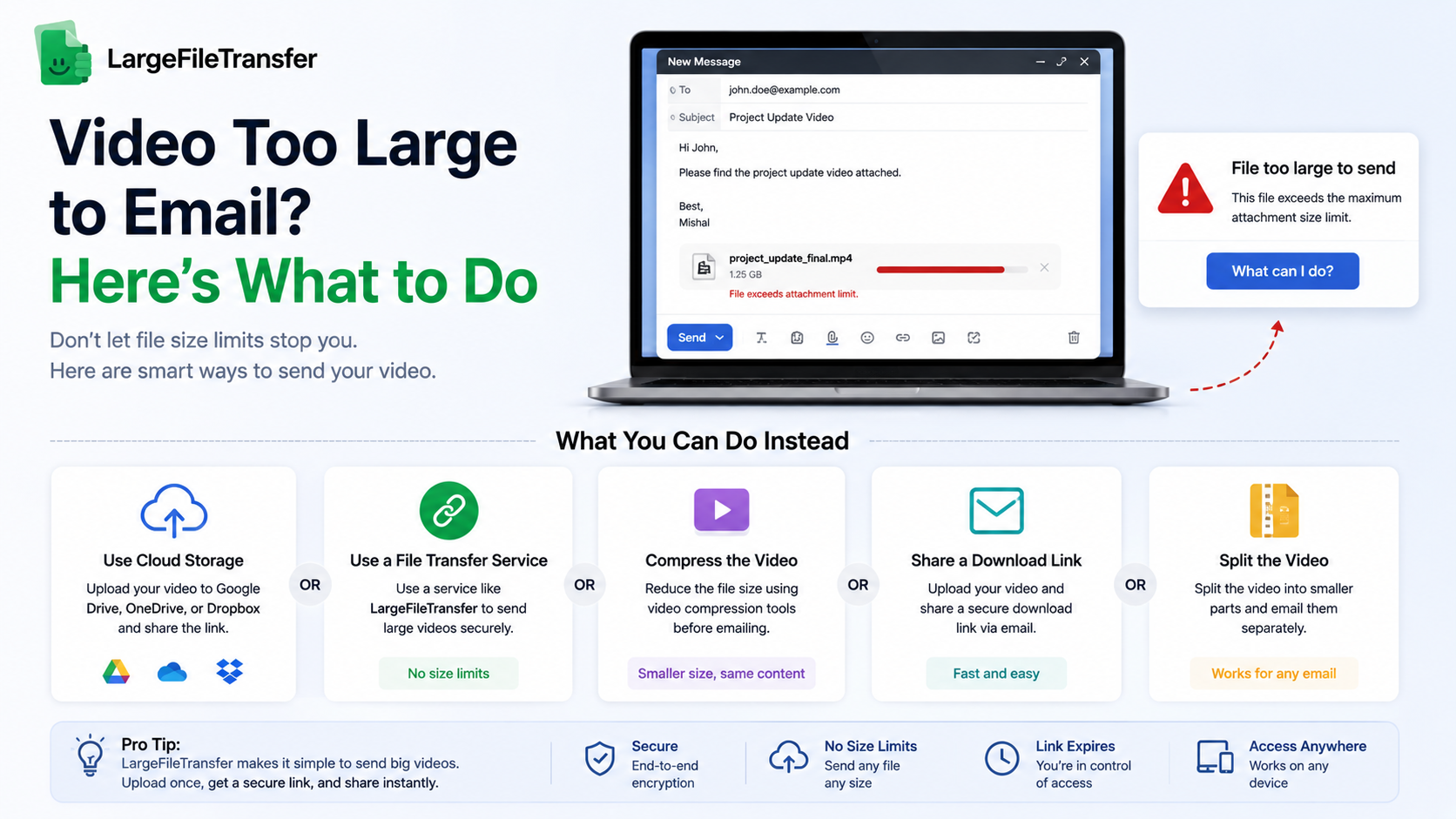
There are three other options depending on the situation: upload the video to cloud storage, compress the file, or split it into smaller parts. Below are all four options, ranked by how much video quality each method preserves.
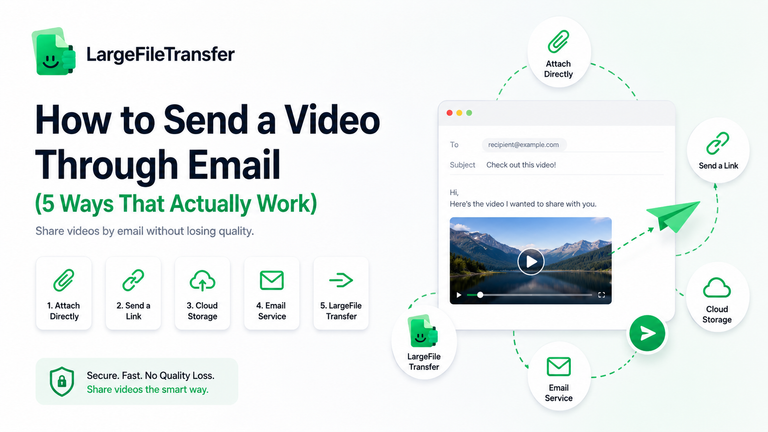
The Four Ways to Send a Video That’s Too Large
The 4 real ways to send a video that’s too big, sorted in order of best to worst quality retained. The first two do not make any changes to the original file, but compression or splitting offer compromises between quality and convenience.
- Send a Link
Linking the video retains the full original quality and is usable, irrespective of video file size. It is the best choice if you want the recipient to get the exact same file as you recorded.
- Upload to Cloud Storage
Cloud storage is much like sending a link, but depends on the service used, like Google Drive or iCloud. The recipient will require the service’s app or an account to view or download the file in a comfortable manner.
- Compress the File
You can reduce the size of a video so that you can attach it to an email, but when you compress a video, you will typically be sacrificing some video quality. More or less quality is lost depending on how aggressively the video is compressed.
4. Split the File
When there is no other option, dividing large videos into smaller parts may be a viable solution. The recipient needs to download several parts and then put them together to view the full video.
For a broader comparison of large-file methods, see our guide to sending large files with free methods ranked by file size.
Why Sending a Link Is the Best Option?
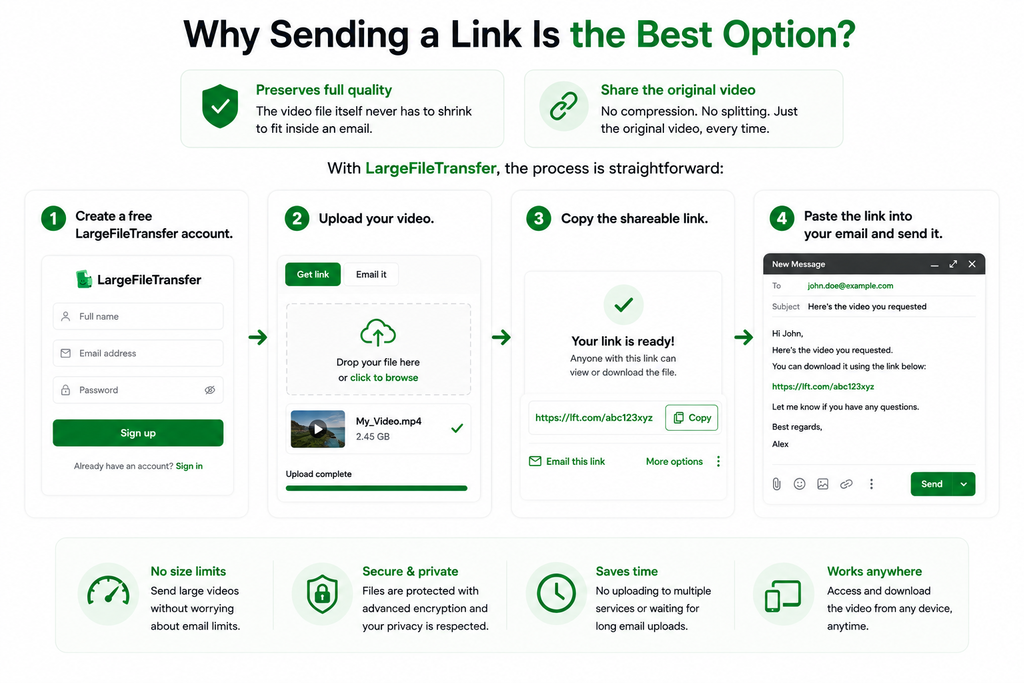
A link preserves full quality because the video file itself never has to shrink to fit inside an email, only the link, which is just text, gets sent. You can share the original video without compressing it or splitting it into smaller pieces.
With LargeFileTransfer, the process is straightforward:
- Create a free LargeFileTransfer account.
- Upload your video.
- Copy the shareable link.
- Paste the link into your email and send it.
The free plan supports up to 10 GB per file, 3 transfers per month, and 3-day link expiry. The recipient can access the shared file without creating an account.
Upload your video now and get a shareable link, no compression, no quality lost.
The Real Math on Compressing a Large Video
A large video can sometimes be compressed enough to fit an email attachment limit, but the bigger the reduction, the more noticeable the quality loss becomes. Here is what that trade-off looks like in practical terms:
- A 2 GB video → 25 MB attachment: That cuts the file size by roughly 98%, leaving far less data to preserve the original image quality.
- Expect visible quality loss: At that level of compression, footage can show blur, blockiness in motion, and muddy fine details, particularly in busy or fast-moving scenes.
- Why compression causes this: Video compression works by removing visual information and reducing the data needed to represent the footage.
- There is a limit: Moderate compression can reduce file size without obvious changes, but pushing a 2 GB video down to 25 MB forces the encoder to discard information the viewer can see.
- The practical takeaway: A heavily compressed video may meet an attachment limit, but the trade-off is a noticeably poorer version of the original.
If you actually came here looking for the Gmail-specific solution, continue with our guide to sending large files through Gmail beyond the 25 MB limit.
When Each Option Is Actually the Right One?
If it’s worth even a little bit, send a link. Cloud storage is fine for those who already use Google Drive or iCloud; compression is OK in short, casual clips in which quality really doesn’t matter; splitting is the last choice.
- Send a Link: Choose this when you want to preserve full video quality or when the file is very large and cannot realistically be attached to an email. No loss of quality for a reduced size, the original file remains the same.
- Use cloud storage: If you are already using an ecosystem like Google Drive or iCloud, and it is acceptable to the recipient, this is an option. When both parties are familiar with the platform, it’s convenient.
- Compress the video: If a video is short and casual, then choose to compress the video, because a slight loss of quality wouldn’t matter. Not ideal for significant shots, high resolution recordings or any shot in which you want the detail to be captured.
- Split the file: Use this when other options are not available or if the recipient agrees to download and merge several parts to get the full file. It also requires additional effort for everyone, as it is the least convenient choice.
End Notes
If your video is too large to email, choose a link when preserving quality matters, cloud storage when ecosystem convenience matters, compression when a smaller file is acceptable, and splitting only as a last resort.
Ready to send the original video without compressing it? Upload your video through LargeFileTransfer and share the generated link.
Frequently Asked Questions
- Why does my video say “too large” in Gmail?
Gmail has a 25 MB attachment limit, so videos larger than that cannot be sent as standard email attachments. Gmail may instead prompt you to use Google Drive to share the file as a link.
- Does compressing a video always ruin the quality?
No, moderate compression can reduce a video’s file size without making the quality noticeably worse. However, aggressively shrinking a large video to meet a small attachment limit can cause visible blur, blockiness, and loss of detail.
- Is there a way to send a large video with no quality loss?
Yes, you can send a large video as a shareable link instead of compressing it into an email attachment. Because the original video remains intact, the recipient can access the file without the quality loss caused by heavy compression.
- How long does a shared video link last?
A LargeFileTransfer shared video link on the free plan lasts 3 days before it expires. If the recipient needs access after that period, you would need to create and share a new transfer.
- Can I send a video that’s several gigabytes in size?
Yes, LargeFileTransfer’s free plan supports videos up to 10 GB per file. For files within that limit, you can upload the original video and share its link instead of trying to squeeze it into an email attachment.