How to Share Large Files With a Client: 5 Easy Methods
Your video, photo gallery, design file, or report is ready, but email just rejected the attachment when you tried to share large files with a client. Most email providers limit attachments to around 25MB, and larger attachments can also upload slowly or fail midway.
The easiest fix is to upload the file once and give your client a simple way to access it.
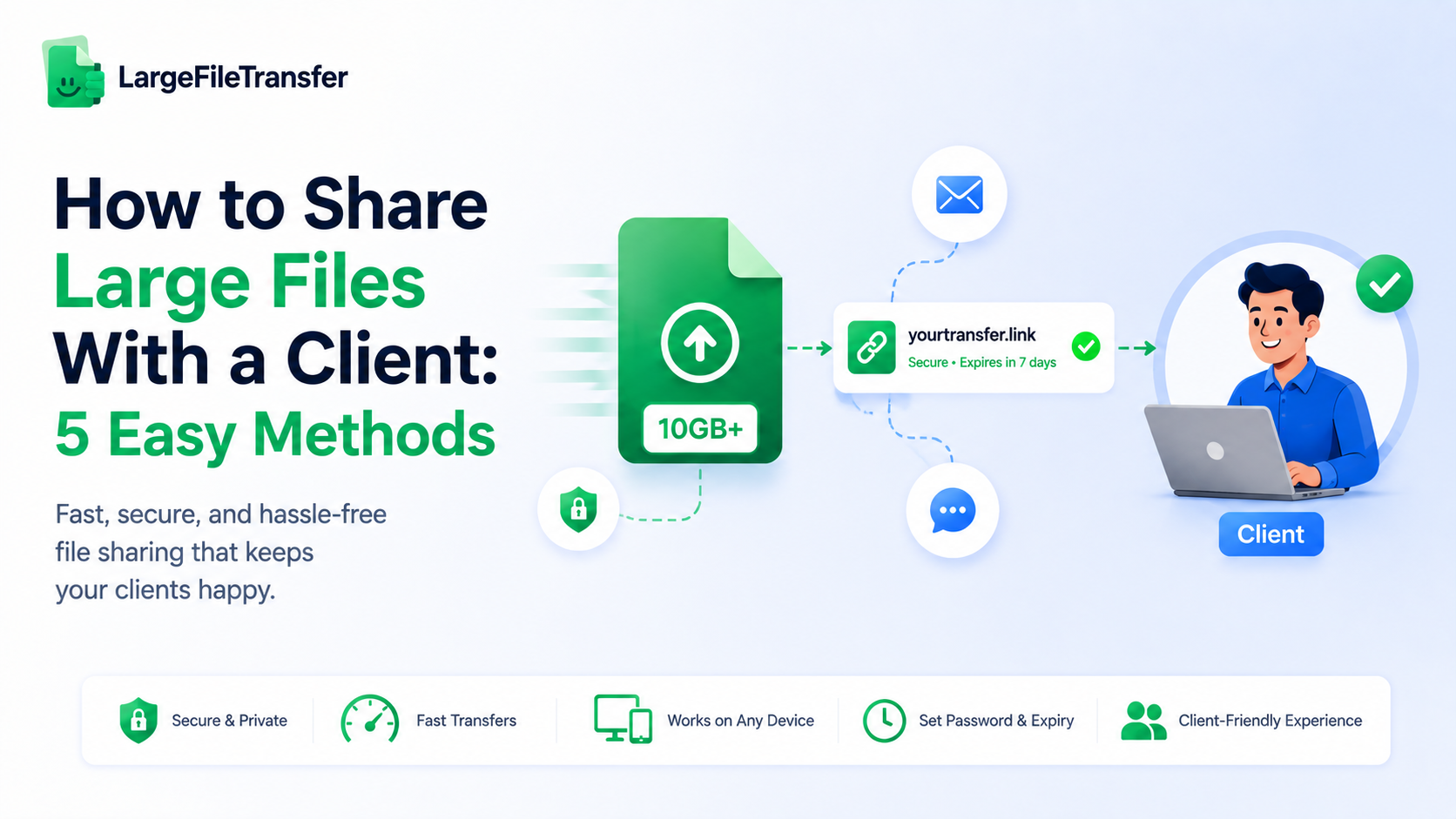
The fastest, most reliable way to share a large file with a client is to upload it once and send a download link instead of attaching the file. This avoids email limits and lets your client download the file without needing a specific account or software.
This guide covers the easiest method, other ways to send large files, and simple steps for keeping client files secure.
Why Email Doesn’t Work for Client File Delivery?
Most email services limit attachments to around 20–25MB, with encoding overhead reducing the usable file size to roughly 17–18MB. That makes email unreliable for sending large videos, photo galleries, design files, and reports.
Here are the main problems you can run into:
- Your email may be rejected: Files above the limit can fail to send or trigger an error.
- Large files upload slowly: Big attachments can take longer to upload, download, or send successfully.
- You cannot track downloads: Standard attachments do not show whether your client opened or downloaded the file.
- Attachments use inbox storage: Large files consume storage in both your mailbox and your client’s.
- You lose control after sending: You usually cannot set an expiry date or remove access later.
A common workaround is using a cloud-storage link when a file is too large for email. However, clients may still need to sign in, request access, or create an account before downloading it.
How to Share Large Files With a Client: Step-by-Step?
This method works for any file size that email cannot handle and requires nothing from your client.
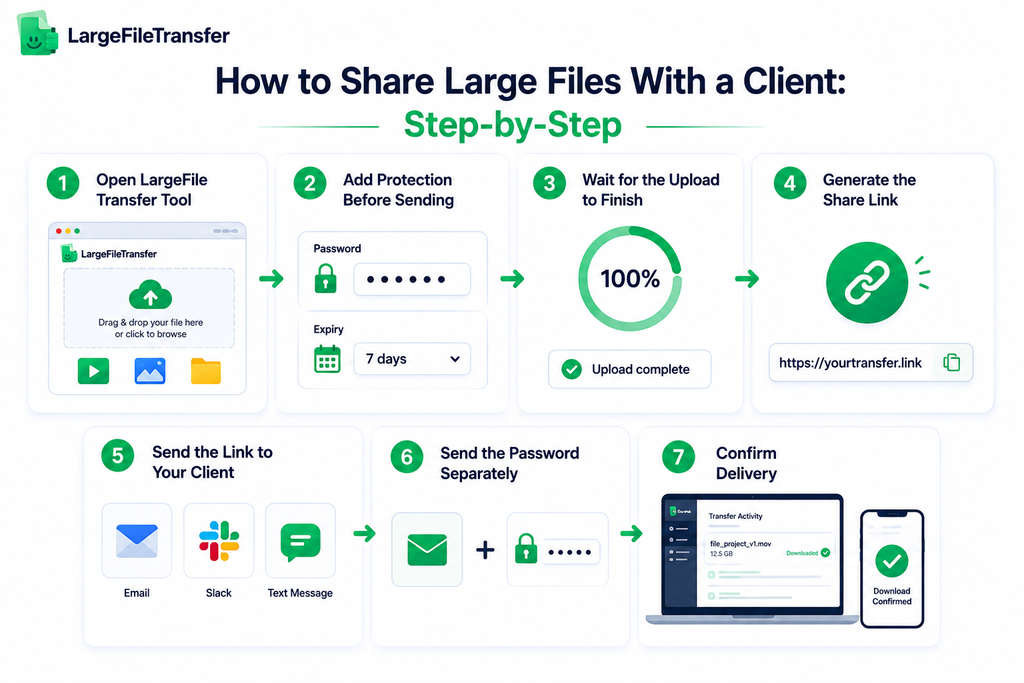
Follow these steps to send the file quickly while keeping delivery simple and secure:
- Open a link-based file transfer tool: Go to LargeFileTransfer and drag your file into the upload area, or select it from your device.
- Add protection before sending: Set a password and expiration date when needed, especially for private or sensitive files. Setting these controls before sharing prevents you from sending an unprotected link and changing access afterward.
- Wait for the upload to finish: Keep the upload window open until the file reaches 100% and the transfer tool confirms that the upload is complete. Do not share the link before completion, because the client may not be able to access the full file.
- Generate the share link: Once the upload is complete, create the shareable link provided by the transfer tool. The link gives your client access without sending the large file through email.
- Send the link to your client: Share the link through your usual channel, such as email, Slack, or a text message. The link remains small regardless of how large the file is behind it.
- Send the password separately: For sensitive files, send the password through a different channel from the link. A password shared alongside the link offers little protection if someone intercepts or forwards the message.
- Confirm delivery: Check for a download confirmation if the transfer tool provides one, or ask your client to confirm that they received the file.
The process usually takes only a few minutes of sender effort, depending on your upload speed and file size. Link-based transfer keeps large files out of email and makes client delivery much simpler.
Need to send a video specifically? See our guide on how to turn a video into a shareable link for the exact video-sharing steps.
Other Ways to Share Large Files With Clients
Link-based transfer is not the only option, but these alternatives can make sense for specific client delivery needs.
- Cloud Storage Links
Best for: Ongoing access to shared files, folders, or project assets.
Good choice when:
- Your client needs access to the same files repeatedly.
- You are managing an ongoing project with several deliverables.
- You need a shared folder for revisions, assets, or collaboration.
Potential drawback: Some platforms require clients to sign in, create an account, or request permission before downloading.
Easier alternative: Some file-sharing tools let clients download files without creating an account, which works better for one-time deliveries.
- Physical Drives
Best for: Extremely large datasets, unreliable internet, or physical delivery requirements.
Good choice when:
- You are transferring hundreds of gigabytes or several terabytes.
- Internet access is too slow or unreliable for large uploads.
- A project requires a physical chain-of-custody record.
Potential drawback: Shipping adds cost, delivery time, and extra handling.
For most client work: Physical drives are rarely necessary for typical photography, design, video, or freelance projects.
- FTP/SFTP
Best for: Technical or enterprise clients with existing file-transfer systems.
Good choice when:
- Your client already uses an FTP or SFTP server.
- You need recurring or automated file transfers.
- Controlled user access and permissions are required.
Potential drawback: Setup can involve servers, credentials, permissions, and technical knowledge on both sides.
For one-time sends: FTP/SFTP usually creates more setup than a typical client delivery needs.
- Messaging Apps
Best for: Smaller files that need to reach a client quickly through an existing chat.
Good choice when:
- The file is small enough for the platform’s upload limit.
- Your client already communicates with you through the app.
- You need to send a quick draft, preview, or lightweight deliverable.
Potential drawback: File-size limits, compression, retention rules, and download controls vary between platforms.
For large final files: Messaging apps are usually better for quick previews than full-resolution videos, photo galleries, or large project archives.
For most client projects, link-based transfer remains the easiest default because it requires little setup from either side.
How to Keep Client File Deliveries Secure?
The biggest security risk in client file delivery is usually not the transfer itself, but a link that never expires or stays accessible indefinitely. Another common mistake is sending the password through the same channel as the link, which offers little protection if that message is intercepted or forwarded.
To keep client files secure, make these six checks before sending anything:
- Set an expiration date: Use 30–90 days for most client work instead of leaving the file accessible indefinitely.
- Password-protect sensitive files: Add a password when a delivery contains private, confidential, or valuable client information.
- Send the password separately: Send the file link by email and the password by text or another separate channel.
- Check the encryption: Choose a service that protects files during transfer and storage, such as LargeFileTransfer’s end-to-end encryption.
- Test the download first: Download the file yourself before sending it so you can catch upload or file errors before your client does.
- Create a new link for each delivery: Avoid reusing old links because this can keep previous files exposed longer than necessary.
Most of these checks take only seconds and are worth using even when a file does not seem especially sensitive. Good file security protects client trust, not just the files themselves.
Send your files securely from your browser with the LargeFileTransfer Chrome extension.
Common Mistakes to Avoid When Sending Files to Clients
A few small mistakes account for most client-delivery problems, and they are easy to avoid once you know what to check.
- Forgetting to set an expiration date
- Fix: Set the link to expire after 30–90 days, depending on how long the client needs access.
- Sending the password with the link
- Fix: Send the file link by email and the password through text or another separate channel.
- Not testing the download first
- Fix: Open the link, download the file, and confirm it opens correctly before sending it to your client.
- Requiring a cloud account
- Fix: Use a sharing method that lets clients download the file without signing up whenever possible.
- Not confirming receipt
- Fix: Ask the client to confirm delivery, or check the download status when your transfer tool provides it.
These simple checks can turn a file delivery into a smooth client experience instead of another follow-up email asking what happened.
Why Does LargeFileTransfer Works Well for Client Deliveries?
Every mistake above is easier to avoid with a tool designed to send finished files securely to people outside your organization. LargeFileTransfer keeps the process simple for one-time client deliveries without requiring the recipient to manage your workflow.
Here are the LargeFileTransfer features that directly address common client-delivery problems:
- 5GB per file on the free plan, with no client signup required: Send large videos, photo galleries, design files, and reports without asking clients to create an account.
- Password protection and custom expiration dates: Add access controls before sharing the file, then limit how long the link remains available. See available plans and features.
- End-to-end encryption in transit and at rest: LargeFileTransfer encrypts files while they are being transferred and while they are stored.
- Resumable uploads: If your internet connection drops during a large upload, the upload can resume instead of forcing you to start from the beginning.
- Dedicated client share page: Creatives can use a client-facing page for delivering full galleries or project files, allowing clients to browse and download without creating an account.
Need to get the file to your client before the deadline?
Final Notes
The right way to share a large file with a client is to upload it once and send a secure link, not fight email attachment limits. This approach avoids failed attachments and removes the need to make clients create or use a cloud account for a one-time download.
Once the file is uploaded, client delivery takes under two minutes. Adding a password and expiration date takes only seconds more, so make both part of your standard delivery process.
Send your client the file now. Upload it and create a client-ready link in under a minute, free and with no signup.
FAQs
- What’s the fastest way to send a large file to a client?
The fastest way to send a large file to a client is to upload the file to a file-transfer service and share the generated link. A client can then download the file directly without receiving a large email attachment.
- Can I share a large file with a client without them creating an account?
Yes, you can share a large file with a client without requiring the client to create an account when the file-transfer service supports account-free downloads. LargeFileTransfer allows clients to download shared files without creating an account.
- How do I send a large file to a client securely?
To send a large file securely, use a file-transfer service with encryption, password protection, and link expiration controls. Send the password through a separate communication channel and test the file download before sharing the link with the client.
- Is there a free way to share large files with clients?
Yes, LargeFileTransfer offers a free plan that lets users send files up to 5GB per file without paying for a subscription. The free plan is suitable for client deliveries that fall within the service’s file-size and transfer limits.
- How long should a file-sharing link stay active for a client?
A file-sharing link should usually remain active for 30–90 days for a standard client delivery. The appropriate expiration period depends on how long the client needs access, with shorter periods suitable for sensitive files.