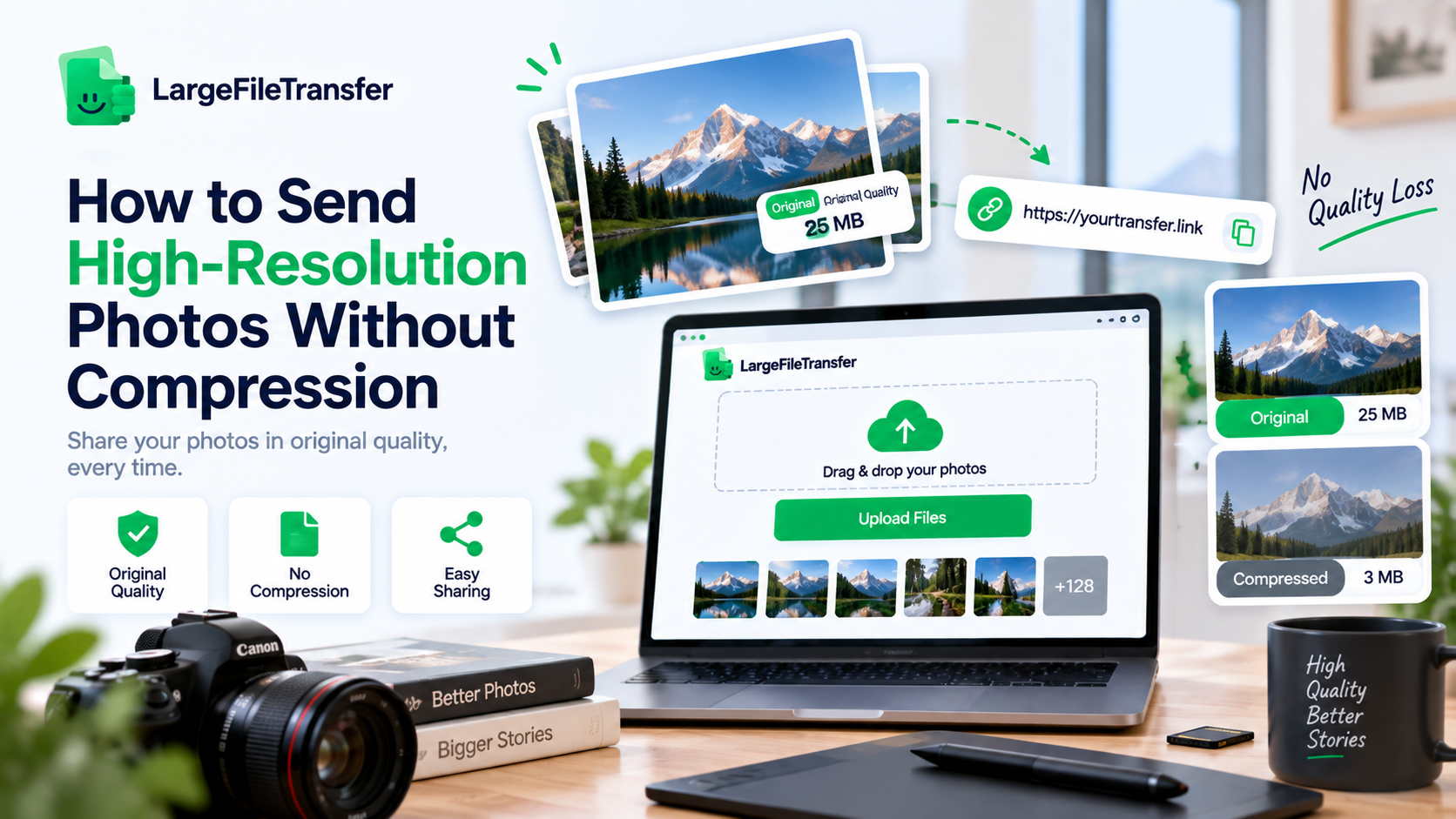
How to Send High-Resolution Photos Without Compression
To send high resolution photos without compression, avoid photo attachments and share a link to the original file instead.
Messaging apps and some email services can silently shrink and re-encode photos to reduce bandwidth. The sender may not notice, but the recipient gets a softer, lower-detail copy.This guide explains why compression happens, how much common apps actually compress photos, and which methods preserve every pixel. You’ll also learn when sending an image as a document works better than using a standard photo upload.
For photographers, reliable transfer matters because resizing can reduce detail in high-resolution originals. The article covers export settings, batch delivery, and JPEG, PNG, TIFF, and RAW files, helping you choose the right way to send individual photos or complete galleries.
Why Do Photos Get Compressed When You Send Them?
Photos are compressed because apps reduce bandwidth and storage demands, not because compression protects image quality.
What Actually Changes During Compression?
Two processes commonly affect a photo during sending:
- Resizing
The service reduces the image’s pixel dimensions, such as changing a 6000 × 4000 image to a smaller resolution. - Re-encoding
The service saves the image again using stronger JPEG compression, reducing file size while discarding some fine image information.
Both can happen together. A service may first reduce the pixel dimensions and then re-encode the smaller image before delivery.
Common Triggers for Photo Compression
- Direct attachments: Sending the image itself can allow the platform to process and optimize it before delivery.
- Messaging apps: Photo-sharing systems often prioritize faster transfers, which can trigger resizing or re-encoding.
- Size limits: Exceeding a platform’s media or attachment limits can cause automatic resizing to meet its requirements.
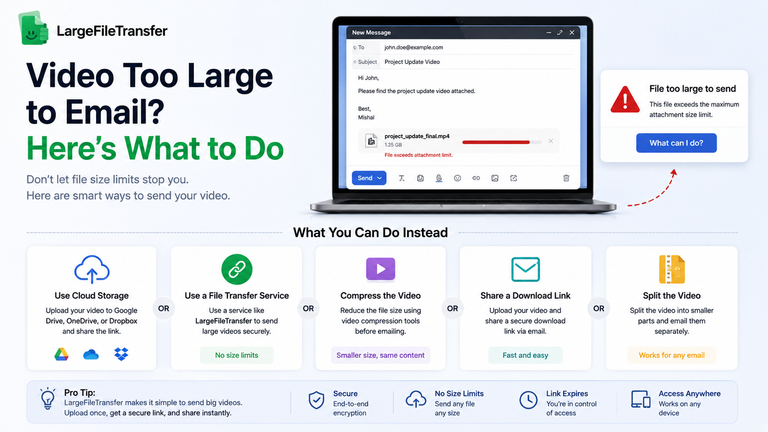
Want to understand other quality-loss risks? See 7 ways to send large files without losing quality.
These mechanisms explain why photo compression varies by platform, which the next section compares using specific app behavior.
How Much Do Popular Apps Actually Compress Your Photos?
Compression varies by service, upload mode, file type, and whether you send an image as media or an original file.
Here’s what actually happens to your photo in each case.
- Email attachments
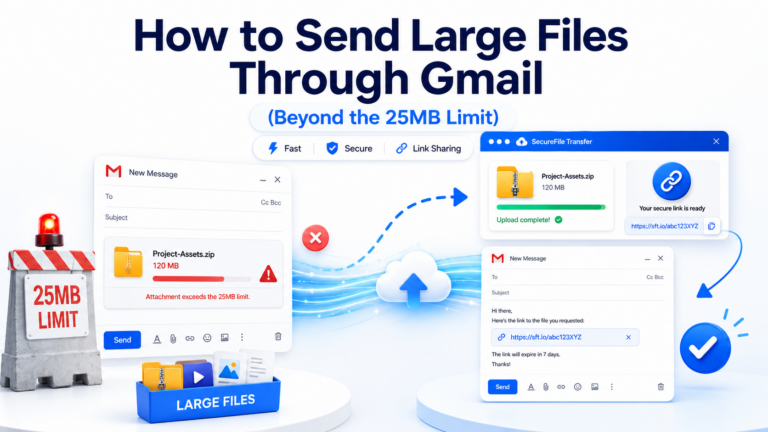
Email itself does not always compress photos, but attachment limits can change how large files are delivered. Gmail personal accounts limit attachments to 25 MB, then use Google Drive links instead of downsizing oversized files.
- iMessage and WhatsApp
When photos are sent through iMessage, they can retain more quality than SMS or MMS, which may compress attachments to meet message limits. WhatsApp’s HD mode preserves substantially more detail than Standard quality, but still does not guarantee the untouched camera original. Reported HD output can reach roughly 4,096 pixels on the long edge.
- Google Photos and social media
Google Photos can preserve the original resolution when uploads use Original quality, while Storage Saver may reduce quality or resolution. Social platforms commonly process uploaded images according to their own display specifications, regardless of the original resolution.
How to Send High-Resolution Photos Without Compression?
Three practical methods can preserve the original photo file when the right settings or sharing option are used.
Here’s how each method works and what to check before sending your photos.
Cloud storage with “original quality” enabled
Cloud storage can preserve the original file, but only when the service uses an original-quality setting.
- Choose original quality: Select the setting that keeps the uploaded file at its original resolution.
- Avoid storage-saving modes: Google Photos says Storage Saver compresses photos and resizes images above 16 MP to 16 MP.
- Key caveat: A cloud service can still reduce image quality if a storage-saving setting is enabled.
Direct file-transfer links
Direct transfer services are useful when you need to send the uploaded file without image-processing steps.
- Upload once: Add the original JPEG, TIFF, PNG, or RAW file to the transfer service.
- Share the link: The recipient downloads the uploaded file directly instead of receiving a processed preview.
- Key caveat: Choose a service that explicitly preserves the original file without compression or re-encoding.
- For photographers: Send high resolution photos without compression with LargeFileTransfer, which supports high-resolution images and RAW files without compression.
Send as a document, not a photo
Some messaging apps process images differently depending on whether you send them as photos or files.
- Choose the file option: Select the document or file attachment option instead of the standard photo picker.
- Upload the original: Choose the image directly from your device’s file storage.
- Why it helps: Sending the image as a file can bypass the platform’s image-specific resizing and re-encoding.
- Key caveat: This method depends on the app and recipient workflow, so verify the downloaded file afterward.
Export Settings That Preserve Full Resolution Before You Send
No sharing method can restore detail that was already removed when the photo was exported at reduced quality.
Before sending client photos, check these four export settings to preserve the maximum available resolution and image data.
- Image Quality: 100 or Maximum
- Set quality to 100 or Maximum: Use the highest available JPEG quality setting when exporting photos for client delivery.
- Why it matters: JPEG remains a lossy format, but the highest setting minimizes additional compression during your export. Adobe confirms Lightroom quality ranges up to 100 for JPEG output.
- Dimensions: Full or Original Pixel Size
- Keep the original dimensions: Disable resizing or choose the largest available dimensions instead of a web-sized export preset.
- Check the pixels: A 6000 × 4000 photo should remain 6000 × 4000 unless the delivery requirement specifies smaller dimensions.
- Why it matters: Pixel dimensions determine the actual image resolution, while the PPI value alone does not reduce or preserve those pixels. Lightroom and Capture One both provide separate controls for dimensions and output scaling.
- Color Space: sRGB
- Choose sRGB for general client delivery: This color space provides broad compatibility across browsers, operating systems, phones, and common viewing applications.
- Why it matters: Color space does not determine resolution, but choosing a widely supported profile reduces unexpected color differences during everyday client viewing.
- Use another profile deliberately: Keep Adobe RGB or other wider-gamut profiles when your client or production workflow specifically requires them.
- File Format: JPEG or TIFF
- Use JPEG for most deliveries: JPEG provides high-quality photographs with substantially smaller files than TIFF, making galleries easier to transfer.
- Use TIFF selectively: Choose TIFF when a client, printer, editor, or publication specifically requests it for their workflow.
- Why it matters: TIFF can use lossless compression, while JPEG reduces file size by discarding image data during encoding.
Final Check Before Sending
These settings take less than a minute to verify and prevent many client complaints about unexpectedly soft exports.
Always inspect the exported file’s pixel dimensions, file size, and format before uploading or sharing the final gallery.
Photographer tip: Need to deliver original-resolution files without adding another compression step? Explore LargeFileTransfer for photographers.
How to Send Many High-Resolution Photos at Once?
Sending dozens or hundreds of high-resolution photos requires a different workflow than sending one or two images individually.
At larger volumes, the priorities become batch transfer, original-file preservation, organization, and simple client access.
- Choose the Right Delivery Method
| Delivery method | Best for | Main advantage | Main limitation |
| Transfer link | Finished galleries | One upload and one download link | Limited proofing features |
| Client gallery | Review and selection | Built for viewing and client feedback | More setup than simple file delivery |
- Transfer the Complete Batch
Use a link-based transfer when the photos are finished and the client simply needs the files.
- Upload: Add the complete collection as a batch rather than sending individual images.
- Organize: Preserve folders and filenames where the service supports them.
- Share: Send one download link instead of managing multiple attachments.
- Best for: Weddings, portraits, events, and completed commercial projects.
This makes it easier to send full resolution photos while keeping hundreds of files together.
2. Use a Client Gallery
Choose a gallery when clients need to review, select, comment on, or approve photographs before final deliver
- Review: Let clients browse the collection without downloading everything immediately.
- Select: Support favorites, approvals, or image-selection workflows where available.
- Deliver: Provide final high-resolution downloads after the selection process is complete.
Keep Large Batches Easy to Navigate
Before uploading, use consistent filenames and a logical folder structure so clients can locate photographs quickly.
Simple structure:
Wedding → Ceremony → Reception → Portraits
For hundreds of images, organized folders and predictable filenames can save more time than repeatedly sending individual files.
For larger galleries: One download link is often simpler than sending dozens of individual attachments. Send large photography files.
JPEG vs. TIFF vs. PNG vs. RAW- Which Should You Send?
For most photo delivery, send a high-quality JPEG; reserve TIFF, PNG, and RAW for specific production needs.
| Format | Best use | Why |
| JPEG | Most client photo delivery | Small files, broad compatibility, and excellent quality at high export settings |
| TIFF | Professional editing workflows | Larger files provide lossless or high-bit-depth editing flexibility |
| PNG | Graphics and screenshots | Supports transparency and lossless encoding, but creates larger photographic files |
| RAW | Retouching or source-file delivery | Preserves camera sensor data for extensive editing and post-production |
- JPEG
- JPEG works best for most deliveries because it balances image quality, file size, and compatibility across devices.
- At maximum quality, JPEG preserves extensive visible detail while remaining considerably smaller than TIFF or RAW files.
- TIFF
- TIFF is appropriate when clients specifically need maximum editing flexibility or lossless image data for production workflows.
- It creates substantially larger files, making it unnecessary for ordinary gallery delivery or everyday client downloads.
- PNG
- PNG works best for graphics, screenshots, logos, and images requiring transparency rather than conventional photographic delivery.
- Its lossless encoding can produce larger files than JPEG, especially when used for detailed photographic images.
- RAW
- RAW files are best reserved for retoucher handoffs, editorial workflows, or clients specifically requesting original camera files.
- They retain substantially more source information than rendered JPEGs, but require compatible software and deliberate post-processing.
What “Without Compression” Means for JPEG?
JPEG is inherently a compressed format, so sending a JPEG without compression technically means avoiding additional processing after export.
Choosing maximum quality can minimize visible degradation, but JPEG still discards some information during its original encoding process.
For a deeper look at image formats and compression, this guide breaks down the key differences.
How to Tell If a Photo Was Compressed After Sending?
The fastest check is comparing the received file size and pixel dimensions against the original you sent.
- Check file size: A dramatic drop in megabytes can signal re-encoding, although file size alone cannot confirm compression.
- Check dimensions: Compare width and height with the original; reduced pixel dimensions confirm the image was resized.
- Zoom into detail: Inspect hair, fabric, or foliage for softened textures, blocky edges, or unusual detail loss.
- Check the format: Compare the actual file format with your original because JPEG files can be re-encoded without changing extensions.
Tell recipients the expected file size and dimensions beforehand, allowing them to verify the download immediately.
Final Notes
The most important habit is simple: share a link to the original file, then verify export settings before sending. This workflow eliminates the most common causes of unwanted resizing, re-encoding, and reduced-resolution delivery covered throughout this guide.
Before uploading, check the image dimensions, quality setting, file format, and color space to confirm the export matches your intended delivery. Then use a transfer method that preserves the uploaded file rather than processing it during delivery.
Ready to deliver your next gallery? Send high-resolution photos without compression with LargeFileTransfer and share one download link with your client.
FAQs
- How do I send high-resolution photos without compression?
The most reliable method is uploading the original files to a transfer service and sharing a download link. LargeFileTransfer sends uploaded high-resolution JPEGs and RAW files without compression or re-encoding, so recipients download the original files.
- Why do my photos look blurry after I text them?
Your photos may look blurry because messaging services can resize or re-encode images before delivery. This reduces pixel dimensions or image detail, even though the original photo on your device remains unchanged.
- Does WhatsApp compress photos even with the HD option?
Yes, WhatsApp’s HD option provides higher-quality media than Standard quality but does not guarantee the untouched original file. WhatsApp describes HD as clearer while noting that connection conditions can still affect received media quality.
- Does Google Photos compress images?
Google Photos preserves photos at their original resolution when you use Original quality instead of Storage saver. Storage saver compresses photos and resizes images above 16 megapixels to 16 megapixels.
- What’s the best file format to send without losing quality?
High-quality JPEG is best for most photo delivery because it offers strong image quality, smaller files, and broad compatibility. TIFF suits professional editing, while RAW is better for retouching or original-camera-file handoffs.
- Can I stop email from compressing my photo attachments?
Use an original-file link instead of relying on email attachments when preserving the exact photo matters. Gmail personal accounts allow attachments up to 25 MB and automatically convert larger attachments into Google Drive links.
- What’s the best way to send many high-resolution photos at once?
For large collections, upload the complete batch to a file-transfer service and share one download link. LargeFileTransfer supports whole galleries and RAW files while preserving the uploaded files without compression or re-encoding.
- Is a JPEG always compressed?
Yes, JPEG is a compressed format by design, even when exported at the highest quality setting. Maximum-quality export minimizes additional visible degradation, while later re-encoding can introduce further quality loss.