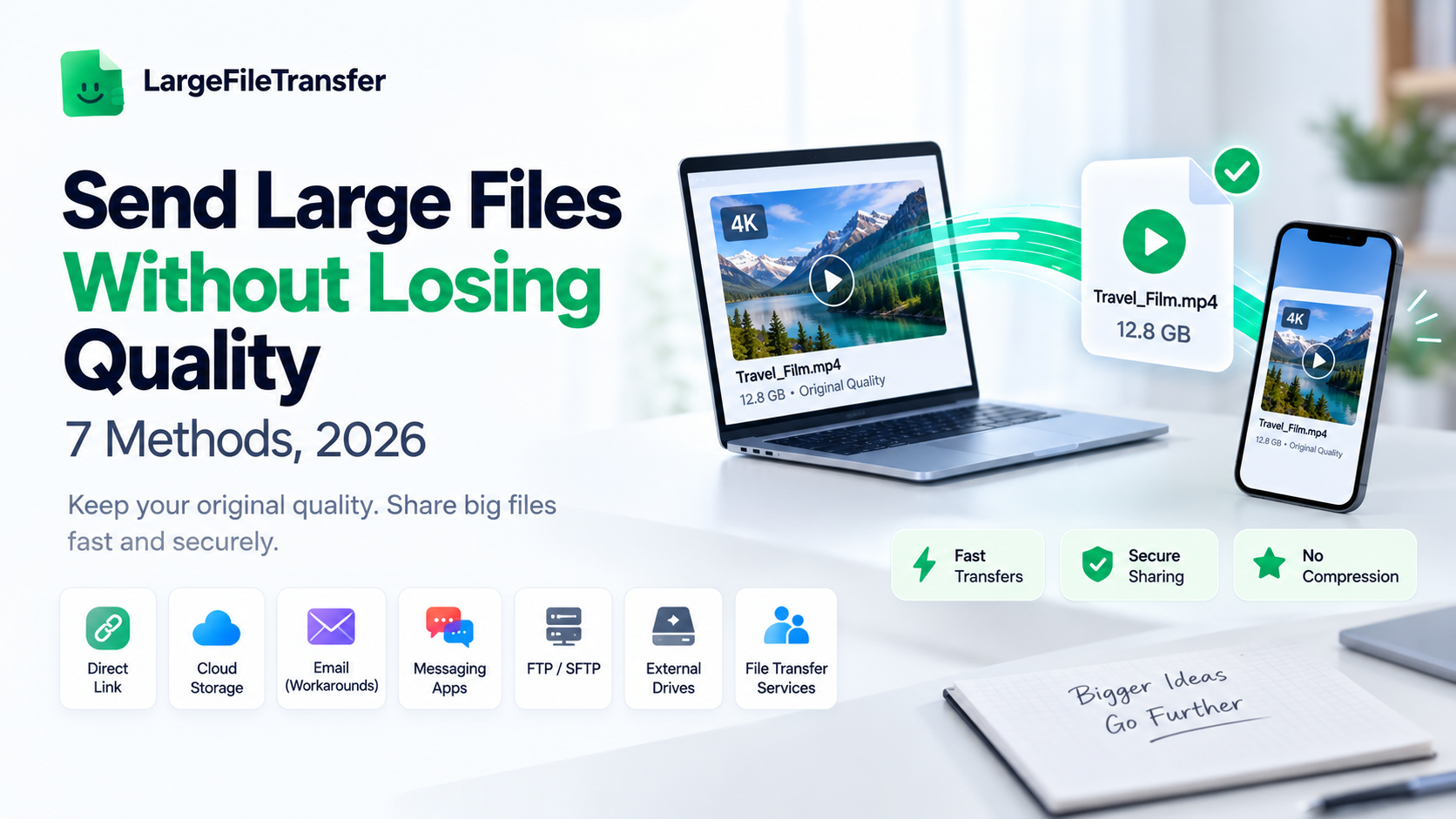
Send Large Files Without Losing Quality (7 Methods, 2026)
Trying to send large files without losing quality gets frustrating when a 2 GB upload fails after waiting twenty minutes. The fastest way to avoid quality loss is to skip compression entirely and send original files through a direct transfer link.
This guide is for video editors, designers, photographers, and office workers who regularly need to share large files. We’ll cover why quality gets lost, seven ways to avoid it, and which methods work best for different file types.
Why Do Large Files Lose Quality When You Send Them?
Large files usually lose quality because of compression, automatic platform recompression, or repeated upload and download cycles.
Knowing where quality changes happen makes it easier to send files without compression and preserve the original file.
- Lossy vs. Lossless Compression
Lossy compression permanently removes some data to make files smaller, while lossless compression reduces size without removing information.
JPEG, MP3, and most video codecs use lossy compression, while ZIP, PNG, and RAW formats use lossless methods.
Here’s what that means in practice: lossy compression can remove details permanently, while lossless compression keeps the original data intact.
- Automatic Recompression by Email and Messaging Apps
Some platforms process photos and videos during sharing, reducing their file size before delivery.
WhatsApp, for example, says photos and videos are usually compressed when shared as standard media.
Here’s what that means in practice:
- WhatsApp can reduce photo and video quality through standard media sharing.
- Its HD option provides higher-quality media but does not preserve every original detail.
- Gmail generally uses Google Drive links when attachments exceed its size limit.
- Repeated Upload/Download Cycles
Moving a file through several apps or editing tools can introduce unnecessary changes before it reaches the recipient.
This is especially risky when a team repeatedly exports, uploads, downloads, edits, and resaves the same working file.
Here’s what that means in practice: sending the original once is usually safer than passing it through several platforms.
A five-step workflow gives more opportunities for file properties, resolution, or quality settings to change.
7 Ways to Send Large Files Without Losing Quality
These seven methods move from the fastest, simplest option to more technical approaches for larger or specialized transfers.
Start with the first method that fits your file size, delivery needs, and whether the recipient is remote.
Here are seven ways that actually preserve quality:
- Use a Direct Transfer Link Instead of an Attachment
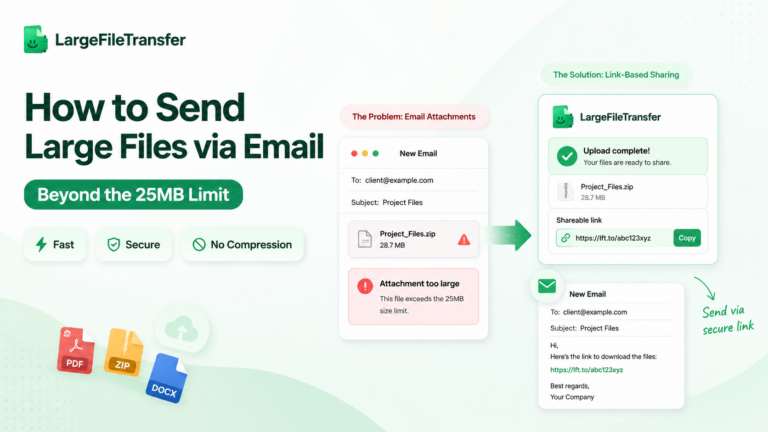
A direct transfer link sends the original file without forcing it through email attachment limits or messaging-app compression.
LargeFileTransfer lets you upload the original file and share it through a simple link with the recipient.
This approach works especially well for videos, RAW photos, design files, and other large originals.
- Upload to Cloud Storage at Native Resolution
Cloud storage preserves original files when uploads use their full-resolution or original-quality settings.
Check the upload settings for any option labeled compression, reduced quality, optimized media, or storage-saving conversion before starting.
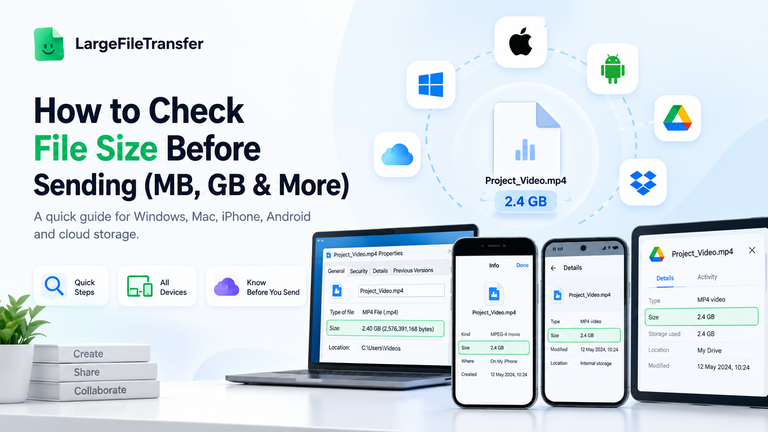
For large files, check your file’s exact size first to confirm the available storage space.
- Use an External Drive for In-Person Handoffs
An external drive provides a straightforward way to move the original file without compression, conversion, or internet transfer.
It is one of the fastest options for complete quality preservation when both people can access the same location.
The main limitation is simple: physical drives are not practical for remote clients or distributed teams.
- Install a Browser Extension for One-Click Sharing
A browser extension streamlines large-file sharing without requiring repeated visits to a transfer website.
The LargeFileTransfer Chrome extension makes sending files from the browser faster while keeping the transfer process straightforward.
This works well for recurring file deliveries where opening a separate transfer page becomes repetitive.
- Choose a Resumable Upload Service
Resumable uploads prevent a dropped connection from forcing the entire file to start uploading again.
Instead, the transfer continues from where the connection stopped, making large uploads more reliable on unstable networks.
This matters most for multi-gigabyte files, slower connections, and transfers made away from consistently reliable internet.
- Password-Protect the Link Instead of Zipping for Security
Password protection secures access to a transfer link without creating an unnecessary archive around the original file.
For already-compressed videos, photos, and audio, zipping rarely reduces the size enough to justify another processing step.
Use a password-protected transfer when access control matters, rather than treating ZIP files as a security requirement.
- Skip Re-Exporting or Re-Saving Before Sending
Send the original export instead of creating another web-ready, resized, or compressed copy just for delivery.Repeated exports can change resolution, bitrate, metadata, or other settings before the recipient even receives the file.
For finished work, keep a high-quality master and create delivery copies only when the recipient specifically needs them.
How to Send Large Files Without Losing Quality, by File Type
Different file types can lose quality in different ways, so the safest transfer method depends on what’s being sent.
Here’s how to protect the most common file types:
- Video Files
For video, the biggest risk is aggressive recompression, especially with large 4K and 8K footage.
Transfer the original render directly instead of letting a messaging app process the media before delivery.
Here’s what to do:
- Keep the original resolution, codec, and bitrate intact.
- Send finished renders through a direct link rather than standard media sharing.
- See our guide to sending large video files.
- Photos and RAW Images
With photos, automatic downsizing can reduce resolution when images pass through messaging apps or some cloud photo tools.
Upload full galleries as originals so RAW files and high-resolution images reach the recipient unchanged.
Here’s what to do:
- Upload the original RAW, TIFF, JPEG, or PNG files.
- Avoid standard photo-sharing modes that automatically optimize images.
- Learn more about sharing full-resolution photos.
- Design Files (PSD, AI, Sketch, Figma)
For design projects, generic sharing tools can strip layers, fonts, or linked assets, leaving only a flattened version.
Send the native working file so collaborators receive the editable project rather than an exported image.
Here’s what to do:
- Keep layers, artboards, fonts, and linked assets intact.
- Package required assets alongside the native project file.
- Avoid exporting to JPEG or PNG unless only a preview is needed.
- Audio Files
Audio quality can suffer when messaging platforms reduce bitrate during media sharing, particularly with larger recordings.
Send WAV or FLAC masters through a direct link instead of attaching compressed versions.
Here’s what to do:
- Preserve the original sample rate, bit depth, and bitrate.
- Send WAV or FLAC masters when production quality matters.
- Use sending audio files for larger recordings and masters.
- PDFs and Documents
For PDFs, online converters and some email gateways can compress embedded images and change the document unexpectedly.
Always verify that the recipient receives the same file size and version that was originally sent.
Here’s what to do:
- Compare the sent and received file sizes.
- Check image quality and page rendering after delivery.
- Avoid unnecessary online conversions before sharing the final document.
Need to send a PDF without attaching it directly? Learn how to create a shareable link for a PDF and make the file easier to deliver without changing the original.
The Fastest Way: Sending Files With LargeFileTransfer
LargeFileTransfer sends files at their original size and bitrate without background compression, re-encoding, or quality reduction.
The process uses a direct share link, so recipients download the same file that was originally uploaded.
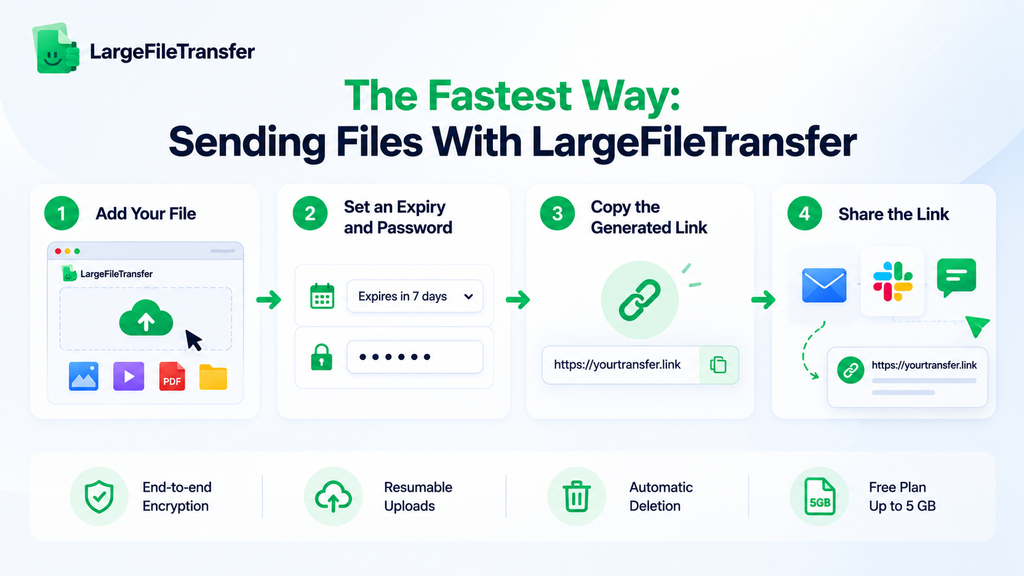
Here’s how to send a file with LargeFileTransfer:
- Step 1: Add Your File
Open LargeFileTransfer and drag your file onto the homepage or select it using the file picker.
- Step 2: Set an Expiry and Password
Choose when the transfer expires, then add a password when extra access protection is needed.
- Step 3: Copy the Generated Link
Once the upload finishes, copy the shareable link generated for your transfer.
- Step 4: Share the Link
Send the link through email, chat, or another preferred channel without attaching or compressing the file itself.
LargeFileTransfer also provides:
- End-to-end encryption: Files are encrypted both in transit and at rest.
- Resumable uploads: Interrupted uploads pick up where they left off instead of restarting.
- Automatic deletion: Files are automatically deleted when their transfer links expire.
The free plan currently supports up to 5 GB per file, with free transfers available without signup.
Start sending large files without losing quality
For larger transfers or additional features, compare plans.
4 Common Mistakes That Quietly Ruin File Quality
Most quality loss starts before the transfer, when everyday shortcuts change the original file without anyone noticing.
The transfer method still matters, but sending the wrong version can permanently reduce quality before delivery.
Here are four mistakes to avoid:
- Zipping Already-Compressed Files
Video, photo, and audio formats are already compressed, so ZIP usually saves very little space. It adds another step without a meaningful benefit and can create problems if the archive becomes damaged.
- Re-Exporting or “Optimizing for Web”
Creating a smaller copy before sending can reduce resolution, bitrate, or image quality. Once that reduced version is sent, those changes are already baked into the file.
- Sharing Through a Messaging App
Standard media sharing on apps like WhatsApp and Messenger can compress photos and videos automatically. A transfer link avoids that processing and keeps the original file intact.
- Screenshotting Instead of Sharing the Original
A screenshot turns a document, mockup, or high-resolution image into a raster copy. That can reduce detail, dimensions, and editability compared with sharing the original file directly.
Final Notes
File size itself does not reduce quality; compression and unnecessary processing are what change the original file. The safest approach is choosing a transfer method that leaves the original file untouched from upload through download.
For important videos, photos, designs, audio, and documents, preserving the original matters more than simply making delivery convenient. A direct transfer keeps the file as created, without adding another compression step between the sender and recipient.
Send your next file through LargeFileTransfer and skip the compression entirely.
Frequently Asked Questions
- Does Google Drive reduce file quality?
Google Drive does not recompress files uploaded directly, so files remain at their original quality and resolution. Google Photos is different: its Storage saver setting compresses photos and resizes larger images, while Original quality preserves them unchanged.
- How do I send a 4K video without losing quality?
Upload the original 4K export to a direct transfer link instead of sending it through email or messaging media.
- Does WeTransfer compress files?
WeTransfer states that files are sent exactly as uploaded, without compression, re-encoding, or resolution loss. Its free accounts currently support transfers up to 3 GB, while paid plans offer larger transfer capabilities.
- What’s the best way to send RAW photos?
Upload RAW photos directly as a batch to a transfer link that preserves their original resolution and metadata. This keeps the camera files intact instead of converting them into smaller, compressed versions during sharing.
- Does zipping a file reduce its quality?
No, ZIP compression is lossless, so extracting a ZIP restores the original file without changing its quality. However, ZIP barely reduces already-compressed formats like JPEG, MP3, and video, making it rarely worth the extra step.