How to Send Large Files Without Email (7 Free Methods)
The fastest way to send a large file without email is to upload it and share a download link. If your file is stuck because email rejects the attachment, this guide gives you seven ways to send it now.
Most email inboxes cap attachments around 20–25MB, making videos, presentations, and project files difficult to send directly. Fortunately, you can bypass attachment limits using free transfer, cloud storage, peer-to-peer, compression, messaging, and server-based methods.
We’ll compare seven free options, ranked from fastest to most niche, with practical guidance for choosing each method. You’ll also get a comparison table explaining encryption, passwords, links, and other safety considerations clearly. First, let’s look at why email attachments have limits and what happens when your file exceeds them.
Why Can’t You Just Email a Large File?
Every major email provider imposes attachment limits, restricting how much data can travel through ordinary email messages. These limits are enforced by the provider’s mail servers, so changing your email app cannot bypass them.
Here’s how the major providers compare.
| Provider | Attachment Limit |
| Gmail | 25 MB |
| Outlook.com / Microsoft 365 | 25 MB |
| Yahoo Mail | 25 MB |
| Apple iCloud Mail | 20 MB |
Even below the limit, large attachments can still cause delivery problems. Spam filters, recipient restrictions, and mailbox limits can block or reject messages. A delayed bounce-back can be especially frustrating when the file seems to send successfully.
Some providers automatically turn oversized attachments into cloud links instead. Gmail uses Google Drive for attachments exceeding 25 MB. Outlook also uses OneDrive for sharing larger files.
So if email won’t do it, what will?
The Fastest Way to Send Large Files Without Email
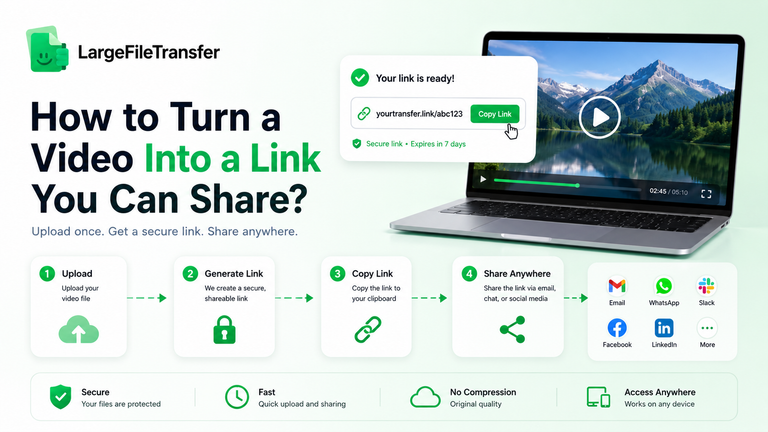
A dedicated file-transfer link is the fastest and most reliable way to send a large file without email.
Instead of forcing a huge attachment through your inbox, the file stays on a server until your recipient downloads it.
Here’s how to do it in under a minute using LargeFileTransfer.
- Go to largefiletransfer.com and drop your file into the upload box.
- Wait for the upload to finish, with no account or email required.
- Choose the expiry period that works for your transfer.
- Click Get a link and copy the download link you receive.
- Send that link through text, Slack, WhatsApp, or whatever your recipient actually checks.
What You Get for Free
- Up to 10 GB per file: Send large files without paying for each transfer.
- No credit card required: Start sending without entering payment details.
- 15 GB account storage: Keep your transferred files available in your account.
- Three transfers per month: Enough for occasional large-file sharing.
- Three-day link expiry: Shared files automatically become unavailable after three days.
Need More?
Paid plans offer larger file sizes, more storage, and higher transfer limits.
Compare the paid plans when your transfers outgrow the free option.
Why Does It Beat Email?
No attachment limits. No inbox clutter. No recipient account required.
6 Other Ways to Send Large Files Without Email
A dedicated transfer tool is usually fastest, but other methods can work depending on your file, recipient, and security needs.
Here are six alternatives, ordered roughly by how practical they are for everyday large-file sharing.
- Upload to Cloud Storage and Share a Link
Cloud storage is ideal when you already keep your files online and want one reusable sharing link.
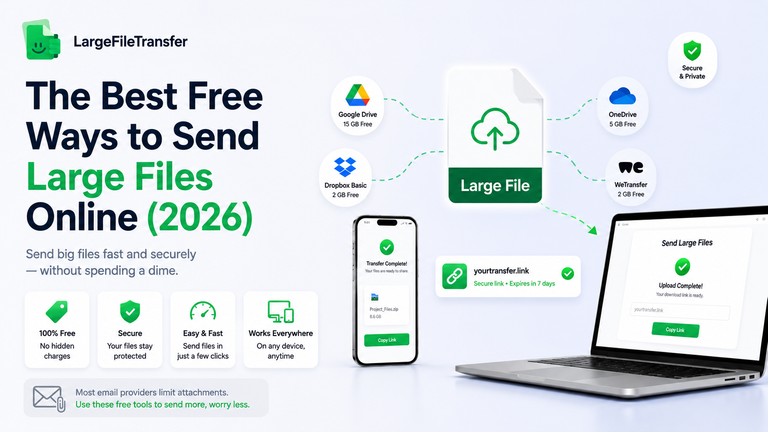
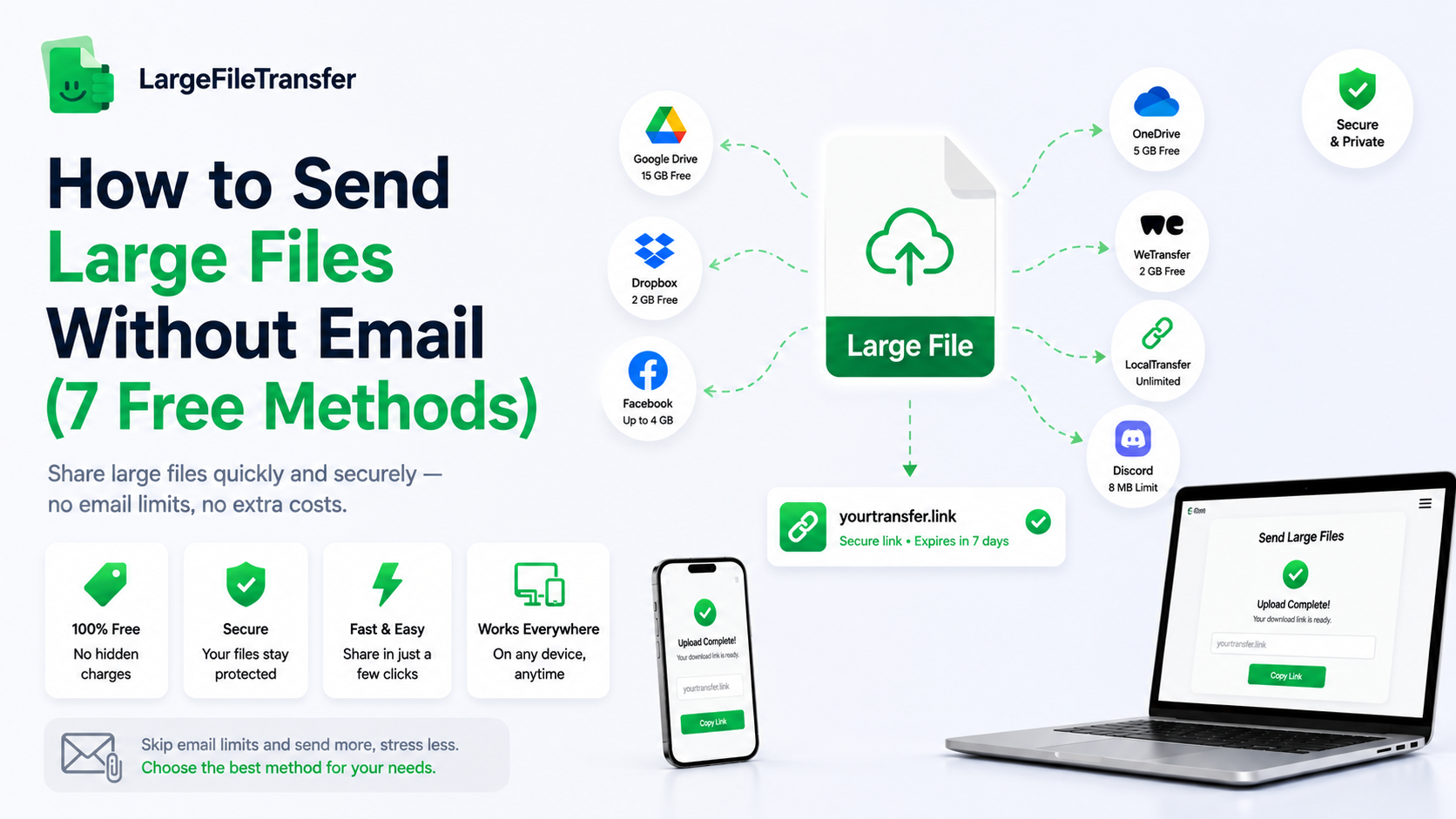
Google Drive, OneDrive, and Dropbox each offer free storage with link-based sharing.
Here’s what you get:
- Google Drive: 15 GB of free storage shared across Drive, Gmail, and Google Photos.
- OneDrive: 5 GB of free storage with a Microsoft account.
- Dropbox: 2 GB of free storage with link sharing.
The main drawback is permissions: recipients may need to sign in or request access.
Large uploads can also be slow because your own internet connection controls the upload speed.
Compare it directly to Google Drive when you need faster one-off transfers.
- Use a Dedicated File-Transfer Tool
Dedicated transfer services are built for one job: upload a large file, create a link, and send it.
They are simple, but free plans usually come with tighter limits or shorter retention periods.
A few well-known options:
- WeTransfer: Easy to use, but its current free limits and restrictions should be checked before publishing.
- TransferNow: Offers a no-signup transfer option with a 5 GB free-transfer limit.
- Smash: Provides large-file transfers, although its free-tier restrictions can affect transfer speed and availability.
The trade-off is usually simple: more convenience means accepting tighter free-plan restrictions.
See how it stacks up against another dedicated transfer service.
- Send It Peer-to-Peer, Device to Device
Peer-to-peer tools move files directly between devices instead of storing them with a central file host. They are useful when both people are available and want a direct transfer.
PairDrop is one example: connect the devices, select the file, and start the transfer.
Both devices need to stay involved, and transfer speed depends on their network connections. That makes peer-to-peer sharing less useful when someone needs to download the file later. It can also feel less familiar to non-technical recipients.
- Compress the File First
ZIP or 7z compression can reduce some files enough to fit within an email attachment limit.
It works best when the original files are not already heavily compressed.
- Works well: Text documents, spreadsheets, and uncompressed images often shrink considerably.
- Doesn’t help much: Videos, JPEGs, RAW photos, and other compressed formats usually shrink very little.
For large video or RAW photography files, skip compression and use a transfer link instead.
- Send It Through a Messaging App
Messaging apps can be surprisingly useful when you already communicate with the recipient there. They eliminate email attachments while keeping the transfer inside an existing conversation.
The catch is that every app has its own file-size and quality rules. Some services compress photos or videos, while others preserve the original file.
You also need the recipient to use the same messaging platform.
For casual personal sharing, this can work well; professional delivery usually calls for a dedicated link.
- Use Your Company’s FTP/SFTP or Server
FTP and SFTP make sense for teams that already maintain internal file-transfer systems. They offer controlled, repeatable transfers without relying on consumer sharing services.
You need existing access, credentials, and some technical familiarity to use them. That makes them impractical for a one-time send to an outside recipient.
For most people, a dedicated transfer link is still the quickest option.
Once you’ve chosen a transfer method, learn how to create a shareable link for any file size to make sending files even easier.
Which Method Should You Actually Use?
You’ve seen six alternatives, but choosing one should not require comparing every feature from scratch.
This table turns the options above into a quick decision guide based on size, access, and intended use.
Here’s how the main options compare at a glance.
| Method | Free Limit | Signup Required? | Best For |
| LargeFileTransfer | Up to 10 GB | No | Fast one-off transfers |
| Cloud storage | 15 GB Drive / 5 GB OneDrive / 2 GB Dropbox | Usually | Long-term storage and collaboration |
| Dedicated transfer tool | Varies by service | Usually no | Simple file sharing |
| Peer-to-peer | No fixed limit | No | Direct device-to-device transfers |
| Compression | Depends on email limit | No | Shrinking compatible files |
| Messaging app | Varies by app | Yes | Casual personal sharing |
As a rule, use a transfer link when your file is under 10GB and you need speed with minimal setup. Choose cloud storage when the file needs long-term access, collaboration, or ongoing editing by multiple people.
Is It Safe to Send Large Files Without Email?
“Safe” gets thrown around constantly in file sharing, but the word means little without specific protections behind it.
In practice, file-transfer security comes down to a few simple safeguards you can actually check.
Here’s what actually matters.
- Encryption in transit: Your file is encrypted while uploading, helping prevent interception during transfer.
- Encryption at rest: Your file stays encrypted while stored on the provider’s servers.
- Password-protected links: A password adds another barrier if someone gets hold of the download link.
- Auto-delete and expiry: The file disappears after a set period instead of remaining online indefinitely.
LargeFileTransfer states that files are encrypted during transfer and while stored.
Its transfers also expire automatically, while password protection is available on paid plans.
Note: Before using any file-sharing service, check these protections rather than trusting vague “secure” claims. Treat any free file-sharing tool that does not clearly mention encryption or expiry with caution.
Final Notes
Email was never designed to handle large files, which is why attachments quickly hit limits when you need to send videos and projects. A free transfer link removes that bottleneck, letting you upload a large file and share it in under a minute.
The right method still depends on your file type, privacy needs, and who needs to receive it.
Try it free — drop a file into LargeFileTransfer and get a link in seconds.
FAQs
- Why can’t I attach a large file to an email?
Email providers limit attachment sizes, usually around 20–25 MB for consumer services. These limits are enforced by mail servers, so changing your email app will not bypass them.
- What’s the safest way to send large files without email?
Use a file-transfer service that encrypts files during transfer and storage. LargeFileTransfer states that files are encrypted in transit and at rest, with automatic expiry for transfers.
- Can I send a large video file without email?
Yes. Upload the video to a file-transfer service and share the download link instead of attaching it to an email. LargeFileTransfer supports free transfers up to 10 GB per file.
- Do I need an account to send large files without email?
No. Some file-transfer services let you send files without creating an account. LargeFileTransfer allows free transfers up to 10 GB without signup, and recipients do not need an account to download files.
- How long does a shared file link stay active?
A shared link stays active until its transfer expires. LargeFileTransfer automatically deletes transferred files when their expiry period ends, while other services may use different retention periods.
- Is there a completely free way to send large files without email?
Yes. Several services offer free file transfers, although limits may apply to file size, storage, transfers, or retention. LargeFileTransfer offers free transfers up to 10 GB per file without signup.