How to Send Large Files Through Gmail (Beyond the 25MB Limit)
We’ve all been there. You try to email an important project right before a deadline, but the email bounces back instantly.
Gmail’s strict 25MB attachment limit can feel like a massive roadblock. This is especially true for office workers, designers sharing high-res portfolios, video editors dealing with raw footage, or developers sending large code files.
Learning how to transfer large files via email without freezing your workflow or reducing asset quality simply requires a smarter approach. This guide breaks down the easiest, fastest ways to bypass Gmail’s size limit and keep your files moving smoothly.
Why Does Gmail Block Large Attachments?
Have you ever wondered why Gmail rejects these files? It comes down to a strict limit built directly into how email systems work.
Email networks cannot send raw files. Instead, they use a process called MIME encoding to turn your attachments into text for safe transit.
This process inflates the file size by up to 33%. Because of this translation, a 19MB file on your computer easily balloons past 25MB the moment you hit send. This causes a lot of frustration in the workplace. Even when large files do make it through, they can quickly fill up your inbox storage. For professionals managing heavy media files or massive archives, standard email tools simply fall short of the task.
The Standard Approach: Google Drive Link Sharing Method
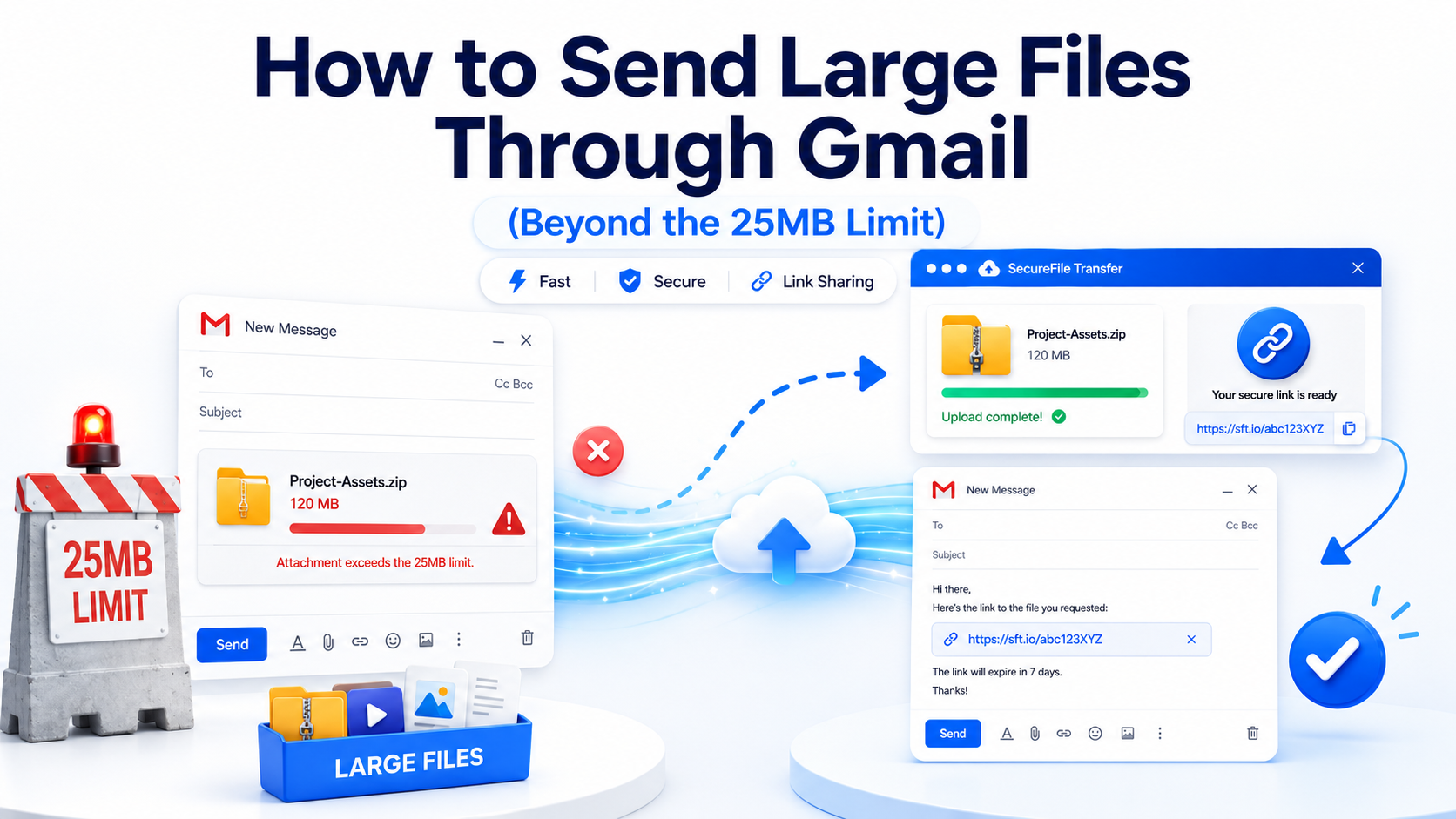
When a file is too big, Google offers a built-in alternative. If you drop a file larger than 25MB directly into the compose window, Gmail automatically uploads the asset to your cloud drive. Instead of a traditional attachment, it inserts a stylized link into the message body. While this makes large file transfer email tasks look seamless on the surface, this built-in method introduces a couple of hidden friction points that frequently disrupt creative and technical workflows.
The Hidden Pitfalls of Drive Sharing
- Storage Exhaustion: These massive uploads actively eat away at your free 15GB Google storage bucket. Because this space is shared across Gmail, Google Photos, and Drive, sharing just a few video projects or design archives will quickly force you into a paid monthly subscription.
- Permissions Roadblocks: If you forget to manually change the file permission tags from “Restricted” to “Anyone with the link,” your recipient will hit a frustrating access block. They will have to request permission via email and wait for you to approve it before they can view or download the data.
The Better Way: Learn How to Transfer Large Files via Email
When files go over the 25MB limit, the fastest solution is to use a dedicated web-based tool. Instead of fighting with file compression or messy cloud drives, you can use a streamlined platform like LargeFileTransfer.
This tool works right inside your web browser. You can use the platform immediately without any software installations, plugin downloads, or mandatory account creation. It handles your heavy files outside of your email system, allowing you to share data smoothly.
Step-by-Step Guide to Sending Files Faster
Using the platform is simple and takes less than a minute. You can send your files by following these basic steps:
1. Open the Tool: Launch any web browser on your device and navigate directly to LargeFileTransfer.
2. Upload Your File: Drag and drop your large file or folder directly into the secure upload zone on the screen.
3. Generate the Link: Wait a few moments for the tool to process your data. It instantly generates a secure, private download link.
4. Share via Gmail: Copy the generated download link, paste it directly into your Gmail message body, and hit send.
Why LargeFileTransfer Beats Standard Email & Cloud Storage
Shifting to an external platform removes the hurdles that Gmail users face every day. Here is why it works so well:
• Instant Access: It works on any desktop, tablet, or mobile browser. You can share assets from your phone just as easily as from a powerful office workstation.
• Zero Storage Clutter: Your files do not sit on your personal Google Drive. You never have to worry about running out of space or paying for expensive cloud upgrades.
• No Permission Hassles: It completely bypasses email attachment blocks and strict permission settings. Your clients or teammates just click the link to download the original files instantly.
Best Practices for Sending Large Files Securely
When managing sensitive assets like raw media, client artwork, or code repositories, finding efficient large file transfer email options is only half the battle. You also need to protect your digital workspace from security and delivery errors. By following a few basic practices, you can protect your data and guarantee that your files arrive safely and without interruption.
- Verify Link Expiration Timelines: Always check how long your download links remain active when sending sensitive enterprise documents or client proofs. Choosing links that expire automatically ensures your data does not sit accessible on the web forever.
- Avoid Splitting Massive Raw Files: Do not try to split heavy project archives across multiple separate email messages. Flooding an inbox with sequential attachments can easily trigger security and spam filters, causing your messages to be blocked.
- Keep Your Local Workspace Tidy: Using dedicated external transfer links instead of direct attachments keeps your sent folder light and protects your team from hitting strict storage limits.
For those who prefer alternatives to the Google email system, there are other email transfer methods that can help work around the limitations imposed by standard email providers. These are discussed in our detailed guide How to Send Large Files via Email: 7 Methods That Actually Work [#7 email methods], which is designed to help bypass typical delivery restrictions.
People Also Ask (FAQ)
Is there any way to email a large file in Gmail? How?
Yes. When your file exceeds 25MB, you can easily upload it to a dedicated web platform like LargeFileTransfer to generate a secure download link. This lets you bypass local attachment limits completely by dropping a clean, lightweight link directly into your regular Gmail text box.
How to send a file over 25MB in Gmail on an iPhone?
On an iPhone, open your mobile browser and upload the document directly to LargeFileTransfer. Copy the secure download link it provides and paste it into your iOS Gmail app. You can also use a dedicated service [#8 shareable link] for quick file sharing while on the go.
How can I email large files?
You can easily email large files by utilizing standard link-based sharing platforms. Instead of attaching large files directly to your email, upload the media to a browser-based tool like LargeFileTransfer. This generates a secure download link you can copy directly into any standard email composition window.
Summary and Next Steps
Sending high-capacity files does not have to involve complex compression tricks or expensive storage upgrades. While traditional email channels and shared cloud drives introduce frustrating storage boundaries and permission blocks, targeted link systems offer an easy workaround. By shifting your heavy attachments to a dedicated web network, you can distribute important assets reliably without cluttering your personal inbox workspace.
Ready to Clear the 25MB Hurdle? Head over to LargeFileTransfer right now. You can drag, drop, and share your largest files instantly with zero software installations, keeping your projects moving forward without any attachment blocks!