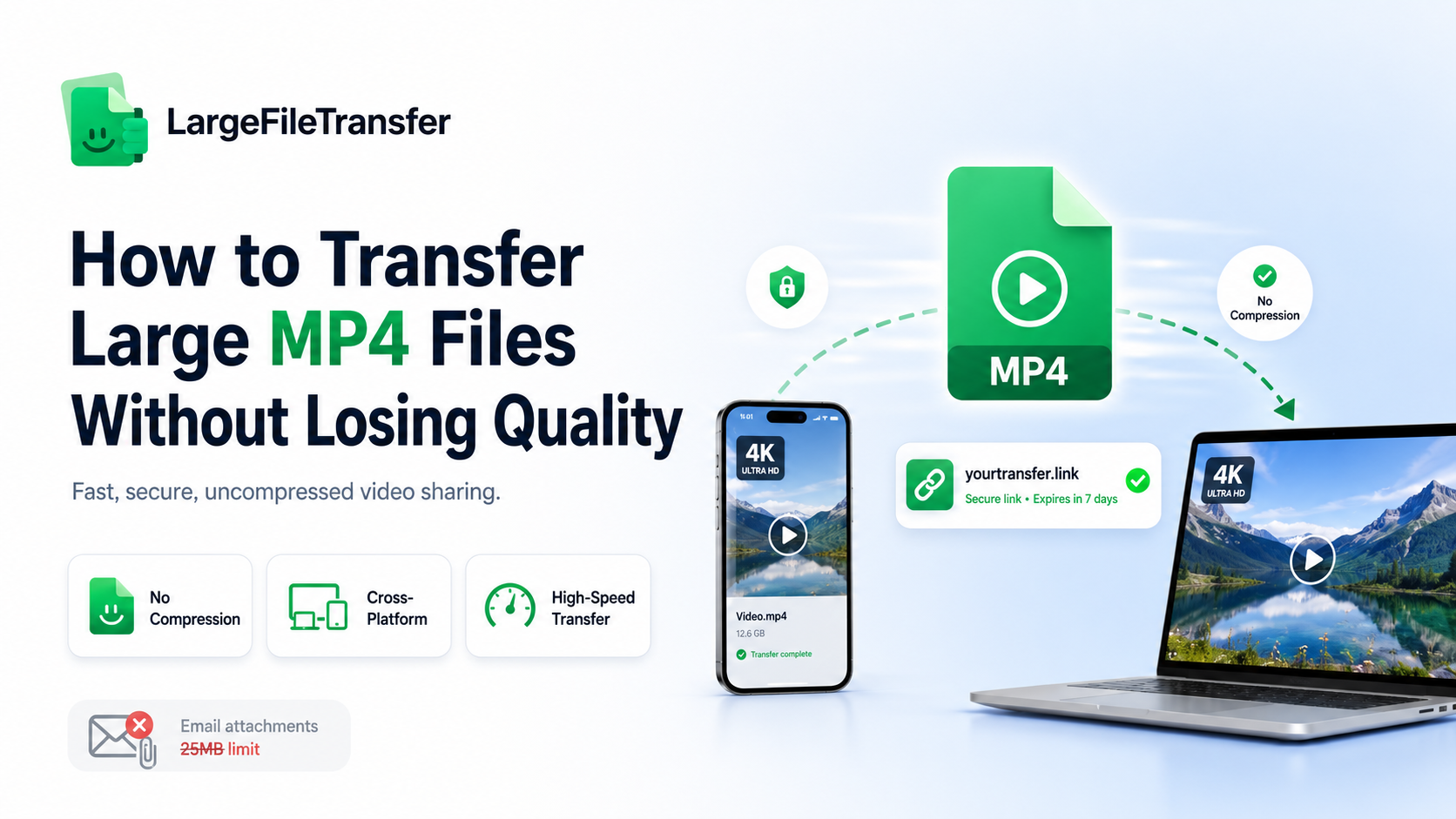
How to Transfer Large MP4 Files Without Losing Quality
Trying to email a high-quality video often results in an instant, frustrating bounce-back message.
Whether you are an office worker sharing a presentation, a teacher sending a lecture, or a creator delivering a high-res reel, keeping the original quality is crucial.
Unfortunately, standard sharing channels usually compress your footage. This leaves your videos looking blurry and washed out. To keep your workflow moving smoothly, learning how to transfer large MP4 files without losing clarity is essential.
Fortunately, bypassing these strict size limits and preserving pristine video quality doesn’t require complex software!
What Happens When You Send Large MP4 Files Over Standard Platforms?
When you rely on standard email clients or everyday messaging apps to share your videos, you run into serious roadblocks. High-resolution video files require massive amounts of data to look sharp. Traditional communication tools are simply not built to handle that heavy load, resulting in major downsides for creators and office workers:
1. Aggressive Background Compression
Standard platforms use heavy automated compression to save space on their servers. When you upload a crisp 4K or 8K MP4 file, these apps quietly lower the video quality. This causes blurriness, color distortion, and ruins your work.
2. Rigid Attachment Ceilings
Most everyday email tools enforce strict file-size limits, often capping attachments at just 25MB. If you are sharing a high-quality video, a few seconds of footage will easily break this limit and stop your email from sending.
3. Bandwidth and Speed Throttling
Even if an app lets you send a larger file, they frequently slow down your upload and download speeds. This artificial slowdown can turn a quick transfer into a multi-hour wait, completely breaking your project deadlines.
How to Transfer Large MP4 Files Across Different Devices
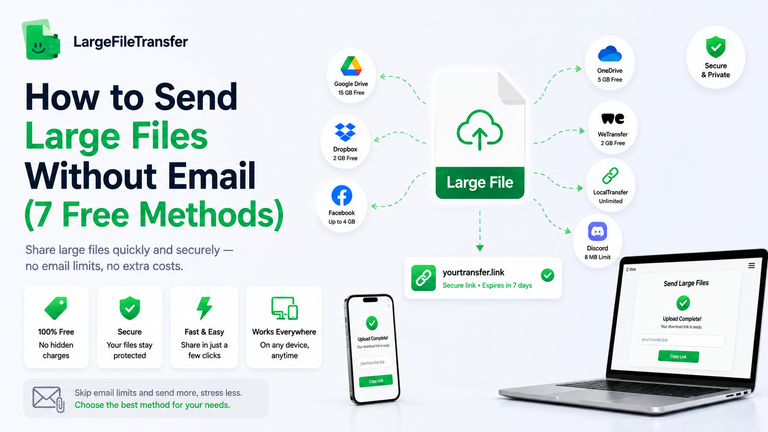
Moving videos between different devices often causes frustrating slowdowns. Smartphones, laptops, and tablets run on completely different operating systems. Because of this, finding the best way to transfer large video files requires a tool that works anywhere. Using web-based cloud links lets you upload a file once and safely open it on any device.
How to Transfer Large Video Files from iPhone to PC
Moving massive video files between different operating systems used to mean hunting for a compatible USB cable. It often led to frustrating driver errors and slow transfer speeds. Bypassing these cumbersome hardware setups is easy when you use a high-speed, browser-based cloud link instead.
Looking for how to transfer large video files from iPhone to PC? Follow these simple steps to send your files instantly over the air:
Step 1. Upload from Your iPhone
Open your web browser on your iPhone. Select your large video file and upload it to our tool to generate a secure, high-speed download link.
Step 2. Copy and Share the Link
Once the upload finishes, copy the link. You can text it to yourself, send it via email, or drop it into an office messaging app.
Step 3. Download on Your PC
Open the link using any web browser on your computer. Click download to save the pristine, uncompressed video straight to your hard drive.
This method works perfectly across all hardware setups. Our tool keeps your files entirely uncompressed, ensuring zero quality loss.
If you also need to move footage between mobile devices, you can see our guide on how to transfer large files from iPhone to Android to keep your cross-platform workflow completely seamless.
Sharing Large Files Across Desktop and Web Systems
For desktop video editors, moving heavy master files between Mac and Windows computers often triggers frustrating errors. Traditional options like external drives require complex formatting to work on both operating systems. This can easily stall your project timeline. Bypassing these local hardware hurdles is simple when you switch to high-speed, web-based transfers.
By uploading your master files directly through your web browser, you can generate a secure download link instantly. Our platform completely removes operating system barriers. It allows a Windows editor to share massive, high-resolution videos with a Mac user seamlessly.
Because our tool does not compress your data, your final video stays pixel-perfect, fast, and entirely uncompromised.
Moving Files Cross-Platform Between Mobile Ecosystems
Collaborating on mixed mobile networks often stalls creative workflows. This is especially true when teams try to share raw clips between iOS and Android devices. Native options like AirDrop or Quick Share don’t talk to each other. This leaves producers and office workers looking for universal workarounds.
To keep your mobile production moving fast, rely on browser-based link sharing instead of local device transfers. Upload your heavy media assets directly through a web browser to generate a secure link. This completely eliminates mobile compatibility issues.
Your remote team members can instantly preview or download uncompressed footage on any smartphone. This keeps your collaborative review process fast, smooth, and highly efficient without ever hitting a file size ceiling.
The Best Way to Transfer Large Video Files: LargeFileTransfer
If you are tired of dealing with slow speeds, strict size limits, and compressed videos, our dedicated platform is the premier solution for creators and office workers.
The LargeFileTransfer Chrome extension lets you share large files straight from your browser without any loss in quality. It bridges the gap between different operating systems seamlessly, making it the absolute best way to transfer large video files.
Here is how the LargeFileTransfer tool solves your biggest file-sharing headaches:
Zero-Compression Data Integrity
Maintain every ounce of pixel data. Your exported master files retain their exact original quality, bitrates, and resolutions with absolutely no background compression.
Frictionless Link-Based Sharing
Create secure, instantly shareable links with just a click. Recipients can download the raw MP4 media files instantly without needing an account.
Uncapped Pipeline Speeds
Maximize your network bandwidth. Experience high-speed global delivery infrastructure designed specifically to handle heavy, gigabyte-heavy post-production exports without throttling.
Our lightweight browser tool installs in seconds, transforming your web browser into a powerful data pipeline. It removes the need for slow USB cables, confusing drive formatting, and platform compatibility issues.
Whether you are sending a quick clip from an iPhone to a PC or sharing massive master files between production teams, our extension handles the heavy lifting in the background so you can focus on your work.
Streamline Your Sharing and Break Size Barriers Now
Ready to experience high-speed file delivery? Equip your browser with ultimate integration.
Try LargeFileTransfer for Free Today
Large Video Transfer Methods That Usually Don’t Work for Creators
When you need to share a large project, standard workplace tools often fall short. These everyday platforms were designed for small files, not high-resolution media. Attempting to send heavy raw clips through them results in frequent errors and frustration.
Here is why traditional communication methods fail when handling large video files:
Standard Email Attachments
Most services are capped by a strict 25MB file-size limit. This makes them completely useless for heavy, raw MP4 videos.
If you’re facing these limits, you can read our guide on How to Send Large Files via Email to find alternative solutions.
Basic Messaging Apps
Sending clips through standard chat tools ruins your hard work. These apps aggressively compress video streams down to muddy, low-definition resolutions. They also strip out vital camera metadata that editors need.
Generic Cloud Storage Folders
Popular cloud drives quickly become expensive traps. They require constant space management and push you toward costly tier upgrades. Worse, they offer slow pipeline speeds that force you into painful upload delays.
Relying on these outdated options slows down your projects. Switching to a dedicated browser pipeline ensures your files bypass these roadblocks entirely.
Frequently Asked Questions
What Is the Most Effective Way to Send Large Video Files Through Email?
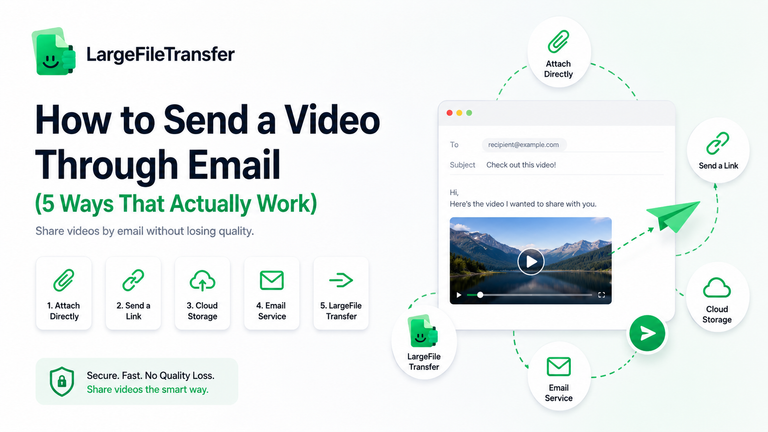
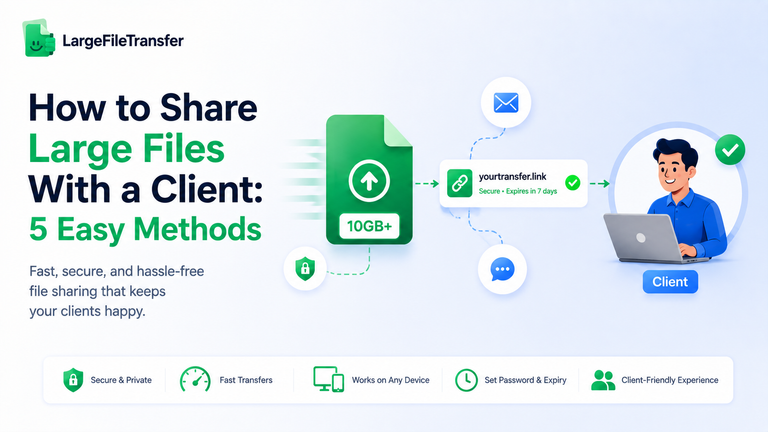
The most effective way is to use a dedicated file-transfer link infrastructure. Instead of attaching a heavy file directly, upload the video to a platform like LargeFileTransfer to generate a secure link.
This completely bypasses standard attachment limits and keeps your video data uncompressed.
How to Send a Large Video File via Email or Text?
To send a large video file, upload the MP4 video to LargeFileTransfer. Once the upload is complete, copy the auto-generated download link.
Paste this link directly into your email body or text conversation, allowing your recipient to download the full-resolution file instantly.
Conclusion
Traditional sharing methods simply aren’t built for modern creators and busy office workers handling massive video files. Between restrictive email size limits, harsh messaging app compression, and sluggish cloud storage speeds, moving high-quality media can feel like an uphill battle.
The LargeFileTransfer Chrome extension solves these problems by turning your web browser into a fast, direct data pipeline. By generating secure links that bypass file-size caps while preserving your raw pixel data bit-for-bit, it offers a frictionless workflow for any operating system.
Equip your browser with LargeFileTransfer today to enjoy seamless, uncompressed file sharing at maximum speeds.