How to Check File Size Before Sending (MB, GB & More)
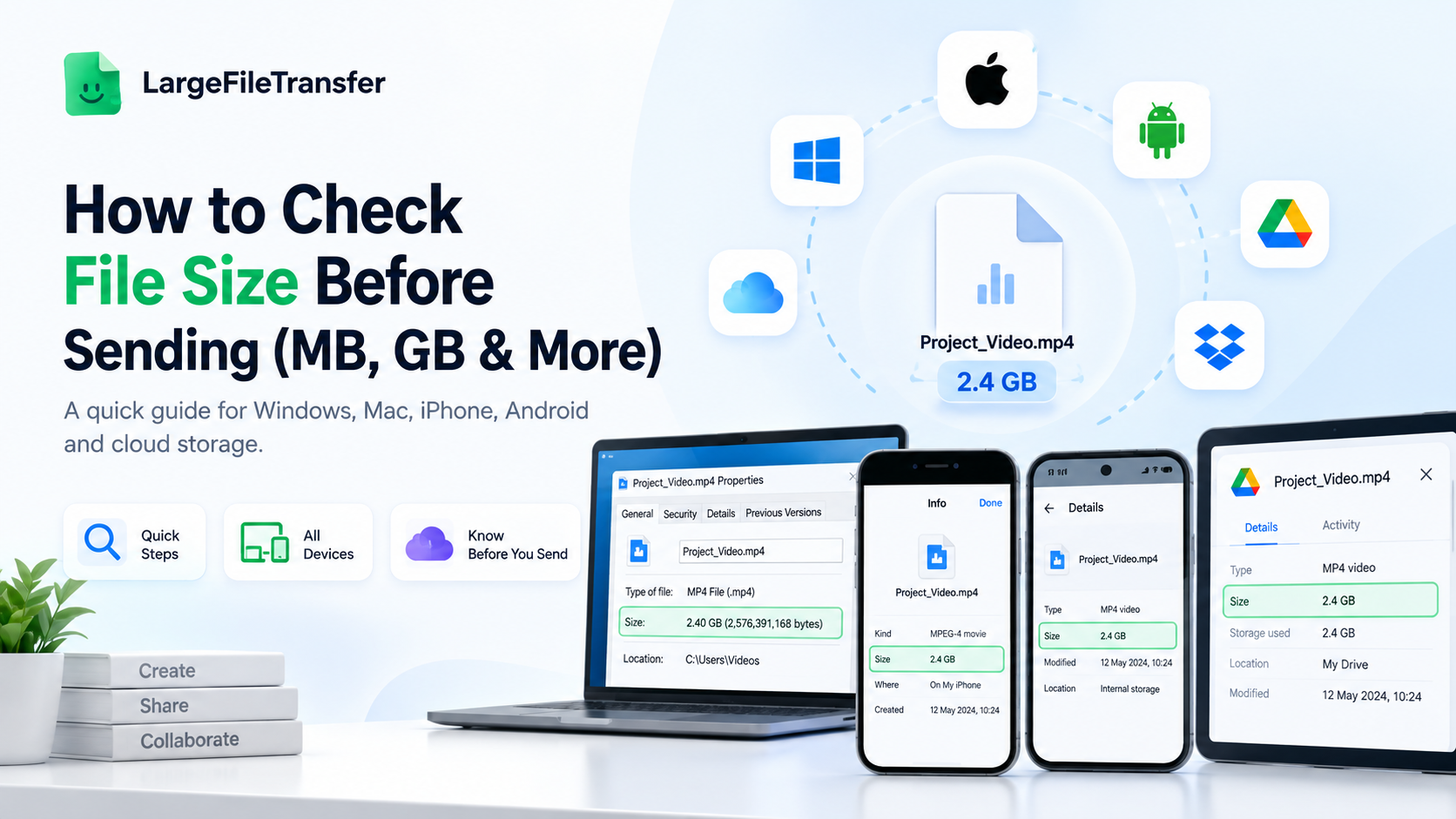
Before attaching a large file, check file size before sending to make sure it falls within your email or platform’s limit. You can check a file’s size in seconds using your device’s built-in file properties, without opening or uploading the file. Knowing the exact size beforehand helps you avoid bounced emails, failed uploads, and wasted time waiting for transfers that cannot complete. This guide shows you how to check files on each device, understand MB and GB, compare platform limits, and handle oversized files.
Why Checking File Size Before Sending Matters?
Knowing how to check file size first helps you avoid bounced emails, failed uploads, and wasted transfer time. A quick check confirms whether your file fits the platform’s limit before you attempt to send it.
Here are the three problems a size check helps prevent:
- Email bounce-backs: Most inboxes cap attachments around 20–25 MB, so oversized files may fail or bounce back minutes later.
- Failed uploads on web forms: Content management systems and application forms often enforce separate upload limits unrelated to email attachments.
- Wasted time: Large files may upload for several minutes before the platform rejects them because they exceed its maximum size.
Checking the size beforehand also helps you choose the right sharing method without starting a transfer that cannot succeed.
Knowing the exact size in seconds means you waste zero time on a transfer attempt that was never going to complete.
How to Check File Size Before Sending?
The steps differ slightly by device, but each method takes only a few seconds to reveal the file’s exact size.
Follow the instructions for your device or cloud storage service below.
- On Windows
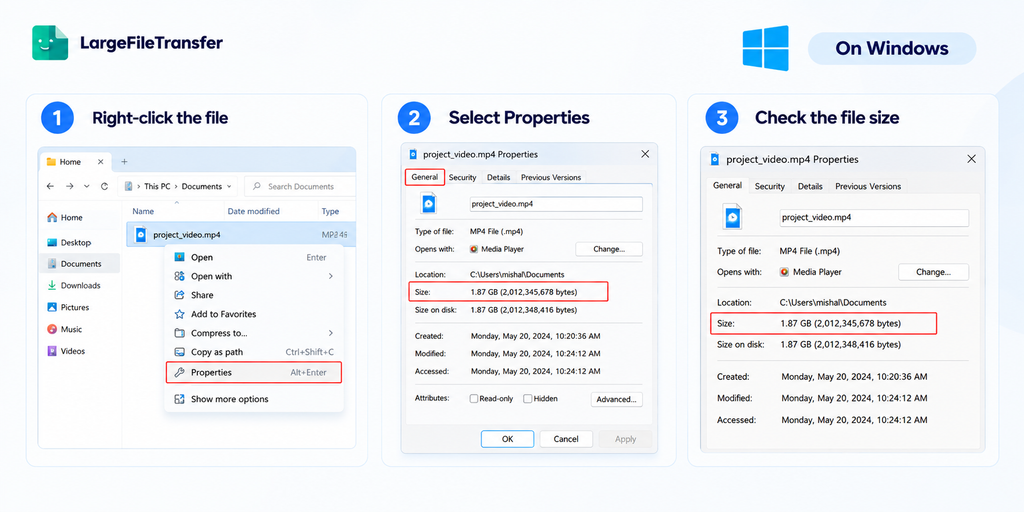
Windows shows both the file’s actual size and the space it occupies on your drive.
- Right-click the file you want to check in File Explorer.
- Select Properties from the menu that appears.
- Read the Size value under the General tab to see the file’s actual size.
- On Mac
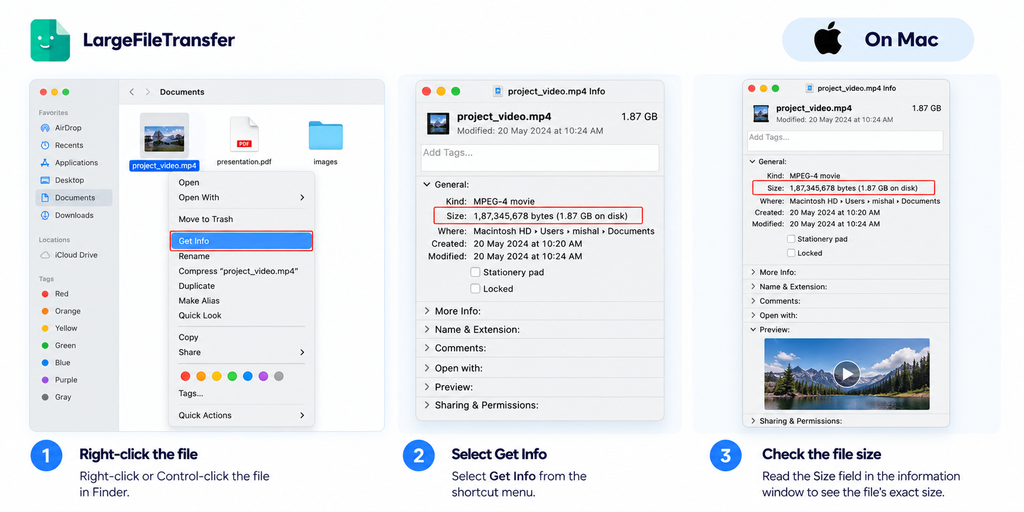
macOS provides the file size through the item’s information panel, without opening the file itself.
- Right-click or Control-click the file in Finder.
- Select Get Info from the shortcut menu.
- Read the Size field in the information window to see the file’s exact size.
- On iPhone
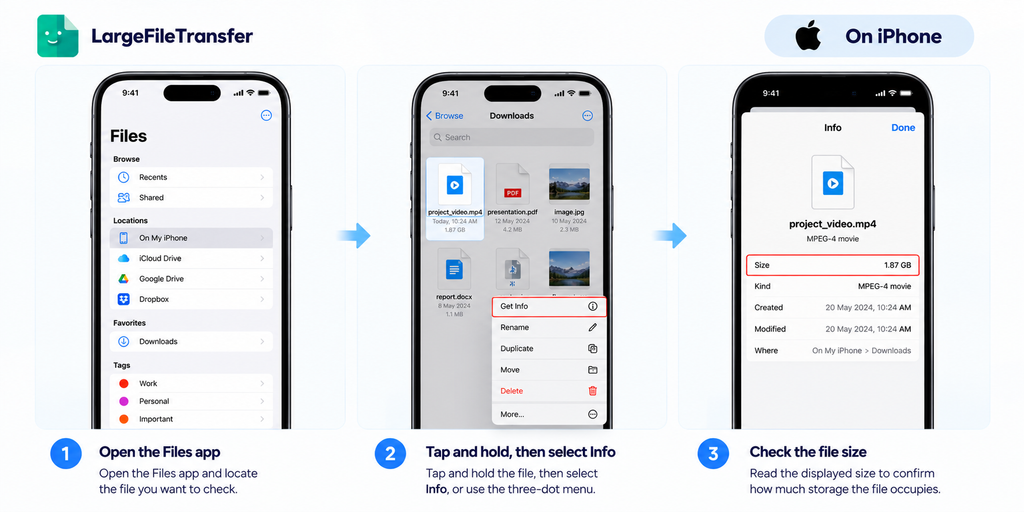
The Files app provides the clearest way to check document and downloaded file sizes directly on your iPhone.
- Open the Files app and locate the file you want to check.
- Tap and hold the file, then select Info, or use the three-dot menu.
- Read the displayed size to confirm how much storage the file occupies.
Photos and videos can show size differently; check the Files app or Photos’ info panel for accuracy.
- On Android
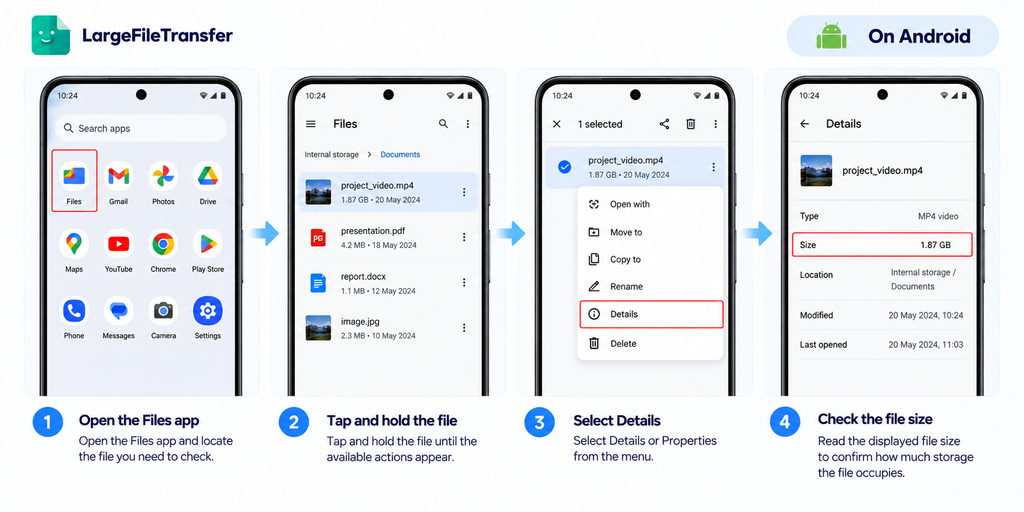
Android devices commonly display file sizes through the Details or Properties option inside their file manager.
- Open the Files app and locate the file you need to check.
- Tap and hold the file until the available actions appear.
- Select Details or Properties, then read the displayed file size.
- On Google Drive, Dropbox, or iCloud
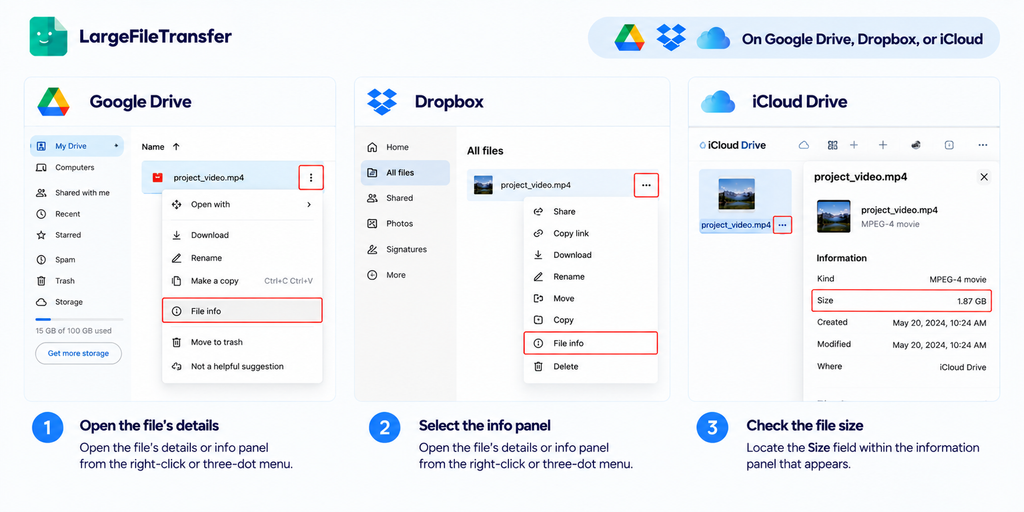
Cloud storage services follow a similar process, using an information panel to display each file’s stored size.
- Open the file’s details or info panel from the right-click or three-dot menu.
- Locate the Size field within the information panel that appears.
- Note the displayed size before sharing the file through your chosen platform.
How to Check MB and GB File Size?
Two different files labeled “1 GB” will not always match exactly when measured by different systems. This difference comes from two competing measurement standards, not from an error in your file size checker.
- Decimal vs. Binary: Why 1 GB Isn’t Always 1 GB
The decimal standard defines 1 GB as 1,000 MB, while the binary standard defines 1 GB as 1,024 MB.
Most operating systems use binary-based measurements, although storage manufacturers typically advertise capacities using decimal measurements. That difference means a drive marketed as 1 TB can appear as roughly 931 GB in Windows.
- Use Our Free File Size Converter
LargeFileTransfer’s File Size Converter instantly converts bytes, KB, MB, GB, TB, and PB between decimal and binary bases. Switch between measurement bases with one click to compare file sizes accurately before sending, uploading, or reviewing specifications.
Use our free file size converter when you need to:
- Check a file before uploading it to a platform with a strict size cap.
- Compare sizes when the same file displays differently across two devices.
- Convert a specification sheet’s GB figure into a practical file-size estimate.
File Size Limits by Platform (2026)
Most sending failures happen when a file exceeds one of a handful of well-known platform limits.
| Platform | Attachment/File Limit | What Happens Over the Limit |
| Gmail | 25 MB for personal accounts | Gmail replaces attachments exceeding the limit with a Google Drive link. |
| Outlook.com | 25 MB | The attachment cannot exceed the limit; Microsoft recommends sharing larger files through OneDrive. |
| Up to 2 GB for files | Files above the stated limit cannot be uploaded; separate limits apply to videos and images. | |
| Slack | 1 GB | Files larger than 1 GB cannot be uploaded to Slack. |
| Discord | 10 MB free; 50 MB Nitro Basic; 500 MB Nitro | Uploads exceeding the account’s file-sharing limit are not accepted. |
| Google Drive | Up to 5 TB for most files | Files exceeding the maximum cannot be stored in Drive. |
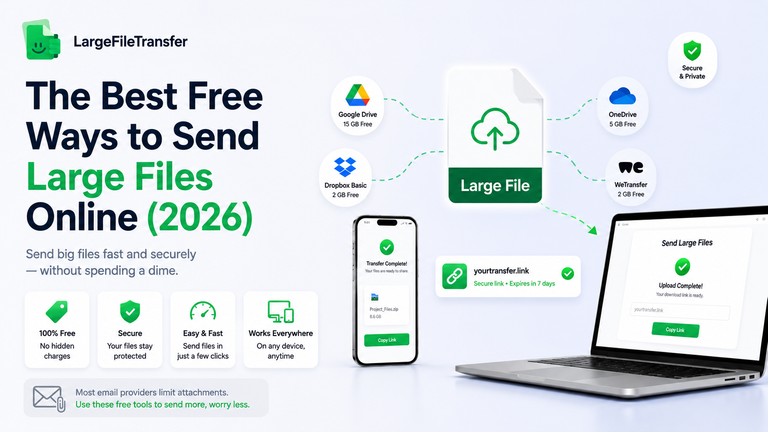
These limits explain why direct transfer links exist: sharing a link avoids the attachment caps imposed by individual sending platforms.
What to Do If Your File Is Too Big to Send?
Once you know your file exceeds a platform’s limit, there are only two practical options: shrink the file or stop attaching it. If reducing the file affects quality or barely changes its size, sending it another way is usually faster.
Here’s what to consider before choosing either option.
- Option 1: Compress It
Compression can make documents and uncompressed files smaller, which may help when you only need to reduce the size enough to meet an attachment limit. But it does little for already compressed formats such as videos, JPEGs, and MP3s, and further compression can reduce quality.
For a closer look at why zipping a file barely shrinks it in many cases, see our guide.
Option 2: Skip the Limit With a Direct Transfer Link
When compression does not help, upload the original file and share a download link instead of attaching it to an email or message. LargeFileTransfer sends the original file without compression, letting recipients download it at the same quality as the uploaded version.
Send your file with LargeFileTransfer, or choose the 10GB file sending option or 100GB file sending option if you regularly send files that size.
Final Notes
Checking a file’s size takes only seconds and can save you the frustration of discovering that your send cannot succeed. Knowing the file size beforehand helps you choose the right way to share it without unnecessary delays.
A quick check also gives you confidence that the file fits the method you plan to use before starting. Make this simple check part of your routine whenever you need to send a file outside your usual limits. Check your file’s size now before sending your next file.
For files that turn out to be too large, use LargeFileTransfer’s send tool to share them another way.
Frequently Asked Questions
- How do I check the exact size of a file in bytes?
On Windows or Mac, the Properties or Get Info panel can display the file’s exact byte count. Switch the displayed unit to bytes, or use a file size converter for an instant exact conversion.
- What is considered a large file?
There is no universal cutoff, but files above roughly 25 MB exceed most standard email attachment limits. That makes anything over 25 MB practically large for email, even when it remains small by storage standards.
- Why is my file bigger than expected after zipping?
Zipping already-compressed formats like video, photos, and audio often provides little additional size reduction. The resulting ZIP can remain nearly identical in size or become slightly larger because of compression overhead.
- How can I check file size without opening the file?
Right-click or Control-click the file, then select Properties or Get Info to display its size instantly. This reads information directly from the file system without opening or processing the file contents.
- Does checking file size use any of my data?
No, checking a file’s size is a local operation that reads information from your device’s file system. A file size converter can perform the same conversion without uploading the file or consuming transfer bandwidth.