10 Best File Transfer Tools for Remote Creative Teams in 2026
Let’s be honest: wrestling with raw video, massive design files, and giant photo assets multiple times a week is an absolute nightmare. Standard email attachments instantly give up on you, and tossing a heavy file into Slack just freezes up the entire team chat. You just want the
best file transfer tools for remote creative teams that actually handle heavy lifting without making your spinning wheel of death appear.
Picking the wrong tool usually means overpaying for bloated corporate features you will never use, or hitting a hard size limit right as a client deadline hits.
This guide skips the boring corporate speech to compare software made for creative workflows, not generic office spreadsheets. We are looking directly at tools built to move your massive raw footage, layered graphics, and high-res galleries seamlessly.
Start with what actually matters for creative work, before comparing individual tools.
What Remote Creative Teams Need From a File Transfer Tool?
Before comparing tools, it helps to look at the few things that actually make creative team file sharing easier when the files get seriously large.
- No forced compression: You want raw footage and RAW photos to reach teammates or clients exactly as they were shot, without quality getting squeezed during delivery.
- Large per-file limits: One camera original, layered Photoshop file, or finished project can blow past ordinary limits before you even finish uploading everything.
- Resumable uploads: When a 30GB upload drops after hours, you need it to pick back up instead of making you start the whole thing again.
- Link controls: Client deliveries are easier when you can protect a link with a password and decide exactly when that link should expire.
- Fits the existing toolchain: Connecting transfers to Premiere Pro, Discord, Slack, or other tools you already use can save one more annoying upload step.
Teams that only need to sync documents across a few laptops have different needs than teams handling raw footage, which the comparison below reflects.
The Best File Transfer Tools for Remote Creative Teams
For creative teams, the right tool depends on how often you move large media, how you work together, and what happens after the transfer.
Each of these six tools solves a slightly different version of the same problem:
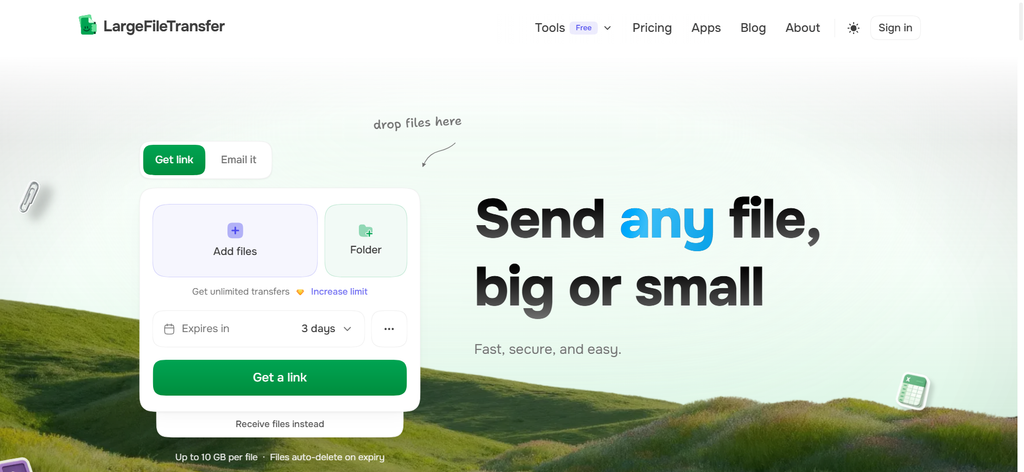
Best for: Editors, photographers, and designers who regularly move original media without wanting another export, compression, or manual-upload step.
Core positioning: Send original creative files as shareable links, with the free tier supporting up to 5GB per file and Pro removing the file-size cap.
What matters for creative teams:
- 5GB free per file: Suitable for many individual RAW photos, video exports, project files, and other large creative assets.
- Resumable uploads: Interrupted uploads can continue from where they stopped instead of restarting from zero.
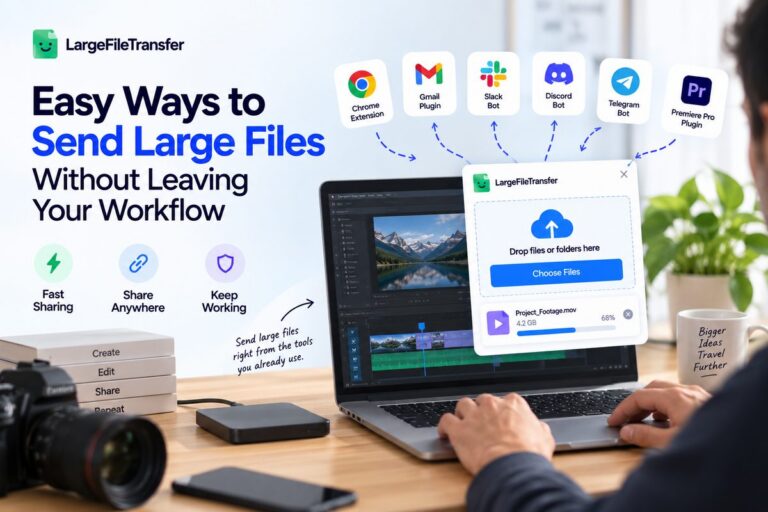
- Built into creator workflows: Premiere Pro, Telegram, and Discord integrations reduce app-switching and manual upload steps.
Send Large Files Without Leaving Slack
What it does: Use the LargeFileTransfer Slack bot to create a share link from any channel or DM with the /send command.
How the workflow works:
- Add the app: Install LargeFileTransfer in your Slack workspace and connect your account once.
- Run /send: The bot creates a transfer link and gives you an Add Files button.
- Upload and share: Add the files through the web interface, then post the finished link directly into Slack.
Evaluator angle: The key distinction is workflow convenience and untouched file delivery, rather than storage, asset management, or client-review depth.
| Plan | Price | File size | Account storage | Transfers |
| Free | $0 forever | 10GB/file | 10GB | 10/week |
| Plus | $5.99/month | 10GB/file | 200GB | 200/month |
| Pro | $8.99/month | 250GB/file | 5TB | Unlimited |
Paid plans also add password protection and longer link expiry, with links available for up to one year or set to never expire.
2. WeTransfer
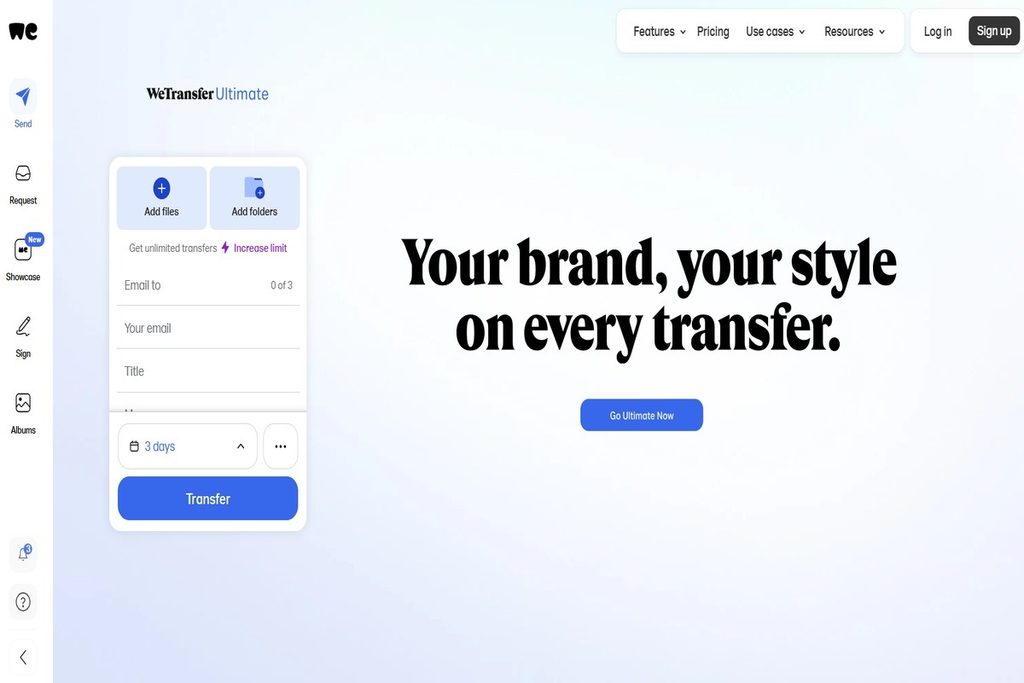
Best for: Creators sending smaller client deliverables who want a familiar browser-based transfer without adopting a full collaboration platform.
WeTransfer keeps the workflow straightforward: upload files, create a link, and send it through email, chat, or another channel.
Files are not compressed or re-encoded, which works well for design files, photos, videos, and other finished creative assets.
- 3GB free limit: Free accounts allow up to 3GB per transfer, with 10 transfers or 3GB total usage per rolling 30 days.
- Three-day expiry: Free transfers remain available for up to three days before the download link expires.
- Standard encryption: Transfers use TLS 1.2/1.3 and files use AES-256 at rest; end-to-end encryption is an Enterprise add-on.
3. MASV
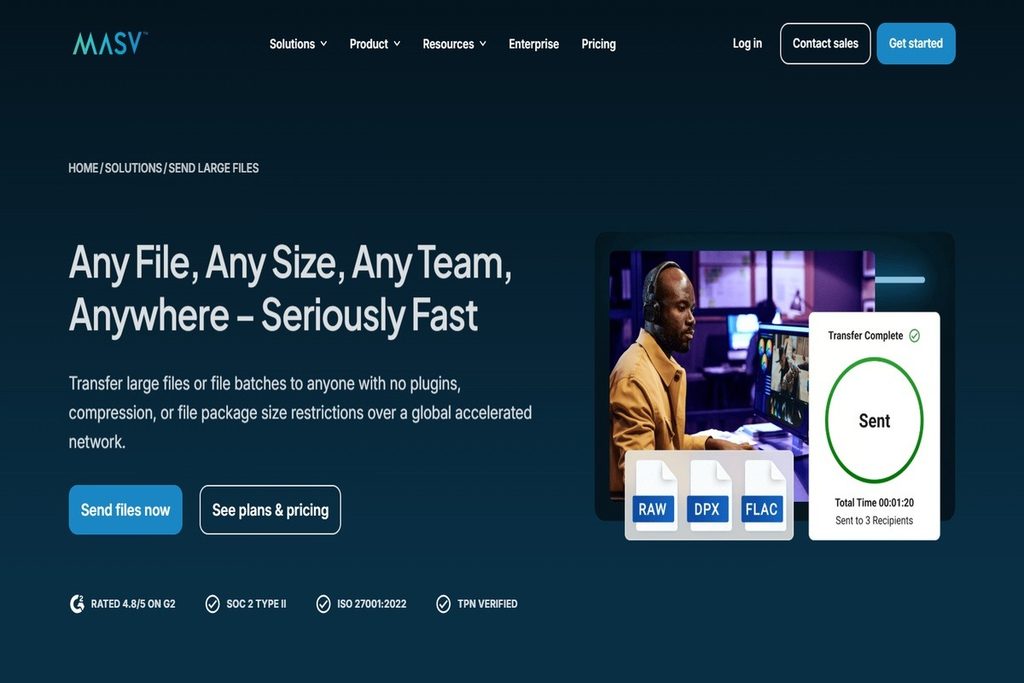
Best for: Post-production teams, broadcasters, and agencies regularly moving very large media packages between editors, clients, and production partners.
MASV supports unlimited file package sizes, making it suitable for multi-terabyte transfers without splitting or compressing large media packages.
Its Premiere Pro Panel can export and transfer videos together, removing a separate browser-upload step from editing workflows.
- Unlimited package size: MASV supports file packages of unlimited size, including very large video and RAW media deliveries.
- Premiere Pro Panel: Editors can package projects and transfer media directly through Premiere Pro instead of opening a separate browser workflow.
- Usage-based pricing: The On-Demand plan includes 15GB monthly, then charges $0.25/GB, with discounted subscription options for predictable volumes.
4. Dropbox
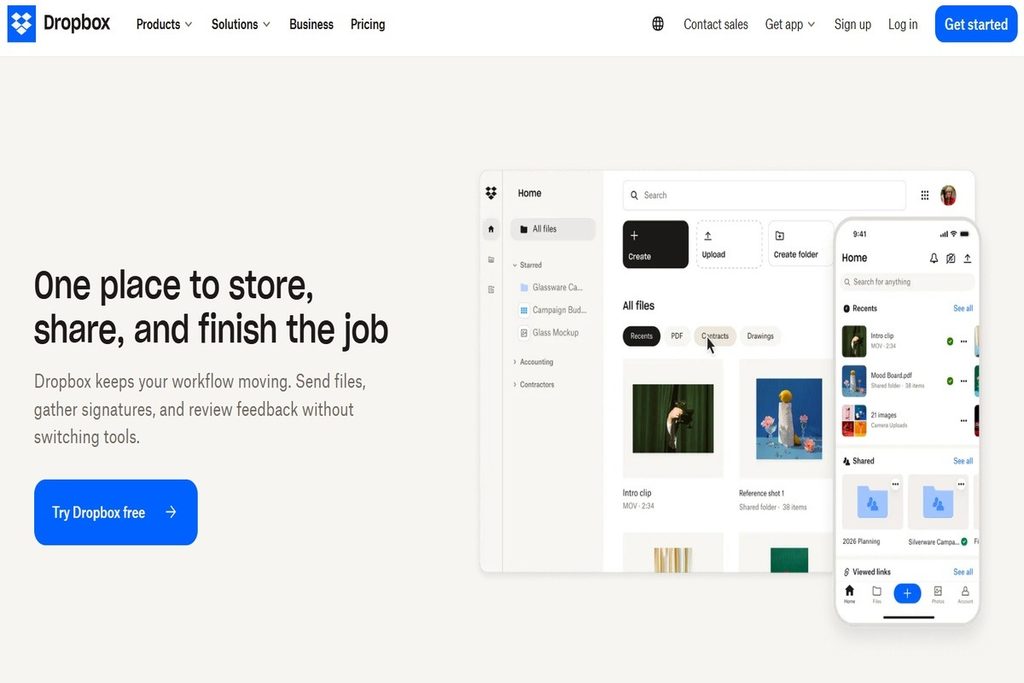
Best for: Remote creative teams that need a shared working space where files stay available and updated across devices.
Dropbox automatically syncs file changes across connected computers, phones, tablets, and the web, keeping everyone on the latest version.
It can handle files up to 2TB, although Dropbox recommends the desktop app or API for uploads above 375GB.
- Up to 2TB per file: Dropbox supports uploads up to 2TB, with large browser uploads potentially timing out above 375GB.
- Automatic sync: Changes made on one connected device are automatically updated across the rest of the team’s synced devices.
- Per-seat team pricing: Dropbox Standard currently costs $15 per user monthly, so team costs increase with additional seats.
Best fit: Teams that need persistent project storage and synchronization, rather than a transfer-only tool for one-off client deliveries.
5. Frame.io
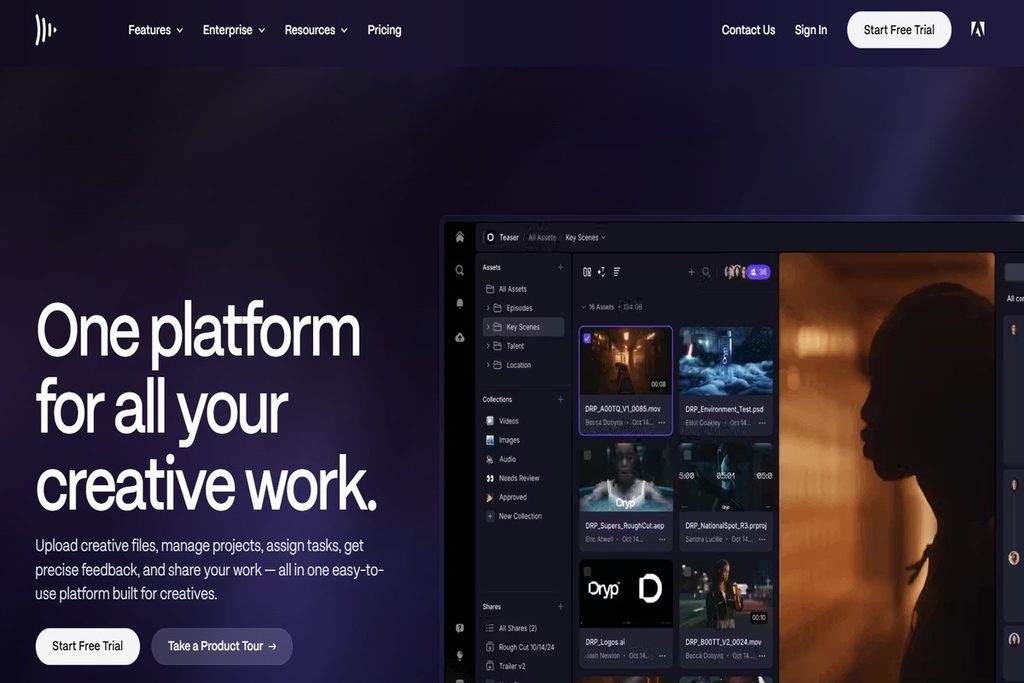
Best for: Video teams that need clients and collaborators to review cuts, leave precise feedback, and manage versions in one workflow.
Frame.io centers its workflow around media review, approval, and collaboration rather than simple file delivery.
Its comments can be placed on specific video frames, while annotations also work across images and PDFs, making feedback easier to act on.
- Up to 5TB per asset: Frame.io currently supports individual uploads and shared assets up to 5TB in size.
- Frame-specific feedback: Reviewers can comment and annotate directly against video frames instead of describing timestamps separately.
- Premiere Pro integration: The current Frame.io panel lets editors browse, upload, manage versions, and sync comments directly inside Premiere Pro.
Best fit: Teams where review and approval are central to production, rather than teams simply needing a lightweight way to send large files.
For one-off delivery of large photos or videos, LargeFileTransfer can handle the transfer without making it part of the review workflow.
6. Hightail
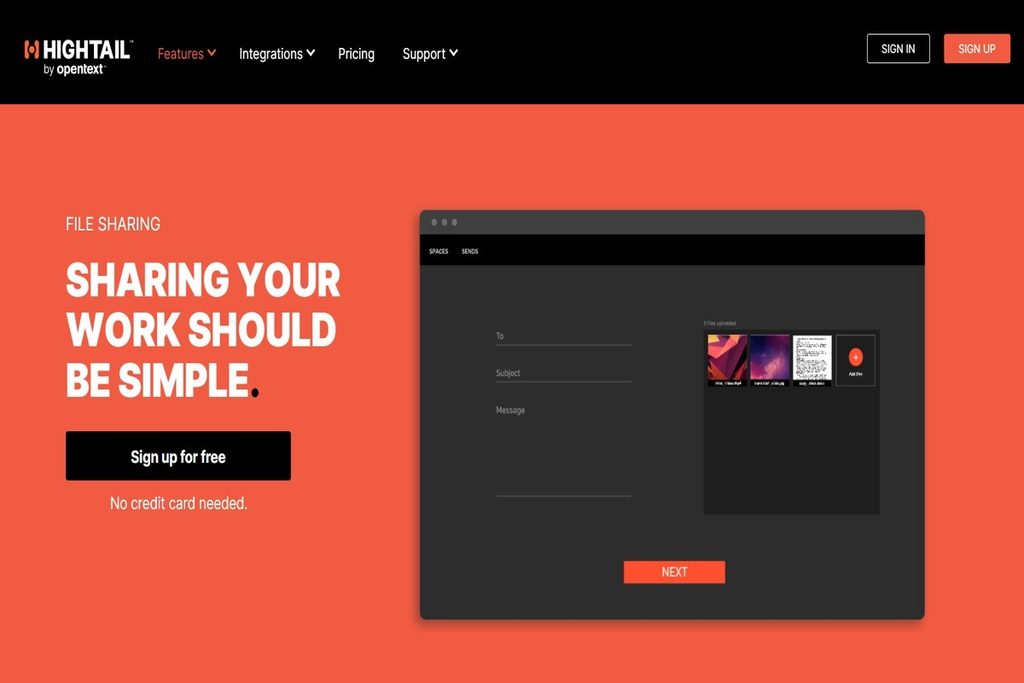
Best for: Creative teams that need to send large assets while collecting feedback, approvals, and version changes in the same workspace.
Hightail combines large-file sharing with visual review, letting teams keep comments, versions, approvals, and discussions around the creative asset itself.
That makes it more than a transfer service, especially for agencies handling repeated client revisions alongside file delivery.
- File size limits: Free Lite supports 100MB files, Pro supports 25GB, Teams 50GB, and Business up to 500GB.
- Creative review: Teams can add precise comments, compare versions, track changes, and request approvals around shared files.
- Pricing: Pro starts at $12/month billed annually, while Teams costs $24/user/month and Business $36/user/month.
7. Signiant Media Shuttle
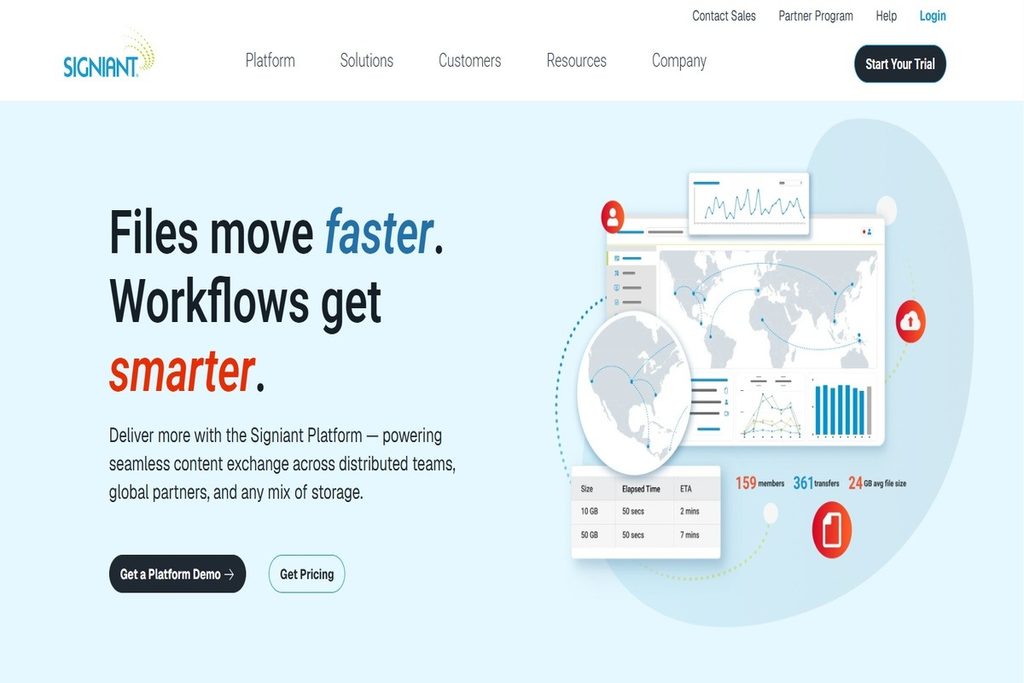
Best for: Broadcast, post-production, VFX, and media companies moving extremely large files between distributed teams and storage environments.
Media Shuttle is designed for professional media operations, supporting files of any size across cloud and on-premises storage.
Its portal-based workflow also gives administrators control over users, permissions, transfer activity, and different send, share, and submit workflows.
- No file-size or bandwidth limits — Signiant supports transfers of any size and does not limit bandwidth for Media Shuttle transfers.
- Checkpoint Restart — Interrupted transfers automatically resume from the point where the connection failed.
- Enterprise pricing — Small Business starts at $13,000 annually, while Professional starts at $25,000 annually; Enterprise pricing requires a quote.
8. LucidLink
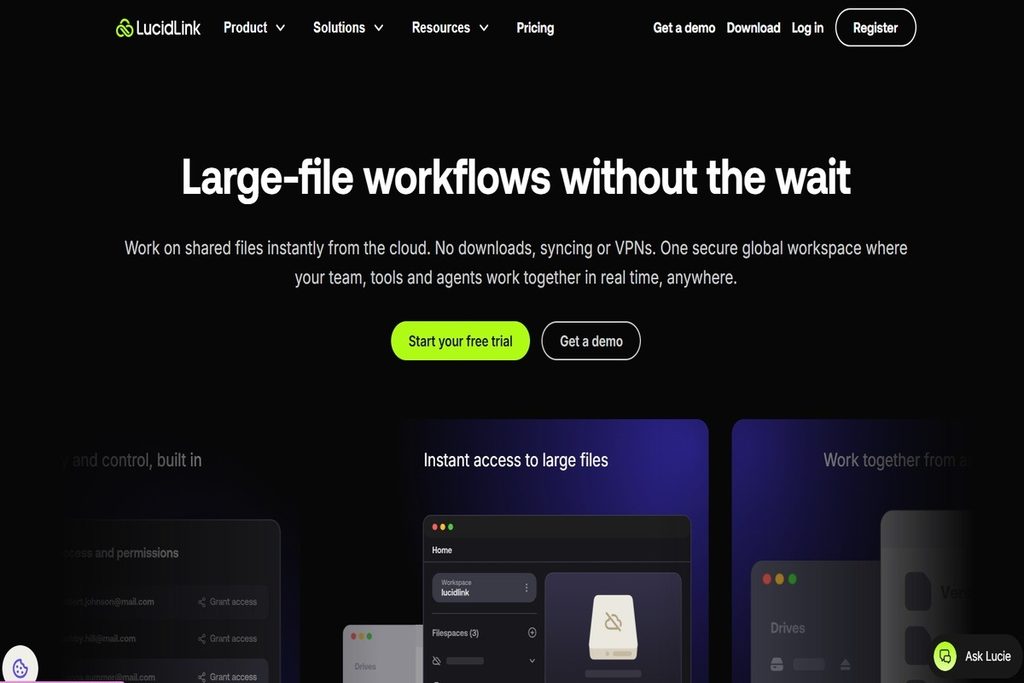
Best for: Distributed video teams that need everyone working from the same large media files instead of repeatedly sending copies between workstations.
LucidLink works more like a shared cloud filesystem than a traditional transfer service, streaming only the file data creative applications need.
That makes it particularly relevant for remote editing, where waiting for downloads, syncing folders, or relinking media can slow production.
- Files stream on demand: Editors can work with 4K, 8K, and RAW assets directly from the cloud without downloading complete files first.
- Built for creative apps: LucidLink works with Premiere Pro, DaVinci Resolve, Avid Media Composer, Final Cut Pro, and other production tools.
- Pricing scales with members and storage: Starter costs $7 per member/month with 100GB included per member, while Business is $27 per member/month with 400GB.
9. Filemail
Best for: Creators who want large-file delivery with desktop apps, resumable transfers, and support across common creative devices.
Filemail works as a straightforward transfer service, while its desktop apps add more reliability for larger uploads and downloads.
Its broad platform support also makes sense for distributed teams working across Windows, Mac, Linux, iPhone, Android, and Outlook.
- 5GB free per transfer: Free transfers can contain multiple files or folders, with a 5GB total limit and two transfer sessions every 24 hours.
- Up to 250GB on Pro: Pro increases the maximum transfer size to 250GB, while Business supports files of any size.
- Resumable desktop transfers: Windows, Mac, and Linux apps can resume interrupted transfers and automatically download received files.
Best fit: Teams that prioritize dependable large-file delivery across devices without adopting a broader media-review or shared-storage platform.
10. TransferNow
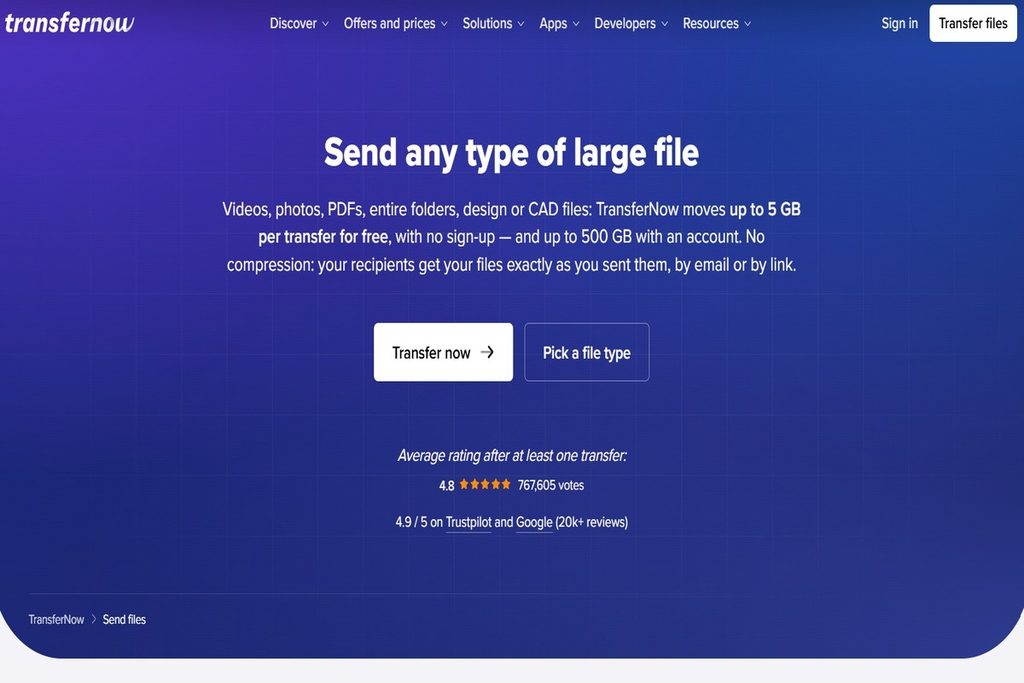
Best for: Freelancers and smaller creative teams that need larger client transfers, download tracking, and branded delivery without enterprise complexity.
TransferNow supports creative files and folders up to 5GB per transfer for free, while paid plans increase the limit substantially.
Its professional plans add longer availability, transfer tracking, branding, and file-reception tools that can fit recurring client workflows.
- 5GB free transfers: The free plan supports transfers up to 5GB with no sign-up and keeps them available for up to seven days.
- Up to 250GB on Premium: Premium supports transfers up to 250GB, while Team raises the limit to 500GB.
- Client-facing controls: Paid plans add download tracking, password protection, branding, expiry controls, and file-reception links.
Best fit: Creative teams that want more control around client delivery without moving into a full media-production platform.
If you’re working with camera originals, see our guide to How to Send RAW Video Footage to an Editor Safely (2026) for practical delivery steps.
File Transfer Tools: Pricing, Limits, and Workflows
Looking at pricing structure, transfer limits, storage, and workflow controls makes the differences much easier to spot. It also separates how much you can send from how much you can keep, which matters when large creative files are involved.
| Tool | Pricing / Entry Plan | Transfer or File Limit | Included Storage | Workflow Controls | Typical Fit |
| LargeFileTransfer | Free: $0; Plus: $5.99/month; Pro: $8.99/month | 10GB/file on Free and Plus; 250GB/file on Pro | 10GB / 200GB / 5TB | Resumable uploads; paid plans add password protection and longer link expiry; Premiere Pro, Slack, Telegram, Discord, Gmail, and Chrome integrations | Original media delivery, client handoffs, creator workflows |
| WeTransfer | Free: limited; Starter, Ultimate, Teams: paid plans | 3GB or 10 transfers/30 days on Free; 300GB total/30 days on Starter; up to 1TB/transfer on Ultimate | 2TB default; Teams up to 5TB | Link sharing; custom expiry and password protection on higher plans; branded sharing | Quick client sends and lighter delivery workflows |
| MASV | 15GB/month free credit; then $0.25/GB; subscriptions from $58/month | No fixed transfer-size limit | Files stored free for 5 days, then storage charges apply | Usage-based transfers; Premiere Pro workflow; accelerated media delivery | Broadcast, post-production, and recurring large-media delivery |
| Dropbox | Basic: $0; Plus: $9.99/month; Standard: $15/user/month | 2TB max upload; Dropbox Transfer up to 50GB on Plus and 100GB on Standard | 2GB Basic; 2TB Plus; Standard starts at 3TB team storage | Continuous sync, shared folders, permissions, link controls, team activity | Ongoing team storage and cross-device collaboration |
| Frame.io | Free: $0; Pro: $15/member/month; Team: $25/member/month | Assets up to 5TB; video proxy uploads up to 500GB | 2GB Free; 2TB+ Pro; 3TB+ Team | Frame-accurate comments, annotations, versioning, review links, Premiere Pro integration | Video review, approval, and production collaboration |
| Hightail | Lite: Free; Pro: $12/month; Teams: $24/user/month; Business: $36/user/month | 100MB / 25GB / 50GB / 500GB by plan | 2GB Lite; unlimited storage on paid plans | Comments, approvals, version comparison, tracking, creative plugins | Agency workflows combining delivery and client feedback |
| Signiant Media Shuttle | Small Business: from $13,000/year; Professional: from $25,000/year; Enterprise custom | No file-size limit and no bandwidth caps | Depends on connected cloud or on-premises storage | Send, Share, and Submit portals; permissions; transfer history; enterprise administration | Broadcast, VFX, studios, and enterprise media operations |
| LucidLink | Starter: $7/member/month; Business: $27/member/month; Enterprise custom | Up to the plan’s storage capacity | 100GB/member Starter; 400GB/member Business; Business and Enterprise can scale further | Shared filespaces, streaming access, folder permissions, creative-app workflows | Remote teams editing the same shared media environment |
| Filemail | Free: available; Personal: from $4/month; Pro: $10/month | 5GB free/Personal; 250GB Pro; Business unlimited | 250GB Personal; 1TB Pro; 1TB/user Business | Resumable transfers, tracking, file requests, desktop and mobile apps | Straightforward large-file delivery across devices |
For a creative team, the practical differences become clearer when you separate temporary delivery, persistent storage, media review, and shared production workflows.
File Transfer vs. Cloud Storage for Creative Teams
Most creative teams need both, but for different jobs: transfer tools handle one-off deliveries, while cloud storage keeps files accessible.
A remote team file transfer solves the handoff; cloud storage makes the same files part of an ongoing workspace.
| Use a transfer tool when | Use cloud storage when |
| Sending a finished deliverable to a client works better when the recipient only needs the final files, not your workspace. | Multiple people need ongoing access to the same working files when projects change throughout the day and across locations. |
| Sharing raw footage once is simpler with a transfer link when the client or collaborator does not need permanent access. | Version history matters when editors, designers, or producers need to restore earlier files without relying on separate backup copies. |
| Working around a strict size limit can make a dedicated transfer service more practical than reorganizing your entire storage setup. | Files that change daily belong in a shared workspace where updates sync automatically instead of generating new transfer links repeatedly. |
Teams that only budget for one tool usually get more value from a transfer tool, since cloud storage’s free tiers already cover casual document sharing.
How to Choose the Right Tool for Your Team?
- What’s your largest single file, on a normal week?
- This sets the minimum file-size limit you actually need for everyday creative work.
- Do files need to survive a dropped connection?
- Resumable uploads matter more when your team works from an unreliable home, studio, or location internet.
- Do you send to clients outside your team?
- Password protection and link expiry become non-negotiable when finished work leaves your internal workspace.
- Does the tool need to live inside an app you already use?
- Discord, Telegram, or Premiere Pro integrations can remove a manual upload step entirely.
Teams that answer all four before comparing pricing pages usually pick the right tool the first time.
Final Notes
The right tool depends on the job: one-off large deliveries need different capabilities than ongoing shared storage, and some teams need both. Most remote creative teams therefore use a transfer tool alongside, not instead of, their existing cloud storage for active projects.
Teams that need to send raw, full-quality files can start with LargeFileTransfer’s free plan before deciding whether they need higher limits. For larger recurring workflows, paid plans expand transfer capacity and storage while keeping the same straightforward delivery approach.
See all LargeFileTransfer apps to connect file transfers with the tools your team already uses.
FAQs
- What’s the best file transfer tool for remote creative teams?
LargeFileTransfer is one strong option for raw, uncompressed delivery, while other tools suit storage, review, or production needs. For example, MASV handles broadcast-scale transfers, while Frame.io focuses on review and approval around creative media.
- Do creative teams need cloud storage and a transfer tool, or just one?
Most creative teams benefit from both, using transfers for deliveries and cloud storage for files that remain active. A transfer tool handles the handoff, while services such as Dropbox and LucidLink keep working assets continuously accessible.
- What file size limit should a creative team look for?
Choose a limit comfortably above your largest regular file, preferably leaving room for bigger projects and future camera formats. A team regularly handling 20GB originals, for instance, should avoid plans capped at just 10GB per file.
- Is WeTransfer good enough for a remote creative team?
WeTransfer works well for smaller, occasional deliveries, but frequent large-media workflows may require a higher-capacity service. Its Free plan currently allows 3GB total or 10 transfers within a rolling 30-day window, with three-day link expiry.
- What’s the difference between MASV and a general file transfer tool?
MASV is designed around professional media delivery, with usage-based pricing and no fixed limit on how much you can send. Its workflow also supports post-production use cases, including accelerated transfers and integrations aimed at creative production teams.
- Can file transfer tools integrate with apps like Discord or Premiere Pro?
Yes, several tools connect directly with creative and communication apps, reducing the need to switch workflows manually. LargeFileTransfer offers Discord, Slack, Telegram, and Premiere Pro integrations, while MASV and Frame.io support Premiere Pro workflows.
- How much should a small creative team expect to pay?
Small teams can start free, while useful paid plans commonly begin around $6 to $25 per user monthly. LargeFileTransfer starts at $5.99 monthly for Plus, while Dropbox Standard costs $15 per user monthly and LucidLink starts at $7.
- Is it safe to send client deliverables through a file transfer link?
Yes, provided the service offers appropriate encryption, access controls, and expiry settings for your particular delivery. For sensitive client work, review password protection, link expiration, recipient access, and the provider’s published security practices before sending.