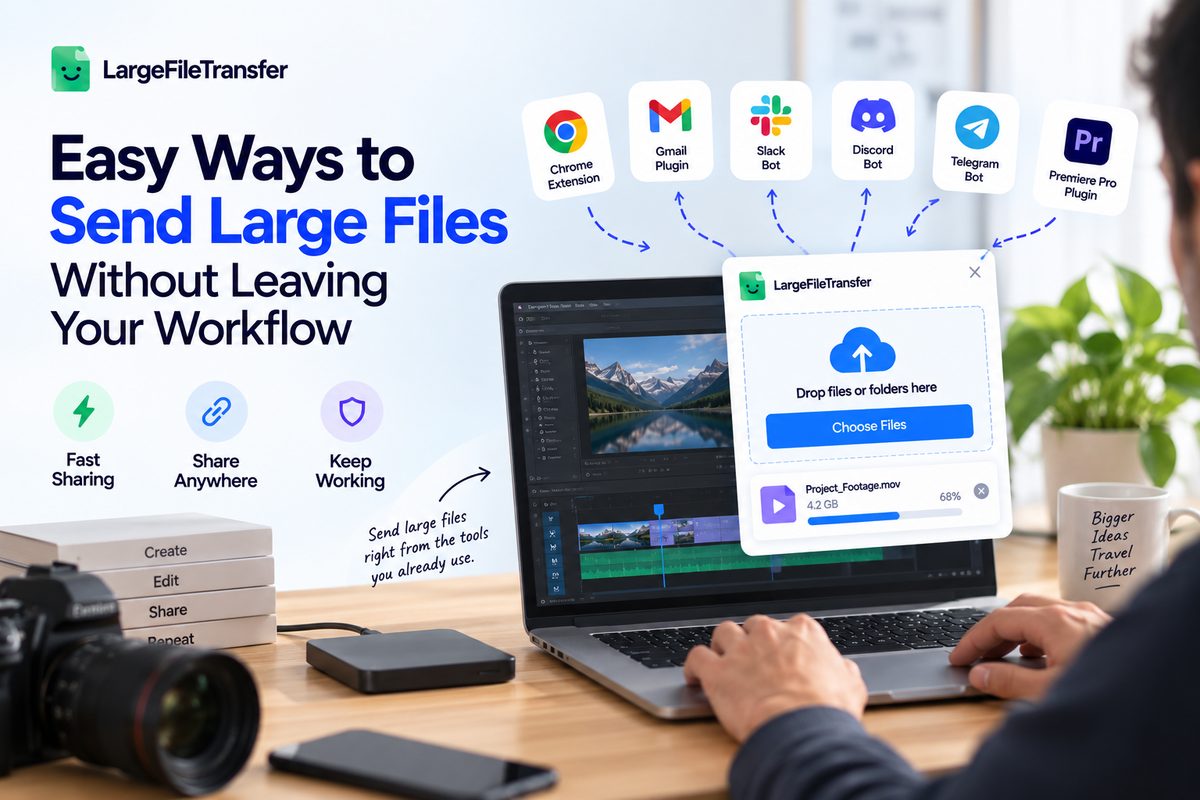
Easy Ways to Send Large Files Without Leaving Your Workflow
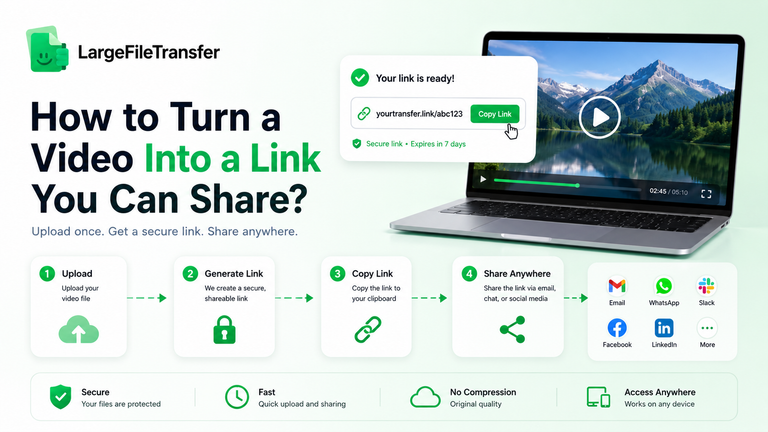
If you’re constantly moving between design files, video cuts, and client chats, send large files without leaving your workflow by using an in-app tool that creates a share link.
Gmail stops at 25 MB, while Slack allows files up to 1 GB per file, so bigger files can interrupt your work pretty quickly.
You can use the right LargeFileTransfer app for Gmail, Slack, Discord, Telegram, or your browser. Gmail allows 25 MB, Slack allows 1 GB, and LargeFileTransfer’s free plan lets you send up to 10 GB per file. The setup depends on the app, but you generally add the file, create a link, and send it without leaving your workspace.
You can also set an expiry date for shared links, while password protection is available on paid plans. The decision table below puts the options side by side, so you can quickly see which one fits your workflow.
What is Sending Large Files Without Leaving Your Workflow?
Sending large files without leaving your workflow means creating a shared link inside your app, without another tab or login. That means fewer context switches while you work and fewer attachment errors slowing down files before they reach someone else.
Here is how the old route compares with the in-app route:
| Factor | Old cloud-link route | In-app route |
| Steps per send | 5 steps through the cloud-link method, from upload through permissions | 2 to 3 steps per send, one-time setup excluded |
| Where you upload | A cloud storage folder before sharing | Directly inside the app where you are currently working |
| Storage you consume | Uses your own available storage quota for the file | Uses none of your storage quota |
| Link expiry | Set manually in the sharing menu | Preset when you create the link, 3 days on the free plan |
Source: Microsoft 365 lists five steps; LargeFileTransfer app pages show two to three per send, with one-time setup excluded.
Use the decision table later to compare each option and see how to send files from your workflow.
Why Email and Chat Apps Break Your Flow With Large Files?
Everyday tools set file limits designed for documents, not footage, design files, or archives that creative teams regularly send around. The workaround usually means leaving the app, uploading somewhere else, then returning to paste a share link.
Here are the limits that most often stop a send:
| Tool | Limit | What happens | Source |
| Gmail | 25 MB attachment limit | Gmail prompts a Google Drive link | Gmail Help |
| Slack | 1 GB per file | Upload fails above the limit | Slack Help, “Add files to Slack” |
| Outlook | Oversized files trigger a OneDrive link offer | Outside recipients need correct permissions | Microsoft 365 large-file guide |
Three hidden costs follow from these limits:
- Extra tab switches interrupt the task, especially when you are already moving between edits, reviews, and client messages.
- Your own storage or workspace storage gets used when large files move through cloud folders or team platforms.
- Permission mistakes can stop outside recipients from opening links, creating another round of messages and fixes.
How to Send Large Files From Your Browser Toolbar?
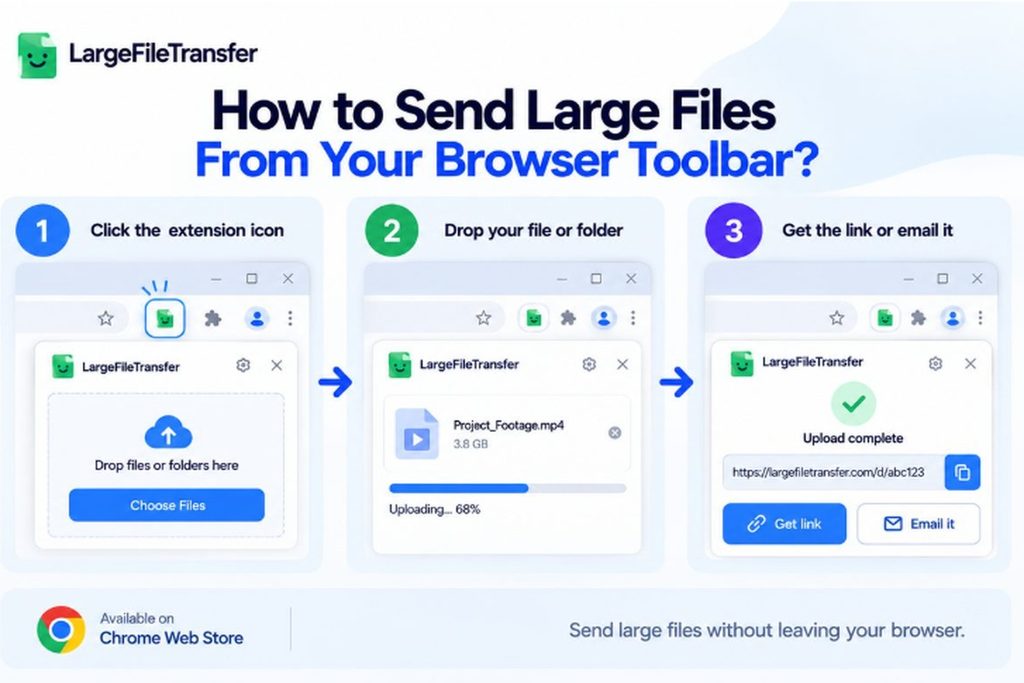
The free LargeFileTransfer Chrome extension lets you send large files from your browser toolbar without opening another tab.
Files up to 10 GB each go out as a share link, so you can keep working right where you are.
Follow these three steps:
- Click the LargeFileTransfer extension icon in your browser toolbar to open the popup.
- Drop your file or folder into the popup, then wait for the upload to finish.
- Choose Get link or Email it, then paste the link wherever you need it.
Good to know before you start:
- The extension works in Chrome, Edge, Brave, and Arc, so you can use your preferred browser.
- Large files upload in parallel chunks and resume automatically if your connection drops during the upload.
- Free links expire after 3 days, while paid plans extend their expiry period.
How to Attach Large Files in Gmail Without Hitting the Limit?
Instead of attaching the file, add a share link, and Gmail sends the message instantly.
The Gmail button in the LargeFileTransfer extension handles files up to 10 GB each on the free plan.
Here is how it works inside the compose window:
- Install the free LargeFileTransfer extension, which also adds the Gmail button to your compose window.
- Open a new Gmail message and start writing your email as usual.
- Click Send large file, choose your files, and let the resumable upload handle the transfer.
- Send the email, and the share link appears directly in the message body for your recipient.
Gmail’s built-in Drive link and the extension solve different problems:
- A Drive link works best when the recipient already has Google access and you want shared editing.
- The extension link suits outside recipients and avoids using your Drive storage for the file.
How to Share Large Files in Slack or Discord Without Storage?
Slack caps upload at 1 GB per file, so larger footage and design files need to go out as links.
Chat apps from LargeFileTransfer post a shared link, while using none of your workspace storage for the files you send.
Here is how each chat app works:
- Slack
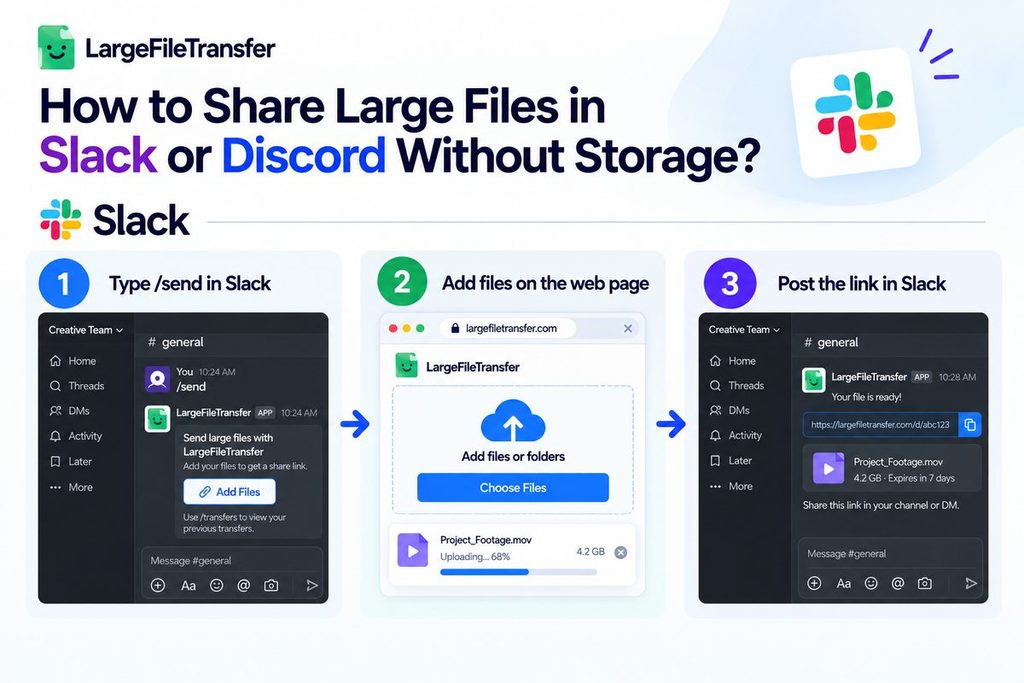
- Type /send to get a share link and an Add Files button, then share large files in Slack from there.
- Add files on the web page, then post the link to the channel or DM once the upload finishes there.
- Use /transfers to list everything you have shared, making it easier to find earlier transfers without digging through old messages.
- Discord
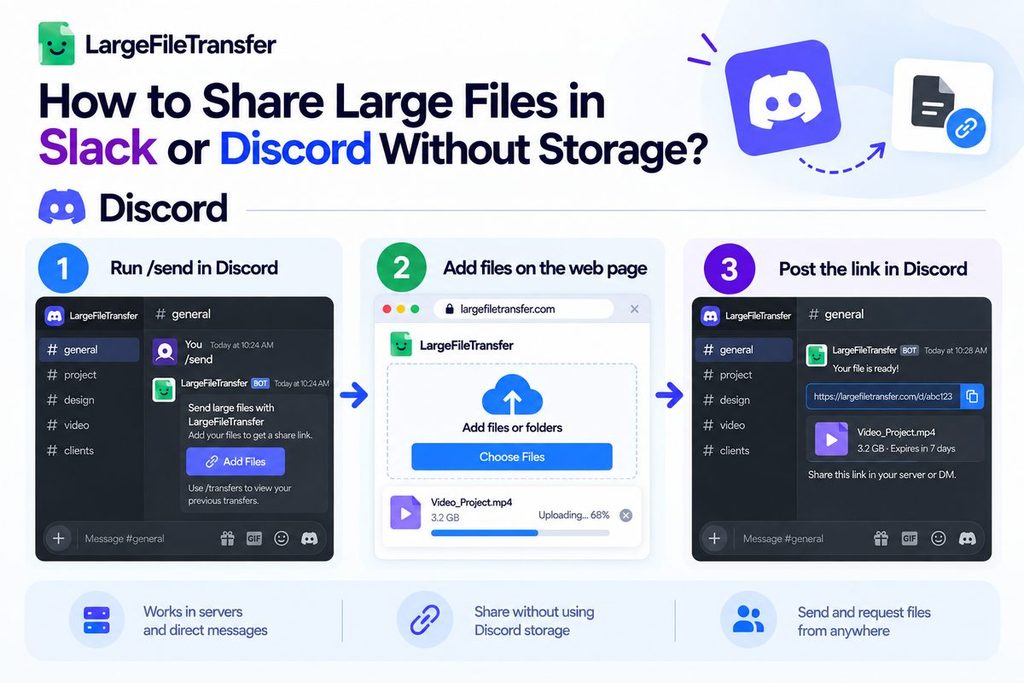
- The Discord bot can send and request files from Discord, including files shared through servers or direct messages from anywhere.
- Run /send, add your files on the web, then post the returned link in the chat when everything is ready.
The free plan handles up to 10 GB per file, and links expire after 3 days unless you upgrade later.
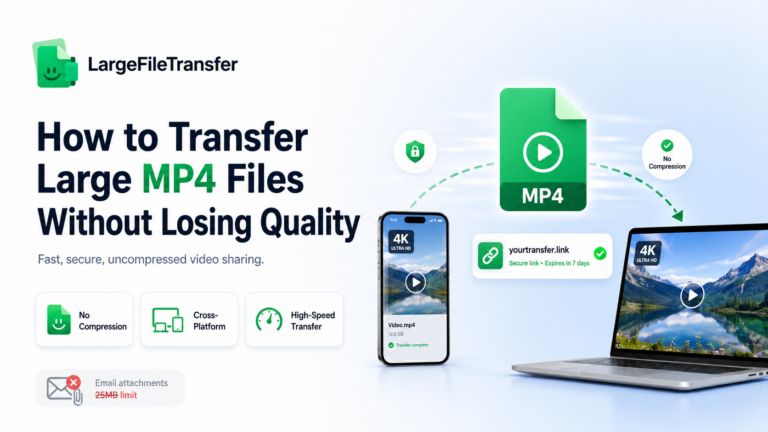
Sending 4K footage is another case where the transfer method matters, especially when you want the original file to stay untouched. See our guide to send 4K video without compression or quality loss.
How to Send Big Files From Telegram and Your Phone?
The Telegram bot turns any file up to 10 GB into a share link right inside your chat.
Your file uploads to encrypted storage instead of passing through Telegram, so the chat only handles the resulting link.
Use the bot in three steps:
- Connect your LargeFileTransfer account using the one-tap button shown when you open the bot.
- Send the bot the file you want to share, just like sending any regular message.
- Forward the share link it returns to your client, teammate, or anyone else.
On a phone, the free mobile app covers the same job:
- The LargeFileTransfer mobile app is available on both iOS and Android devices.
- It is free with no signup, and supports files up to 10 GB per file.
- Snap a new file or pick one from your phone, then share the generated link.
Get it: App Store | Google Play
Which In-App Method Fits Your Team? A Quick Decision Table
The best method is the one that lives where your team already works, keeping file sharing close to the task.
All available options send up to 10 GB per file on the free plan.
Here is the quick match by where you work:
| Where you work | Use this | Steps per send | Notes |
| Browser tab | Chrome extension | 3 | Chrome, Edge, Brave, Arc |
| Gmail | Gmail button | 3 | Same extension, one-time install |
| Slack | Slack app | 3 | Add files on web, post link |
| Discord | Discord bot | Check page | Send and request files |
| Telegram | Telegram bot | 2 | Connect once, send file, forward link |
| Phone | Mobile app | 3 | iOS and Android |
| Premiere Pro | Premiere panel | Coming soon | Adobe Exchange, Premiere Pro 25.6+ |
| Outlook | Outlook add-in | Coming soon | Not available yet |
Creative teams usually settle on one of these pairings:
- Editors can use the Chrome extension for browser-based work for quick file sharing.
- Designers can use the Gmail button for file transfer for creative teams when client communication stays there.
- Agency producers can use the Slack app for team handoffs and review paid plans as sharing needs grow.
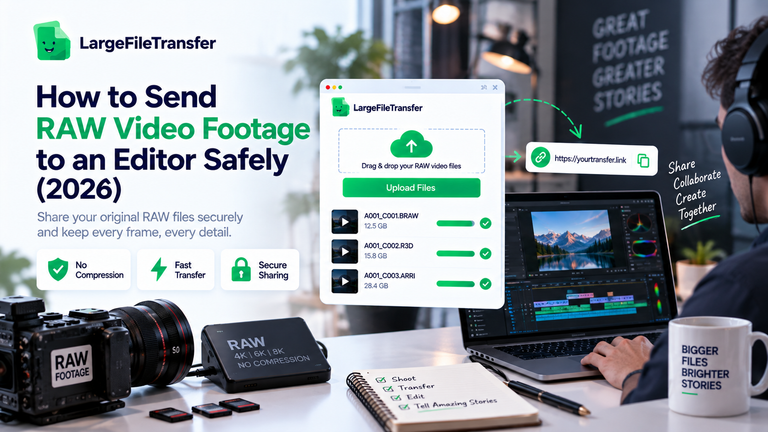
Sending RAW photos to an editor needs a slightly different handoff, from culling the shoot to keeping the original files intact. Read our guide to send large photo files to an editor safely.
How to Keep Shared Links Secure Inside Team Tools?
Anyone with a shared link can open the file, so treat each link like a key to something you shared.
Set an expiry, add a password when available, and post the link only where the right people can access it.
Here are three habits that keep links safe:
- Set the expiry
- Free links last 3 days, while paid plans can extend link expiry up to one year.
- Pick a shorter expiry when the recipient only needs temporary access to the file.
- Protect access
- Password protection is available on paid plans, giving you another way to restrict access.
- Send the password through a different channel so the link and password stay separate.
- Post carefully
- Share links through a private channel or direct message when the file contains client work.
- Before posting, check who belongs to the channel, especially when outside recipients are involved.
LargeFileTransfer encrypts files in transit and at rest, and you can compare paid plans there.
Send Large Files Without Switching Apps: Your Next Step
Pick the app where you already work, then send a share link instead of stopping to create an attachment.
You can send large files without leaving your workflow, with free sends reaching 10 GB per file.
Start with the option that matches your day:
- Gmail and browser users can add the free Chrome extension and keep sharing files from the same place.
- Slack and Telegram teams can connect the app once, then use it during regular file sharing.
- Phone users can install the mobile app and share files directly from their phone.
Explore LargeFileTransfer apps
Free, no signup, and links you control with expiry give you a simple way to manage shared files.
FAQs
- How do I send a large file without leaving Gmail?
Use the Gmail button to send large files without leaving your workflow, with shared links for files up to 10 GB.
- What is the Gmail attachment size limit?
The Gmail attachment size limit is 25 MB, after which Gmail prompts you to use a Drive link.
- Can I send large files in Slack?
Slack allows 1 GB per file, while larger files can use a LargeFileTransfer share link.
- Do I need an account to send large files from the Chrome extension?
No, the Chrome extension is free with no signup, and recipients need no account to download shared files.
- Which browsers does the extension support?
The extension supports Chrome, Edge, Brave, and Arc, so you can use it across those supported browsers.
- Are files compressed when I send them through an app?
No, LargeFileTransfer does not compress or transcode files, so recipients download the original file unchanged.
- How long do shared links last?
Shared links last 3 days on the free plan and up to one year on paid plans.
- Is there a Premiere Pro plugin?
A Premiere Pro panel is coming soon to Adobe Exchange, requiring Premiere Pro 25.6 or later on macOS or Win