Send 4K Video Without Compression or Quality Loss (2026)
A sharp 4K video can look blurry or blocky by the time it reaches the person you sent it to. Sending 4K video files without compression means stopping the app from changing the file along the way.
The frustrating part is that nothing may be wrong with the original video. Many messaging apps compress or re-encode videos automatically to make them smaller and faster to send.
That can reduce detail, change the bitrate, or even lower the video resolution. A file that looked great on your computer can arrive looking noticeably worse.
The good news is that the cause is easy to understand once the process is clear. This guide explains which apps cause the problem and how to send 4K video so the original file stays untouched.
Why Does Your 4K Video Look Worse After You Send It?
Most apps that shrink video for faster sharing re-encode the file, rebuilding it with less picture data than the original.
A true file transfer keeps the original file unchanged. Re-encoding creates a new, smaller version at a lower bitrate, which can cause blur, softer detail, and blocky artifacts.
Re-Encoding vs. File Transfer
- File transfer: Moves the original file exactly as it is.
- Re-encoding: Decodes the video and rebuilds it with fewer bits to create a smaller file.
The same principle applies beyond 4K video, especially when moving large files that need to retain their original quality; these 7 methods for sending large files without losing quality in 2026 break down the wider options.
How Large Is 4K Video?
A single minute of 4K footage can range from roughly 165 MB to several gigabytes, depending on the codec, bitrate, and recording format.
| Format | Approx. size per minute |
| H.264 | ~100–200 MB |
| ProRes | Several GB |
| RAW | Several GB or more |
Large files like these can exceed the size that messaging apps are designed to process without modification.
Common triggers for automatic re-encoding include:
- Uploading through a messaging app’s built-in media picker
- Sharing through a social platform’s Story or Feed
- Using a “quick share” feature that automatically resizes video
Apps That Will Wreck Your 4K Footage
Several everyday apps automatically compress video during normal sharing, but each has a different workaround.
- WhatsApp: Send 4K as a Document
Send the video as a Document, not through WhatsApp’s normal gallery picker, to avoid its regular video compression.
Choose Attach → Document and select the original 4K file. WhatsApp supports document transfers up to 2 GB.
- iMessage vs. SMS: Check the Bubble
iMessage handles video differently from SMS/MMS, where attachment limits can trigger compression or prevent larger videos from sending.
Check the conversation before sending large footage. Blue means iMessage, while green can indicate SMS, MMS, or RCS.
- YouTube Still Re-Encodes Your Video
Uploading a private or unlisted video to YouTube does not preserve the original file without processing.
YouTube re-encodes uploaded videos into different formats and resolutions for playback, so the uploaded copy is not a lossless master. Use YouTube for reviewing or watching footage, not for sending the untouched source file.
Here’s the simplest way to compare these options:
- WhatsApp: Normal video sharing compresses footage; send as Document instead.
- iMessage: Better suited than SMS/MMS for large video, but check that the message remains iMessage.
- YouTube: Private and unlisted uploads are still re-encoded.
Want to deliver 4K footage without compression or re-encoding? See how LargeFileTransfer handles high-resolution video transfers for editors and creators.
Transfer Methods That Don’t Touch Your Bitrate
The safest way to send 4K video without quality loss is using a method that moves the original file as-is.
Streaming and preview-based sharing can create versions optimized for playback instead of preserving the source file.
Here are the main transfer methods that preserve the original file:
- Cloud storage: Share a folder or direct download link instead of a streaming preview.
- Large file transfer platforms: Use services built specifically for sending high-resolution video files without changing them.
LargeFileTransfer follows this approach, with a transfer system that does not compress or re-encode files in transit. Its video-editor solution sends 4K and RAW footage untouched.
That makes direct file transfer a practical way to send 4K videos without quality loss when the recipient needs the original footage.
For client handoffs involving larger exports, the transfer method matters just as much as preserving the original quality; this 2026 guide to sending large video files to clients covers the broader delivery workflow.
How to Send 4K Video Without Compression?
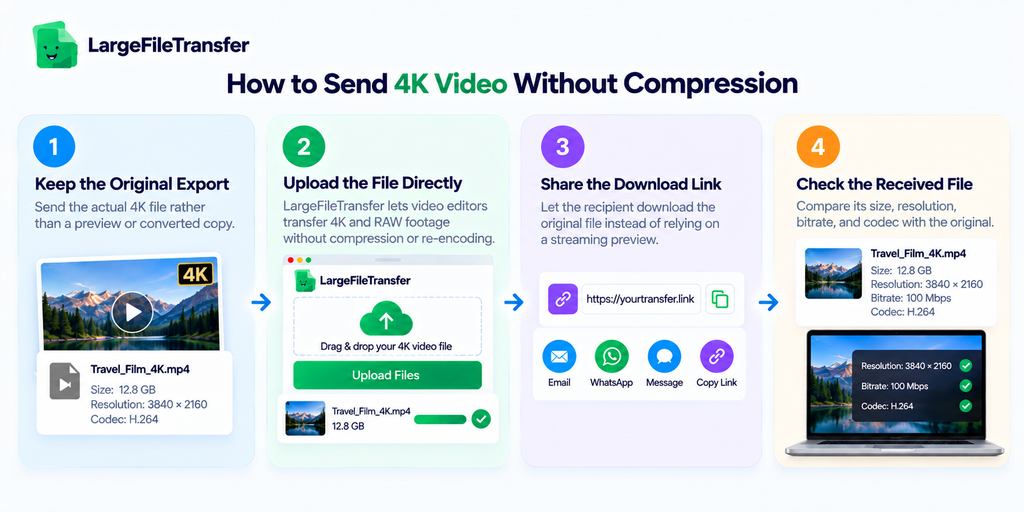
The simplest way to send 4K video without compression is to upload the original file to a transfer method that does not re-encode it.
Use this quick workflow:
- Keep the original export: Send the actual 4K file rather than a preview or converted copy.
- Upload the file directly: LargeFileTransfer lets video editors transfer 4K and RAW footage without compression or re-encoding.
- Share the download link: Let the recipient download the original file instead of relying on a streaming preview.
- Check the received file: Compare its size, resolution, bitrate, and codec with the original.
For large 4K footage, LargeFileTransfer’s video transfer solution is designed around sending the original file without changing it during transit.
How to Verify Your File Arrived Uncompressed?
The only reliable way to confirm a transfer preserved quality is to compare the file specs before and after, not screen appearance alone.
A video can look similar while still being re-encoded, so check the original and received files side by side.
- Compare file size: The sent and received files should match exactly or be virtually identical.
- Check resolution: Confirm the received file remains 3840 × 2160 or higher for 4K footage.
- Check bitrate: Compare the bitrate when available. A significantly lower value indicates the video was re-encoded.
VLC’s Media Information panel or your desktop’s basic Get Info/Properties window can reveal these details within seconds.
A Note on “Video Compressor” Tools
Several popular guides recommend a “better” video compressor, but that solves the opposite problem from avoiding compression.
A compressor is useful when file size is the main constraint and accepting some quality loss makes the video easier to upload or share.
Use a video compressor when:
- The original file exceeds a platform’s size limit.
- Faster uploads matter more than preserving every detail.
- A smaller viewing copy is acceptable for the recipient.
Do not use a compressor when:
- The recipient needs the original 4K file.
- You need the original bitrate and resolution preserved.
- The goal is to send 4K video without compression.
The actual fix is choosing a transfer method that moves the original file without changing it, as covered earlier.
Final Notes
4K quality loss usually comes from re-encoding during delivery, not from the original file or your export settings. The fix is simple: choose a transfer method or app setting that skips re-encoding and preserves the original file.
For your next delivery, send your next 4K file uncompressed and keep the original quality intact.
FAQs
- Why does my 4K video look blurry after I send it on WhatsApp?
WhatsApp can compress 4K video through its normal media-sharing flow, reducing bitrate and detail before delivery.
- Does Google Drive or Dropbox compress video files?
Google Drive and Dropbox generally preserve the original uploaded video when the recipient downloads the actual file rather than watching a processed preview.
- How can I tell if a video file was compressed during transfer?
Compare the original and received files for file size, resolution, bitrate, and codec information to identify changes caused during transfer.
- What’s the difference between H.264, H.265, and ProRes for file delivery?
H.264 is widely compatible, H.265 provides more efficient compression at similar quality, and ProRes delivers higher editing quality through much larger files.
- How do I send 4K video without compression?
Use a file-transfer method that sends the original video without re-encoding, resizing, or otherwise changing the file.
- What is the best way to send 4K videos without losing quality?
A dedicated large-file transfer service is a practical choice for delivering the original 4K file without quality loss.
- Can I send 4K video through WhatsApp without losing quality?
Send the video as a Document instead of using WhatsApp’s standard media-sharing option to preserve the original file.
- What is the best format for sending 4K video?
H.264 suits broad compatibility, H.265 suits smaller high-quality files, and ProRes suits professional editing workflows.