How Long to Upload a 10GB File? (2026 Speed Chart)
People sending a large video, project backup, or RAW photo archive often cannot predict whether the transfer takes minutes or hours. The key to understanding how long it takes to upload a 10GB file is knowing your actual connection type.
A 10GB upload can finish quickly on fast fiber but take significantly longer on slower broadband connections. That timing depends primarily on upload speed, not download speed, because sending data uses your connection’s upstream capacity.
This guide provides an exact time-by-speed chart covering common internet connections, from slower broadband to gigabit speeds. It also explains the real-world factors that make uploads slower than their advertised speeds.
How Long Does It Take to Upload a 10GB File?
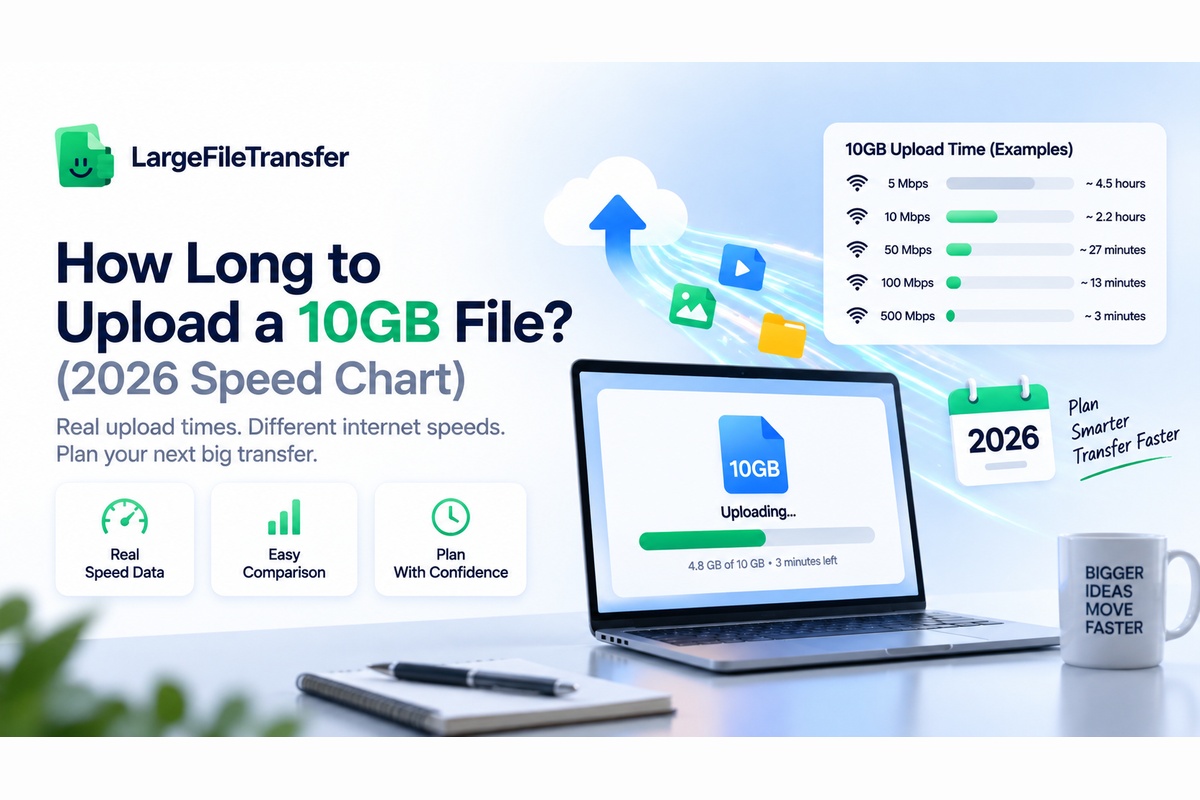
At 10–50 Mbps, uploading a 10GB file takes about 34 minutes to 2 hours 51 minutes; 500 Mbps–1 Gbps takes 1–3 minutes. Exact upload time depends primarily on your upload speed, because 10GB represents 81,920 megabits before accounting for real-world network efficiency.
See the full speed-by-speed chart below for precise estimates using approximately 80% real-world efficiency.
Before doing the calculation, it helps to understand how MB, GB, megabits, and megabytes relate when measuring file size and transfer speed.
How Upload Time Is Actually Calculated?
Upload time comes from dividing the file size by your connection’s upload speed.
The tricky part is unit conversion because file sizes use bytes, while internet speeds use bits.
Here is the exact math, worked through with real numbers.
10GB Upload Calculation
- Convert the file size:
10GB = roughly 10,240 MB - Convert megabytes to megabits:
10,240 MB × 8 = 81,920 megabits - Divide by upload speed:
81,920 ÷ connection speed in Mbps = theoretical upload time in seconds
Example at 100 Mbps:
81,920 ÷ 100 = 819.2 seconds, or about 13 minutes 39 seconds theoretically.
Real-world overhead from TCP/IP headers, Wi-Fi interference, and server-side limits typically adds 15–25% to that theoretical time.
10GB Upload Time by Connection Speed (Full Chart)
Upload time for a 10GB file ranges from under two minutes to nearly six hours, depending on your connection speed. Both theoretical and realistic times are shown because real transfers rarely sustain the advertised maximum throughout.
Here is the full breakdown, from the slowest common connection to gigabit fiber.
| Upload Speed | Theoretical Time | Realistic Time (~80%) |
| 5 Mbps | ≈4h 33m | ≈5h 41m |
| 10 Mbps | ≈2h 17m | ≈2h 51m |
| 25 Mbps | ≈55m | ≈1h 8m |
| 50 Mbps | ≈27m | ≈34m |
| 100 Mbps | ≈14m | ≈17m |
| 200 Mbps | ≈7m | ≈8m 30s |
| 500 Mbps | ≈2m 44s | ≈3m 25s |
| 1 Gbps | ≈1m 22s | ≈1m 42s |
For most US home users, upload speeds commonly sit around 10–50 Mbps unless they specifically pay for fiber service. That makes roughly 30 minutes to 2.5 hours a realistic expectation for many households uploading 10GB.
Why Is Upload Speed Almost Always Slower Than Download Speed?
Most home internet plans are asymmetric, giving downloads far more capacity because most household traffic flows toward users.
- Typical practical difference: A 500 Mbps download plan might provide only 10–20 Mbps of upload capacity.
- Why this matters: Sending a 10GB file depends on that much smaller upload capacity.
Here is how the main connection types differ in their upload capacity:
- Cable and DSL
- Usually asymmetric by design.
- More bandwidth is allocated to downloading than uploading.
- This makes large file uploads significantly slower.
- Fiber
- Often provides symmetric speeds in both directions.
- Upload capacity can therefore be dramatically higher.
- That is why fiber users see much shorter 10GB upload times in the chart above.
Before uploading: Check your plan’s advertised upload speed, not just the download speed typically shown in advertisements.
5 Real-World Factors That Slow Down a 10GB Upload
Your advertised upload speed is rarely the exact speed you get when uploading a large file in real-world conditions. These five factors explain why a 10GB upload often takes longer than the basic speed calculation suggests.
Here are the factors that matter most.
- Wi-Fi vs. Wired Connection
Wi-Fi can lose speed because of distance, walls, interference, and other nearby wireless devices using the same network. A wired Ethernet connection is usually more consistent and can sometimes deliver 30–50% faster real-world upload speeds.
- Network and Protocol Overhead
Your file does not use every bit of your connection because network protocols, encryption, and data handling consume some bandwidth. That extra overhead is why a real upload usually takes about 20% longer than the theoretical calculation.
- Other Devices Sharing the Connection
If someone is streaming, gaming, or backing up photos while you upload, those activities also use your available bandwidth. Your 10GB file then gets only part of the connection, making the transfer noticeably slower than expected.
- ISP Throttling or Network Congestion
Your internet provider may deliver slower speeds when the network is busy, especially during peak evening hours in your area. Some providers may also restrict certain traffic, although the exact policies depend on your internet plan and provider.
- The Receiving Server’s Own Limits
The service receiving your file also has its own capacity, so your connection is not the only speed limit. A cloud drive, email service, or file transfer platform may process uploads more slowly when its servers are busy.
Test Your Real Upload Speed Before You Send a 10GB File
Every number in the chart above becomes useful only after you know your actual upload speed at that moment.
The fastest way to check is a real-time test using the same network path file transfers typically use.
What Should You Check?
- Upload speed: This determines how quickly your connection can send the 10GB file.
- Download speed: Useful for receiving files, but it does not determine your upload time.
- Ping and jitter: These show connection responsiveness and stability during the test.
Use LargeFileTransfer’s Speed Test
LargeFileTransfer’s free test your real upload speed tool measures upload speed, download speed, ping, and jitter.
It tests your connection against a nearby network edge, giving you a more useful picture of current network performance.
Run the test immediately before sending a large file rather than relying on an older result when working against deadlines.
How to Upload a 10GB File Faster?
Your internet connection speed is mostly fixed in the short term, but several practical changes can reduce the time a 10GB upload takes.
The biggest improvements come from removing wireless instability, competing traffic, unnecessary file data, and restart risk.
Here is what actually moves the needle.
- Use Ethernet Instead of Wi-Fi
Connect your computer directly to the router using an Ethernet cable before starting the 10GB upload. If Ethernet is unavailable, move closer to the router and use the less-congested 5 GHz or 6 GHz band.
- Choose a Less Busy Time
Start large uploads late at night or early in the morning when neighborhood network demand is typically lower. This matters most on shared cable networks, where local congestion can reduce your available upload capacity during busy hours.
- Stop Background Uploads First
Open your cloud-sync apps and pause services such as OneDrive, Google Drive, Dropbox, or automatic photo backups. Also close applications uploading files, because even a small background transfer can noticeably reduce bandwidth during a large upload.
- Compress Uncompressed Files First
Put folders of documents, spreadsheets, or uncompressed images into a ZIP archive before uploading the file. Do not expect dramatic savings from already-compressed formats such as MP4, JPEG, or most RAW camera files.
- Choose Resumable Uploads
For a multi-hour transfer, use a service that supports resumable uploads so an interrupted connection does not restart everything. This is especially important on slower connections, where restarting a 10GB upload could waste hours of previously completed transfer time.
If your 10GB file contains a large collection of photos, learn how to compress large photos before sending to reduce the amount of data you need to upload.
The Fastest Way to Send a 10GB File Without Waiting Around
The sending method matters almost as much as connection speed when you need to move a 10GB file reliably. Email attachments usually cap far below 10GB, while some free transfer services throttle, restrict, or block larger files entirely.
Here is how the most common options compare for a 10GB transfer.
| Method | 10GB Support | What Happens If Interrupted? |
| Email attachment | ❌ No | Transfer fails; typically limited to 25MB |
| Basic cloud drive | ✅ Yes | May require restarting the upload |
| Free non-resumable transfer | ✅ Sometimes | Upload may restart from zero |
| LargeFileTransfer | ✅ Yes | Resumes from where it stopped |
A resumable, encrypted transfer link protects against a connection drop interrupting hours of upload work halfway through. It also avoids forcing recipients to open an oversized email attachment that their email service may reject completely.
With LargeFileTransfer, you can send a 10GB file directly using a transfer link designed for large files.
End Notes
A 10GB upload can take about 90 seconds on gigabit fiber or several hours on slower connections, so test your upload speed first. Choosing a resumable transfer method built specifically for large files matters just as much as having a fast connection.
You know your upload speed and what to expect. Now send your file free with LargeFileTransfer and get your transfer underway.
Frequently Asked Questions
- How long does it take to upload 10GB on 100 Mbps?
At 100 Mbps, uploading a 10GB file takes approximately 14 minutes theoretically or about 17 minutes realistically with normal network overhead.
- Is 10GB a big file to upload?
Yes, 10GB is large enough to strain most home connections but remains well within the capacity of dedicated large-file transfer tools.
- Why is my upload so much slower than my download?
Most home internet connections are asymmetric, meaning they provide substantially more download bandwidth than upload bandwidth by design.
- Does Wi-Fi slow down a 10GB upload?
Yes, Wi-Fi can reduce real upload speeds by roughly 30–50% compared with a wired Ethernet connection under typical conditions.
- What upload speed do I need to send 10GB in under 30 minutes?
You need approximately 57 Mbps of upload speed to send 10GB in under 30 minutes at 100% efficiency, or about 68 Mbps at 80% efficiency.
- Can I pause and resume a 10GB upload?
Yes, when your transfer tool supports resumable uploads, but basic upload tools may require you to restart after an interruption.
- Does file type affect upload time?
No, upload time primarily depends on file size and connection speed, although compressing uncompressed files can reduce the amount of data transferred.
- What is the fastest way to send a 10GB file?
A resumable large-file transfer tool over a wired connection, combined with a tested upload speed, provides a practical way to transfer 10GB efficiently.