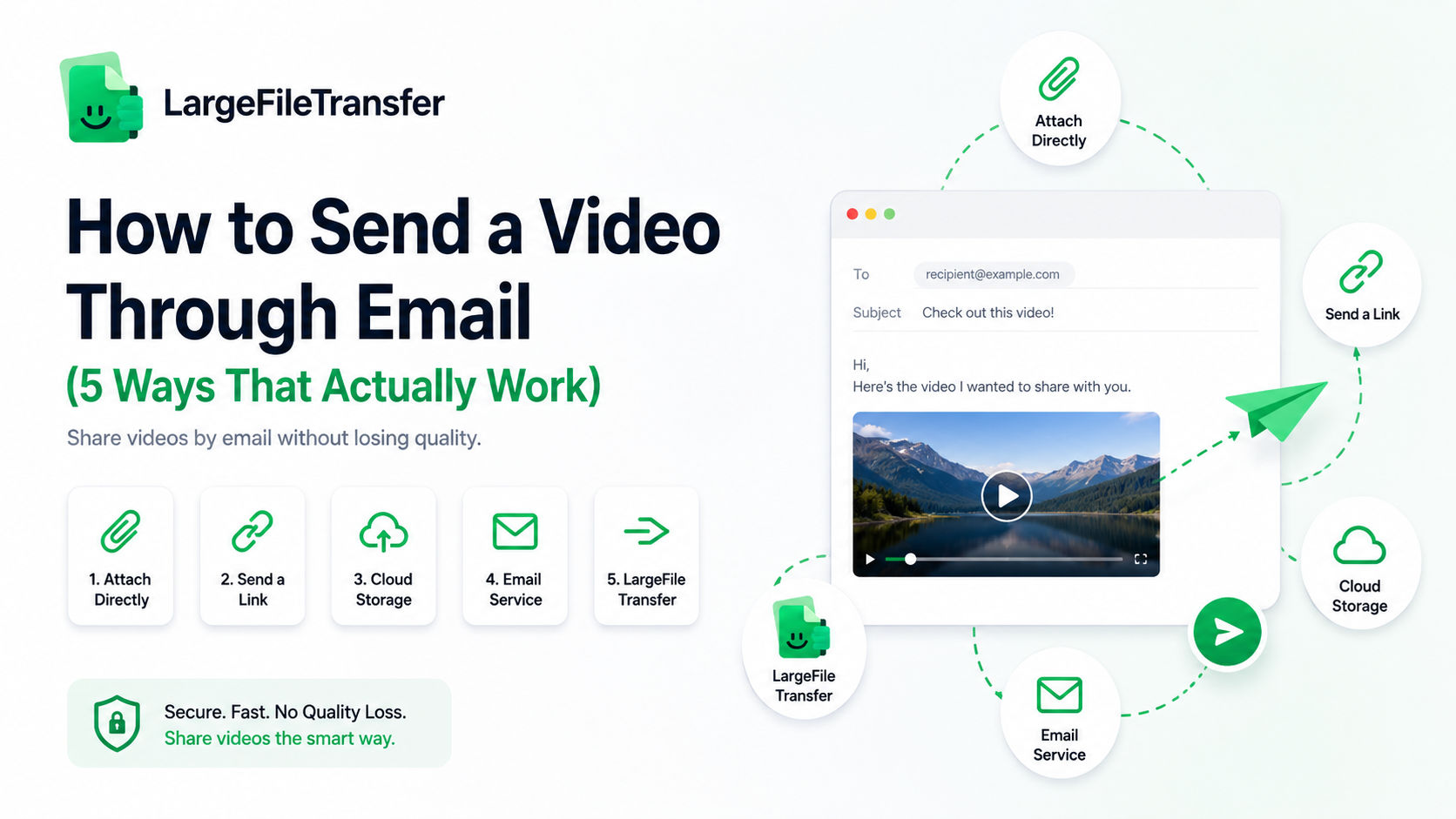
How to Send a Video Through Email (5 Ways That Actually Work)
The fastest way to send a video through email is to share a link to the video instead of attaching the file, since most email providers reject attachments once a video passes about 25 MB. This guide explains how to attach a small video in Gmail, Outlook, and Apple Mail, use Google Drive or iCloud Mail Drop for larger files, compress a video when necessary, and send a link when full quality matters. Use the option that matches the video size, email service, and quality you need. The instructions focus on practical steps, specific limits, and avoiding unnecessary quality loss.
Why Are Video Files Almost Always Too Big for Email?
One minute of 4K phone video can be about 350 MB, Gmail and Outlook.com typically allow for attachments of up to 25 MB. Even a video clip of 30 seconds can exceed the limit. The compression method involves the elimination of visual information from the file, which may cause a loss of sharpness and detail. Then it’s easy to choose; to shrink the video or send it elsewhere.
How to Attach and Send a Video by Email Client?
If a video is already small enough to fit the relevant attachment limit, sending it directly takes only a few steps. It works a little differently for each email client, however, so here are the instructions for them:
Gmail
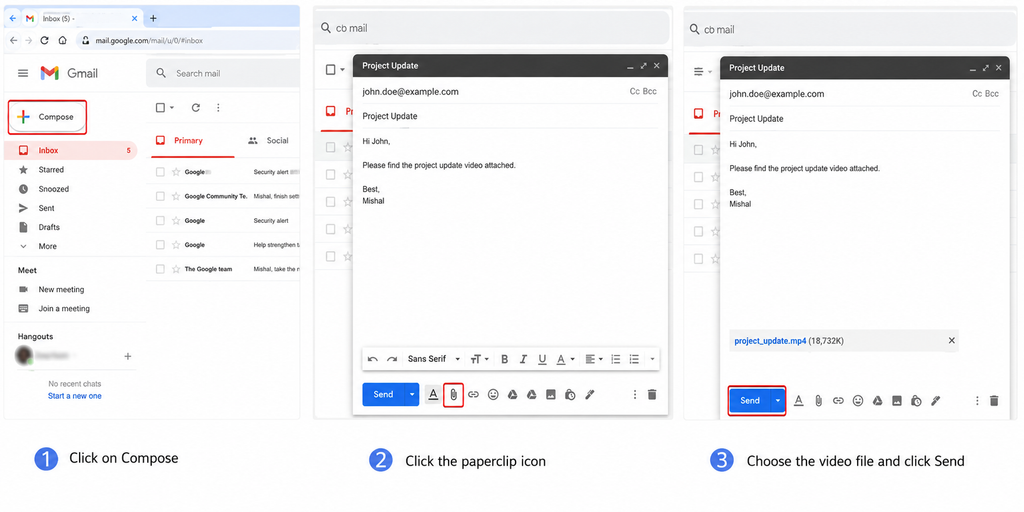
Personal accounts can send up to 25MB of attachments per email in Gmail. When the chosen video exceeds that limit, Gmail automatically redirects to a link in Google Drive instead of attaching the video.
On desktop, follow these steps to attach a video directly:
- Open up Gmail and press Compose.
- At the bottom of the message window click the paperclip icon.
- Click on the video file in your computer and select Open.
- Wait until the video has been uploaded completely to the message.
- Enter the recipient and the message, and then press Send.
On the Gmail mobile app, the process is similar:
- On Gmail app, click on Compose.
- Click on the Attach icon.
- Choose the video from your device.
- Wait for the upload to be finished.
- Tap Send and then add the recipient.
When the attachment size is larger than 25 MB, Gmail automatically deletes the attachment and links it in Google Drive instead.
Outlook
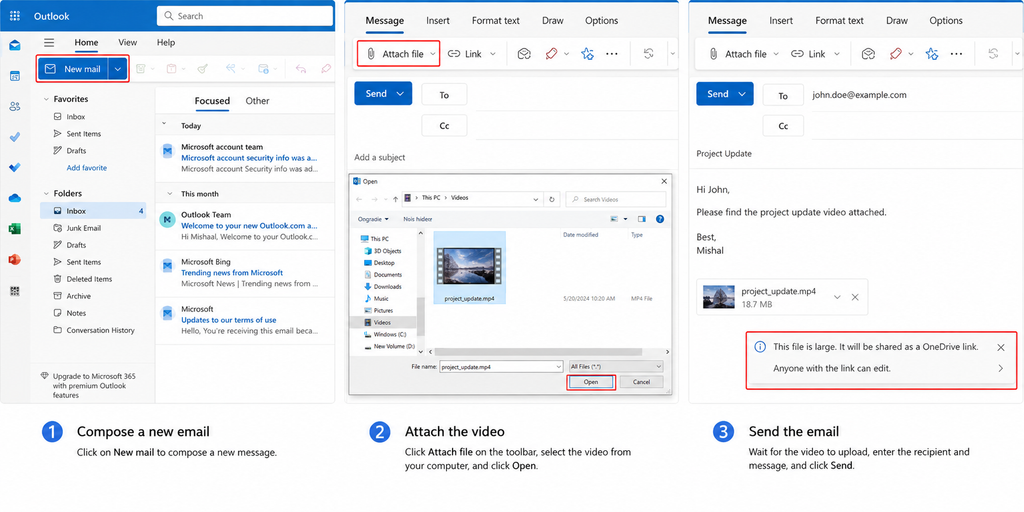
Currently, Outlook.com users can attach files of up to 25MB. The actual limit may depend on the user’s account type and Outlook environment. Additionally, Microsoft states that Outlook can also utilize OneDrive when a file is too large to send as an attachment.
If you are using Outlook on desktop or Outlook on the web, follow these steps:
- Open Outlook and compose a New mail message.
- Click on Attach File on the message toolbar or ribbon.
- Click on the video you want from your computer.
- Wait until the video has finished uploading.
- Enter the recipient and message, then click Send.
If the video is too big to attach directly, Outlook can provide you with OneDrive as an option so that the video message will include a link rather than the entire video file. This can prevent the video from being restricted from being attached as a file.
Apple Mail
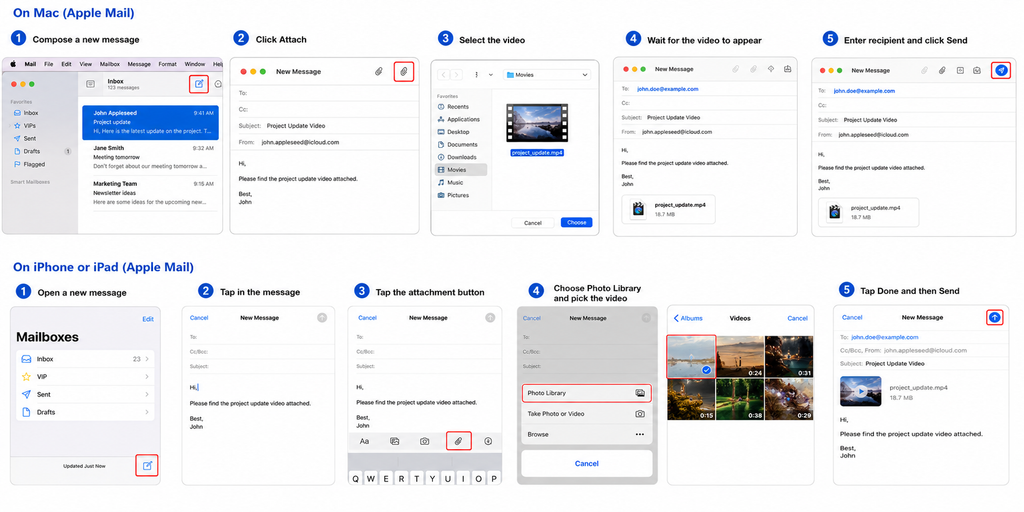
When the video is small enough for the email account’s limits, you can attach the video directly from a Mac, iPhone, or iPad using Apple Mail.
On the Mac, follow these instructions:
- Open mail and compose a new message.
- In the message bar, click Attach.
- Select the video from your Mac.
- Wait until the video is displayed in the message.
- Enter the name of the person to whom you are sending and click Send.
On an iPhone or iPad, follow these instructions:
- Open the Mail app and open a new message.
- Tap in the message where you’d like to insert the video.
- Click on the button above the keyboard that displays the attachment actions.
- Click on the Photo Library and pick the video.
- Tap Done and then send the e-mail.
Currently, Apple’s Mail guidance verifies that videos are capable of getting attached from the iPhone and that Mail can shift to Mail Drop if the file is bigger than the most extreme size permitted by the email account.
Note: For larger videos, you can skip the attachment limit with LargeFileTransfer and share the video through a link instead.
Sending a Video Through Cloud Storage
If you already have a Google or Apple ecosystem account, the next best thing to adding a video to your message is to upload it to cloud storage and post a link.
- Google Drive
If the video is too big to attach to an email message, but you would like to send it anyway, you can use Google Drive.
Below are instructions for sharing a video via Google Drive:
- Open up Google Drive and login to your Google account.
- Choose New and upload a file.
- Select the video from your computer and wait for it to upload.
- Click the Share button on the right side of the video.
- Update Access for the link from Restricted to Anyone with the link.
- Select Copy link.
- Copy the link into your Gmail or other e-mail message.
- Enter the recipients and send.
The recipient will then click on the link in a browser (depending on how you chose to share). Make sure the sharing setting is checked before sending as a video may not be viewable by the recipient if it is a restricted file.
- iCloud Mail Drop
When a video is too large to send directly, Apple’s built-in email application, Apple Mail, offers an alternative: Mail Drop.
- To use Mail Drop in Apple Mail follow these steps:
- In Mac Mail click on Open Mail from your Mac, iPhone or iPad.
- Create a new email message.
- Attach the video.
- If Apple Mail has an option for Mail Drop, select it as the video is too big to attach.
- Add the recipient and message.
- Email it and allow Apple Mail to upload the video.
The benefit of Mail Drop is its convenience, but it is limited to Apple’s mail environment. Download links for Mail Drop are also limited in time, and are typically available for 30 days, so the recipient should download the video before the link expires.
For a step-by-step guide, read How to Create a Shareable Link for Any File Size to learn how to turn large files into easy-to-share links.
Compressing a Video Before You Send It, and What You Lose
The compression is the reduction of a video’s size by reducing the resolution, bitrate or both. If you need to compress a large 4K clip into a 25MB email attachment, you will see some softness, loss of detail and blocky motion, particularly during high-speed scenes.
If the quality isn’t important, then compression is a fair compromise if the clip is short and to a friend. Unsuitable for client use, for vital footage, or anything which requires sharpness on a big screen.
Send a Link to Keep Your Video at Full Quality
Sending a video as a link keeps the original file intact because the video does not need to fit within an email attachment limit. It is the better option when video quality matters or the file is too large to attach.
Here are the steps with LargeFileTransfer:
- Create a free LargeFileTransfer account.
- Upload your video.
- Copy the generated link.
- Paste the link into your email and send it.
The free plan supports files up to 5 GB, 3 transfers per month, and links that expire after 2 days.
You can send your video directly through the LargeFileTransfer web app or use the Chrome extension if you regularly send files from your browser. Transfers are encrypted, and files are not used for AI training or any other secondary purpose.
Try it now, upload your video and share the link without shrinking your video.
End Notes
If your video fits the attachment limit, attach it. If it does not, or video quality matters, send it as a link instead, it avoids unnecessary compression and keeps the original file intact.
For a video that is specifically being rejected because it is too large, see Article 4. For a dedicated walkthrough on creating and sharing video links, see Article 12.
Send your video as a link with LargeFileTransfer and keep the quality intact.
FAQ
- What’s the video attachment limit for Gmail and Outlook?
Gmail allows up to 25 MB in attachments for personal accounts. Outlook.com also lists a 25 MB file attachment limit, although limits can vary by account or service configuration.
- Does sending a video as a link reduce its quality?
No. Sending a video as a link does not require compressing the video to fit an email attachment limit, so the shared file can remain at its original resolution and bitrate.
- Can the recipient download a video without creating an account?
Yes. A LargeFileTransfer recipient can open the shared link and download the video without creating a LargeFileTransfer account.
- How long does a LargeFileTransfer link stay active?
A LargeFileTransfer free-plan link remains active for 2 days. The free plan supports files up to 5 GB and 3 transfers per month.
- Can you send a video from a phone?
Yes. Videos can be sent from a phone by attaching a file that fits the email provider’s limit, using a cloud-storage link, or sharing a LargeFileTransfer link. The method works on both iPhone and Android.