How to Send WAV and FLAC Files Online Without Quality Loss
How do you send WAV and FLAC files online while keeping every detail of the original master intact?
For producers, mastering engineers, and studios, a changed file can mean extra work, unhappy clients, a resubmitted master, or a missed deadline. Archivists face the same risk when original recordings must stay intact. Email and messaging apps may limit large attachments, while some services convert audio or reduce quality. Sending the original file matters: WAV is common for studio delivery, while FLAC reduces file size without losing audio data. Here are practical ways to deliver masters, stems, and archives without changing sound. This guide covers professional-grade delivery of WAV and FLAC files.
Why WAV and FLAC Are Critical for Audio Professionals?
For mastering engineers, music producers, and archivists, the right audio format protects quality and prevents costly rework.
- WAV for master delivery: WAV stores uncompressed PCM audio and is widely used for studio masters. Common specifications include 24-bit/44.1 kHz and 24-bit/48 kHz, depending on project requirements.
- FLAC for lossless storage: FLAC reduces file size without discarding audio data. It suits transfers and storage when the receiving workflow supports it.
- Streaming context: TIDAL and Spotify Lossless support FLAC playback, reflecting the continued importance of lossless audio in music distribution.
- Why MP3 is unsuitable for master delivery: MP3 discards audio data. Converting it back to WAV cannot recover lost detail, making the original master essential for future remastering.
- Professional delivery: Confirm the required format, bit depth, sample rate, channel layout, and metadata before sending files. Professional workflows demand lossless audio at every step.
File Size Comparison: WAV, FLAC, and MP3
File size drives delivery method choice. For audio engineers, producers, and mastering studios, accurate estimates help plan uploads, storage, and client handoffs. The following figures assume stereo audio, decimal units, and uncompressed PCM for WAV. Actual file sizes may vary slightly because of metadata and headers. FLAC compression also depends on the audio content.
| Format | 1 minute | 1 hour | Quality |
| PCM WAV, 24-bit/48 kHz | 17.28 MB | 1.04 GB | Uncompressed, no lossy compression |
| FLAC, same source | 6.9–10.4 MB* | 0.41–0.62 GB* | Lossless |
| MP3, 128 kbps | 0.96 MB | 57.6 MB | Lossy |
| MP3, 320 kbps | 2.4 MB | 144 MB | Lossy |
- WAV: At 24-bit/48 kHz stereo, uncompressed PCM produces 17.28 MB per minute, or about 1.04 GB per hour. A 50-minute album containing ten five-minute tracks totals approximately 864 MB. File size changes with the sample rate, bit depth, channel count, and duration.
- FLAC: FLAC compresses audio without discarding audio data. Its decoded audio samples match the original samples exactly. A 40–60% size reduction is useful for estimates, but actual compression varies. Under that assumption, a 50-minute album could be approximately 346–518 MB. Check the exported files before planning transfers.
- MP3: MP3 uses lossy compression. At 128 kbps, one minute takes about 0.96 MB; at 320 kbps, it takes about 2.4 MB. Converting an MP3 back to WAV cannot restore discarded audio information. Keep the original lossless master for professional delivery and future remastering.
- Choose the right format: Use WAV when a client, studio, or label requires an uncompressed master. Choose FLAC when the recipient accepts lossless compressed audio and smaller transfers are useful. For ten five-minute tracks, the estimated FLAC saving is about 346–518 MB if compression reduces the original size by 40–60%. Always confirm the recipient’s delivery specifications.
Why Email and Messaging Apps Fail for Lossless Audio?
Platforms are built for convenient communication, not specifically for professional master delivery. File-size limits, sharing methods, and access controls can complicate audio handoffs, even when the platform does not alter the uploaded file.
Platform limits and audio handling
| Platform | File limit | What it means for WAV and FLAC |
| Gmail | 25 MB for personal accounts | Larger attachments become Google Drive links. Work and school limits depend on administrator settings. |
| Up to 2 GB | File sharing supports much larger transfers than the old 16 MB limit. Use file sharing rather than a voice message for a master. | |
| Messenger | Up to 100 MB | Larger audio files can exceed the attachment limit. |
| Slack | Up to 1 GB | Supports file uploads, but use the original downloadable file rather than relying on a preview. |
| Telegram | Up to 2 GB free, or 4 GB with Premium | Supports large file transfers, although project management and long-term retention remain separate concerns. |
- Email attachment limits: Large WAV masters can exceed email limits quickly. Mail servers and company security policies may also impose additional restrictions. SMTP itself does not impose one universal 25 MB limit.
- Audio compression and re-encoding: A voice message or processed media file is not the same as an original WAV attachment. Re-encoding can change the encoding, bitrate, or channel layout, depending on the process. However, do not assume that every file sent through a messaging app is automatically converted.
- The practical risk: A successful upload does not prove that the recipient has the required master specification. Confirm the format, file size, sample rate, bit depth, and channel count after download.
For client masters, stems, and archival copies, professional delivery requires a service that preserves the original file and provides a reliable way to share it.
Skip the attachment limits and send your audio files with LargeFileTransfer without compression or re-encoding.
Best Methods to Send WAV and FLAC Files Online
Lossless delivery services preserve WAV and FLAC integrity when they transfer the original file without audio conversion. The best method depends on whether you are delivering one master, collaborating across a studio, or supplying files to a label or distributor.
- Specialized file-transfer services
Best for independent producers, freelancers, and mastering engineers delivering individual projects.
- LargeFileTransfer supports files up to 10 GB per file on its Free plan and does not compress or re-encode uploaded files.
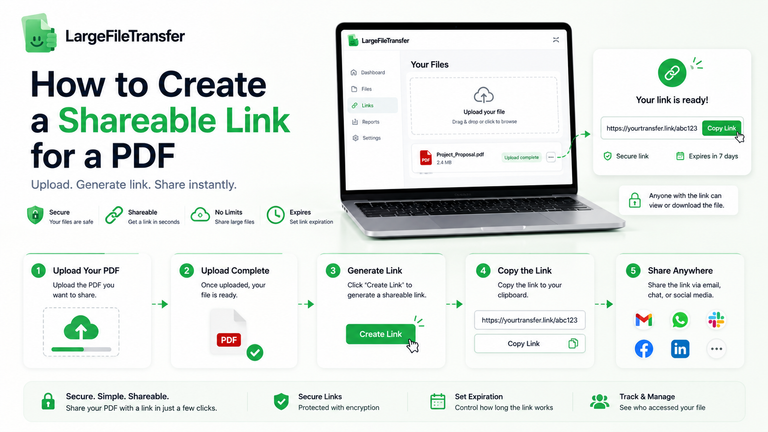
- Upload the original WAV or FLAC file and share the generated link.
- The recipient can download the file without creating an account.
- Other transfer services can also work, but check their current file limits, link expiry, and handling of original files rather than assuming every service guarantees unchanged delivery.
- Cloud storage for studio teams
Best for teams sharing sessions, revisions, stems, and approved masters over time.
- Dropbox: Shared team folders and version history help collaborators find project files and recover earlier versions. Storage and version-history periods depend on the plan.
- Google Drive: Shared drives keep team files under organizational ownership, making them useful when several people manage the same projects.
- OneDrive: A practical fit for studios already working in Microsoft 365, with shared folders and version history.
Cloud storage supports ongoing collaboration, but access settings and version retention need active management.
- Direct SFTP or managed servers
Best for labels, distributors, and studios with technical support.
- SFTP provides file transfer over SSH and allows an organization to control its server, access permissions, and retention policies.
- Administrators can establish a consistent delivery structure for masters, stems, documentation, and backups.
- The trade-off is setup and maintenance. Server capacity, user access, storage, and monitoring need to be managed.
- Confirm that the receiving system accepts the supplied audio format and retains the original files.
- Professional audio and distribution workflows
Best when music projects move between production, mixing, mastering, and release.
- Use collaboration tools such as Splice where they fit the studio’s project workflow, but confirm how project files and exports are shared.
- Keep exported stems and approved masters as separate, clearly named deliverables.
- For streaming distribution, follow the distributor’s specifications. Spotify’s official delivery guidance prefers FLAC and also accepts WAV files that meet its technical requirements.
- Do not assume every collaboration tool supports every DAW session, metadata field, or delivery format.
Which method should you choose?
- Freelancer: A dedicated transfer service for individual deliveries.
- Studio team: Shared cloud storage for collaboration, plus a dedicated transfer service for client handoffs.
- Label or distributor: SFTP or an approved delivery server, with independent backups.
- Mastering engineer: A transfer method that preserves the audio file and keeps filenames, revision details, and delivery notes organized.
Method choice depends on whether you are delivering once or collaborating long-term. Professional delivery means preserving the audio format throughout the transfer.
Lossless Transfer Services: The Professional Standard
Professional lossless transfer means sending the original audio without compression or re-encoding by the transfer service. LargeFileTransfer supports WAV and FLAC transfers up to 10 GB per file on its Free plan, making it an option for masters, stems, and client deliverables within that limit.
Upload
- Export the master at the agreed sample rate, bit depth, and channel count.
- Check filenames and revisions before uploading.
- Send the original WAV or FLAC file rather than converting it to MP3 to reduce its size.
- For multi-file projects, keep a clear folder and naming structure. Include a separate delivery manifest when recipients need revision notes or approval details.
- LargeFileTransfer does not compress or re-encode uploaded files.
Set Controls
Choose settings according to the sensitivity of the material and how long the recipient needs access.
- Free: Up to 10 GB per file, 5 GB account storage, three transfers per month, and a three-day link expiry.
- Plus and Pro: Password protection is available, with links configurable for up to one year or no expiry.
- Free transfers do not include password protection. Choose an eligible paid plan when password protection is required.
- Treat link expiry as an access-control measure, not as a substitute for backing up the master.
Compare LargeFileTransfer plans to find the right file limit, link expiry, and password protection options for your audio deliveries.
Share
- Create the transfer and send its link to the intended recipient.
- The sender needs an account; recipients do not need to create one to download files.
- LargeFileTransfer uses encrypted transfers and does not re-encode the audio.
- For confidential masters, use password protection on Plus or Pro and share the password separately.
- Keep delivery notes with the project so the recipient knows which revision is final.
Practical tip: Use password protection for confidential masters when your plan supports it. For reference mixes, choose an appropriate expiry period and avoid leaving access open indefinitely without a reason.
Recipient Downloads
- Ask the recipient to download the original file rather than treat an in-browser preview as the deliverable.
- Confirm that the filename, extension, file size, and audio specifications match the delivery brief.
- For critical master transfers, compare a cryptographic checksum, such as SHA-256, at both ends when the workflow supports it. Matching checksums verify that the files are identical.
- Keep the approved master in a separate project backup after the transfer.
Professional delivery should provide consistent file integrity and a straightforward download experience across client handoffs.
Compare file-size limits and delivery methods in our guide to transfer methods ranked by file size.
Cloud Storage Solutions for Lossless Audio
Cloud storage suits ongoing team collaboration. It keeps active WAV and FLAC files accessible across projects, but version history, permissions, and independent backups still matter.
- Dropbox for studio teams
- Use shared folders to organize masters, stems, session exports, and client revisions.
- Version history can help recover an earlier file after an accidental replacement. Retention depends on the subscription.
- Dropbox Business starts with a shared storage pool for the team; it is not universally unlimited storage. Check the current plan before committing a studio library to it.
- Keep approved masters separate from working revisions so collaborators can identify the final deliverable.
- Google Drive for labels and production teams
- Shared drives allow teams to own and manage project files collectively instead of tying everything to one employee’s account.
- Arrange projects by artist, release, and revision, with separate folders for masters, stems, and references.
- Drive provides file activity and version controls, but retention rules vary by file type and account settings.
- Review access permissions before sharing unreleased audio externally.
- OneDrive for Microsoft-based studios
- OneDrive fits workflows built around Microsoft 365 and Windows file management.
- Shared folders and version history can support collaboration on audio exports and delivery documents.
- Confirm the storage allowance, account policies, and external-sharing permissions of your specific plan.
- It is a sensible option when the studio already uses Microsoft tools rather than an automatic upgrade for every audio workflow.
- Use a separate archival strategy
- Cloud storage is a working library, not a complete preservation strategy by itself.
- Retain an independent backup on a separate drive or storage system, and verify that the files can be restored.
- FLAC provides a smaller lossless copy where the preservation workflow accepts it. Some archival workflows require a WAV or Broadcast WAV master instead.
- Keep more than one copy and do not rely on a single cloud account for permanent access.
For team collaboration, choose storage based on access, version history, and capacity. Long-term preservation also requires an independent, verified backup alongside your cloud storage.
Studios sharing large audio projects across locations can explore these file transfer tools for remote creative teams to find a workflow that fits their needs.
Preserving Metadata When Sending WAV and FLAC
Metadata preserves project context and delivery history. Artist names, dates, recording details, mix revisions, and approval notes help a mastering engineer identify the correct files without chasing missing information.
- Understand the metadata formats
- WAV files can contain metadata, including information stored in RIFF chunks and Broadcast WAV fields.
- FLAC supports its own metadata blocks and tags, including artist and track information.
- ID3 is commonly associated with MP3 files, so do not assume every format uses the same tagging system.
- Metadata support and compatibility vary by application. Converting between formats may not preserve every field, so check the receiving workflow’s requirements.
Organize the project folder
Keep the audio and its documentation together in a consistent structure:
ProjectName/
├── Masters/
│ └── Final_Master.wav
├── Stems/
│ └── Audio_Stems/
├── References/
│ └── Reference_Mix.wav
└── Metadata/
├── delivery-notes.txt
└── version-log.txt
- Put vocals, bass, drums, and other stems in clearly named folders when the project requires that separation.
- Keep the approved master distinct from rough mixes and reference tracks.
- Include a text delivery manifest when the recipient needs details that may not be embedded in the audio file.
- Use clear filenames and version tracking
- Prefer names such as 01_Vocals_V02_Revised_2026-10-13.wav and 02_Bass_V03_Approved_2026-10-13.wav.
- Use one date convention across the project, preferably YYYY-MM-DD.
- Record what changed in the version log, such as “V02: revised drums” or “V03: client-approved master.”
- Avoid filenames such as final-final-new.wav that leave the actual revision unclear.
- Keep the delivery trail
- A mixing engineer can send the stems, reference mix, and version log in one organized delivery.
- The mastering engineer can identify the intended revision and see what the client approved.
- A file-transfer service that does not re-encode audio avoids altering embedded audio metadata through conversion. It does not replace a separate record of project decisions.
Metadata preservation is not a simple WAV-versus-FLAC contest. Use the format and tags required by the receiving workflow, maintain a delivery manifest, and retain dated revisions.
FLAC Compression Explained: How It Maintains Quality
FLAC is lossless compression, meaning it reduces file size without discarding audio information. Like ZIP, it encodes data more efficiently, but its compression method is designed specifically for audio. The decoded PCM samples match the original samples exactly.
- How FLAC works
- Audio samples have patterns that can be predicted from nearby samples.
- FLAC uses prediction and encodes the remaining differences efficiently instead of storing each sample in the simplest uncompressed form.
- The decoder reverses this process to recover the original sample data.
- Compression ratios vary with the source audio. A 40–60% size reduction can be a useful estimate, but it is not guaranteed for every recording.
- FLAC versus WAV
- PCM WAV stores uncompressed audio samples, while FLAC stores those samples in a losslessly compressed form.
- FLAC can reduce upload time and storage use while retaining the original decoded audio.
- The size saving depends on the recording. Do not promise a fixed percentage or exact destination file size before encoding.
- The decoded audio samples are identical, although the FLAC file and a newly created WAV file will not necessarily have identical container bytes or metadata.
- Two common misconceptions
- “FLAC loses detail because it compresses audio.” False. Lossless compression allows the original audio samples to be reconstructed exactly.
- “FLAC is proprietary.” False. FLAC is an openly specified format with open-source tools and formal technical documentation.
- “FLAC preserves every WAV metadata field automatically.” Not guaranteed. WAV and FLAC organize metadata differently, and some metadata may need to be mapped or documented separately.
- Why it matters professionally
- Spotify’s delivery guidance prefers FLAC and accepts WAV files that meet its technical requirements.
- TIDAL also offers lossless FLAC playback, including high-resolution FLAC.
- These examples show that FLAC is used in modern distribution workflows, but they do not make it mandatory for every studio, label, or archive.
- For preservation, follow the receiving institution’s format specification. WAV and Broadcast WAV are preferred in some archival workflows, while FLAC can be useful when a lossless compressed copy is accepted.
The practical rule: Choose FLAC when a smaller, lossless file meets the recipient’s requirements. Choose WAV when the mastering, DAW, label, or preservation specification calls for it. Professional delivery depends on retaining the original audio data and meeting the receiving workflow’s exact requirements.
Once your FLAC files are ready, send your audio with LargeFileTransfer without re-encoding them.
Final Notes
Sending WAV and FLAC files is about more than getting an upload through. The file must reach the recipient in the format and quality the project requires. Use WAV when a studio or client specifies uncompressed audio, and choose FLAC when lossless compression is accepted and smaller transfers help. Before sending, check the sample rate, bit depth, channel layout, filenames, and revision notes. Avoid turning a master into MP3 just to reduce its size.
Sending your next master or stem? Transfer your audio files with LargeFileTransfer.
Frequently Asked Questions
1. Is FLAC or WAV better for sending to a mastering engineer?
WAV is usually the safer choice when a mastering engineer requests an uncompressed master or specific PCM settings. FLAC preserves the original audio samples, but confirm that the engineer’s software accepts it before sending.
2. Can I send WAV files larger than 10GB?
Yes, LargeFileTransfer’s Pro plan supports files up to 250 GB each, while Free and Plus support up to 10 GB per file. Choose a plan that covers your file size and transfer requirements.
3. Will my FLAC file decompress bit-for-bit identically to WAV?
FLAC decoding reproduces the original PCM audio samples exactly when the file was created from a lossless source. The resulting WAV container and metadata may differ even when the decoded audio is identical.
4. Do I need to password-protect master files?
Password protection is useful when sharing unreleased music, confidential client work, or masters that should have restricted access. LargeFileTransfer includes password protection on Plus and Pro, but not on the Free plan.
5. What if my client’s DAW doesn’t recognize FLAC?
Send an uncompressed WAV export that meets your client’s required sample rate, bit depth, and channel layout. If you only have FLAC, converting it to WAV preserves the decoded audio samples without adding lossy compression.
6. Can I send stems as FLAC, or must they be WAV?
FLAC works when the recipient’s software supports it and the delivery requirements allow lossless compressed audio. WAV is generally the safer option for stems that must import directly into a DAW or follow a studio’s specified format.
7. How long should a master delivery download link stay active?
Keep the link active long enough for the recipient to download the files and confirm delivery, allowing for weekends or revision schedules. LargeFileTransfer’s Free links expire after three days, while Plus and Pro links can remain active for up to one year or indefinitely.
8. Does FLAC file size depend on the audio content?
Yes, FLAC file size depends on how efficiently the particular recording can be compressed, so two tracks with identical duration and settings can produce different file sizes. Treat percentage savings as estimates and check the exported file before planning a transfer.