How to Email a PDF (And What to Do When It Won’t Send)
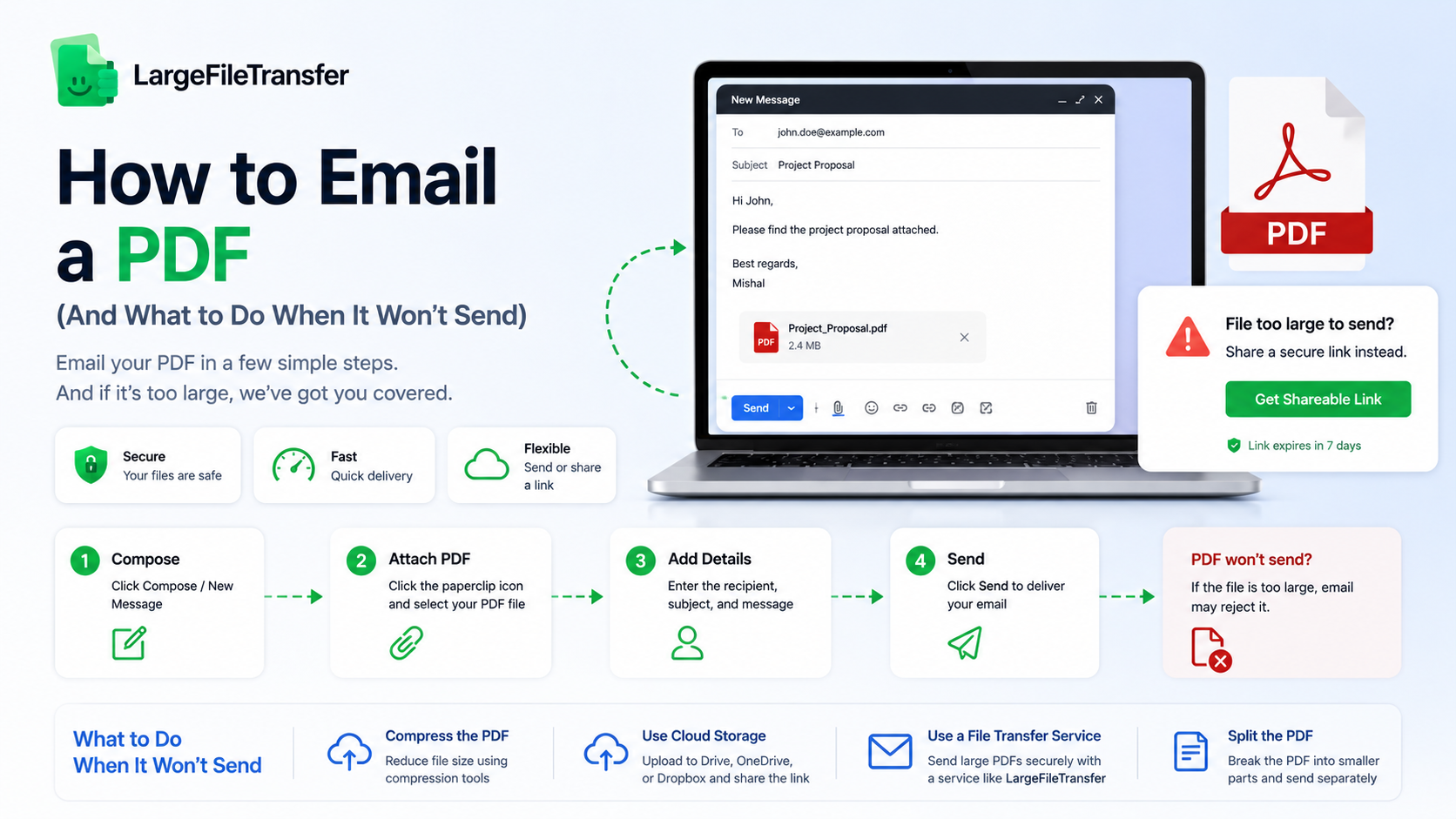
Attaching a PDF to an email takes three steps in almost any client: open a new message, click the attach or paperclip icon, and select the file. To send pdf to email, open your email, attach the PDF, and send the message once the file finishes uploading. The attach step rarely goes wrong, it’s the send that fails, usually because the file is too large or something is blocking it. This guide covers the basic steps and what to do when a PDF won’t be sent.
How to Attach and Send a PDF by Email Client?
The steps are nearly identical across email clients. The only difference is the location of the attach button, have a look at the quick references below to locate it and send your PDF.
- Gmail
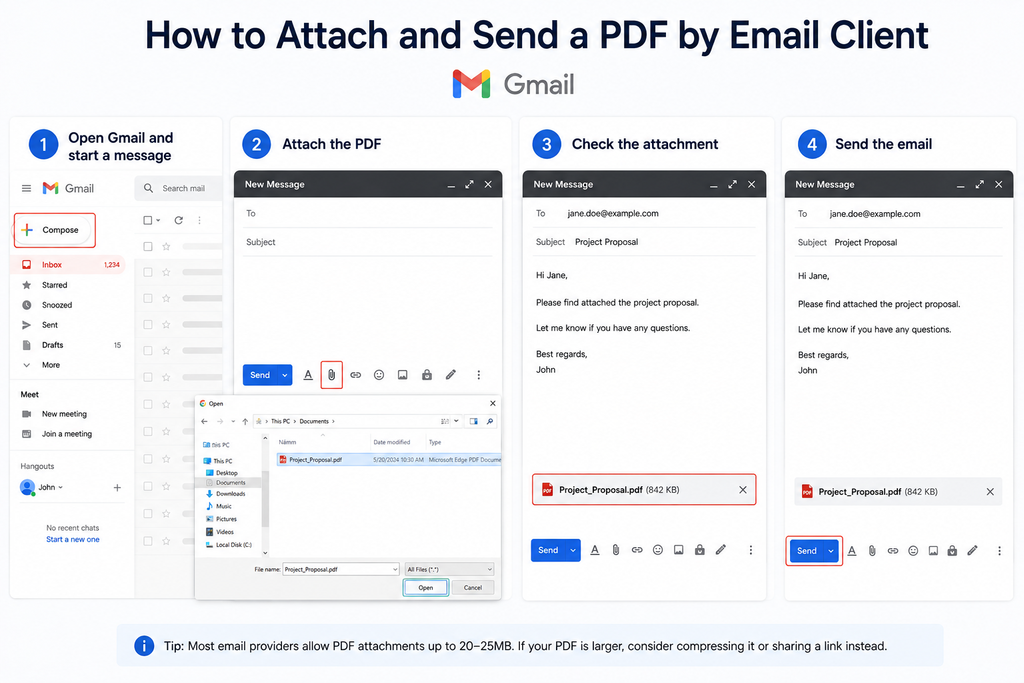
- Open Gmail and start a message: Click on Compose to start a new email on your desktop using the Gmail account you have.
- Attach the PDF: In the compose window, click the paperclip, Attach files icon at the bottom. Select the PDF on your computer and click Open.
- Check the attachment: Wait until the PDF has displayed before it is ready to be sent, and then check the PDF’s name in the message to confirm it is ready.
- Send the email: Include the recipient, subject and message, and then click Send.
In case the PDF is too big to attach, it will be automatically converted to a Google Drive link. If you’re attaching a normal PDF, ensure that it is completely uploaded before sending.
- Outlook
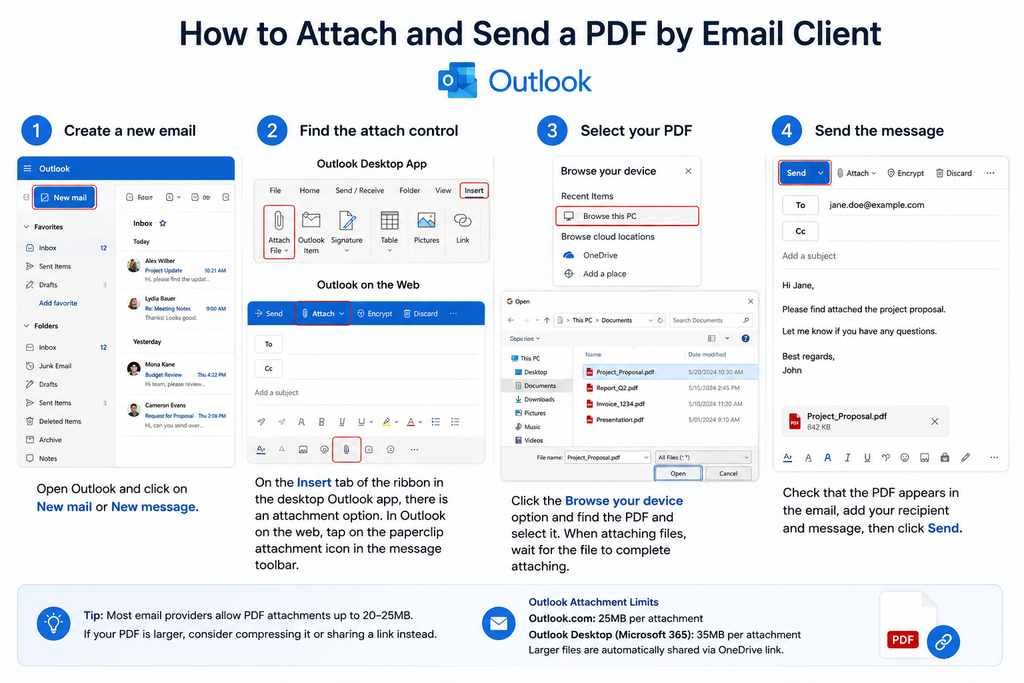
- Create a new email: Open Outlook and click on New mail or New message.
- Find the attach control: On the Insert tab of the ribbon in the desktop Outlook app, there is an attachment option. In Outlook on the web, tap on the paperclip attachment icon in the message toolbar.
- Select your PDF: Click the Browse your device option and find the pdf and select it. When attaching files, wait for the file to complete attaching.
- Send the message. Check that the PDF appears in the email, add your recipient and message, then click Send.
Outlook may also offer cloud attachment options, so check that you are choosing a file from your device if you want the PDF sent as a traditional attachment.
- Apple Mail
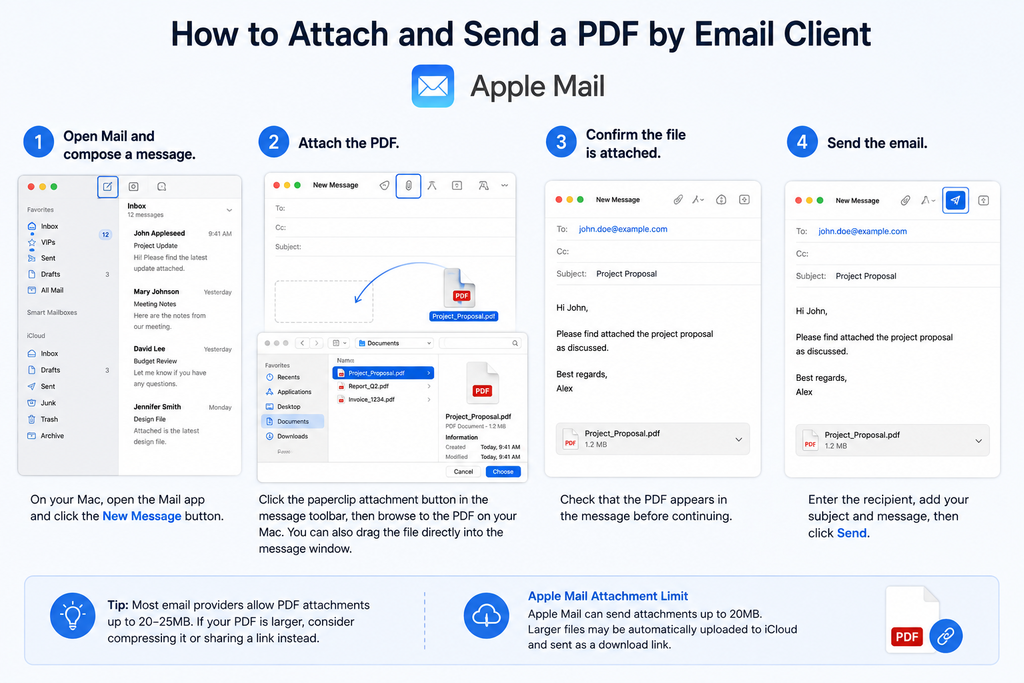
- Open Mail and compose a message. On your Mac, open the Mail app and click the New Message button.
- Attach the PDF. Click the paperclip attachment button in the message toolbar, then browse to the PDF on your Mac. You can also drag the file directly into the message window.
- Confirm the file is attached. Check that the PDF appears in the message before continuing.
- Send the email. Enter the recipient, add your subject and message, then click Send.
If you cannot immediately find the PDF, use Finder to search for the filename or check common locations such as Downloads or Documents.
Sending a PDF From Your Phone
Sending a PDF from your phone is easy once you know where the file is saved. Check Files, Downloads, or your cloud storage before opening your email app.
iOS (Files and Mail Apps)
On iPhone, you can attach a PDF from Files or share it directly from Files to Mail.
- Open Files and find the PDF. Check Downloads or use search if needed.
- Open Mail and start a new message.
- Tap the message body, then the paperclip icon.
- Choose Browse and select the PDF.
- Add the recipient and message, then tap Send.
You can also find the PDF in Files, tap Share, and choose Mail to create a new message with the PDF attached.
Android (Local Files and Google Drive)
On Android, PDFs may be saved on your phone or in Google Drive.
- Open Gmail or your email app and tap Compose.
- Tap the paperclip icon and choose Attach file.
- Select Files or Documents, then find the PDF, usually in Downloads.
- Select the file, add your recipient and message, then tap Send.
If the PDF is in Google Drive, you can attach it through Gmail’s Drive option. Depending on the file and sharing settings, Gmail may send it as a Drive link rather than a standard attachment. For a normal PDF attachment, download the file to your phone first.
Emailing a PDF Straight From an App
Sending a PDF straight from the app you made saves time because you can skip exporting, saving, and then finding the file to attach. It also helps prevent attaching the wrong version or the original Word or Excel file.
- Word
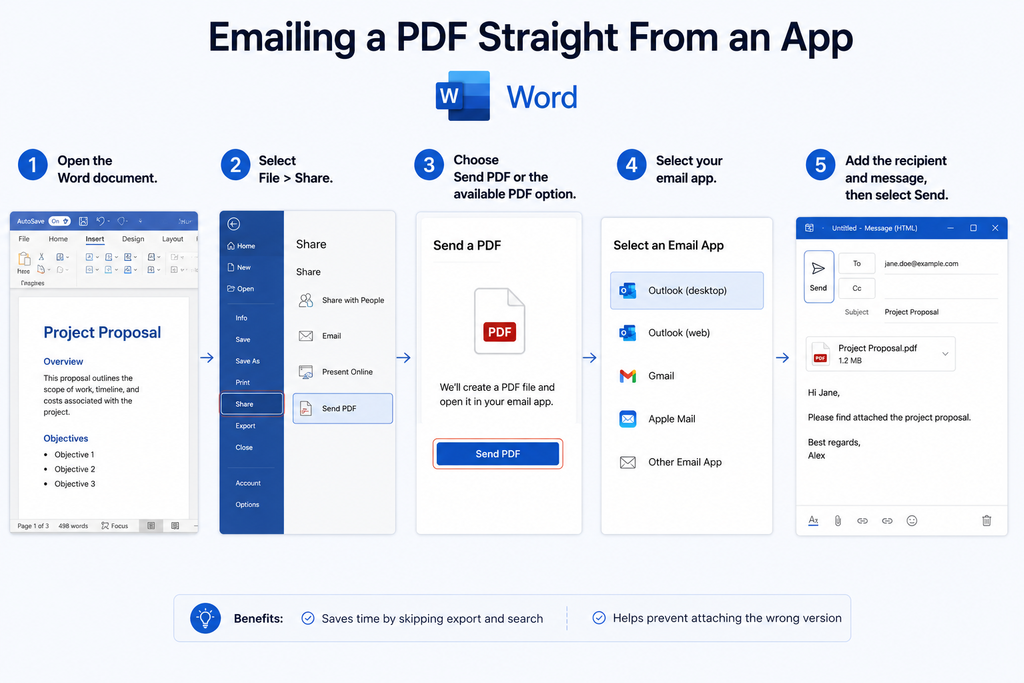
Word lets you create a PDF and send it by email without separately finding the exported file.
- Open the Word document.
- Select File > Share.
- Choose Send PDF or the available PDF option.
- Select your email app.
- Add the recipient and message, then select Send.
2. Excel
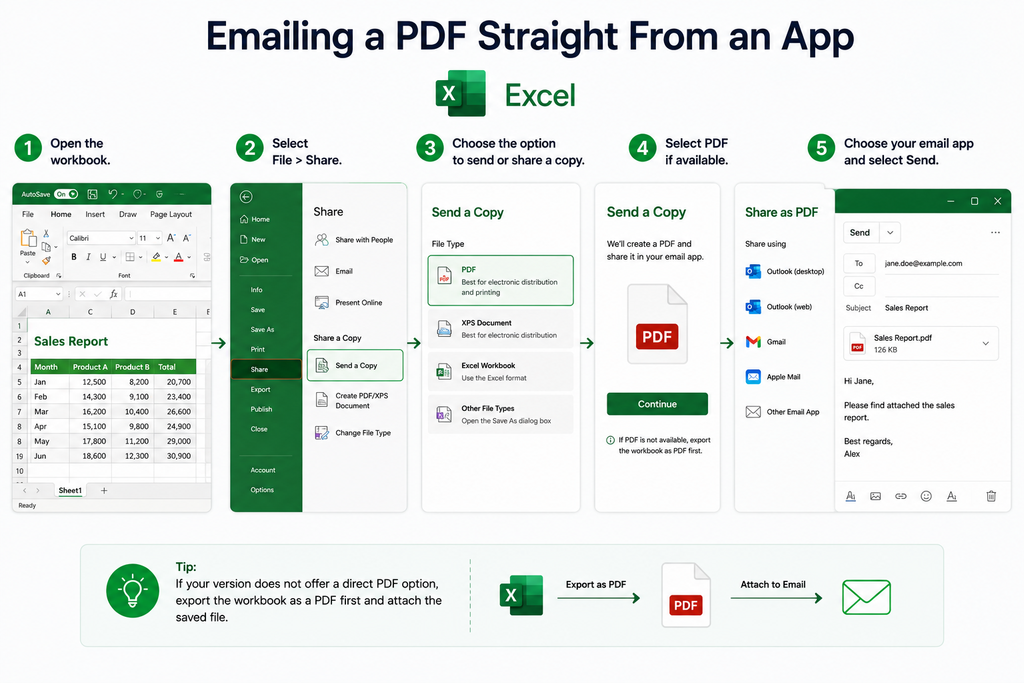
Excel offers a similar process, although the exact sharing options vary by version.
- Open the workbook.
- Select File > Share.
- Choose the option to send or share a copy.
- Select PDF if available.
- Choose your email app and select Send.
If your version does not offer a direct PDF option, export the workbook as a PDF first and attach the saved file.
3. Preview (Mac)
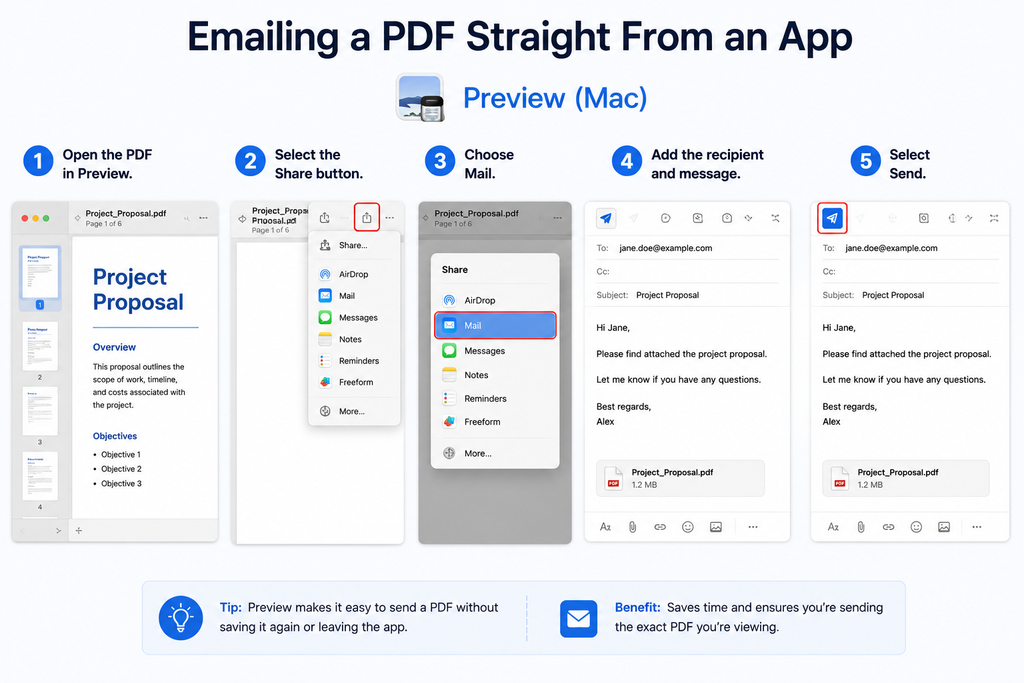
Preview lets you send an open PDF directly through Mail.
- Open the PDF in Preview.
- Select the Share button.
- Choose Mail.
- Add the recipient and message.
- Select Send.
What to Do When It Won’t Send?
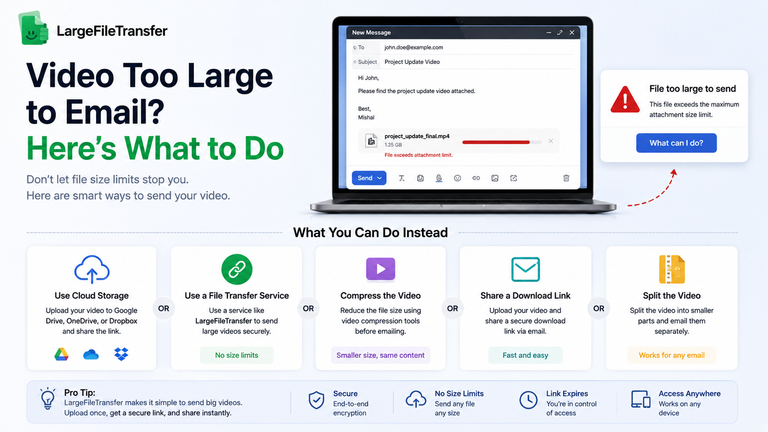
If your PDF won’t send, check its size first. Many email providers limit attachments to around 20–25 MB, and scanned or image-heavy PDFs can reach that limit quickly.
- Check the file size. If it is too large, see How to Send Large Files Through Emails (Beyond the 25 MB Limit) for the next steps.
- Open the PDF. If it shows an error or will not open, create a fresh PDF and try again.
- Close the PDF in your editor. Save your changes, close the file, and attach it again.
- Remove and reattach the file. A failed upload can prevent the message from sending.
- Check for an attachment block. Your email provider may reject a file if its security system flags the attachment.
If the PDF is too large to attach, you can also send it as a link instead. Try LargeFileTransfer to send the PDF without relying on an email attachment.
Final Notes
For small PDFs, attaching the file directly is still the simplest way to send it by email. Once the file is too large for your email provider’s limit, sending it as a link is the easier fix.
Need to send a large PDF? Try LargeFileTransfer.
FAQ
- Why won’t Gmail let me send a PDF?
Gmail may stop a PDF from sending if the message exceeds its attachment limit, the upload fails, or the attachment is blocked by its security checks. Check the PDF’s size, make sure it opens correctly, and try attaching it again.
- What’s the largest PDF I can attach in Gmail vs. Outlook?
Gmail allows up to 25 MB of attachments per message, while Outlook.com also has a 25 MB total message-size limit. These limits include the other attachments and message content, so the usable PDF size can be slightly lower.
- Can I send a PDF without an attachment size limit?
You can avoid the email attachment limit by sending the PDF as a link instead of attaching the file directly. This lets the recipient access the file without placing the full PDF inside the email.
- Do I need special software to send a PDF from my phone?
No. An iPhone or Android phone can send a PDF using its built-in file storage and a standard email app such as Mail or Gmail.
- Why did my PDF arrive blank or corrupted?
The PDF may have been damaged during creation or upload, or the wrong version may have been attached. Open the file before sending, confirm it displays correctly, and re-export or reattach it if necessary.