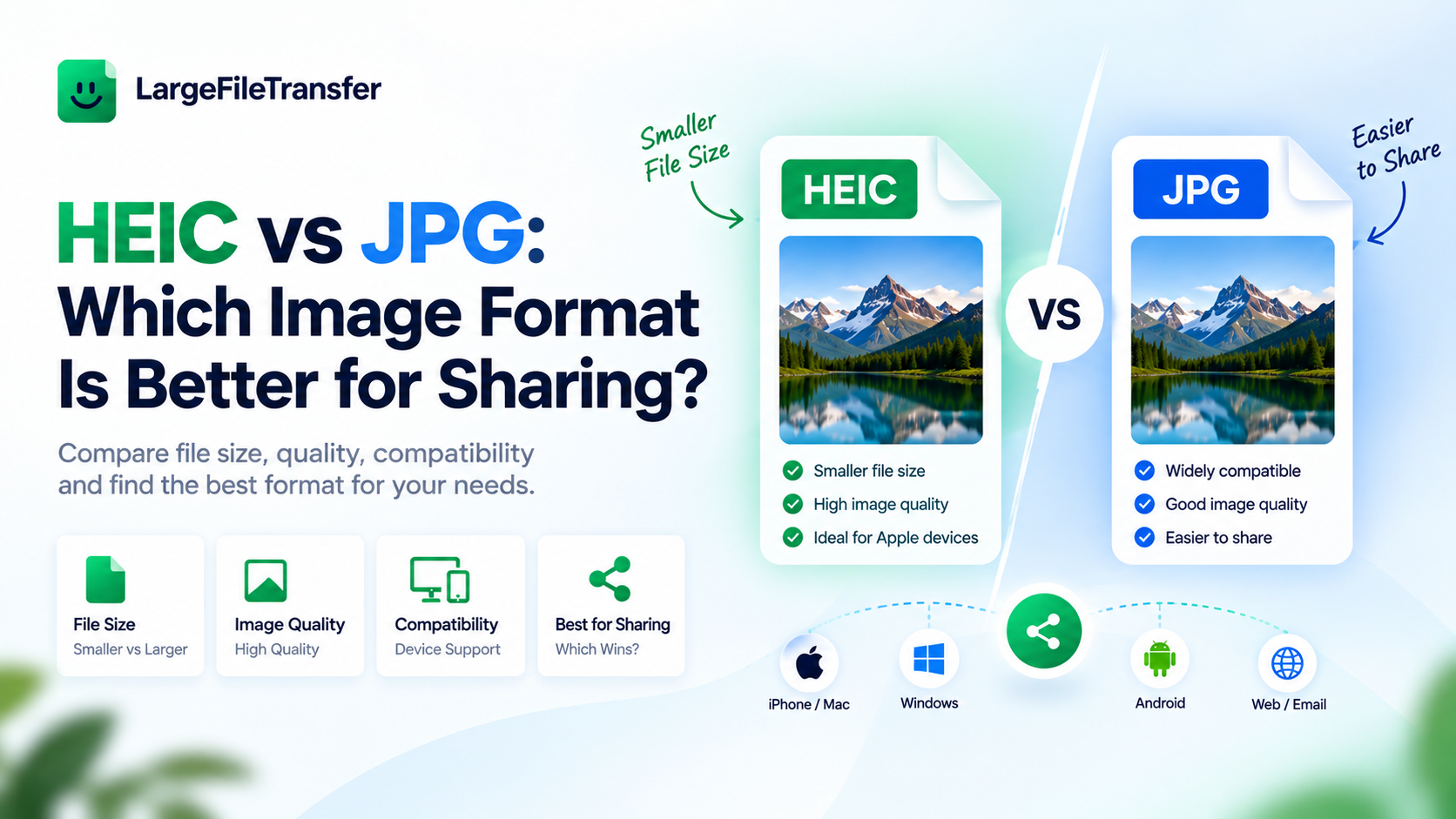
HEIC vs JPG: Which Image Format Is Better for Sharing?
That iPhone photo that looks perfect can suddenly fail when you try sending or uploading it. For HEIC vs JPG for sharing, JPG is usually the safer choice because it works across more devices, websites, and apps.
HEIC offers smaller files and excellent image quality, but compatibility remains its biggest drawback outside Apple devices. That can mean rejected uploads, unreadable email attachments, or websites that simply refuse to accept your photo.
The good news is you do not always need to convert every image before sharing it. Keep HEIC when the recipient supports it, and convert to JPG when compatibility matters most.
This guide explains exactly where each format works, when HEIC is worth keeping, and how to convert HEIC to JPG for free.
What’s the Real Difference Between HEIC and JPG?
HEIC saves space and retains more image information, while JPG prioritizes compatibility across devices, websites, and apps.
- HEIC in Simple Terms
HEIC stands for High Efficiency Image Container and arrived on Apple devices with iOS 11 in 2017. It uses HEVC, or H.265, compression to keep image quality high while reducing file size.
- JPG in Simple Terms
JPG has been widely used since 1992 and remains one of the most universally supported image formats. It uses older DCT-based compression, typically producing larger files but working reliably across most platforms.
HEIC vs JPG at a Glance
| Feature | HEIC | JPG |
| File size | About 40-50% smaller at similar visual quality | Generally larger |
| Color depth | Supports 10-bit and 16-bit color | Supports 8-bit color |
| Extra data | Can store Live Photos, depth maps, and multiple images | Stores one flat image |
| Compatibility | Support varies by device, software, and website | Works virtually everywhere |
What Matters When Sharing?
- File size: HEIC takes less storage space and can reduce the size of files you need to send.
- Color depth: HEIC supports deeper color, allowing smoother gradients and more detailed color transitions.
- Extra data: HEIC can preserve Live Photos, depth information, and multiple images within one container.
- Compatibility: JPG is usually the safer choice when you cannot control where the image will open.
In simple terms, HEIC is more efficient, while JPG is more universally compatible for sharing.
That difference becomes much clearer when you look at which sharing platforms actually support each format.
HEIC vs JPG for Sharing: The Quick Answer
JPG is the safer choice for sharing outside Apple devices, while HEIC is fine for storage within the Apple ecosystem. JPG has broader compatibility, so recipients, websites, apps, and printers are less likely to reject or misread your image.
Convert HEIC to JPG before sending photos to non-Apple users, uploading them to websites, or printing them elsewhere.
Before sharing, check your photo’s size to avoid attachment limits with this guide on how to check file size quickly.
Where HEIC Breaks and JPG Just Works?
HEIC works well within Apple’s ecosystem, but compatibility becomes less reliable when you share photos elsewhere.
Here’s the channel-by-channel breakdown showing where HEIC can fail and why JPG remains safer.
| Channel | HEIC | JPG |
| May appear as a download instead of an inline image. | Usually displays inline. | |
| Windows PCs | May need HEIF support to preview. | Opens natively on most systems. |
| Older Android | May require another app or conversion. | Widely supported. |
| Web uploads | Some forms reject HEIC outright. | Commonly accepted. |
| Print services | Many require JPG or PNG. | Widely accepted. |
| Social platforms | May convert it automatically after upload. | You control the file before uploading. |
What Does This Means for You?
If your photo stays within compatible Apple devices, HEIC usually works without much trouble. Once you share outside that ecosystem, JPG removes more compatibility problems.
For a quick fix, convert HEIC to JPG for free before sending, uploading, or printing.
Does Converting HEIC to JPG Lose Quality?
Yes, converting HEIC to JPG can reduce some image quality, but you usually will not notice the difference.
- Why does this happen? HEIC and JPG compress photos differently, so converting between them means the image is compressed again.
- What affects quality most? The JPG quality setting determines how much detail remains in your converted photo.
- What setting should you use? Choose 90-92% quality or higher to keep almost all visible detail in most photos.
- What happens at 75-80%? Many converters use these settings by default, which can cause visible artifacts around details, edges, and smooth colors.
Two Simple Rules
- Convert the original HEIC: Using the original file prevents extra quality loss from repeated conversions.
- Keep your photo details: Choose a converter that preserves information such as the date, location, and camera settings.
LargeFileTransfer’s free HEIC to JPG converter lets you choose the output quality yourself.
HEIC vs JPEG: Are JPG and JPEG Different?
No. JPG and JPEG are exactly the same image format, with different file extensions from older Windows naming limits.
- JPG and JPEG: Both extensions refer to the same image format and use the same compression method.
- What changes: Only the file extension changes, so .jpg and .jpeg files work the same way.
- For this guide: Everything discussed about JPG also applies to photos saved with a .jpeg extension.
- Why the confusion? People commonly search HEIC vs JPEG and HEIC vs JPG as though they were different comparisons.
- The real comparison: Both searches compare HEIC against the same widely supported image format, regardless of its extension.
When image quality matters, learn how to send large files without losing quality after conversion.
So, the decision stays simple: choose between HEIC’s efficiency and JPG’s broader compatibility when sharing.
When Should You Keep Photos as HEIC?
HEIC is a good choice when you mainly use Apple devices and rarely share photos outside that ecosystem.
There is no reason to convert every photo to JPG when HEIC already works well for your everyday needs.
Keep shooting in HEIC if all of these conditions apply to you:
- You use Apple devices: You mainly share photos through AirDrop, iMessage, or iCloud with other Apple users.
- You want to save storage: HEIC files are about 40-50% smaller than JPG while offering similar photo quality.
- You shoot Portrait photos: HEIC can keep depth information that compatible editing tools can use later.
- You rarely share outside Apple: You seldom send these photos to non-Apple users or upload them to other websites.
If any of these situations does not apply, converting your photos to JPG may be the better option.
When You Should Convert to JPG Before Sharing?
Once a photo needs to work beyond your Apple devices, JPG is usually the safer choice for most sharing situations.
It gives you fewer compatibility headaches when you cannot control where the photo will be opened or uploaded.
Convert to JPG before you do any of these:
- Email or text someone: JPG is safer when the recipient uses an Android phone, Windows PC, or other device.
- Submit an online form: Convert photos before uploading them to job applications, insurance claims, bank forms, or government portals.
- Order physical prints: JPG is a safer choice when sending photos to print shops or ordering prints online.
- Upload to a website: Convert when a platform or CMS specifically requires JPG or PNG files.
- Share photos with coworkers: JPG works better when your folder includes people using different phones, computers, or operating systems.
A free browser-based converter can change your HEIC photos to JPG within seconds, without installing software.
Use the free HEIC to JPG converter when you need a widely compatible copy.
How to Convert HEIC to JPG Without Losing Quality?
Converting a HEIC photo takes less than a minute with a free browser-based tool that processes files locally.
Your photo stays on your device during conversion, so nothing needs to be uploaded to a server.
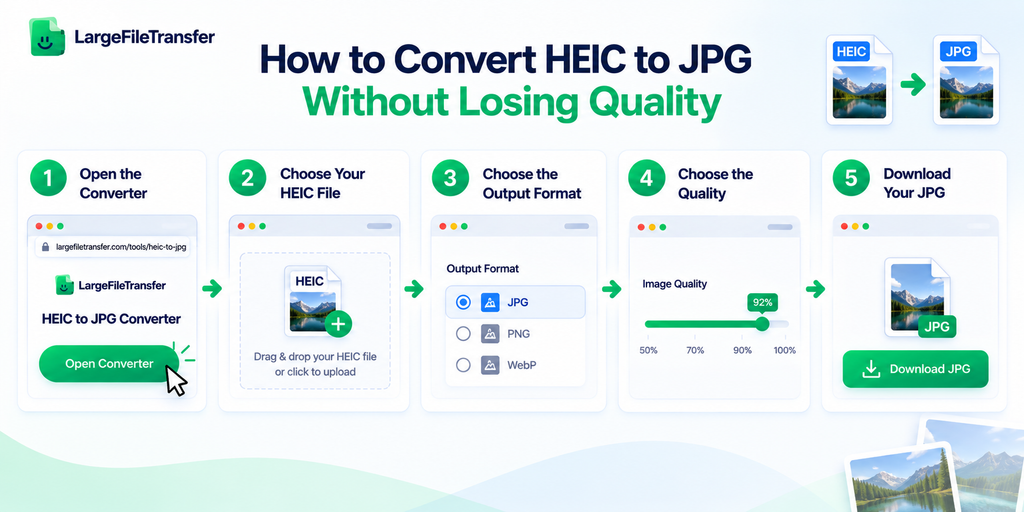
Here’s exactly how to do it:
- Open the converter: Open the HEIC to JPG converter on LargeFileTransfer’s website to begin converting your photo.
- Choose your HEIC file: Drag the HEIC photo into the converter or click the upload area to select it from your device.
- Choose the output format: Select JPG as your output format, or choose PNG or WebP when those formats better suit your needs.
- Choose the quality: Select the highest available quality setting, ideally 90-92% or higher, to preserve almost all visible detail.
- Download your JPG: Download the converted file, and it is ready to email, upload, print, or share anywhere.
Converting Multiple Photos?
Convert batches together: Batch conversion saves you from repeating the same five steps for every photo in your collection.
Still too large? Use the image compressor, or send large files for free as one shareable link.
How to Stop Your iPhone From Saving Photos as HEIC?
If you regularly share photos with non-Apple users, changing one setting can save you from converting photos later.
Your iPhone can automatically save new photos as JPEG instead of HEIC, giving you wider compatibility from the start.
Here is the exact setting to change:
- Open Settings: Find and open the Settings app on your iPhone to access your camera options.
- Tap Camera: Scroll through Settings and tap Camera to open the available camera settings.
- Tap Formats: Select Formats to find the options controlling how your iPhone saves photos and videos.
- Choose Most Compatible: Select Most Compatible instead of High Efficiency to save new photos as JPEG.
The Trade-Off
Every new photo will now save as JPEG automatically, but JPG files generally require more storage than HEIC. This setting suits people who share photos constantly, while HEIC remains better for mainly storing photos.
For a middle ground, keep shooting in HEIC and convert only the photos you plan to share using the HEIC to JPG converter covered earlier.
Best Image Format for Sharing: A 20-Second Checklist
Need the answer quickly? Follow these two questions to choose the right format for sharing your photo.
You only need to know where the photo is going and who needs to open it.
- Is the photo staying inside Apple devices only (AirDrop, iMessage, iCloud)?
YES → Keep HEIC
Your photo can stay in HEIC when everyone and everything involved supports Apple formats.
- Will it be emailed, uploaded, printed, or seen by anyone on Windows or Android?
YES → Convert to JPG
JPG is the safer choice when your photo needs to work across different devices, websites, or services.
When in doubt, JPG is the format that never causes a compatibility problem.
Ready to convert? Convert your HEIC file now.
Final Notes
HEIC works well when your photos remain with Apple devices and services that already support the format.
For broader sharing, JPG is the safer choice because it works across more devices, websites, printers, and platforms.
You will likely make this format choice regularly whenever you send, upload, print, or move photos.
Need to share one photo now? Convert your photos free using the no-signup HEIC to JPG converter.
Have an entire folder or gallery ready to send? Send large files free with up to 5GB at once, using one shareable link.
FAQs
- Is HEIC or JPG better for sharing photos?
JPG is generally better for sharing because more devices, websites, apps, and services support it without extra conversion.
- Does converting HEIC to JPG reduce image quality?
Converting HEIC to JPG can remove some image information, but high-quality settings usually make those changes difficult to notice.
- Why won’t my iPhone photos open on my Windows computer?
Your Windows computer may lack HEIF support, which some systems require before opening HEIC photos correctly.
- Can I convert HEIC to JPG for free?
Yes, LargeFileTransfer’s free HEIC to JPG converter runs in your browser and never uploads files to a server.
- Is HEIC the same as HEIF?
No, HEIF is the broader image format standard, while HEIC is a specific container commonly used for photos.
- Does HEIC vs JPEG mean something different from HEIC vs JPG?
No, HEIC vs JPEG and HEIC vs JPG compare the same formats because JPEG and JPG use identical image technology.
- Will HEIC photos work on Android?
HEIC photos work on some Android devices, but support varies by device, software version, manufacturer, and installed applications.
- Should I change my iPhone camera settings to JPG permanently?
Change your camera setting to JPG only if you frequently share photos with devices or services that may not support HEIC.