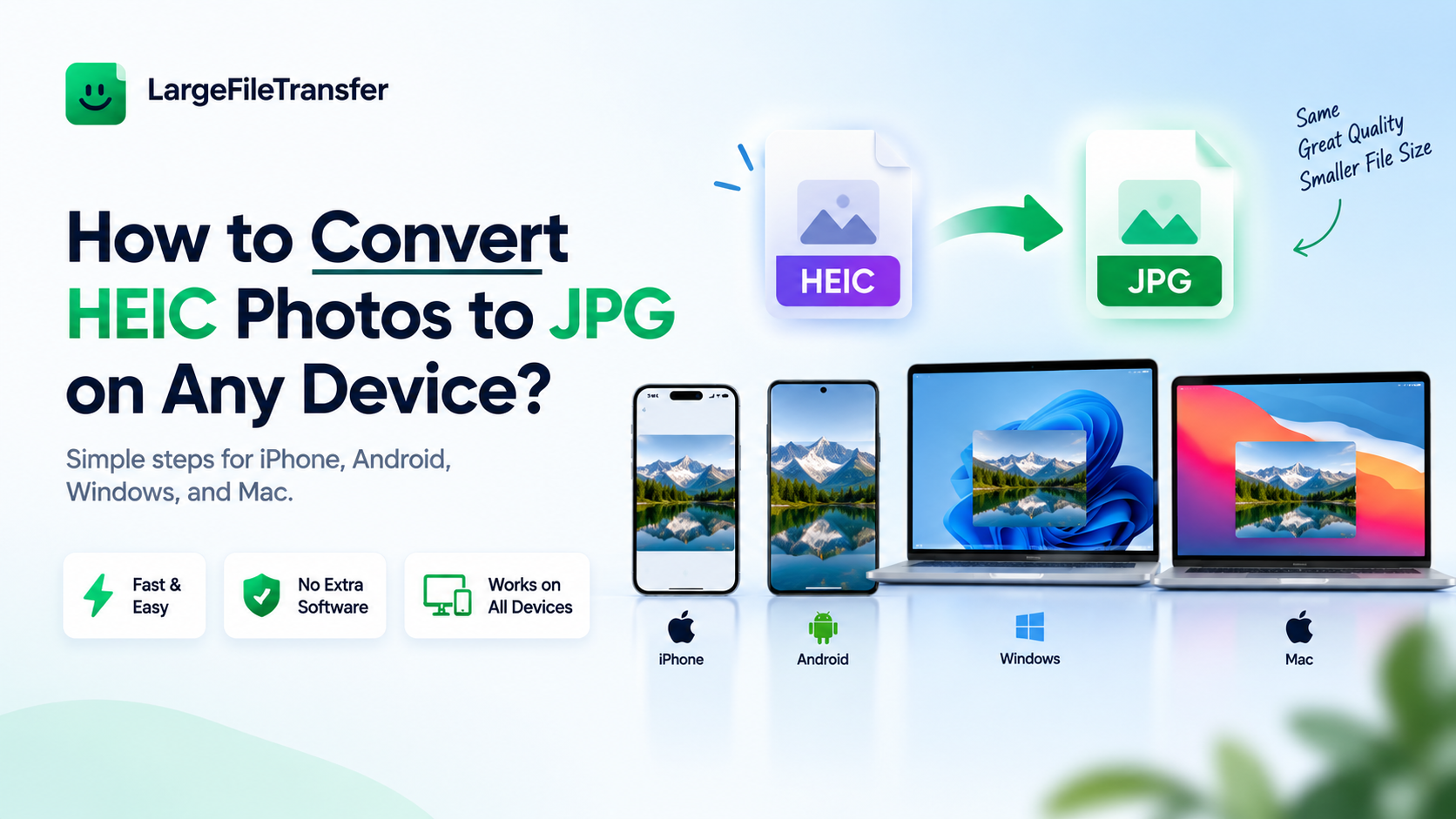
How to Convert HEIC Photos to JPG on Any Device?
Need a JPG version of an iPhone photo that won’t open on Windows, Android, or an older app? Convert HEIC to JPG and make it instantly compatible without sacrificing the original image.
HEIC files are the reason an otherwise normal iPhone photo can suddenly appear broken, unreadable, or unsupported. Since iOS 11, iPhones have used HEIC to save high-quality photos in smaller files, but support remains inconsistent across non-Apple devices and software.
That means the file itself is usually fine; the problem is simply that the device or app does not know how to open it.
This guide shows exactly how to convert HEIC photos to JPG in under a minute on iPhone, Windows, and Mac, including batch conversion and ways to stop your iPhone from saving photos as HEIC.
What Is a HEIC File, and Why Does Your iPhone Use It?
HEIC (High Efficiency Image Container) is the photo format iPhones have used by default since iOS 11 in 2017. It keeps photo quality high while using about half the storage space of a JPEG.
That smaller file size saves space on your iPhone and in iCloud. The downside is compatibility: HEIC is not supported as widely as JPG, so older software, some Windows and Android devices, and certain websites may not open HEIC files properly.
That is why converting HEIC to JPG is often the easiest fix when a photo needs to work across different devices, apps, or websites.
HEIC vs. JPG: What’s Actually Different?
JPG is the older, widely supported image format, while HEIC is newer, smaller, and more efficient but still less compatible in 2026. The main difference is simple: HEIC saves storage space, while JPG makes sharing and opening photos easier almost anywhere.
| Factor | HEIC | JPG |
| File Size | About 50% smaller at similar image quality | Larger at similar image quality |
| Compatibility | Works best on Apple devices and newer software | Works on virtually every device, OS, and platform |
| Editing Support | Limited in some older editing tools | Supported by virtually all major editing tools |
| Best For | Saving storage on Apple devices | Sharing, uploading, sending, and printing |
- HEIC uses newer compression to keep photo quality high while taking less storage space. JPG files may be larger, but they work across computers, phones, apps, websites, and cameras.
- JPG is the safer choice for compatibility. HEIC may open on an iPhone or Mac but fail on older Windows PCs, editing tools, websites, or online services.
Keep HEIC for Apple storage. When sharing, uploading, printing, or using older software, convert HEIC image files to JPG.
How to Convert HEIC to JPG Online for Free?
The fastest way to convert a HEIC photo to JPG is a free browser-based converter that needs no software and works on any device with a browser.
The conversion can happen entirely inside your browser, so the photo is never uploaded to a server. That makes this method especially useful for personal photos that you do not want stored or processed online.
Here’s the process:
- Drop the HEIC file into the converter.
Open the free HEIC to JPG converter and drag your .heic photo into the upload area. - Choose the output format.
Select JPG as the format you need, or choose PNG or WebP when another format works better for your use case. - Download the converted file.
Download the new image, then attach it to an email, upload it to a website, or send it to a printing service without worrying about HEIC compatibility.
The same browser-based method can also handle multiple HEIC photos at once, so there is no need to convert every file individually. We’ll cover batch conversion in more detail below.
If the resulting JPG is still too large to send or upload, see how to compress it further without changing the format.
How to Convert HEIC to JPG on iPhone?
An iPhone can convert or share a HEIC photo as a JPG without installing a third-party app, but the exact result depends on how the photo is shared.
Method 1: Use the Share Sheet
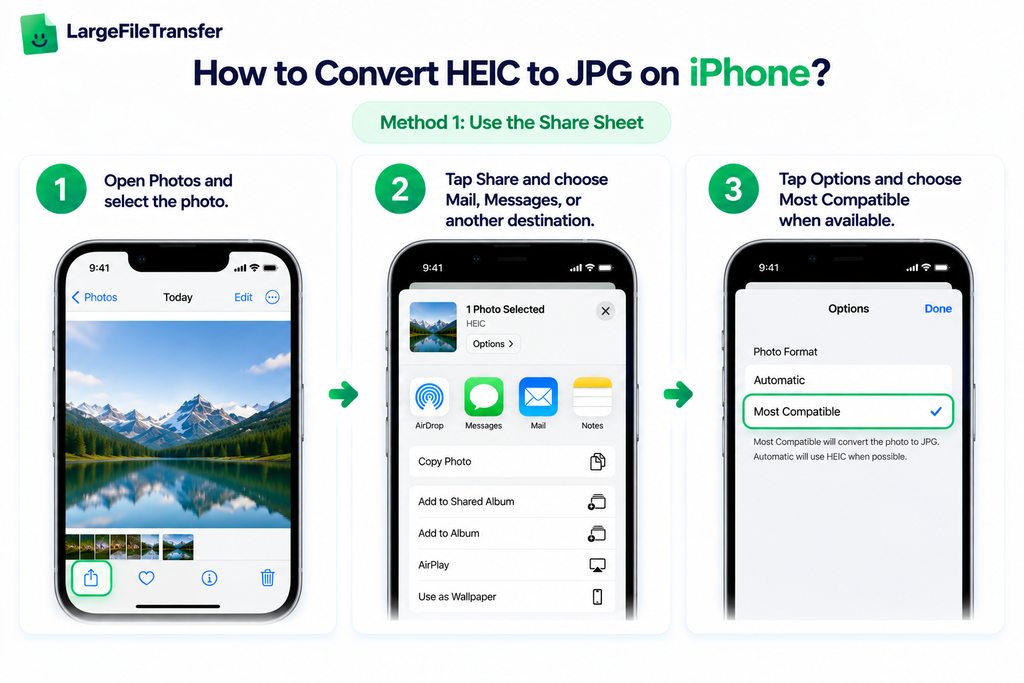
- Open Photos and select the photo.
- Tap Share and choose Mail, Messages, or another destination.
- Tap Options and choose Most Compatible when available.
Apple notes that when a destination does not support HEIF, the photo may be automatically shared in a compatible format such as JPEG. However, this conversion is not guaranteed for every app or destination.
Method 2: Export a JPG More Reliably
For a more reliable conversion, use one of these options:
- Option 1: Transfer to a Mac: Use AirDrop to send the photo to a Mac, then export it as JPEG using Preview or Photos.
- Option 2: Export from a photo editor: If your editing app has an Export as JPEG option, use it to create a JPG copy.
The Share Sheet does not always convert HEIC files the same way for every app or destination. For a method that works consistently, use the browser-based converter from the previous section.
Need to send a large batch of converted photos? See 7 free ways to send large files without email.
How to Stop Your iPhone From Saving Photos as HEIC?
iPhones can save new photos as JPG instead of HEIC, so they are easier to open and share on other devices.
Change the Photo Format
- Open Settings
Open the Settings app.
- Open Camera settings
Tap Camera → Formats.
- Choose Most Compatible
Select Most Compatible instead of High Efficiency.
This only changes the format of new photos. It does not turn the HEIC photos already saved on your iPhone into JPG files.
For HEIC photos you already have, desktop methods make conversion simple.
How to Convert HEIC to JPG on Windows and Mac?
The easiest method depends on your computer. Windows may need an extra extension to open HEIC files, while Mac can convert them with built-in tools.
- Windows
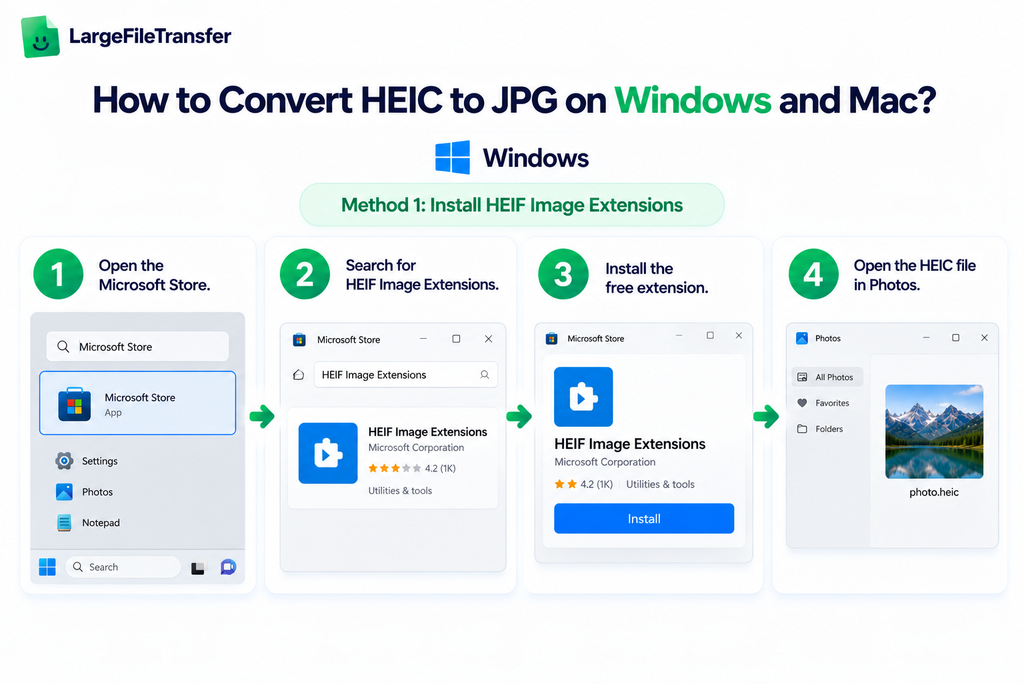
Windows may not open HEIC files without an added codec, so converting the file to JPG is often the simplest fix.
Method 1: Install HEIF Image Extensions
- Open the Microsoft Store.
- Search for HEIF Image Extensions.
- Install the free extension.
- Open the HEIC file in Photos.
This helps Windows view HEIC files, but it does not always give you a JPG file to upload or share.
Method 2: Use an Online Converter
- Open the free HEIC to JPG converter.
- Drop your .heic file into the converter.
- Select JPG.
- Download the converted file.
This option does not require a codec or software installation, so it is usually the quickest choice.
Some free desktop converters also work, but certain installers may include extra software. Check the installation screens before accepting anything.
2. Mac
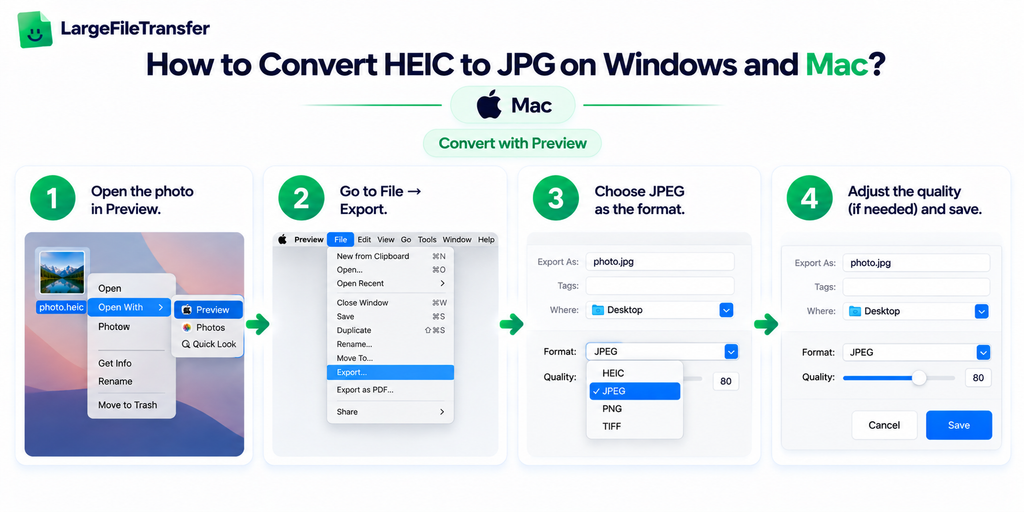
Mac opens HEIC files natively, and Preview can convert them to JPG without extra software.
Convert with Preview
- Open the photo: Open the HEIC file in Preview.
- Open Export: Click File → Export.
- Choose JPG: Select JPEG from the Format menu.
- Save: Adjust the quality if needed, then click Save.
Using Photos: Open Photos → select the photo → File → Export → Export Photos, then choose the available JPEG format in the export settings.
On Mac, the built-in method is just as quick and reliable as an online converter, so either option works well.
How to Batch Convert Multiple HEIC Files at Once
Batch conversion is the fastest option when you need to convert dozens or hundreds of HEIC photos at once.
Online Method
- Select your photos
Choose multiple .heic files or drag them into the browser-based converter.
- Convert them together
The converter processes all selected photos in one go.
- Download the JPG files
Save the converted images and use them for sharing, uploading, or printing.
Because the conversion happens in your browser, there is no server-side upload limit to worry about.
Mac Method
- Open Photos
Select all the HEIC photos you want to convert.
- Start the export
Go to File → Export → Export Photos.
- Choose JPEG
Select JPEG as the export format and save the files.
For large batches meant for sending, compress the photos further after converting to reduce their file size.
JPG vs. PNG vs. WebP: What Should You Convert HEIC Into?
JPG is the best choice for most HEIC conversions because it works almost everywhere and is optimized for photos. PNG and WebP are better suited to specific needs.
| Output Format | Best For | Compatibility |
| JPG | Sharing, printing, and uploading photos | Universal |
PNG | Text, graphics, or transparency | Universal, but larger |
| WebP | Websites and smaller file sizes | Most modern browsers and apps |
Note: For a normal iPhone photo, choose JPG. Pick PNG when sharp graphics or transparency matter, and WebP when smaller web images are the priority.
The safest default is JPG because it removes compatibility guesswork for the recipient.
Storing or sharing lots of photos? Compare large file transfer vs. cloud storage to find the better option.
Final Notes
HEIC is a smart choice for storing photos on Apple devices because it keeps files smaller without giving up much image quality. But when a photo needs to be shared, uploaded, printed, emailed, or opened outside the Apple ecosystem, JPG is the safer choice because it works across almost every device and platform.
There is no need to install software or create an account to make the switch. Use the free browser-based converter to convert your HEIC files instantly, with conversion handled directly in your browser and no photo upload required.
Convert your HEIC photos now and get JPG files ready to share anywhere.
FAQs
- What is a HEIC file?
HEIC is a high-efficiency image format used by iPhones to store high-quality photos in smaller file sizes than JPG. Apple made it the default photo format with iOS 11 in 2017.
- Why do iPhone photos show up as HEIC on other devices?
iPhones save photos as HEIC by default, but some Windows PCs, Android devices, older apps, and websites do not fully support the format. This can make the photo appear broken or impossible to open.
- Is it safe to convert HEIC to JPG online?
A browser-based converter can be a safe option when the conversion happens locally in your browser and the photo is not uploaded to a server. This is especially useful for personal photos.
- Does converting HEIC to JPG lose quality?
Converting HEIC to JPG can cause some quality loss because JPG uses lossy compression, but the difference is usually small at a high-quality setting.
- Can I convert HEIC to JPG without an app?
Yes, you can convert HEIC to JPG directly in a web browser without installing an app or desktop software.
- How do I stop my iPhone from taking HEIC photos?
Go to Settings → Camera → Formats and select Most Compatible. New photos will then be saved as JPG instead of HEIC.
- Can I convert multiple HEIC files at once?
Yes, batch converters can process multiple HEIC files together, which is much faster than converting each photo individually. Mac users can also select multiple photos in Photos and export them as JPEG.
- What’s the difference between HEIC and JPG?
HEIC creates smaller files at similar quality, while JPG offers much wider compatibility across devices, apps, and websites.