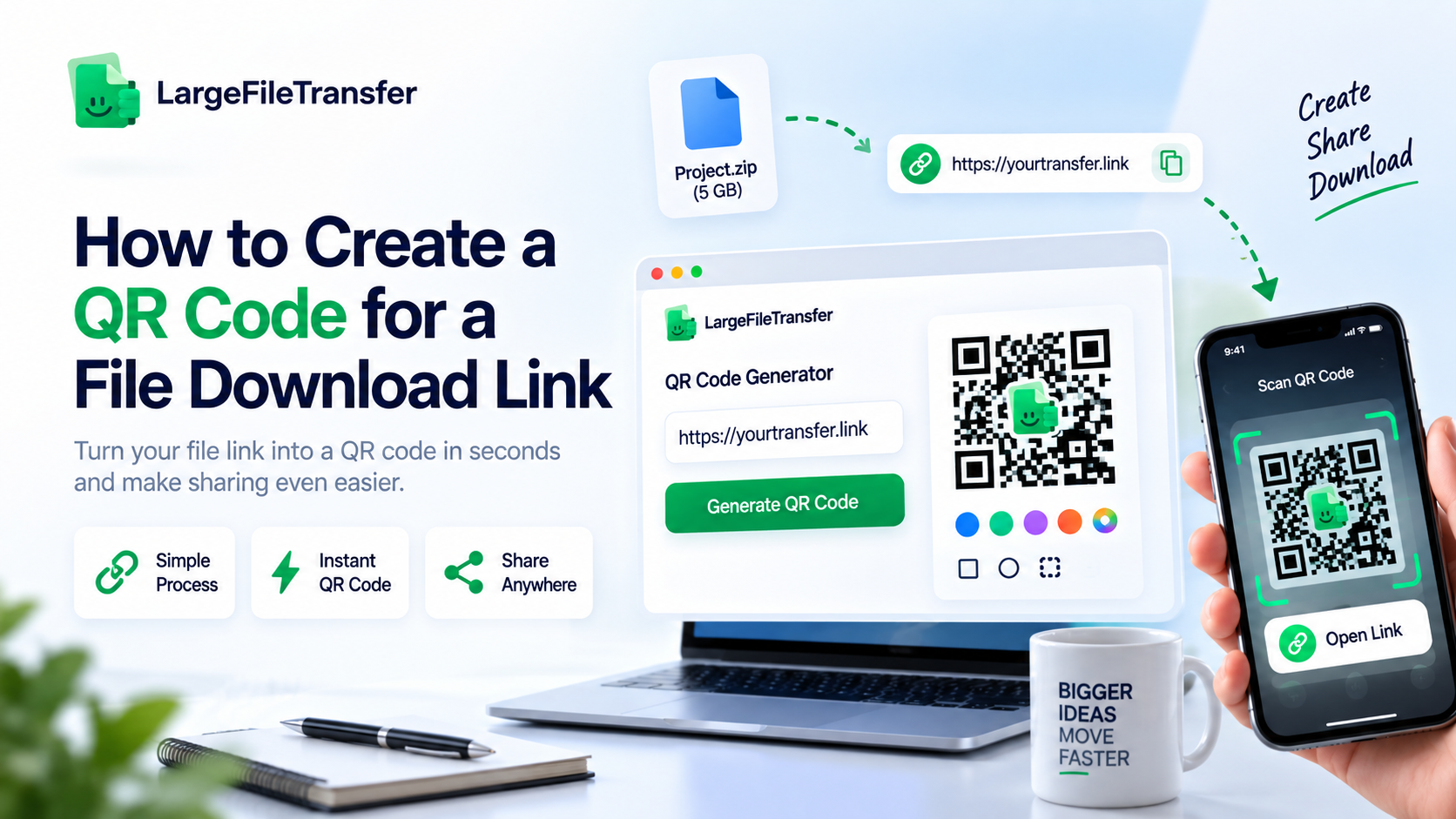
How to Create a QR Code for a File Download Link
Creating a QR code for a file download link takes under a minute, without installing an app or creating an account. The real challenge is usually hosting the file, because many QR generators require signup or impose restrictive file-size limits.
That makes sharing a portfolio PDF, video, or complete project folder seem more complicated than the actual process. This guide shows a free two-step method that works with files up to several gigabytes, without requiring specialized software.
The process starts by uploading the file to generate a shareable download link, then converting that URL into your QR code. The next three steps cover uploading your file, generating the QR code, and styling, testing, and downloading the finished code.
What Is a QR Code for a File Download Link?
A QR code for a file download link is a scannable code that opens or downloads a specific file instead of sending someone to a webpage. The QR code itself does not store the file; it stores a link that points to the location where the file is hosted. Scanning the code opens that link in the device’s browser or another compatible app, where the recipient can access the file.
How to Create a QR Code for a File Download Link in 3 Steps?
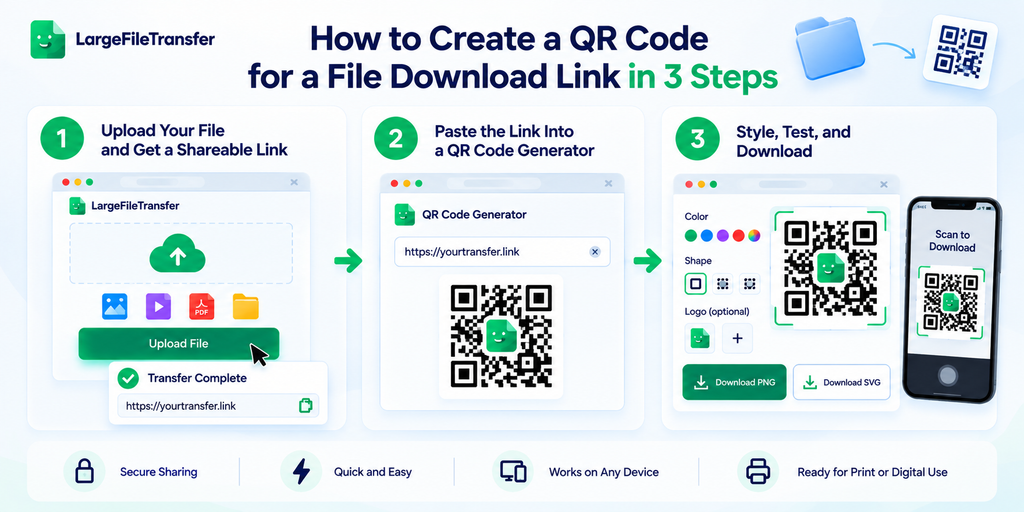
The process uses two tools and three steps, with one tool creating the file link and the other generating the QR code.
Here’s exactly how it works.
Step 1: Upload Your File and Get a Shareable Link
- Upload your file and copy the share link.
- Open LargeFileTransfer’s file transfer tool and upload the file you want people to download.
- Files up to 5 GB can be transferred for free, with no signup required.
- Copy the share link after the upload finishes.
- That URL becomes the destination stored inside your QR code.
Sending a large batch of photos? See how to compress large photos before you send them to reduce upload size first.
Step 2: Paste the Link Into a QR Code Generator
- Paste your share link and watch the QR code appear.
- Open the QR code generator and paste your copied link into the input field.
- The code renders live as you type, directly inside your browser.
- Your link never leaves the browser.
- The generator does not upload or log the URL entered into the tool.
Step 3: Style, Test, and Download
- Customize the code, choose your format, then test the finished QR code.
- Pick your preferred color and module shape, then add a center logo when needed.
- Choose PNG for screens and SVG for printing.
- PNG works well for digital sharing, while SVG stays sharp when printed at different sizes.
- Scan the code with your phone before sharing it.
Confirm that scanning opens the intended file so recipients reach the correct download without surprises.
Static or Dynamic: Which QR Code Should You Use for a File?
For most file download QR codes, static is the better default because it stores the actual link directly.
The exception is a link that expires or needs changing after the QR code gets printed.
Static QR Code
- Encodes: The actual file or download URL.
- After printing: Cannot be edited without creating a new QR code.
- Account needed: No account or subscription keeps the code working.
- Main risk: The file link can expire, break, or stop working.
Dynamic QR Code
- Encodes: A redirect URL that points to your file destination.
- After printing: The destination can be changed without replacing the QR code.
- Account needed: Usually requires an account or paid service for ongoing control.
- Main risk: Both the file link and redirect service must remain available.
A Practical Example
A photographer prints 200 event flyers with a QR code linking to a gallery.
- A static code works well when the gallery URL stays permanent.
- A dynamic code helps when the gallery destination may change later.
The tradeoff is an added dependency on the third-party redirect service.
Best Choice for File Downloads
LargeFileTransfer’s generator encodes the link directly, without adding a redirect layer. The QR code itself cannot break, but the underlying file link can stop working.
Choose a file host with a link lifespan that matches how long your QR code will remain active.
Planning to share a large photo gallery through a QR code? Learn how to reduce image file size without losing quality before uploading your images.
How Big Can the File Behind a QR Code Be?
The QR code stores only a short link, so the hosting service determines the file’s maximum size.
- LargeFileTransfer limit
- Up to 5 GB per file
- Free to use
- No signup required
- Suitable for large photos, videos, and PDF portfolios
- Why other platforms feel limited
- Some free QR platforms allow only 5 MB to 10 MB files.
- Those limits apply because the platform hosts the file itself.
- The QR code does not impose that file-size restriction.
What Can You Put Behind a QR Code?
- Event photo galleries
- Often hundreds of MB with full-resolution images.
- Product manuals
- Usually several MB to several dozen MB as PDFs.
- Portfolio ZIP files
- Can reach hundreds of MB with high-resolution project files.
- Video reels
- Often range from tens to several hundred MB.
Why Does the Hosting Method Matter?
A 200 MB video may exceed a QR platform’s 10 MB hosting limit. A link-based workflow avoids that ceiling when the file host supports larger uploads. The QR code only stores the download link.
Compare file size limits before uploading a large file.
What Happens When the File Is Too Large?
- The hosting service rejects or stops the upload.
- No working download link gets generated.
- The QR code is not the problem.
Check the host’s file-size limit first when a large-file upload fails.
Best Practices for a File QR Code That Actually Works
A reliable QR code depends on testing, print quality, link lifespan, and clear instructions for scanners.
Run through these before you print or publish anything.
- Test twice: Scan the code with two different phone cameras because scanner performance can vary between devices and camera apps.
- Increase error correction: Choose a higher setting when adding logos or printing on textured surfaces that can obscure modules.
- Check link expiry: A transfer link expiring within days can make printed QR codes useless after several weeks.
- Keep it readable: Avoid printing below roughly 2 × 2 cm, because smaller modules can become difficult for cameras to recognize.
- Add a caption: Tell readers what scanning provides, such as “Scan to download the full gallery”, before they reach for their camera.
LargeFileTransfer’s browser-based generator supports this workflow with no watermark, adjustable error correction, plus PNG and SVG downloads.
Where Can You Use a QR Code to Download a File?
File download QR codes connect printed materials directly to digital files without filling the page with URLs or attachments.
These use cases show how different audiences can deliver specific files with one scan.
- Real Estate Flyers: Agents can link buyers to a JPG property photo set or floor plan PDF from printed listings.
- Wedding Photography: Photographers can send guests to a full-resolution JPG gallery instead of sharing only selected photos.
Share the full-resolution gallery when clients need uncompressed event photographs after the ceremony. - Business Cards: Designers and photographers can connect prospects with a ZIP portfolio folder containing current work samples and project files.
- Product Packaging: Manufacturers can direct customers to a PDF manual or product specification sheet without printing lengthy instructions.
- Conference Handouts: Speakers and instructors can give attendees a PDF slide deck or resource folder containing materials from the session.
Why Isn’t Your File QR Code Scanning?
Most scanning failures come from a broken link, poor printing, weak contrast, oversized logos, or camera settings.
- The file link expired
- Check the link: Open the share link directly and confirm the file still loads in your browser.
- Fix it: Create a fresh file link and generate a new QR code instead of reprinting the old one.
- The code is too small
- Check the print: Keep the QR code around 2 × 2 cm or larger for reliable scanning.
- Fix it: Reprint it larger on matte material, especially when reflective surfaces interfere with camera focus.
- The contrast is too low
- Check the colors: Use strong contrast between the QR modules and the surrounding background.
- Fix it: Keep the quiet zone clear so nearby text, graphics, or colors cannot interfere with scanning.
- The logo covers too much
- Check the center: An oversized logo can cover modules needed for the QR code’s error correction.
- Fix it: Reduce the logo size and use higher error correction before generating the final version.
- QR scanning is disabled
- Check the camera: Some older phones may not recognize QR codes automatically through their default camera app.
- Fix it: Enable QR scanning in camera settings or use a compatible scanning feature on that device.
Test first: Scan the finished code with two different phones before mass printing to catch problems and avoid wasted materials.
Final Notes
Making a QR code for a file download link takes two free tools and about a minute once your file has a shareable link. The key decision is choosing a reliable file host with a link lifespan that matches how long your QR code will stay active.
Choose your preferred styling, download the finished PNG or SVG, and test the code before printing or sharing it.
This workflow keeps the file and QR generation separate, making large-file downloads practical without putting the file inside the QR code itself.
Ready to share your file by QR code? Upload your file now, then generate your free QR code and start sharing.
FAQs
- What is a QR code for a file download link?
A QR code for a file download link stores a URL that opens the specific file or download page when scanned.
- Can I make a QR code for a file without uploading it to a QR website?
Yes, upload the file to a separate transfer service first, then paste its share link into a browser-based QR generator.
- Should I use a static or dynamic QR code for a file?
A static QR code suits most files with permanent links, while dynamic codes work better when the destination may change later.
- How big can the file behind a QR code be?
The hosting service determines the file size limit, while LargeFileTransfer supports free transfers up to 5 GB per file without signup.
- Will my file download QR code expire?
The QR code itself stays unchanged, but its usefulness ends when the linked file URL expires or stops working.
- Can I add my logo or brand colors to a file QR code?
Yes, QR codes can use custom colors, different module shapes, and an optional center logo when the generator supports those features.
- What file types can I share with a QR code?
A QR code can link to PDFs, JPGs, PNGs, ZIP files, videos, presentations, and other formats supported by the file-hosting service.
- Why isn’t my QR code scanning?
Scanning can fail because of an expired link, insufficient contrast, tiny print size, reflective material, oversized logos, or camera limitations.