How to Send RAW Video Footage to an Editor Safely (2026)
After a full day on set, you can easily have hundreds of gigabytes of camera-original footage waiting for you, and now you need to send RAW video footage to an editor.
That handoff is often the part nobody looks forward to, especially when everyone is tired and the editor is already waiting. One wrong move with a huge upload can turn a routine wrap into a late-night troubleshooting session.
A failed transfer can push the entire edit timeline back, and painfully slow uploads make that deadline feel even closer. When a client is expecting delivery on schedule, the last thing you need is another production problem to chase.
Luckily, the handoff does not have to be complicated. We’ll walk you through when to send full RAW or a lighter proxy, how to back up your footage safely, and which transfer method fits your file size.
Why RAW Footage Is a Different Problem Than “a Large File”
RAW camera footage isn’t just “a big video file.” It is an entirely different scale of data than a finished, compressed export.
The extra data is useful because your editor has more information available during demanding post-production work. That benefit, however, comes with much larger storage and transfer requirements.
Why RAW takes up so much more space:
- More color information: RAW preserves substantially more image information for detailed color grading and exposure adjustments.
- More detail per frame: Camera-original files retain data that compressed delivery codecs discard during encoding.
- Bigger files: More retained information means significantly more storage space across cards, backups, and editing drives.
- Longer transfers: Hundreds of gigabytes take considerably longer to upload, making transfer reliability much more important.
How Big Is an Hour of RAW 4K Footage, Really?
An average hour of RAW 4K footage runs approximately 300 GB, though the exact figure varies by camera and codec settings.
Think about what happens across a full production day:
- 1 hour of RAW 4K → ~300 GB
- Several cameras + several hours → 500 GB to 1 TB+
- Multiple shooting days → several terabytes of camera-original footage
A single day of multi-camera shooting can easily produce more than a terabyte before editing even begins. At that scale, treating the footage like an ordinary large-file upload can quickly create transfer problems.
That is why the next decision matters: whether your editor needs the full camera originals immediately or can begin with lightweight proxy footage.
Should You Send RAW or Proxy Footage First?
Not every editing stage needs full RAW files, so sending proxies first can save hours of transfer time.
A proxy is a smaller, lower-resolution copy that lets your editor start cutting without waiting for the full footage.
Here’s the basic workflow:
- Keep the RAW: Store and protect your camera-original files on your backup drives.
- Send proxies: Let the editor begin reviewing footage and building the rough cut.
- Relink later: Use the original RAW files for final color, VFX, and export.
When Should You Send RAW vs. Proxy Files?
Send proxies for rough cuts and assembly, then send full RAW files when finishing work begins.
Use this simple guide:
- Send proxies first: The editor needs to start cutting the same day.
- Send full RAW: Picture lock is close, and color grading or VFX work is starting.
- Check with the editor: Confirm which stage they are starting before you transfer RAW video.
A quick conversation before the transfer can save hours of unnecessary uploading and keep the post-production handoff moving.
For smaller files, the transfer process can be much simpler. Our guide to how to send a 10GB file online covers five free options that work well for files around that size.
Offloading Footage Safely at the End of a Shoot Day
Footage should never exist in only one place before transfer, because one card failure or corrupted drive can wipe out an entire shoot day.
Unlike a finished export, camera-original footage often cannot be recreated, especially for weddings, live events, or one-time interviews. That makes your first backup more important than getting the upload started quickly.
The 3-2-1 Backup Rule Before You Transfer Anything
The 3-2-1 rule means keeping three copies on two different storage types, with one copy stored off-site or in cloud storage.
Before treating the original card as safe to reformat:
- Make two local copies: Copy the footage from your card to at least two separate drives immediately.
- Verify both copies: Check that the transfers completed successfully before formatting or reusing any camera card.
- Keep one copy off-site: Upload one verified copy to cloud storage before sending anything to your editor.
How to Send RAW Video Footage to an Editor?
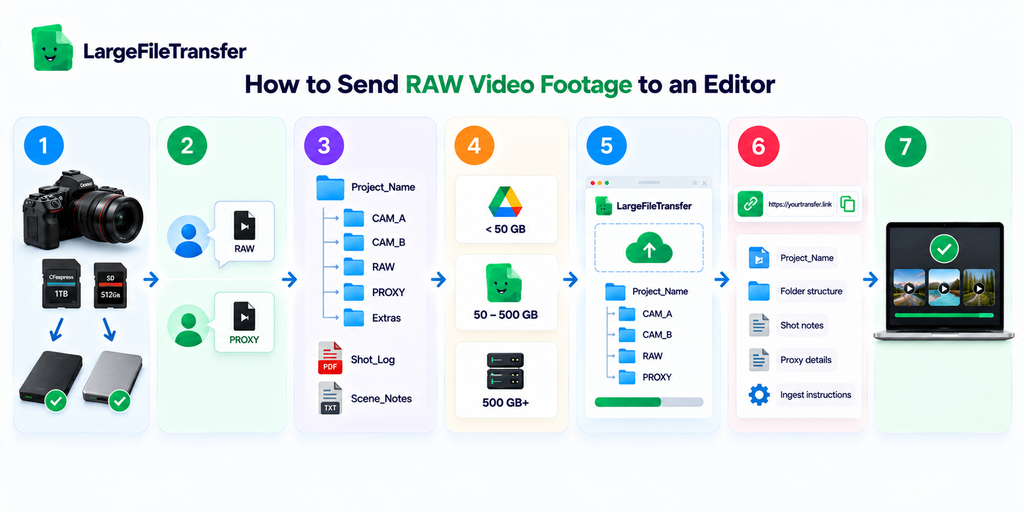
Sending RAW footage to an editor is easiest when you follow the same handoff process after every shoot.
Use this workflow from card offload to editor delivery:
- Back Up the Camera Cards
Create verified copies of every card before uploading anything to your editor.
- Copy each card to two separate drives.
- Check that both copies completed successfully.
- Keep the original cards untouched until your backups are verified.
- Confirm What Your Editor Needs
Ask whether the editor needs full camera originals or proxies for the current editing stage.
- Rough cut: Send proxy files first.
- Color, VFX, or final export: Send the full RAW files.
- Unclear workflow: Confirm with the editor before starting a large transfer.
- Organize the Footage
Keep the camera’s original filenames and folder structure whenever possible.
- Separate footage by camera or card.
- Add the shot log or scene notes at the project root.
- Label RAW and PROXY folders clearly when sending both.
- Choose the Right Transfer Method
Match the transfer service to your total footage size and delivery deadline.
- Under 50 GB: A standard cloud drive can work well for smaller deliveries.
- 50–500 GB: Use a dedicated transfer service with resumable uploads.
- 500 GB+: Consider a transfer platform designed for large, production-scale deliveries.
- Upload the Footage
Start the transfer only after your local copies are safely verified.
- Upload the organized project folders.
- Keep camera-original files in their native format.
- Avoid compressing or unnecessarily splitting the footage.
- Send the Delivery Details
Give your editor everything needed to start working without another round of questions.
- Share the transfer link.
- Include the project name and folder structure.
- Add any relevant shot notes, proxy details, or ingest instructions.
- Confirm the Handoff
Ask your editor to confirm access before you consider the delivery complete.
- Confirm the files are visible and downloadable.
- Check that the expected folders and footage are present.
- Keep your verified local backups until the editor confirms successful receipt.
A consistent handoff like this keeps your camera originals protected and gives your editor a clean starting point.
Choosing a Transfer Method by Footage Size
At this scale, the right transfer method depends heavily on total footage size and how urgently your editor needs it.
Use these three tiers to choose a practical option for your production handoff.
- Under 50 GB: Cloud Drive
A standard cloud drive is usually enough for lighter footage deliveries under 50 GB.
Good for:
- Proxy footage
- Same-day rough-cut material
- Lower-resolution exports
- Smaller shoots
- Short interview sessions
- Selected camera files
- Simple handoffs
- Your editor does not need the complete camera originals yet
For smaller deliveries, adding a dedicated transfer service can create more complexity than you actually need.
- 50–500 GB: Dedicated Transfer Service
A dedicated large file transfer service makes more sense once your delivery reaches 50–500 GB.
Why it helps:
- Resumable uploads
- Continue after an interrupted connection
- Avoid restarting a multi-hour upload
- Large file handling
- Keep production files together
- Avoid unnecessary file splitting
- Simpler delivery
- Give your editor one transfer link
- Keep the handoff separate from everyday cloud syncing
For this range, the ability to recover from an interrupted upload can make a real difference. It is especially useful when you need to send raw footage to editor without starting the transfer over.
- 500 GB+ or Daily Deliveries: Accelerated Transfer
At 500 GB or more, an accelerated transfer platform becomes more useful, especially during multi-day productions.
Standard connections can take a full day or longer to move that much footage reliably.
This tier makes sense when:
- The footage is large
- 500 GB or more in one delivery
- Several cameras contribute to the same shoot
- Deliveries happen daily
- Editors need footage while production continues
- New camera originals arrive after every shoot day
- Time matters
- Post-production cannot wait until the next day
- Large uploads need a more dependable workflow
LargeFileTransfer is built to send massive files without splitting them while keeping full RAW footage intact.
For production teams moving camera originals regularly, the goal is simple: match the transfer method to the footage size, delivery frequency, and deadline.
Need to move more than 5 GB at a time? See LargeFileTransfer’s plans and choose the option that fits your production workflow.
How to Organize RAW Footage for Your Editor?
An editor’s NLE can ingest footage faster when file and folder names follow a predictable structure instead of generic camera-assigned names.
Renaming individual clips during a transfer can break sequential numbering used to match footage with shot logs or camera cards.
Keep your video editor file transfer easy to ingest with this structure:
- Keep original camera names
- Do not rename individual clips.
- Preserve the numbering created by the camera.
- Separate each camera or card
- Create one top-level folder for each camera or card.
- Keep each source’s original folder structure intact.
- Add notes at the root
- Include a plain-text shot log or scene notes file.
- Record useful details such as scenes, takes, or camera sources.
- Separate RAW and proxy files
- Use clearly labeled folders such as RAW and PROXY.
- Keep matching proxy and camera-original structures where possible.
A simple example:
PROJECT_NAME/
├── CAMERA_A_CARD_01/
├── CAMERA_A_CARD_02/
├── CAMERA_B_CARD_01/
├── PROXY/
└── SHOT_LOG.txt
That small bit of organization can reduce the ingest delay and help your editor get to work sooner.
Moving footage to clients instead of an editing team? Our guide on how to send large video files to clients covers practical delivery options for client-facing video files.
What to Do If a Large Transfer Fails Halfway
A failed transfer partway through a 200 GB or larger upload is stressful, especially when your production deadline is already approaching.
Before restarting everything, take a breath and work through these checks in order.
- Check for resume support
- See whether the transfer can continue from where it stopped.
- Avoid restarting a multi-hour upload when the platform supports resuming.
- Test your network connection
- Confirm your local connection did not drop during the transfer.
- Run a separate upload or connection test before trying the transfer again.
- Use smaller batches when necessary
- Split extremely large deliveries into smaller batches if resume support is unavailable.
- Send the batches separately instead of risking another complete transfer failure.
LargeFileTransfer supports resumable, pick up where you left off uploads, so interrupted transfers do not have to start from scratch.
Final Notes
A reliable RAW footage handoff starts with three simple decisions: back everything up, choose proxy or full RAW, and match transfer method to file size.
Before your next shoot wraps, confirm the backup copies, check which editing stage your editor needs, and choose the right transfer option.
Ready to send the footage?
Send your next RAW footage delivery without splitting files
FAQs
- How large is an hour of RAW 4K video footage?
An hour of RAW 4K footage averages approximately 300 GB, although the actual size varies by camera and codec settings.
- Should I send my editor the full RAW files or a proxy version?
Send proxies for rough cuts and assembly, then provide full RAW files for color grading, VFX, and final export.
- What’s the safest way to back up footage before sending it off set?
Keep three copies across two storage types, with one copy stored off-site or in cloud storage before reformatting cards.
- What should I do if a large video transfer fails partway through?
Check whether the service supports resumable uploads, test your connection, and split the delivery into smaller batches when necessary.
- How do I send large RAW video files to an editor?
Use a transfer service that supports large files, preserves the originals, and can resume interrupted uploads without restarting.
- How can I send RAW footage without losing quality?
Choose a transfer method that does not compress or re-encode your camera-original files during upload or delivery.
- What is the best way to send 4K video files to an editor?
The best method depends on your footage size, upload speed, deadline, and whether your editor needs proxies or camera originals.
- How long does it take to transfer large video files to an editor?
Transfer time depends mainly on your upload speed, total file size, connection stability, and the transfer service handling the delivery.