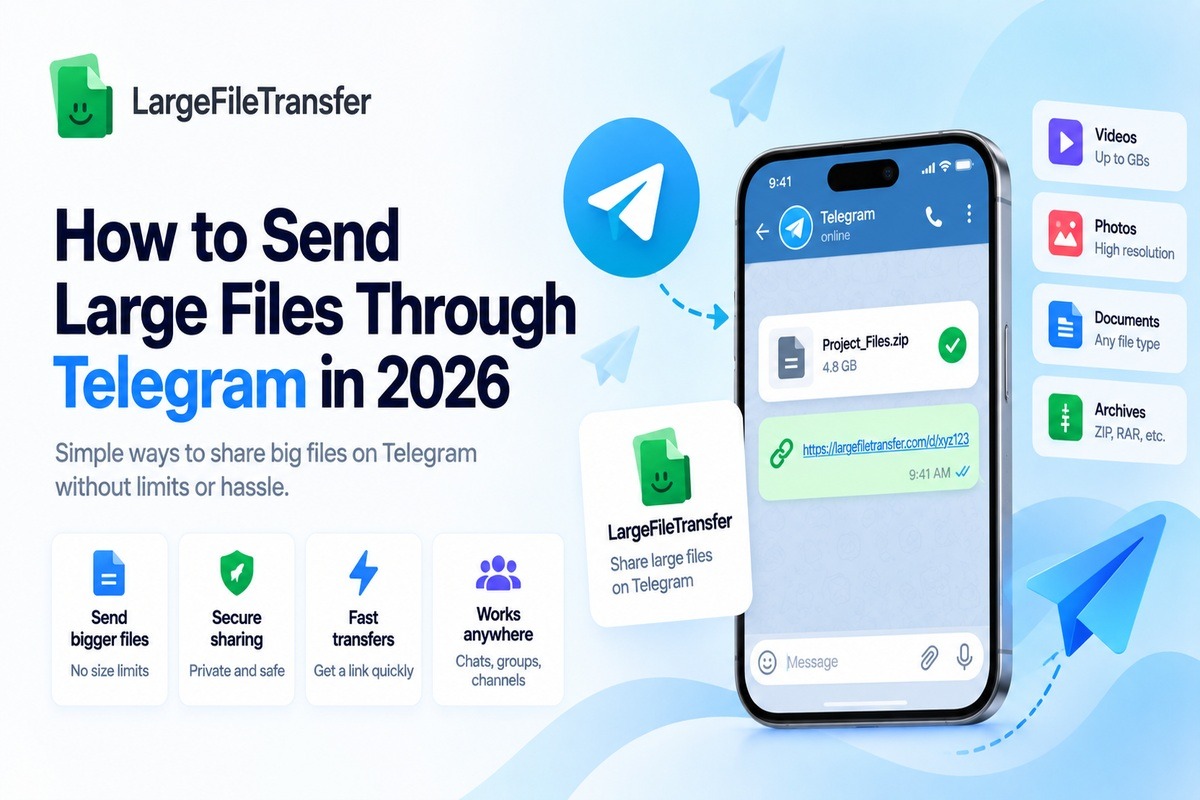
How to Send Large Files Through Telegram in 2026
Telegram’s free plan caps uploads at 2GB per file, making it difficult to send large files through Telegram reliably. Most people discover that limit only after starting an upload, when Telegram suddenly throws an error and stops the transfer.
Creators and teams lose valuable time re-compressing or re-sending files that should have gone through successfully in one try. This guide covers the real 2026 limit, the quality-draining mistake, and five working methods, including one that skips it entirely.
You’ll see when sending as a document helps, when splitting files works, and when sharing links offers a simpler workaround.
First, let’s look at the current Telegram file-size limit before choosing the right workaround.
What Is Telegram’s File Size Limit in 2026?
Telegram allows 2GB per file on the Free plan, while Telegram Premium increases the limit to 4GB per file.
The current limits replaced Telegram’s older 1.5GB limit, so articles quoting 1.5GB are outdated.
| Plan | File Size Limit |
| Telegram Free | 2GB per file |
| Telegram Premium | 4GB per file |
The limit applies to each individual file, rather than the total number of files sent within a chat or day.
For most users, the key number is simple: 2GB per file on Free, or 4GB with Premium. Telegram also allows users to download files larger than 2GB when someone else sends them.
Why Does Telegram Compress Videos When You Send Them?
Telegram automatically compresses photos and videos sent as media, which can make videos look worse without relating to the 2GB file-size limit. Sending the original file as a document avoids this media compression and preserves the source quality during transfer.
Here’s how to stop it from happening.
Send as a Document, Not Media
- Tap the attachment or paperclip icon in the Telegram chat to open the available file-sharing options.
- Choose “File” or “Document,” never “Gallery,” “Photo,” or “Video,” to avoid Telegram treating the upload as media.
- Select the original file, and Telegram will upload it at full quality without re-encoding the source file.
Why this matters: This single change solves most “why is my Telegram video blurry” complaints.
The benefit: It costs nothing extra, takes no additional time, and keeps your Telegram file sharing workflow simple.
Working with client videos instead? See our guide to sending large video files to clients for a complete 2026 workflow.
How to Send Large Files on Telegram, Step by Step?
There are three practical ways to work within Telegram’s own limit, depending on your file size.
- Sending as a Document (Not Photo or Video)
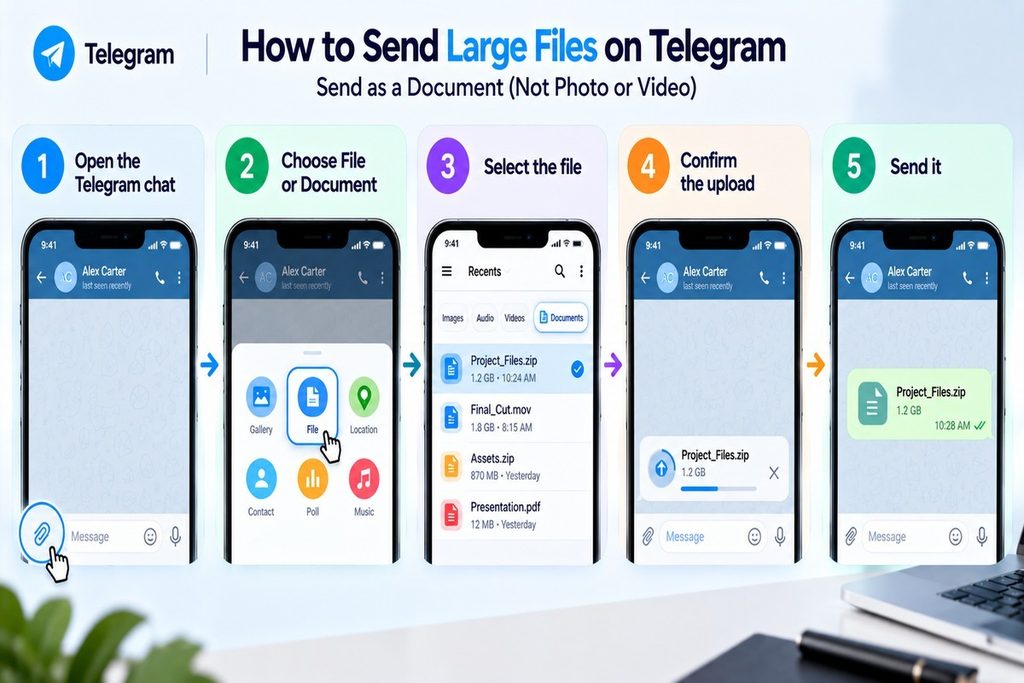
Sending a file as a document is one way to send large files through Telegram without media compression.
- Open the Telegram chat and tap the attachment or paperclip icon.
- Choose File or Document from the attachment options available.
- Browse your device and select the file locally.
- Confirm the upload, then wait for Telegram to finish transferring the file.
- Send it once the file appears in the message composer.
This method works only when the file stays within Telegram’s 2GB Free or 4GB Premium limit.
- Splitting a Large File Into Parts
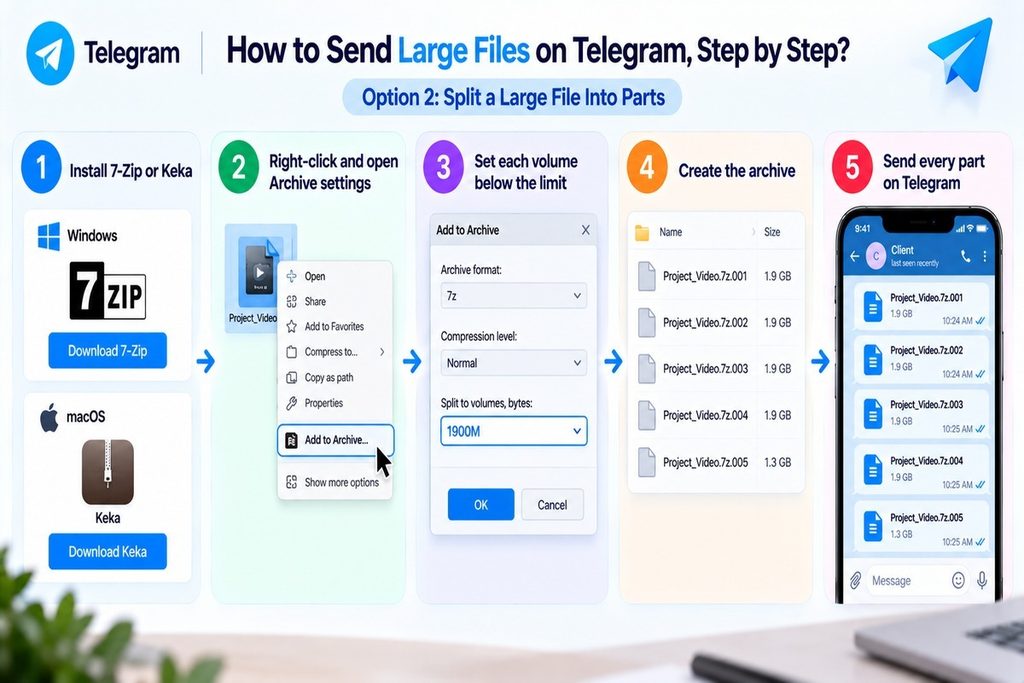
Splitting lets you move an oversized file through Telegram by dividing it into smaller archive volumes.
- Install 7-Zip on Windows or Keka on macOS before splitting your file on your computer.
- Right-click the file, choose Add to Archive, and open the volume-splitting setting.
- Set each volume below Telegram’s limit, such as 1900MB for Free uploads, leaving a safety margin.
- Create the archive so separate numbered parts are generated in the folder before sending.
- Send every part through Telegram as a separate Document message, and wait for each upload to finish.
- Tell the recipient to download every part and reassemble them using the same archive tool.
Recipients need an archive tool to reassemble the parts, making this method poor for non-technical recipients.
- Uploading to the Cloud and Sharing the Link
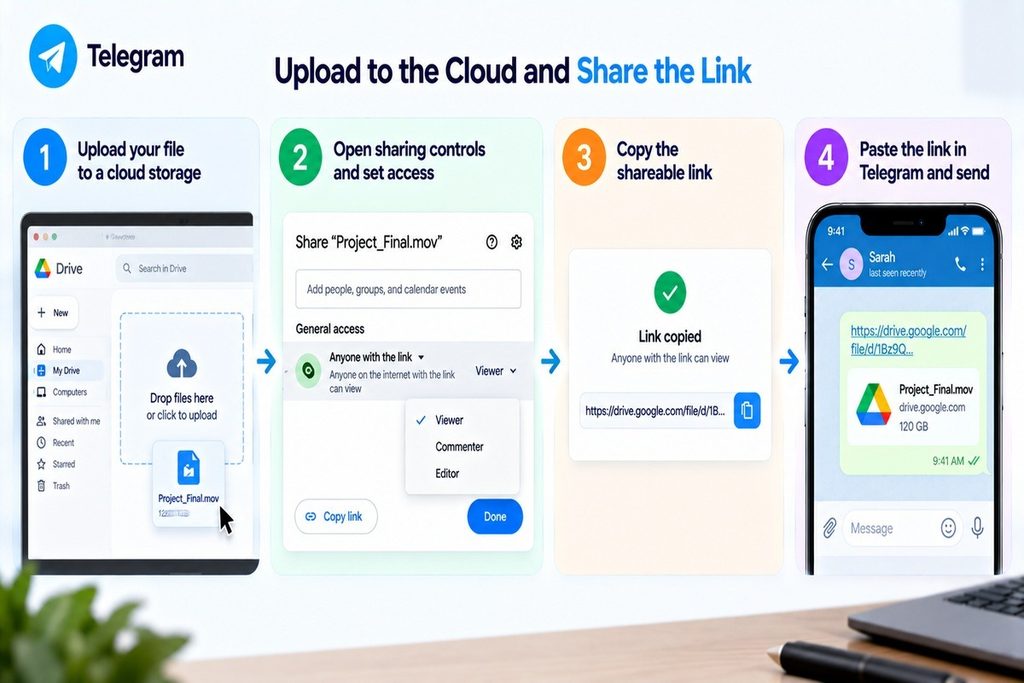
Cloud storage avoids Telegram’s upload ceiling because Telegram sends the recipient a link instead of transferring the file.
- Upload your oversized file to Google Drive or Dropbox.
- Open the sharing controls and choose a suitable link-access setting for the recipient.
- Copy the generated shareable link after confirming the recipient can access it.
- Paste the link into your Telegram chat and send the message.
- Ask the recipient to open the link and download the original file from the cloud service using a browser.
Need to send a file larger than Telegram allows? Connect the Telegram bot and send it as a shareable link instead.
This approach changes the workflow: the recipient depends on that third-party account staying active and its storage quota remaining available.
How to Send Files Larger Than Telegram’s Limit?
Once a file exceeds Telegram Premium’s 4GB cap, Telegram cannot send it natively, so upload it externally and share a link instead.
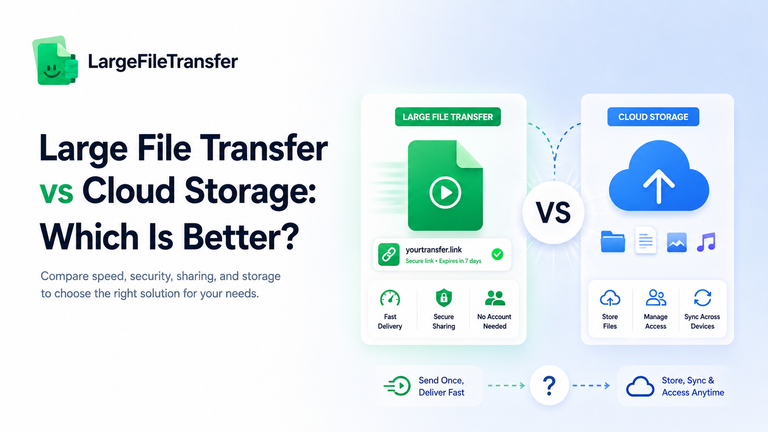
This is where a dedicated file-transfer link outperforms both splitting and cloud storage.
For oversized files, the main advantage is simpler delivery without making recipients rebuild archives or manage personal storage.
- No reassembly: The recipient downloads one complete file, eliminating the extra work required to rebuild multiple archive parts afterward.
- No storage-quota dependency: A transfer link avoids relying on someone’s personal Google Drive or Dropbox quota remaining available throughout delivery.
- No compression: The original file remains intact, preserving its full quality instead of changing the source during Telegram media delivery.
That means you can move beyond Telegram’s native ceiling while keeping the recipient’s download process straightforward and familiar.
Working with client videos instead? See our guide to sending large video files to clients for a complete 2026 workflow.
The fastest version of this method runs through a bot, directly inside Telegram.
The Fastest Way: Send Large Files From Telegram With a Bot
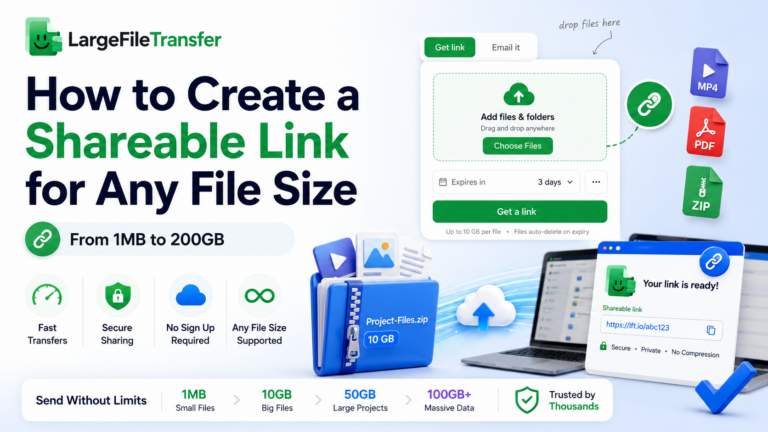
A Telegram bot can accept a file inside the chat and return a share link without sending the file through Telegram itself. LargeFileTransfer uses this workflow to move the upload into its own storage while keeping the sharing step inside Telegram.
How the Telegram Bot Workflow Works?
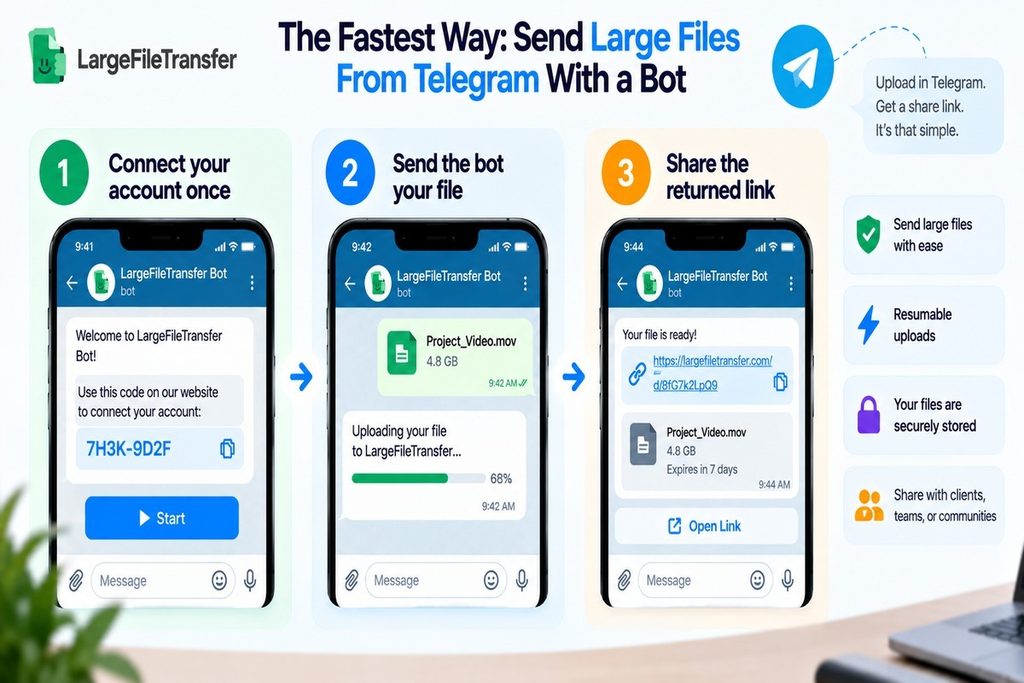
The process takes three steps, with the bot handling the upload and link creation after your account is connected.
- Connect your account once: Telegram opens the bot with a one-time code, then you tap Start to complete the connection.
- Send the bot your file: Send any file up to 5GB free, and it uploads in resumable chunks to encrypted storage outside Telegram.
- Share the returned link: Forward the bot’s download link to any chat, group, or channel, then receive a notification when someone downloads it.
What the Bot Adds
The workflow also includes practical controls that help when files need controlled access or uploads take time.
- Password-protected links: Add a password before sharing a transfer when you need to restrict access to the file.
- Adjustable link expiry: Choose how long the generated link remains active before sharing it with your recipient.
- Automatic upload resume: If your connection drops during an upload, the transfer can resume instead of restarting from the beginning.
Why Does This Matters for Telegram File Transfers?
At 5GB per file, the free bot limit is already larger than Telegram Premium’s 4GB native upload cap. This gives you room to send files that exceed Telegram’s own Premium limit without splitting them into parts.
The important difference is that the file travels through the transfer service rather than Telegram, while the conversation stays inside the app. The recipient receives a link instead of multiple archive pieces, making the handoff easier to manage.
Telegram vs. Telegram Premium: Is Premium Worth It Just for File Size?
Telegram Premium increases the per-file limit from 2GB to 4GB, but that alone may not justify another recurring subscription for occasional large transfers.
| Feature | Free | Premium |
| File size limit | 2GB | 4GB |
| Download speed | Standard | Faster |
| Ads in public channels | Yes | No |
- Premium includes several additional features beyond larger uploads, including faster download speeds and removal of Telegram’s sponsored messages in eligible public channels.
- For occasional Telegram large file transfer, a free file-transfer link can handle larger files without adding another subscription commitment.
Premium becomes more relevant when you regularly need 4GB uploads alongside its other bundled features, rather than paying solely for extra file capacity.
Common Telegram File-Sharing Problems
Most Telegram file-sharing problems come down to media compression, file-size limits, link expiry, or how the file was shared.
- Why does my video look worse after sending?
- Fix: Telegram compresses files sent as Photo or Video, so resend the original as a Document to preserve its quality.
- Why won’t a file upload past a certain point?
- Fix: Check whether the file exceeds Telegram’s 2GB Free or 4GB Premium limit, then switch to a link-based transfer for larger files.
- Why did my download link expire?
- Fix: Cloud storage and transfer services can apply link-expiry dates, so check the expiration setting before relying on an older download link.
- Can group members download without a Telegram account?
- Fix: Yes, when the file is shared through an external download link; files sent directly inside Telegram require access to the app.
Final Notes
Telegram works well for files under 2GB on Free, or 4GB with Premium, while larger transfers require practical workarounds. Splitting files and using cloud links can get around Telegram’s limits, but a Telegram bot moves the file outside Telegram and avoids its upload ceiling.
For occasional transfers, that means you can keep using Telegram for the conversation without changing how recipients receive the file. The bot handles the large upload separately, then returns a link you can share wherever the file needs to go.
Connecting the LargeFileTransfer Telegram bot takes under a minute, and your first file can be sent free.
Connect the Telegram bot to start sending larger files directly from your Telegram chat.
FAQs
- What is Telegram’s file size limit in 2026?
Telegram allows files up to 2GB on Free and 4GB with Premium, measured separately for each uploaded file.
- Can I send files larger than 2GB on Telegram?
Yes, Telegram allows files above 2GB with Premium up to 4GB, while larger files require an external transfer method.
- Why does Telegram compress my videos?
Telegram compresses videos when sent as media, while sending the original file as a Document preserves its source quality.
- How do I send a file as a document instead of media on Telegram?
Open the paperclip menu, choose File or Document, then select the original file rather than sending it through Photos or Videos.
- Is Telegram Premium worth it for larger files?
Telegram Premium may suit regular users needing 4GB uploads, while occasional transfers may not justify another recurring subscription.
- Do Telegram file links expire?
Telegram’s cloud files do not normally expire, although deleted messages or inactive accounts can eventually remove stored files.
- Can I send large files through a Telegram bot?
Yes, the LargeFileTransfer Telegram bot accepts files inside Telegram and returns a shareable link for sending them elsewhere.
- Is it safe to send large files through Telegram?
Telegram encrypts files in cloud chats, while Secret Chats add end-to-end encryption for conversations requiring stronger privacy.