How to Send a 10GB File Online (5 Free Ways That Work)
A 10GB file is too large for email and exceeds most free cloud-storage limits.
The fastest fix is a dedicated transfer link, not compressing, splitting, or reducing the file.At this size, you’re typically dealing with a full 1080p video export or a large RAW photo shoot. The real challenge is not creating the file, but moving ten gigabytes reliably without interruptions or unnecessary processing.
Upload speed, connection stability, recipient access, and transfer limits can all determine whether your file arrives quickly. A dedicated transfer service removes many common restrictions while keeping the original file intact throughout the process.
That makes large transfers much simpler when email attachments fail, cloud storage fills up, or uploads repeatedly stall.
Why Sending 10GB Files Breaks Most “Normal” Tools?
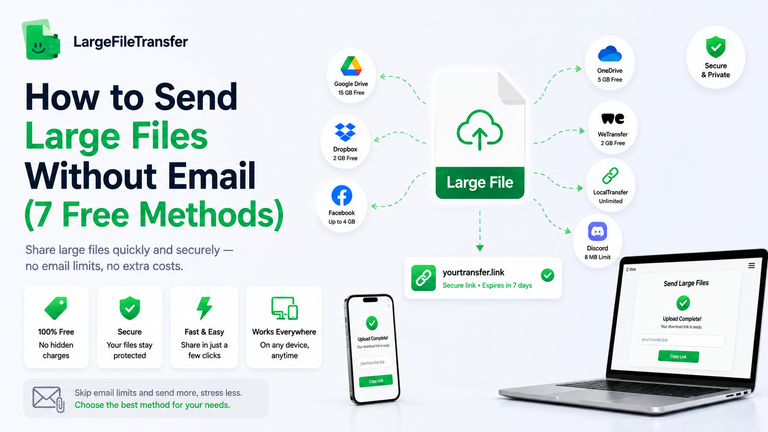
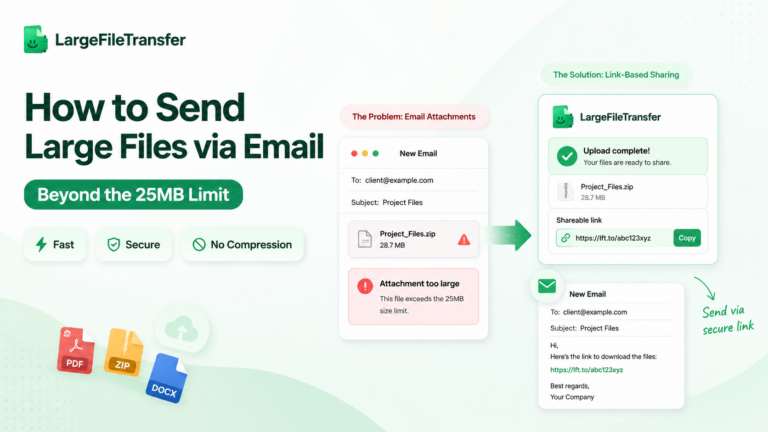
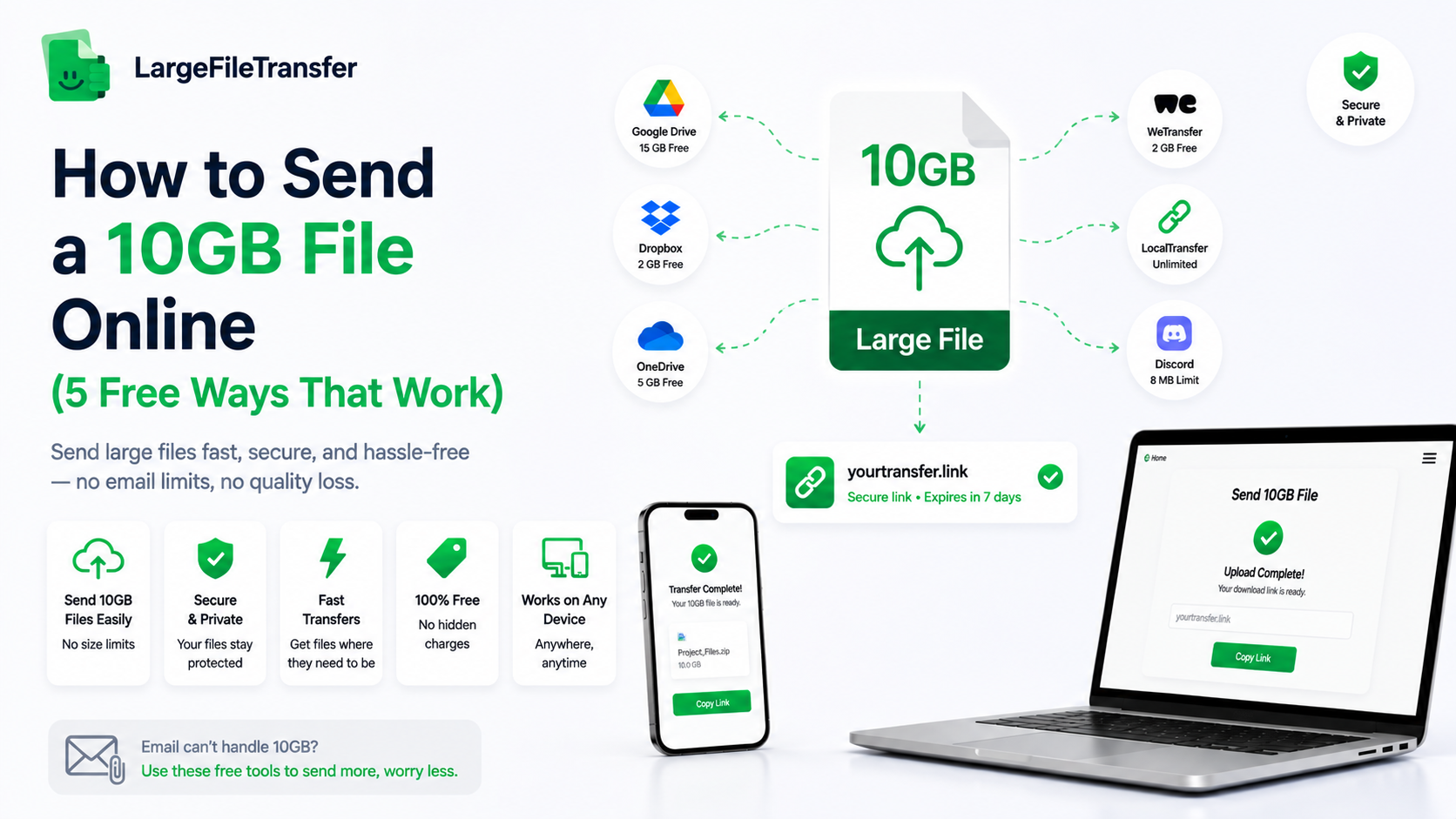
Most email providers limit attachments to around 25MB, while free cloud storage usually provides far less than 10GB.
A single 10GB file therefore runs into attachment caps, storage quotas, or sharing restrictions across everyday platforms.
Here’s where each common option actually breaks down:
- Gmail and Outlook: Both typically cap attachments around 25MB, so larger files require cloud-storage links instead.
- Slack, Discord, and WhatsApp: File limits vary by platform and plan, making 10GB transfers impractical through ordinary conversations.
- Free cloud storage: Google Drive provides 15GB shared across Drive, Gmail, and Photos, so one 10GB upload uses most available space.
- Compression-focused tools: Some platforms compress or re-encode media to reduce storage demands, potentially affecting video quality or image detail.
These limitations explain why purpose-built large-file transfer services exist: they are designed to move large files as transfers. LargeFileTransfer’s Plus plan supports files up to 10GB, letting you send the original file without splitting or compressing it. Instead of working around attachment limits or consuming most of your cloud quota, the transfer remains focused on delivering one complete file reliably.
With that context, here’s the actual step-by-step process.
How to Send a 10GB File Online (Step-by-Step)
These steps work for any file around 10GB, while the recipient needs neither an account nor an app.
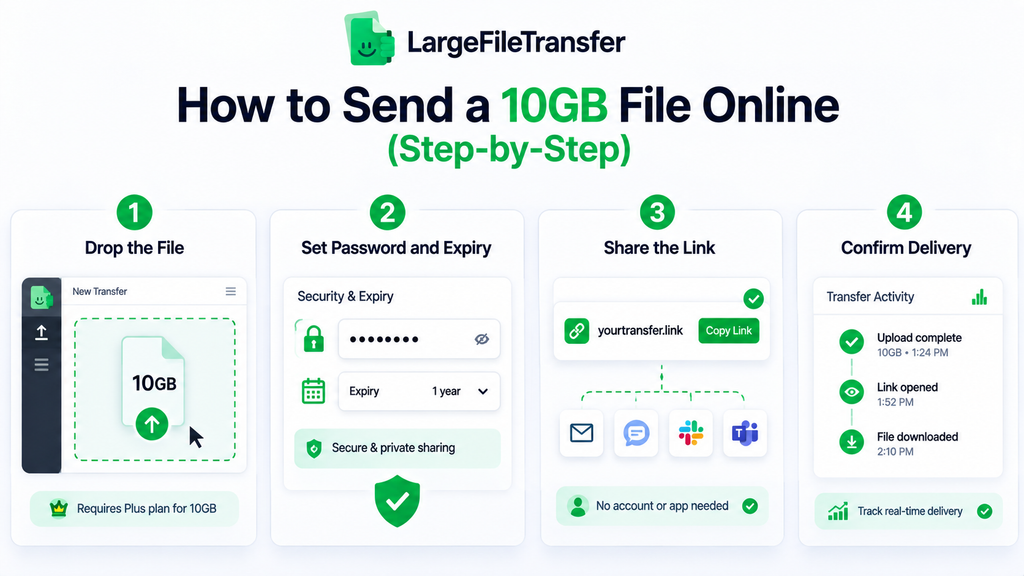
Here’s the process, start to finish:
- Drop the File
Drag your 10GB file directly onto the transfer tool and let the upload begin.
The free tier supports files up to 5GB, so a complete 10GB file requires a paid tier like Plus.
- Set Password and Expiry
Choose a password when the file contains sensitive material or needs controlled access after sharing.
At this size, use an expiry longer than a couple of days, with Plus links lasting up to one year.
A longer expiry gives recipients more flexibility when they cannot download the file immediately.
- Share the Link
Send the generated transfer link through email, chat, or your usual communication channel instead of attaching anything. The recipient only needs one click to access the file, with no signup or application installation required.
This keeps the delivery simple even when the recipient is using a different device or operating system.
- Confirm Delivery
Check your transfer dashboard after sending to confirm when the recipient opened or downloaded the file. Delivery confirmation becomes particularly useful when you’re sending project assets, production files, or other time-sensitive materials.
Knowing exactly when the transfer was accessed removes uncertainty around whether the recipient successfully received everything.
Because a 10GB upload takes mecaningful time, resumable transfers become much more important than they are for smaller files.
A resumable upload can continue after a dropped connection instead of forcing the entire 10GB transfer to restart.
Next, let’s look at how long uploading 10GB actually takes at different connection speeds.
How Long Does a 10GB Upload Actually Take?
Upload time depends on your upload speed, not file size alone, and most home connections upload far slower than they download.
That difference is why a 10GB transfer can take much longer than expected on otherwise fast internet connections.
Here’s roughly what to expect at common upload speeds:
| Upload speed | Approximate time for 10GB |
| 10 Mbps | ~2 hours 13 minutes |
| 25 Mbps | ~53 minutes |
| 50 Mbps | ~27 minutes |
| 100 Mbps | ~13 minutes |
| 300+ Mbps fiber | ~4–5 minutes |
Estimate: These figures use 10GB = 80,000 megabits divided by sustained upload speed under ideal conditions.
Actual transfers can take longer because of network congestion, Wi-Fi performance, and other devices using your connection.
The key takeaway: Upload speed matters more than advertised download speed when you’re sending a 10GB file.
Many home connections download much faster than they upload, making large outgoing transfers feel unexpectedly slow.
Why resumable uploads matter: A dropped connection becomes costly when you’ve already spent significant time uploading the file.
Having trouble sending a PDF by email or dealing with attachment limits? Learn How to Email a PDF (And What to Do When It Won’t Send) for practical solutions and troubleshooting tips.
Next, let’s compare the five practical ways to send a 10GB file online.
What are The Best Ways to Send a 10GB File?
The right method mainly depends on transfer speed, cost, and whether the recipient needs an account.
Here’s how the main options stack up:
- LargeFileTransfer
The Free plan supports files up to 5GB, while Plus links can remain active for one year. LargeFileTransfer’s Plus plan supports a complete 10GB file through one link without compressing the original.
Best for: Sending large files to non-technical recipients who should not need an account or app.
- Google Drive
Google Drive works well when both sender and recipient already use Google services for sharing files. The free plan provides 15GB shared across Drive, Gmail, and Photos, so a 10GB file uses most quota.
Best for: Files you also need to store and access through the cloud long-term.
- WeTransfer
WeTransfer’s Free plan supports transfers up to 2GB, while larger 10GB transfers require a paid subscription. That makes it straightforward for organizations already using WeTransfer for regular large-file delivery and collaboration.
Best for: Teams that already maintain a WeTransfer Pro or Premium subscription.
- Dropbox Transfer
Dropbox Transfer supports transfers up to 100GB on eligible paid plans, giving a 10GB file plenty of room. The free offering has substantially lower transfer limits, while Dropbox remains convenient for existing customers.
Best for: Dropbox users who already organize, store, and share project files through the platform.
- USB or physical drive
A USB drive or portable hard drive avoids upload and download times because the file moves locally. However, both parties must meet physically or use shipping, making this option less practical across different locations.
Best for: Local handoffs, offline transfers, or situations where reliable internet access is unavailable.
What to Do if Your 10GB Upload Fails or Stalls?
At 10GB, a connection dropping partway through the upload is one of the most frustrating problems you can encounter.
The fix largely depends on whether your transfer service can resume interrupted uploads instead of starting over completely.
Here’s what actually helps:
- Check for resumable uploads: Before starting, confirm the service resumes from the failure point rather than restarting from zero.
Chunked, resumable services such as LargeFileTransfer’s Plus and Pro tiers can continue after your connection drops. - Use a stable connection: Avoid uploading a 10GB file over unstable Wi-Fi whenever possible, since interruptions can waste significant progress.
A wired Ethernet connection is preferable, while stable Wi-Fi can also work when reliable cabling isn’t available. - Pause bandwidth-heavy activity: Backups, video calls, streaming, and other uploads compete for the same limited upstream bandwidth.
Closing those activities can free bandwidth for your transfer and help maintain a more consistent upload rate. - Check the source file: Make sure the original file opens correctly and was exported completely before attempting another upload.
A corrupted file or incomplete export can cause repeated failures regardless of connection quality or transfer method.
The key check: Resumable upload support is worth confirming before you begin any 10GB transfer.
Restarting from zero on a slow connection can turn one failed upload into several additional hours of waiting.
Final Notes
A 10GB file needs a transfer tool built for large files, rather than a workaround involving compression, splitting, or storage limits. The right option ultimately depends on your upload speed, budget, and whether your transfer link needs to remain active longer.
As the upload-time math shows, a resumable connection often matters more than maximum speed when transfers take substantial time. Avoiding a complete restart after an interruption can save more time than gaining a modest increase in upload speed.
Ready to send your file? Use LargeFileTransfer’s 10GB send page to upload and share it directly.
FAQs
- Can I send a 10GB file for free?
Yes, LargeFileTransfer lets you send files up to 5GB for free without creating an account. Sending a complete 10GB file requires a paid tier such as Plus because the free per-file limit is 5GB.
- Does sending a 10GB file reduce its quality?
No, sending a 10GB file does not reduce quality when the service preserves the original without compression or re-encoding. However, this is not guaranteed across every free transfer tool because some platforms may process media before delivery.
- How long do 10GB file links stay active?
Link availability depends on the transfer service and plan, so there is no universal expiration period. LargeFileTransfer’s free links last up to two days, while paid plans can keep links active for one year or indefinitely.
- Can I send a 10GB file from my phone?
Yes, you can send large files from your phone through a browser-based or dedicated mobile transfer tool. LargeFileTransfer supports sending files directly from mobile devices, without requiring a desktop computer for the upload.
- Is it safe to send a 10GB file online?
Yes, large-file transfers can be secure when the service uses encryption and provides password protection for shared links. Not every free transfer tool offers password protection, so check the service’s security controls before sending sensitive files.