How to Send Big Files on Discord: 5 Ways to Bypass the Limit
Nothing kills server activity faster than members being unable to drop large guides, high-res edits, or project assets into channels. Learning how to send large files through Discord keeps your community moving without forcing everyone to upgrade.
Discord’s free tier currently limits uploads to 20MB per file, enough to block even a short 1080p gameplay clip. This catches server admins, gamers sharing clips, and remote teams off guard mid-upload, with no warning beforehand.
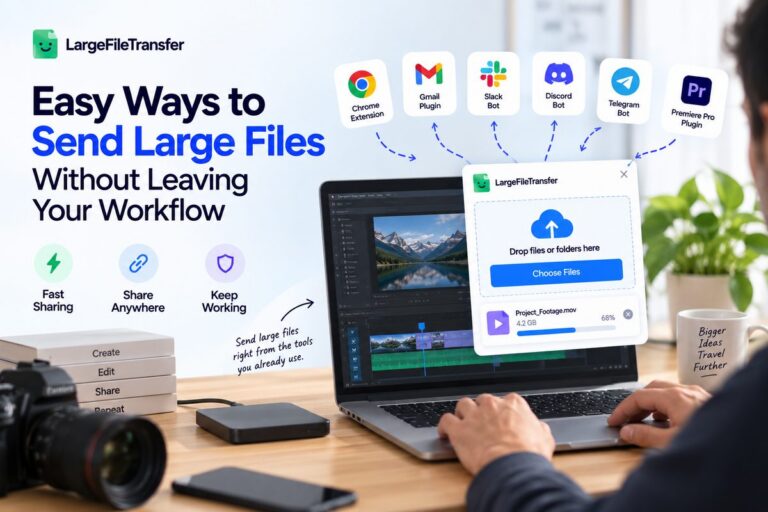
You’ll see when compression makes sense, when cloud links work better, and when server boosts raise the ceiling. For files that exceed Discord’s limits, this guide shows how a bot can turn the transfer into a shareable link.
That means members can keep sharing gameplay recordings, high-resolution edits, guides, and oversized project files without changing where they collaborate.
What Is Discord’s File Size Limit in 2026?
As of 2026, Discord’s official support documentation confirms a 20MB maximum upload size for users without Nitro. This is the current verified limit, although older articles still cite 8MB, 10MB, or 25MB figures from previous limits.
The 20MB cap applies when attaching files in text channels, group messages, and Discord chats, including videos, images, PDFs, and audio files. Any gameplay clip, high-resolution edit, guide, or project asset larger than 20MB needs another sharing method.
So, before you send large files through Discord, check the file size first and choose the right workaround.
Discord Free vs. Nitro Basic vs. Nitro: File Size Compared
Discord’s paid plans increase the maximum file size, but the allowance varies by tier.
| Plan | File Size Limit |
| Discord Free | 20MB |
| Nitro Basic | 50MB |
| Nitro (full) | 500MB |
The practical gap: Even Nitro’s 500MB ceiling can be too small for raw 4K video exports or large game builds.
That is where a Discord large file transfer method outside Discord’s native upload limit becomes useful.
How to Send Large Files on Discord Without Nitro?
There are three ways to stay under Discord’s limit without paying for Nitro.
- Compressing the File First
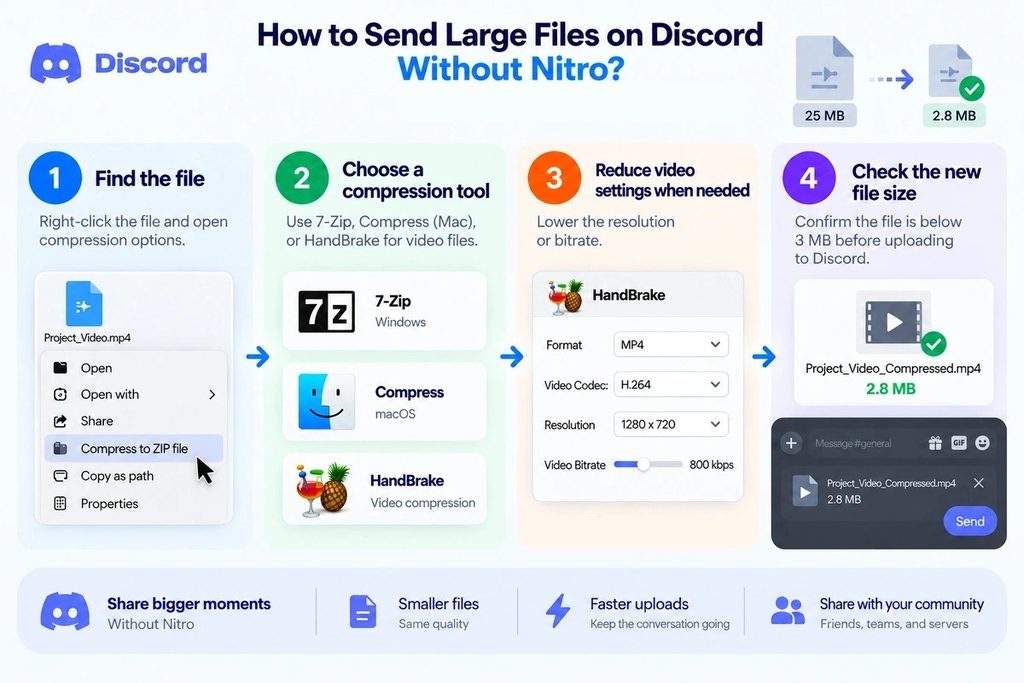
Compression works best when the file only needs a modest size reduction before you drop it into Discord.
- Find the file.
Right-click the file you want to upload and open your available compression options. - Choose a compression tool.
Use 7-Zip on Windows, Compress on Mac, or HandBrake when you need to shrink video footage. - Reduce video settings when needed.
Lower the resolution or bitrate until the resulting video fits comfortably within Discord’s upload limit. - Check the new file size.
Confirm the compressed file is below the limit before opening Discord and attaching it.
Caution: Compression trades quality for smaller files, which matters when the upload needs to stay sharp.
When image quality cannot take a hit, skip compression altogether and send RAW files to clients without losing quality.
- Sharing a Cloud Storage Link
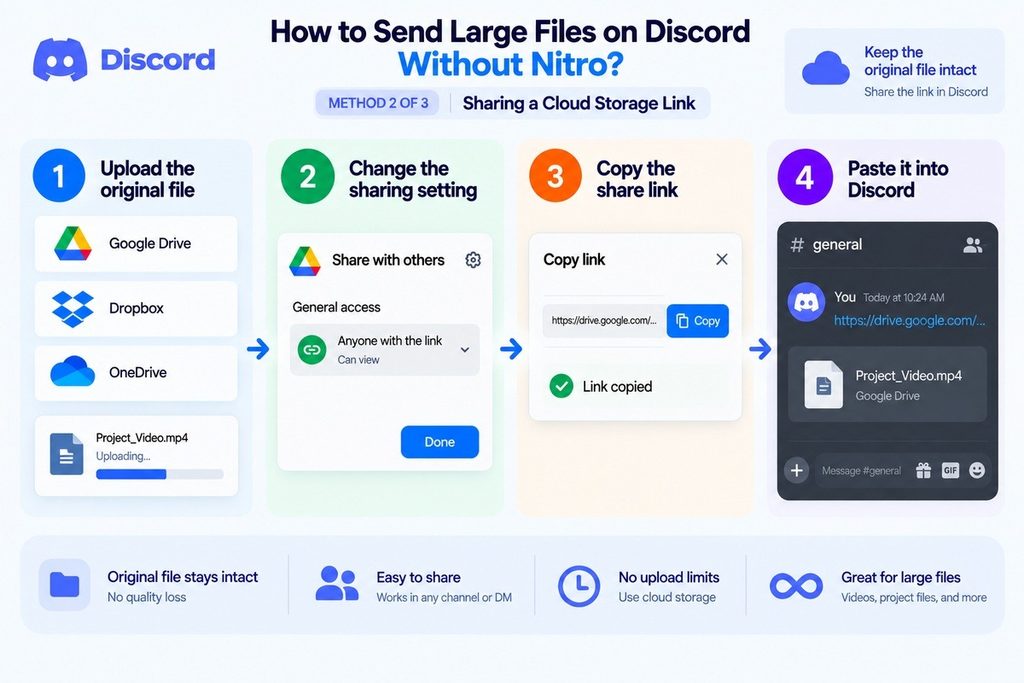
A cloud link lets you keep the original file intact while Discord simply handles the conversation around it.
- Upload the original file.
Send it to Google Drive, Dropbox, or OneDrive from your device. - Change the sharing setting.
Set access to “Anyone with the link” so recipients can open the file without requesting permission. - Copy the share link.
Use the platform’s sharing option to copy the direct access link for your file. - Paste it into Discord.
Drop the link into the relevant channel or DM so members can open the file externally.
Caution: The file still depends on your storage quota and will not preview natively like a Discord attachment.
Once you have a share link, you can also distribute it beyond Discord with a QR code; here’s how to share a large file using a QR code.
- Using a Server Boost to Raise the Limit
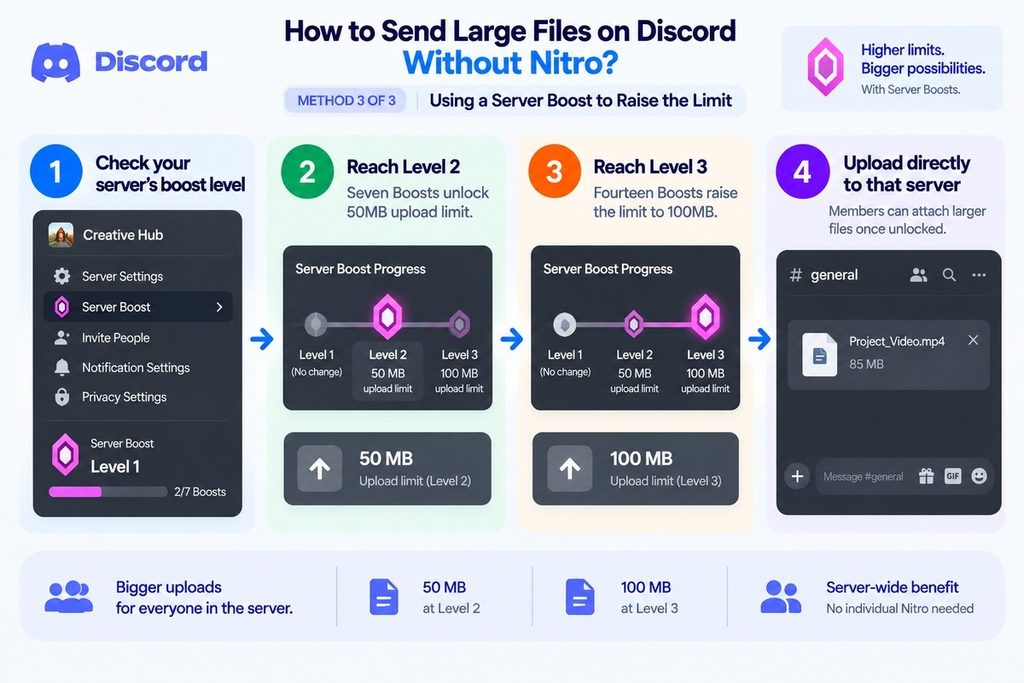
Server Boosts can increase upload limits for everyone, but only inside the boosted server itself.
- Check your server’s boost level.
Open the server and confirm whether it has reached Level 2 or Level 3. - Reach Level 2.
Seven Boosts unlock a 50MB upload limit for all members in that server. - Reach Level 3.
Fourteen Boosts raise the server-wide upload limit to 100MB for members. - Upload directly to that server.
Once unlocked, members can attach larger files without individually upgrading to Nitro.
Caution: Boosting solely for one oversized upload rarely makes financial sense compared with using a free transfer link, especially for occasional transfers.
The Fastest Way: Send Large Files on Discord With a Bot
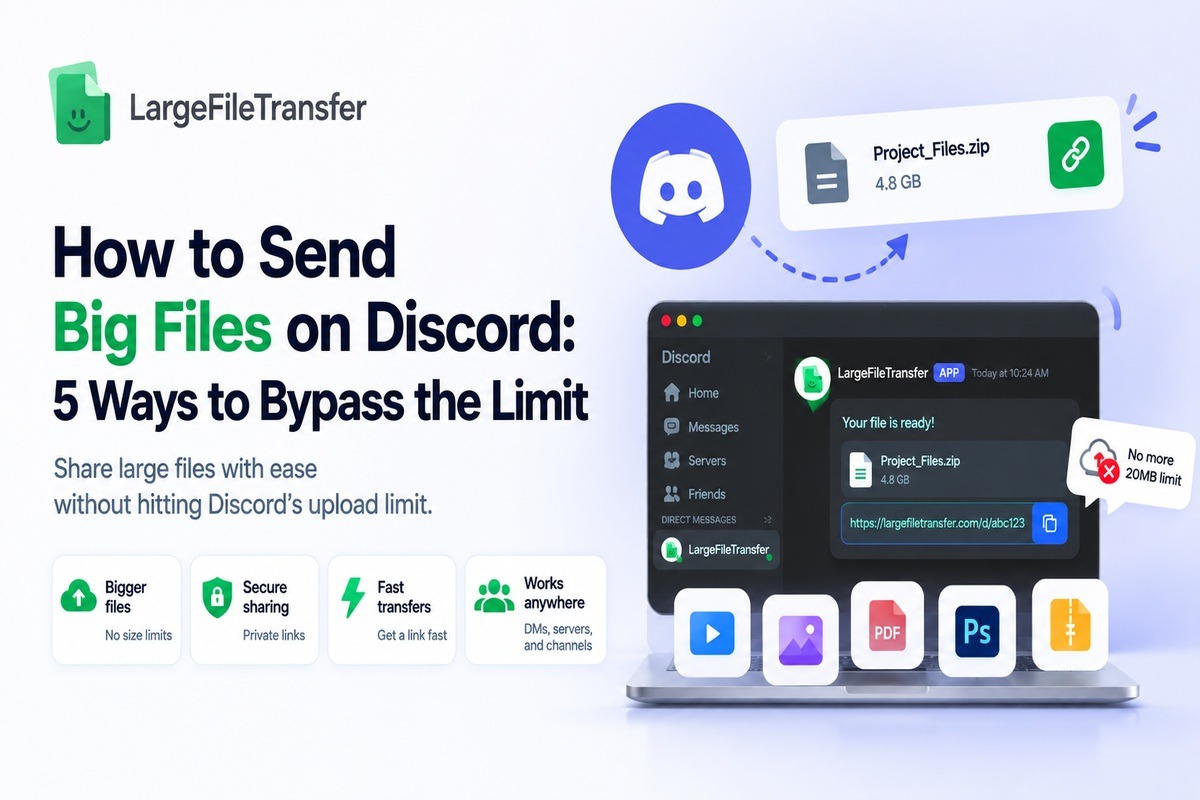
A Discord bot can turn a large upload into a shareable link, avoiding Discord’s native 20MB, 50MB, and 500MB attachment limits.
Send the File
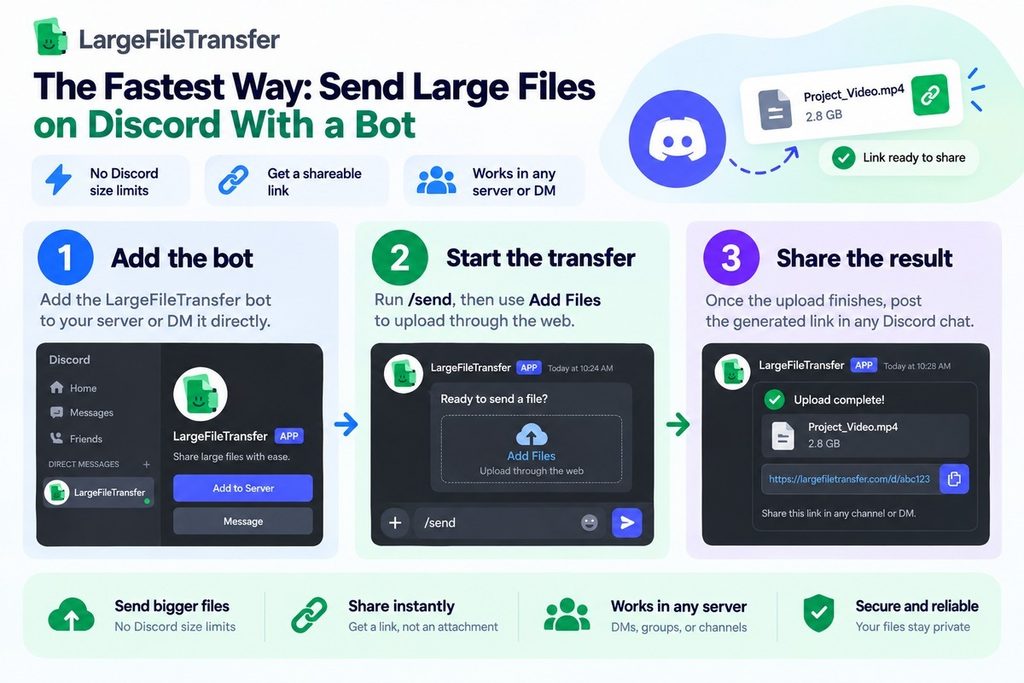
- Add the bot
Add the LargeFileTransfer bot to your server or DM it directly. - Start the transfer
Run /send, then use Add Files to upload through the web. - Share the result
Once the upload finishes, post the generated link in any Discord chat.
Useful Transfer Controls
| Feature | What it does |
| Password protection | Restricts access to the shared link |
| Adjustable expiry | Controls how long the link stays active |
| Automatic resume | Continues interrupted uploads after dropped connections |
- Transfer capacity: 5GB free per file, with unlimited file size on Pro.
- 5GB free is already 256× Discord’s current 20MB free-tier limit.
Use the Discord bot or get 5GB free.
Should You Pay for Discord Nitro Just to Send Bigger Files?
Nitro makes sense when you already want its broader perks, but buying it only for larger uploads offers limited value.
Even Nitro’s 500MB ceiling can still fall short for raw video exports, large game builds, or oversized project files.
Which option makes sense for you?
| Your situation | Practical choice | Why |
| Occasional large files | Free transfer link | No monthly commitment for files that exceed Discord’s limit |
| You already want Nitro features | Nitro | Larger uploads come alongside custom emoji, profile customization, and boosted servers |
| Files regularly exceed 500MB | Transfer service | Nitro’s upload ceiling still leaves larger files outside Discord |
- For occasional transfers, a free link is often simpler than adding another monthly subscription just to send big files Discord cannot accommodate.
- For regular Nitro users, the higher upload limit can be a useful bonus alongside the features they already value.
Next, here are the common file-sharing problems that can stop an otherwise successful Discord upload.
Need to move a file beyond Discord’s 20MB limit? Send a 5 GB file and share it directly in your Discord chat.
Common Discord File-Sharing Problems (and Fixes)
- Why did my upload get rejected instantly?
- Fix: Your file is likely over Discord’s current 20MB free-tier cap, so check the file size before retrying the upload.
- Check next: If it exceeds the limit, compress the file, share a cloud link, or use a transfer link instead.
- Why does my video quality drop after uploading?
- Fix: Discord may recompress larger videos during upload, so use a shareable transfer link when preserving the original video quality matters.
- Check next: Compare the downloaded original with the Discord version before choosing compression or direct attachment for future clips.
- Can server boosts raise DM limits too?
- Fix: No, server boosts only raise upload limits inside that specific boosted server and do not increase attachment limits for direct messages.
- Check next: Send larger files through the boosted server when possible, or use an external transfer link for DMs and private conversations.
- Do shared links expire on Discord?
- Fix: Discord itself does not control third-party file expiry; the service hosting your file determines whether and when the shared link expires.
- Check next: Review the hosting service’s link settings before sharing, especially when members need access to files after several days or weeks.
Final Notes
Discord’s free 20MB limit works for small files, but compression, cloud links, and server boosts each come with trade-offs. A bot-based transfer skips Discord’s attachment ceiling, with up to 5GB per file on the free plan.
For occasional large files, a free transfer link avoids a subscription. Nitro makes more sense when its features already matter, with larger uploads serving as an added benefit.
The next step is: add the LargeFileTransfer Discord bot, connect your account, and send your first file up to 5GB free.
Add the Discord bot to send larger files without forcing them through Discord’s attachment limit.
FAQs
- What types of files can you upload directly to Discord?
Discord supports common attachments including videos, images, PDFs, audio files, and other supported formats, subject to the applicable file-size limit.
- Does Discord apply the same upload limit to DMs and servers?
Yes, Discord applies the applicable upload limit equally to direct messages, group chats, and standard server uploads regardless of file type.
- How large can a Discord Nitro file upload be?
Nitro Basic allows uploads up to 50MB, while full Nitro increases the per-file limit to 500MB.
- Can Discord server boosts increase file upload limits?
Yes, server boosts can raise upload limits within a specific server, reaching 50MB at Level 2 and 100MB at Level 3.
- Why do Discord videos look worse after uploading?
Discord may recompress uploaded videos, so sharing the original through an external transfer link can preserve its quality.
- Can you send files larger than 500MB through Discord for free?
Yes, a free transfer service can let you share files larger than Discord’s 500MB Nitro limit by posting a link in Discord.
- Can a Discord bot send files larger than Discord’s upload limit?
Yes, the LargeFileTransfer bot can handle larger transfers by letting you start the upload through Discord and receive a shareable link.
- Is sharing large files through Discord safe?
Sharing large files can be appropriate through Discord or external links, but sensitive files should use services offering controls such as passwords and expiry settings.