How to Send ProRes Video Files Online: 5 Best Ways
That heart-stopping moment arrives when your ProRes export hits 50GB, then email simply refuses to cooperate. When you need to send ProRes video files online, the wrong tool can compress footage or crash halfway through uploading.
One failed transfer means your client or editor receives a lower-quality file than the footage you actually shot or exported. Worse, restarting a massive upload after hours of waiting can throw your entire editing and delivery workflow completely off schedule.
This guide covers which methods keep ProRes files untouched, the real size limits, and exactly how to send one in under two minutes.
What Makes ProRes Files So Large to Send?
ProRes uses minimal compression to preserve image detail and editing flexibility, making files much larger than delivery codecs like H.264.
Here’s what that looks like in real numbers.
| Footage Length | Approx. File Size |
| 1 minute | ~3 GB |
| 5 minutes | ~15 GB |
| 10 minutes | ~30 GB |
| 30 minutes | ~90 GB |
| 60 minutes | ~180 GB |
| Short project | 100 GB+ |
A 4K, 30fps, 10-bit ProRes clip can reach roughly 3GB per minute under common recording conditions. So, ten minutes approaches 30GB, while multiple takes and camera angles can quickly push projects beyond 100GB.
- ProRes 422: Standard production option with substantial data rates for professional editing.
- ProRes 422 HQ: Higher data rate than ProRes 422, resulting in larger files for equivalent footage.
- ProRes 4444: Higher-data-rate format designed for demanding workflows, including alpha-channel support.
- Transfer impact: A single short clip can exceed typical email limits, while full projects require dedicated transfer methods.
When you transfer ProRes files, the amount of data becomes the main obstacle for everyday sharing tools.
Next, we’ll see exactly why email and standard cloud apps struggle with files this large.
Why Email and Regular Cloud Apps Struggle With ProRes?
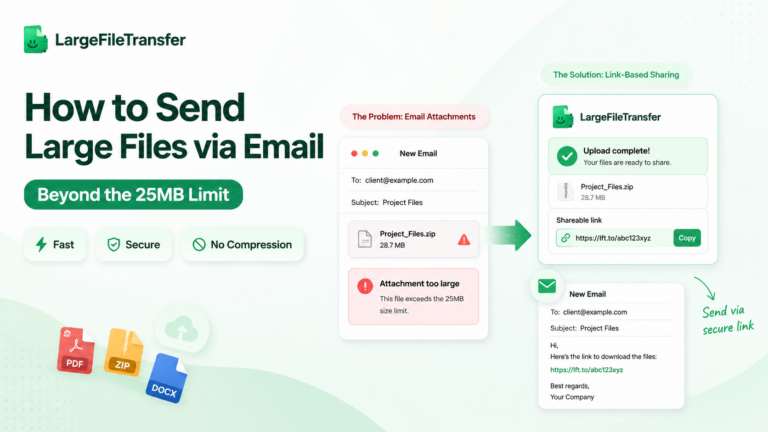
Most email providers cap attachments at 20 to 25MB, far below even a single second of ProRes video footage. Cloud drives are not automatically the fix, since free tiers can limit storage, upload performance, and individual file sizes.
Here’s what those limits look like when you try to share ProRes files online.
| Tool | File Limit or Constraint | Why It Struggles With ProRes |
| Gmail | 25MB attachment cap | Even the smallest ProRes exports exceed the direct attachment limit. |
| Outlook | 20MB attachment cap | ProRes footage cannot normally be attached directly to emails. |
| iCloud Mail | 25MB attachment cap, or 5GB through Mail Drop | Mail Drop handles larger files, but uploads still require transferring the full source. |
| Google Drive | Upload supported, limited by account storage and upload performance | Large ProRes files consume storage quickly and can take longer to upload. |
| Generic free transfer tools | Commonly 2 to 3GB per transfer | Many ProRes exports exceed free transfer allowances before delivery begins. |
That creates predictable problems when editors move large ProRes footage through everyday sending methods and cloud storage services. Uploads can stall, size restrictions can trigger errors, and compression can reduce grading flexibility or dynamic range.
So what actually works depends on file size, transfer reliability, and preserving the original ProRes data throughout delivery.
For ongoing access and collaboration, compare large file transfer vs cloud storage to choose the right option for your ProRes workflow.
5 Ways to Send ProRes Video Files Online
There are five realistic ways to send ProRes footage online, depending on your file size and delivery deadline.
Each method handles large video differently, so your workflow determines which option fits the handoff best.
Here’s how the five methods compare for real-world video delivery.
- Direct Transfer Link
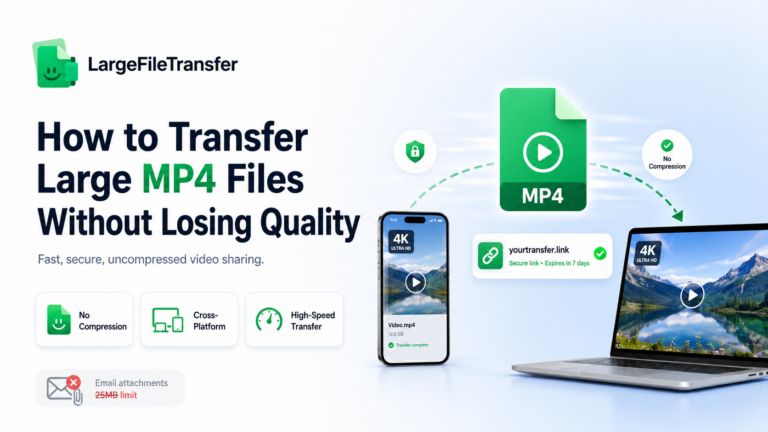
A direct transfer link moves the original ProRes export through a dedicated large-file service without re-encoding.
It works best for send ProRes video files online when delivering one export or several finished clips quickly.
- Best for: LargeFileTransfer supports video files up to 5GB free per file, with resumable uploads and no re-encoding.
- Limit: The current free video-transfer page lists a 5GB per-file limit, while larger files require paid plans.
- Setup time: Upload the ProRes file, generate the transfer link, then send that link directly to your client or editor.
For editors, the large file transfer built for video editors fits this delivery workflow directly.
- Cloud Storage Upload
Cloud storage places ProRes footage inside a reusable workspace where files can remain available beyond one delivery.
It works best for projects needing repeated access, shared folders, collaboration, or version history across multiple contributors.
- Best for: Google Drive, Dropbox, and OneDrive suit teams that repeatedly access the same project assets.
- Limit: Large uploads consume storage and can take substantial time, especially when transferring dozens of gigabytes.
- Setup time: Upload the footage, organize permissions, then share the relevant file or folder with your recipient.
- Cloud-Based Media Streaming Platforms
Cloud-based media platforms stream project data when needed instead of requiring every collaborator to download complete files first.
They work best for ongoing remote editing teams collaborating repeatedly on shared ProRes and other large media assets.
- Best for: LucidLink provides on-demand file streaming, letting editors access large media without downloading entire files first.
- Limit: This approach suits shared production workflows better than delivering one finished ProRes export to someone externally.
- Setup time: Teams create a shared filespace, install the required client, then invite collaborators into the workflow.
- Shipping a Physical Drive
A physical drive puts the complete ProRes project onto removable storage, avoiding dependence on large internet uploads altogether.
It works best for extremely large projects, multiple terabytes of footage, or locations with unreliable internet connections.
- Best for: Full productions containing numerous camera cards, masters, proxies, project files, and several terabytes of media.
- Limit: Delivery depends on packaging, courier networks, tracking, and the recipient having compatible storage hardware.
- Setup time: Copy the footage, verify the drive, package it securely, then allow additional time for physical delivery.
- Enterprise FTP/Aspera Transfer
Enterprise FTP and accelerated transfer systems move huge production datasets through infrastructure designed for professional media organizations.
They work best for broadcasters, production houses, and facilities handling recurring deliveries across geographically distributed teams.
- Best for: Large studios managing repeated high-volume transfers, broadcast packages, archives, and multi-terabyte production workflows.
- Limit: Paid software, technical configuration, network infrastructure, and administrative setup make these systems excessive for most individuals.
- Setup time: IT or operations teams typically configure users, transfer endpoints, permissions, and network requirements before regular deliveries begin.
Ready to Send Your Files?
Transfer large photo and video files without compression, and get your next client delivery moving.
Send Large Photo Files | Send Large Video Files
How to Send a ProRes File Step by Step?
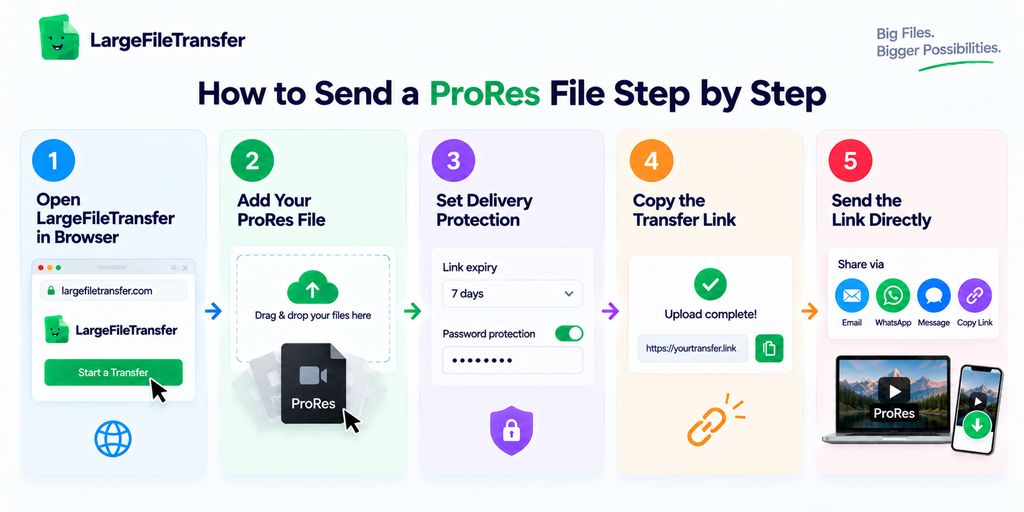
Sending ProRes through a direct transfer link takes minutes, without conversion, while preserving the original video throughout delivery.
LargeFileTransfer supports files up to 5GB per file on its free tier, with account creation required for sending.
- Open LargeFileTransfer in Browser
Open largefiletransfer.com in your browser and start a new transfer from the homepage. - Add Your ProRes File
Drag your ProRes file or folder into the upload area, with no conversion or re-encoding required. - Set Delivery Protection
Choose a link expiry period and add password protection when footage remains unreleased or client-confidential. - Copy the Transfer Link
Wait for the upload to complete, then copy the generated link for sharing with your recipient. - Send the Link Directly
Send the transfer link directly or through email, and recipients can download files without creating an account. - Use Chrome Instead
Use the Chrome extension for sending files when you want to transfer files without leaving your current browser tab.
The same workflow also works for RAW, BRAW, and MXF project files, not just ProRes exports.
Should You Convert ProRes Before Sending It?
It depends on the recipient: editors need ProRes, while clients reviewing cuts can receive H.264 or H.265 copies. Use ProRes for editing workflows, and use smaller delivery codecs when the recipient only needs playback or approval.
Here’s the simplest way to choose.
| Sending To | Use | Why |
| Editor | ProRes | Preserves quality and grading flexibility for continued editing. |
| Client approval | H.264 / H.265 | Smaller files are faster to upload, download, and stream. |
Export a review copy when:
- The client needs quick approval.
- The recipient is using mobile data or slow internet.
- The footage needs sign-off, not re-editing.
When you transfer ProRes files for editing, keep the original rather than converting it unnecessarily. For on-set shooters, this format decision becomes even more useful when sending footage directly from an iPhone or iPad.
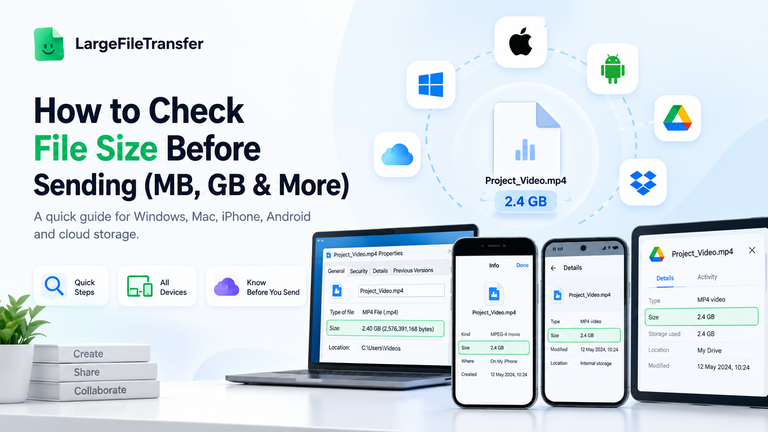
Before choosing a transfer method, check your file size in MB or GB to see which sending option fits your ProRes export.
How to Send ProRes Video From an iPhone or iPad?
Large ProRes transfers can stall through AirDrop or cloud syncing, making browser-based uploads practical for deadline-driven shoots.
Here’s a simple mobile workflow to send ProRes video without waiting for desktop access.
- Locate the ProRes Clip
Open the Files app and locate the ProRes recording you want to send from your iPhone or iPad. - Upload Directly
Open a mobile browser or transfer app, then upload the original clip directly instead of relying solely on AirDrop. - Create a Share Link
Generate a shareable link after uploading, rather than attaching the raw ProRes file directly to an email.
On-set option: LargeFileTransfer also offers a mobile app for sending large files directly from your phone. Apple confirms ProRes files are substantially larger because the format uses less compression, while AirDrop transfers originals between supported Apple devices.
For solo videographers, this matters when the shoot ends before you can reach a desktop workstation to handle delivery.
How to Keep ProRes Transfers Secure for Client Work?
Secure ProRes delivery requires password protection, link expiry, and download confirmation, especially for unreleased client footage.
These controls help verify that intended recipients access the file without leaving sensitive footage unnecessarily exposed.
- Password-protect the link: Add password protection when sending unreleased edits or client masters through a workflow built for video editors.
- Set link expiry: Choose a short expiry period so old footage does not remain accessible indefinitely after delivery.
- Check download activity: Use download tracking to confirm the client or editor actually received and accessed the transferred footage.
- Avoid compressed messaging apps: Consumer messaging platforms may automatically compress or re-encode uploaded video, affecting the delivered footage.
LargeFileTransfer encrypts files during transfer and storage, while preserving uploaded video without compression or re-encoding.
Following these practices reduces avoidable delivery problems, but common transfer mistakes can still derail an otherwise secure workflow.
Common Mistakes When Sending ProRes Files
These five mistakes can turn a simple ProRes send into a support ticket or a damaged client relationship.
- Zipping ProRes Files First: ProRes already uses compression, so zipping usually saves little space while adding another extraction step for recipients.
- Sending Through Messaging Apps: Messaging apps can aggressively re-encode uploaded video, so sharing ProRes files this way can replace masters with lower-quality copies.
- Converting Too Early: Early conversion to H.264 or H.265 can remove source quality needed when recipients later require re-grading or re-editing.
- Ignoring Upload Stability: Large ProRes uploads need resumable transfers, because dropped connections without resume support can force the entire upload to restart.
- Skipping Password Protection: Skipping password protection leaves unreleased client footage accessible through an open link, creating an avoidable exposure risk.
Final Notes
Sending ProRes online does not require compression or a complicated workflow, only the right transfer method for your file size. Choose a reliable transfer option that preserves the original footage while matching how your client or editor needs access.
For editing, keep ProRes intact because editors need its quality and grading flexibility throughout post-production workflows. For client approval, H.264 or H.265 creates smaller review files that are easier to stream and download quickly. That distinction prevents unnecessary conversions and keeps every delivery suited to its purpose.
For ProRes exports, start a free transfer with LargeFileTransfer, the fastest free option covered here.
FAQs
- What is the best way to send ProRes video files online?
A direct transfer link is usually the simplest way to send ProRes video files online without converting or compressing the original footage.
- How big is a ProRes video file?
A one-minute 4K, 30fps, 10-bit ProRes clip can reach approximately 3GB, depending on codec profile and recording settings.
- Can I send ProRes files through Gmail?
Gmail limits direct attachments to 25MB, so larger ProRes files must be uploaded elsewhere and shared through a link.
- Does sending ProRes compress the file?
Sending ProRes does not inherently compress footage, but some platforms can re-encode uploaded video during processing or delivery.
- Is there a free way to send large ProRes files?
LargeFileTransfer currently supports free transfers up to 5GB per file without requiring signup, making smaller ProRes deliveries possible.
- How do I send ProRes video from an iPhone?
Locate the ProRes clip in Files, upload it through a transfer service, then send the generated download link.
- Should I convert ProRes to MP4 before sending it?
Convert ProRes to MP4 only when recipients need a smaller review copy rather than footage intended for editing or grading.
- How long do shared ProRes file links stay active?
LargeFileTransfer free transfer links currently remain active for up to two days, while paid plans offer longer expiry options.