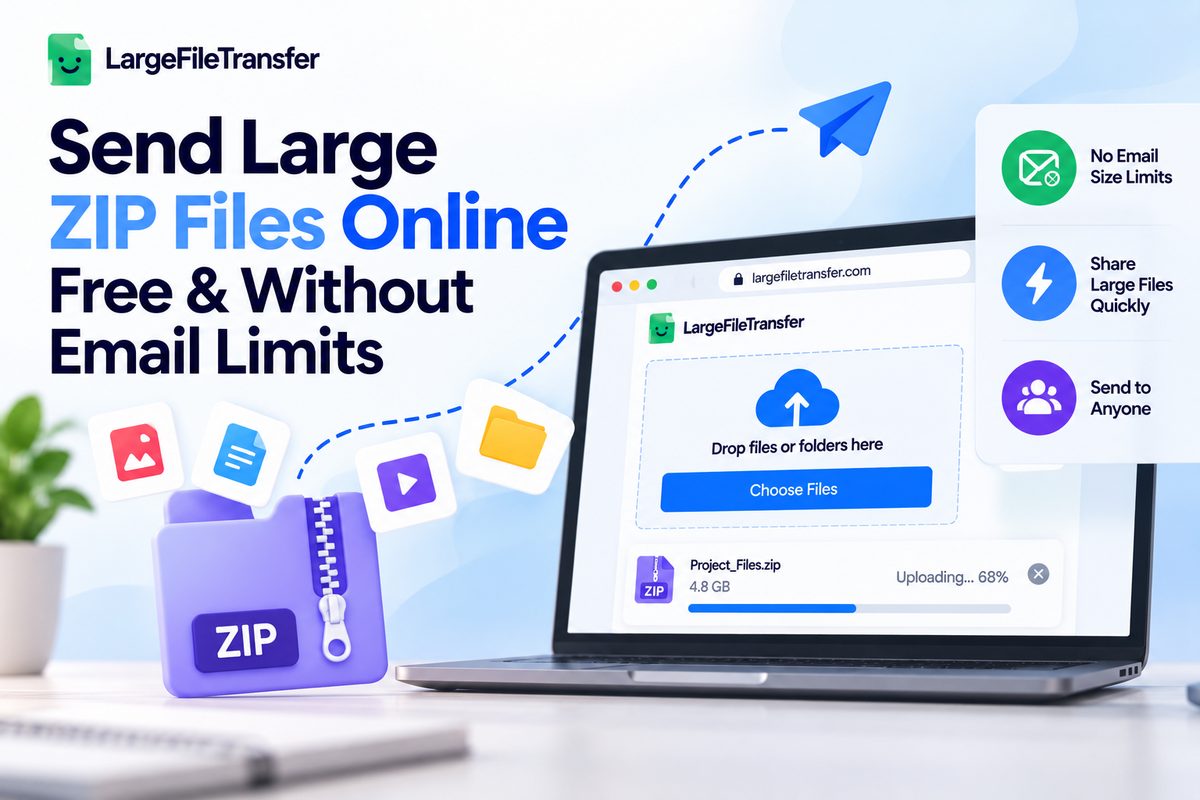
Send Large ZIP Files Online Free & Without Email Limits
When you need to send large ZIP files online, email can quickly become a problem. You’ve zipped the folder, clicked “Attach,” and then discovered that the archive exceeds your provider’s attachment limit.
Maybe it’s a design project, a batch of client documents, a website backup, or a folder full of files your team needs today. Now you’re stuck wondering whether to split the archive, upload it somewhere, compress it again, or ask everyone to use yet another storage service.
The good news is that you have easier options. Learning how to send large ZIP files online can help you move the entire archive through a shareable link instead of wrestling with email attachments.
This guide walks through the most practical ways to send large ZIP files, including dedicated transfer services, cloud storage, and simple ZIP compression tips. You’ll also see what affects upload speed, how password protection works, what happens when a recipient downloads your file, and which method makes the most sense for your situation.
Why Email Can’t Handle Large ZIP Files?
Email works well for documents, images, and other small attachments, but it was never designed to move very large archives. When a ZIP file contains hundreds of photos, design assets, videos, or project files, its size can quickly exceed your provider’s attachment limit.
What happens:
- The attachment is rejected
- The message fails to send
- The upload gets stuck
- The recipient never receives the file
The email attachment limit:
Most popular email services: around 25 MB
| Email service | Attachment limit | Larger files |
| Gmail | 25 MB | Uses Google Drive for larger files |
| Outlook.com | 25 MB | Microsoft recommends OneDrive |
| Yahoo Mail | 25 MB | Larger attachments cannot be sent normally |
| Company email | Varies | Your organization may set a lower limit |
| SMTP servers | Varies | Mail servers can enforce their own size limits |
Gmail documents a 25 MB attachment limit, while Outlook.com and Yahoo Mail also use limits around 25 MB.
Why does email have a size limit?
Email providers limit message sizes because large attachments require more:
- Server storage
- Bandwidth
- Processing capacity
- Message-handling resources
The email system also has to move your message through SMTP servers and mail relays, where additional size restrictions may apply.
What does that mean for large ZIP files?
- 25 MB: Usually manageable through standard email.
- 100 MB: Already beyond the normal attachment limit.
- 500 MB: Better handled through a file-sharing or transfer service.
- 1 GB+: Email is no longer a practical transfer method.
- 10 GB: Use a platform specifically designed for large-file transfers.
Does making a ZIP solve the problem?
Sometimes, but only up to a point.
- ZIP can combine many files into one archive
- ZIP can reduce the size of some file types
- Already-compressed files may shrink very little
- A ZIP can still be far larger than the email attachment limit
What should you do instead?
Once your archive is too large for email, bypass email for the actual file transfer.
Better workflow:
Create ZIP → Upload ZIP → Get download link → Send link by email
This lets email handle the message, while a dedicated transfer service handles the large ZIP file.
Best Methods to Send Large ZIP Files Online
In practice, the best way to send large ZIP files online depends on the archive’s size, delivery speed, storage needs, recipient access, and how often you send files. For a one-time delivery, a dedicated transfer service is usually simpler than cloud storage. By contrast, cloud storage or team messaging may suit ongoing collaboration better.
Specialized File Transfer Services
Best for: Sending large ZIP archives without turning them into permanent cloud-storage files.
How it works:
Upload ZIP → Create link → Send link → Recipient downloads
Why it stands out:
- Built specifically for large file delivery
- Keeps the original ZIP intact
- Better suited to one-off client or team deliveries
- Recipients can download from a shared link
LFT benchmark: LargeFileTransfer allows up to 10 GB per file on its free plan, making it a practical choice for a free ZIP transfer.
Choose this when: Your main goal is simply to get a large archive from your computer to someone else.
Cloud Storage
Best for: Sending ZIP files while keeping them available for future access.
Popular options: Google Drive, Dropbox, and OneDrive.
Why use it:
- Store the ZIP alongside other project files
- Share the same archive with multiple people
- Reuse the link later
- Better fit for ongoing collaboration
Google Drive supports files up to 5 TB, while Dropbox supports uploads up to 350 GB through its website and 2 TB through its desktop app. OneDrive supports files up to 250 GB.
Choose this when: The ZIP needs to remain part of an ongoing project or file library.
Email + Link Hybrid
Best for: People who already work through email.
To send large ZIP files online without hitting an email attachment limit, upload the archive first and then include its download link in your email. That way, the message stays lightweight while the transfer service handles the file itself.
Simple workflow:
Upload ZIP → Copy link → Add link to email → Send
Advantages:
- Avoids the email attachment limit
- Keeps the communication in one familiar place
- Works with clients, coworkers, and external recipients
- No need to upload the same archive repeatedly for each email
Choose this when: Email is your communication channel, but the archive itself is too large to attach.
You can also explore Easy Ways to Send Large Files Without Leaving Your Workflow for ways to transfer files directly through the tools you already use.
Messaging Apps
Best for: Smaller ZIP files and quick team handoffs.
Slack allows files up to 1 GB, making it useful for moderate-sized project archives shared directly inside a conversation. Discord’s current free upload limit is 20 MB, while Nitro plans allow larger uploads.
Good fit: Internal teams, quick reviews, and files that do not justify a separate transfer workflow.
Avoid it when: Your ZIP is several gigabytes or the recipient is outside your regular workspace.
Open-Source Transfer Tools
Best for: Technical users who want direct, open-source transfer workflows.
Transfer.zip: Offers quick transfers with no stated file-size limit, although transfers depend on the browser session remaining open.
Magic Wormhole: Uses a short code to connect two computers and supports arbitrary-sized files and directories.
Choose this when: You value technical control and are comfortable with a less familiar setup.
Which Method Should You Choose?
- Need to send one large ZIP? → Use a specialized transfer service.
- Need to store and share it repeatedly? → Use cloud storage.
- Already communicating by email? → Send a download link.
- Sharing a smaller archive with coworkers? → Use Slack or another messaging platform.
- Want an open-source workflow? → Consider Transfer.zip or Magic Wormhole.
For most large archives, prioritize file-size capacity, reliable transfers, easy recipient downloads, and the amount of setup involved. The simplest tool is usually the one that gets the ZIP delivered without making the sender or recipient manage extra steps.
For a deeper look at the best ways to send large files for free, see our guide: how to send large files free, with methods ranked by file size.
Using Specialized File Transfer Services
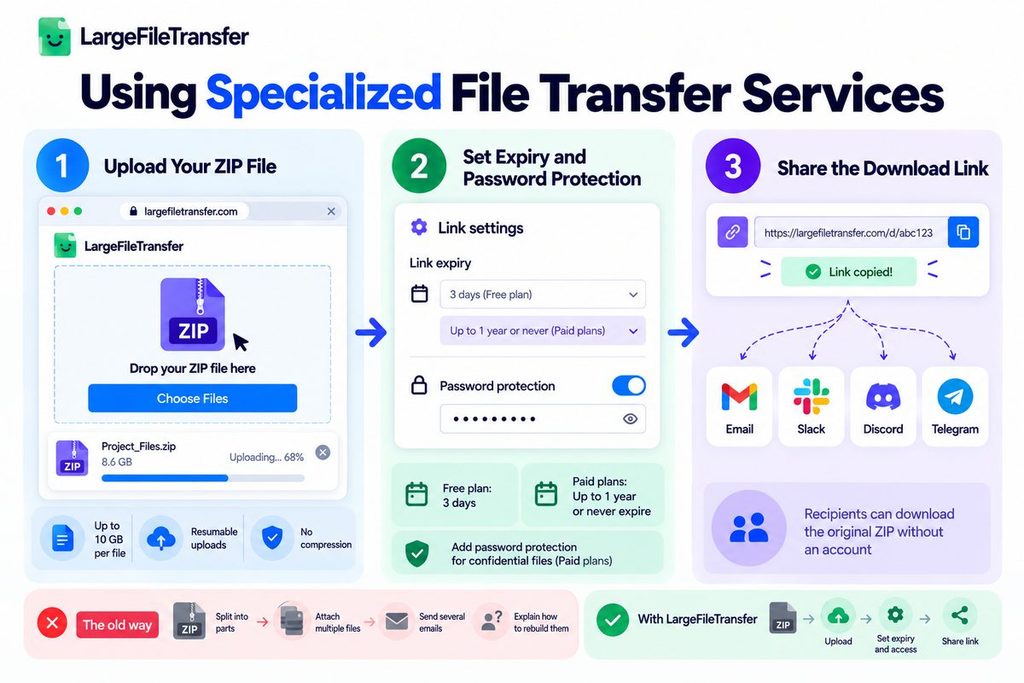
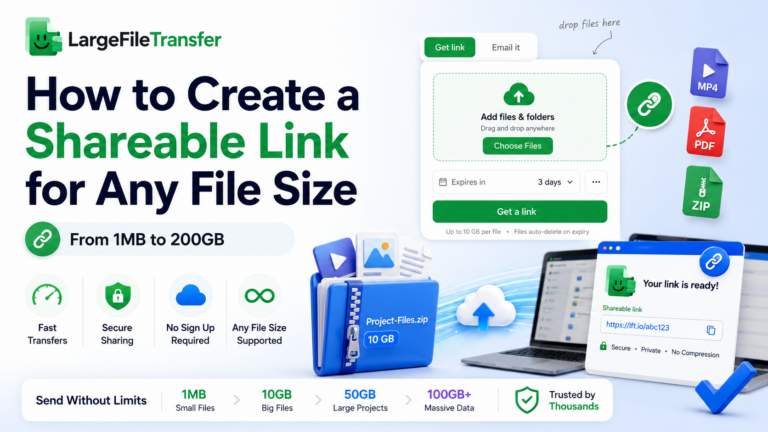
When a ZIP archive is too large for email, LargeFileTransfer offers a direct way to send large ZIP files online through a single download link. Instead of splitting the archive or turning it into multiple attachments, you can upload the complete file and share the link. The process is straightforward: upload the ZIP, review the access settings, and share.
Step 1: Upload Your ZIP File
Start with the complete archive.
Open LargeFileTransfer and upload your ZIP file directly from your computer.
What you get:
- Up to 10 GB per file: Send a ZIP archive up to 10 GB on the free plan.
- Resumable uploads: LargeFileTransfer uploads files in chunks and can resume after an interrupted connection instead of restarting from zero.
- No compression: Your ZIP is transferred without additional compression or re-encoding, so the archive arrives as the same file you uploaded.
For a large archive: Keep the original ZIP intact. LargeFileTransfer handles the transfer itself, so you do not need to create smaller ZIP parts just to get around an email attachment limit.
For ZIP files close to the 10GB limit, you can send a 10GB file in one transfer instead of splitting the archive.
Step 2: Set Expiry and Password Protection
Decide how long the ZIP should remain accessible.
Before sharing the transfer, review its access settings.
- Free plan: Links remain active for 3 days.
- Paid plans: You can extend the link’s lifetime to up to one year or never expire, and add password protection when the archive contains confidential material.
- A useful rule: Set the expiry around the recipient’s expected download window. For a client handoff, a longer-lived link can reduce follow-up requests when the recipient cannot download immediately.
Step 3: Share the Download Link
The ZIP stays with LargeFileTransfer. Your email or message only carries the link.
Once the upload finishes, copy the generated share link and send it wherever you normally communicate.
Use it in:
- Email: Replace a huge attachment with a lightweight download link.
- Slack: Share the transfer directly with a teammate or channel.
- Discord or Telegram: Send the same link through your existing conversations.
- Client messages: Give the recipient one place to access the complete archive.
The recipient downloads the original ZIP from the link rather than receiving a modified or compressed version. LargeFileTransfer is designed so recipients can download shared files without creating an account.
For a deeper comparison of how services handle multiple large files at once, read our guide on how to send large files free: methods ranked by file size.
Why Does LargeFileTransfer Works Well for Large ZIP Files?
The main advantage is that the ZIP remains a ZIP.
You create the archive once, upload it once, and share one link instead of:
ZIP → Split into parts → Attach multiple files → Send several emails → Explain how to rebuild them
With LargeFileTransfer, the workflow becomes:
ZIP → Upload → Set expiry/access → Share link
That makes it particularly useful for client project folders, design packages, document archives, backups, and other large collections of files.
You also avoid one of the biggest frustrations with large uploads: starting over after a temporary connection failure. Resumable uploads pick up where the transfer stopped, while no additional compression means the recipient gets the archive you actually uploaded.
For current file-size limits, transfer allowances, and plan features, see LargeFileTransfer pricing.
Use Cloud Storage to Share ZIP Files
Cloud storage is another way to send large ZIP files online when you need to keep the archive accessible for future use. For example, you can share the same file with several people and reuse the link later. However, check the provider’s file-size limits and access settings before uploading.
- Google Drive
Works well for everyday ZIP file sharing.
- Upload the ZIP to Drive.
- Create a shareable link.
- Set who can access it.
- Send the link by email or chat.
- Supports individual files up to 5 TB.
- Dropbox
Best for client and team file sharing.
- Upload the ZIP to Dropbox.
- Create a shared link.
- Send the link to your recipient.
- Supports files up to 350 GB through the website and 2 TB through the desktop app.
- OneDrive
Suitable for Microsoft 365 users.
- Upload the ZIP.
- Select Share.
- Set access permissions.
- Copy and send the link.
- Supports individual files up to 250 GB.
When Should You Use Cloud Storage?
Choose cloud storage when you need to:
- Keep the ZIP available for later
- Share it with multiple people
- Reuse the same file
- Manage the archive alongside other project files
For a one-time large ZIP transfer, a dedicated file-transfer service can be simpler because it focuses on delivering the file rather than storing it long term.
How to Create ZIP Files for Easier Sharing?
Creating a ZIP file is one of the easiest ways to turn a folder full of files into one shareable archive. Compression reduces the amount of data stored by encoding information more efficiently, while the ZIP format keeps multiple files together. That makes uploading, downloading, and organizing a large collection much easier.
1. Create a ZIP File on Windows
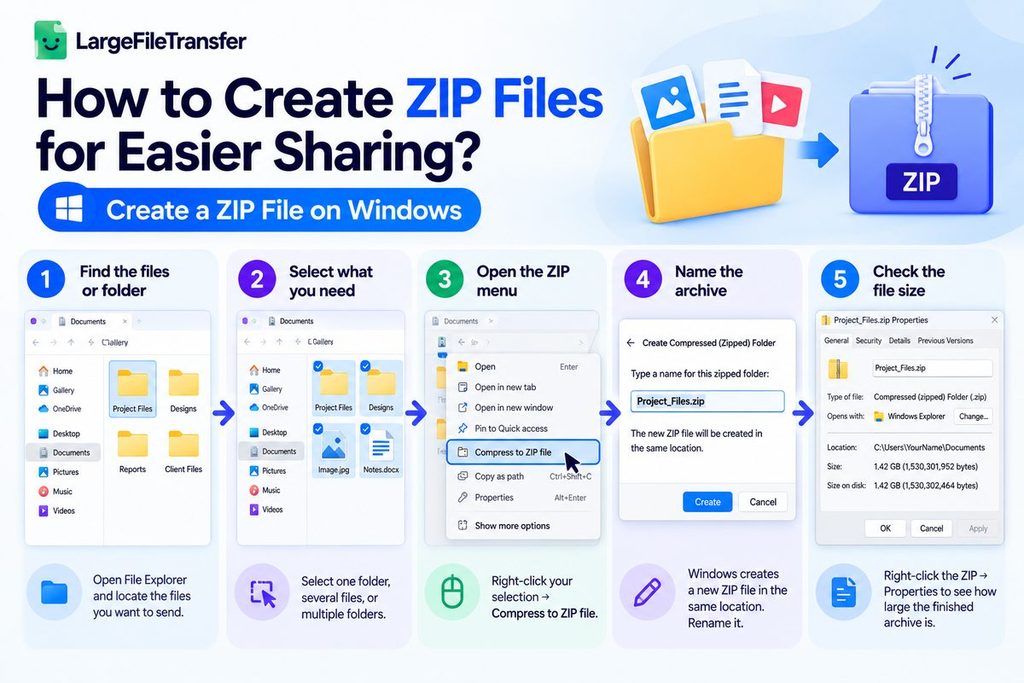
Windows includes a built-in ZIP tool, so you do not need to install anything.
- Find the files or folder: Open File Explorer and locate the files you want to send.
- Select what you need: You can select one folder, several files, or multiple folders.
- Open the ZIP menu: Right-click your selection → Compress to ZIP file.
- Name the archive: Windows creates a new ZIP file in the same location. Rename it so the recipient can immediately identify the contents.
- Check the file size: Right-click the ZIP → Properties to see how large the finished archive is before uploading it.
2. Create a ZIP File on Mac
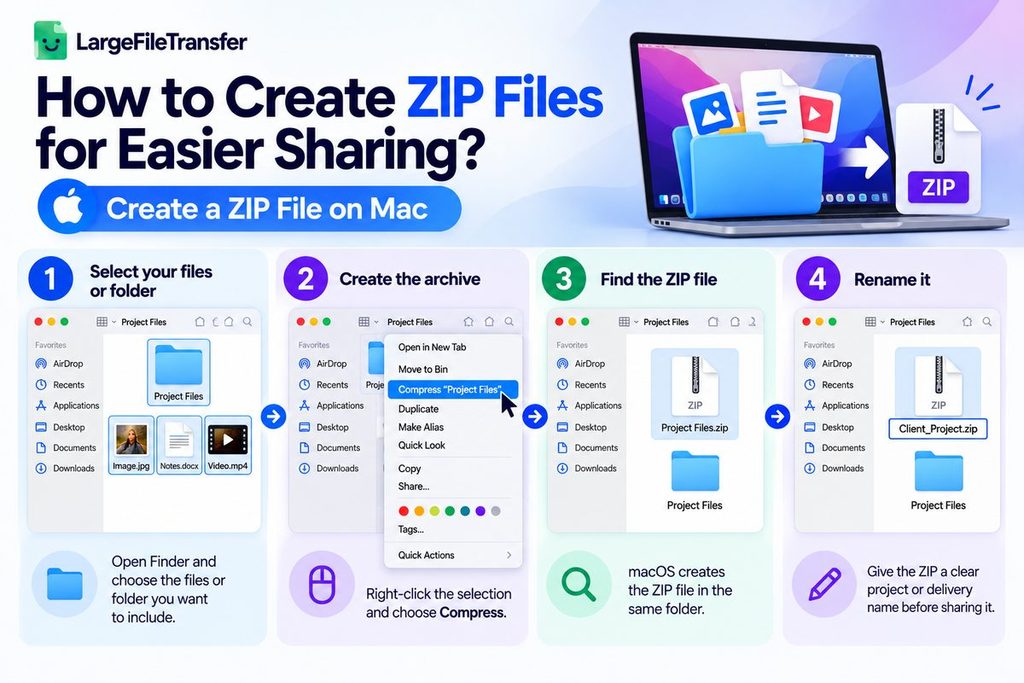
macOS also has a built-in way to create ZIP files.
- Select your files or folder: Open Finder and choose everything you want to include.
- Create the archive: Right-click the selection and choose Compress.
- Find the ZIP file: macOS creates the archive in the same folder.
- Rename it: Give the ZIP a clear project or delivery name before sharing it.
3. Create a ZIP File on Mobile
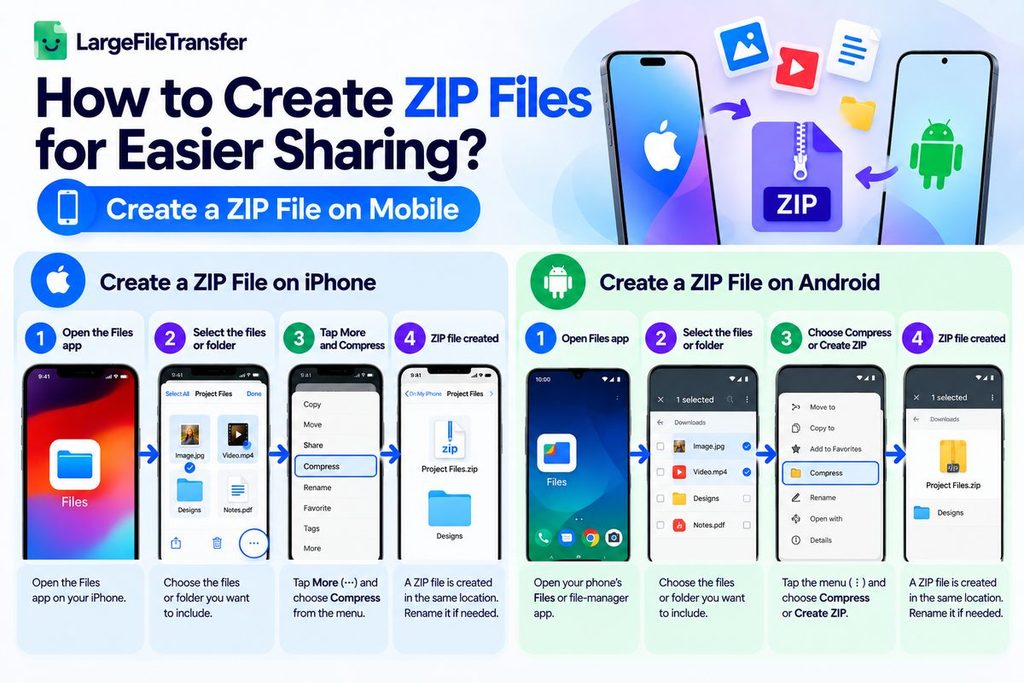
The steps depend on your phone, but modern iPhone and Android devices can create ZIP archives through their built-in file managers.
- iPhone: Open the Files app → select the files or folder → tap More → Compress.
- Android: Open your phone’s Files or file-manager app → select the files → choose Compress or Create ZIP.
Save the archive somewhere easy to find before uploading it to your chosen transfer service.
Before You Send the ZIP
A few quick checks can prevent problems later:
- Open the ZIP: Make sure all intended files are inside.
- Check the size: Large archives may still exceed email attachment limits.
- Use a clear name: Include the project, client, or delivery date when useful.
- Keep the original folder: Do not delete your source files until the transfer is complete.
- Upload the ZIP directly: There is usually no need to compress the ZIP again.
Before you send large ZIP files online, confirm that the archive opens correctly and that its size fits your chosen service. Then upload it and share one download link instead of attaching every file separately.
Does ZIP Compression Reduce File Size?
ZIP compression can reduce file size, but the amount depends on the files inside the archive. It works best with uncompressed or repetitive data and has little effect on files that are already compressed.
Which Files Compress Best?
- Design and source files: can often shrink by around 20–40%
- Text files: usually compress well
- Spreadsheets: repetitive data can reduce substantially
Which Files Barely Shrink?
- JPEG and PNG images
- MP4 and MOV videos
- MP3 audio
- Many PDF files
These may shrink by less than 5% because they are already compressed.
Does ZIP Make Large Files Easier to Send?
Sometimes; compressing a folder can reduce the upload size, but it will not remove a transfer service’s file-size limit.
Best practice: Create the ZIP, check its final size, then choose a transfer method that supports the resulting large ZIP file. For files that barely compress, focus on the transfer limit and upload speed rather than trying to compress them repeatedly.
Security and Password Protection for ZIP Files
Large ZIP files can contain confidential client work, private documents, or internal project files. For sensitive transfers, basic access controls can help prevent unintended access without making the sharing process complicated.
When Should You Password Protect ZIP Files?
Use password protection when your ZIP contains:
- Client or confidential files
- Financial or personal information
- Internal company documents
- Unreleased project assets
For routine, non-sensitive files, a standard download link may be sufficient.
Link Protection vs. ZIP Protection
- Service-level protection: A password controls access to the download link. LargeFileTransfer provides password protection on paid plans.
- ZIP-level protection: A password is required to open the downloaded archive itself.
The difference is simple: link protection controls access to the transfer, while ZIP protection controls access to the archive.
Best Practice For sensitive ZIP files:
- Set an expiry date.
- Passwords protect the transfer when available.
- Send the password separately.
- Share the download link privately.
You do not need complicated security measures for every file. Match the protection level to the sensitivity of what you are sending.
Why Resumable Uploads Matter for Large ZIP Files?
When you send large ZIP files online, uploading a 5 GB or 10 GB archive can take a while. If your connection drops near the end, however, restarting the entire transfer can waste time, bandwidth, and patience.
- One Drop Can Ruin a Long Upload
- 99% complete: connection fails → upload may need to restart
- Wi-Fi changes: transfer interrupts → progress can be lost
- Large archive: more upload time → more opportunity for interruption
- Resumable Uploads Change the Experience
With resumable uploads, the transfer can continue from where it stopped instead of starting again.
- Connection returns → continue uploading
- Browser reconnects → keep previous progress
- Temporary interruption → less wasted bandwidth
- A 7 GB Client ZIP
You upload a 7 GB project archive and lose your connection after most of it has been uploaded. With a resumable system such as LargeFileTransfer, you can continue the transfer rather than begin from zero.
Bottom line: For large ZIP files, resumable uploads make long transfers more forgiving and predictable.
Final Notes
The simplest way to send large ZIP files online is to choose a transfer method based on the archive’s size and how the recipient will access it. A small file may still work through email; however, larger archives are better suited to a dedicated file-transfer service. Meanwhile, cloud storage makes more sense when you need files to remain available for ongoing access.
For larger projects or frequent transfers, LargeFileTransfer gives you more room to work. The Free plan supports files up to 10GB, while Pro supports files up to 250GB per file, 5TB of storage, unlimited transfers, password protection, and links that can remain active for up to one year or never expire.
Upload your large ZIP file and share it with a download link through LargeFileTransfer.
FAQs
1. Can I Send a ZIP File Larger Than 10 GB?
Yes, but you need a plan or service that supports files above 10GB. LargeFileTransfer supports up to 10GB per file on Free and up to 250GB per file on Pro.
2. Will my ZIP file lose quality?
No, a ZIP transfer does not reduce the quality of the files inside it. LargeFileTransfer transfers the ZIP without additional compression or re-encoding, so the archive arrives unchanged.
3. Can I Send Large ZIP Files Online in One Transfer?
Yes, many file-transfer services allow multiple files to be included in one transfer. Check the service’s file-count and transfer limits when sending several ZIP archives together.
4. How long do ZIP downloads stay available?
LargeFileTransfer free transfer links remain available for 3 days. Plus and Pro plans can keep links active for up to one year or never expire, depending on your settings.
5. What if the download link expires?
An expired link can no longer be used to download the ZIP. You will need to create a new transfer and send the recipient a fresh link.
6. Is password protection the same as encryption?
No, they protect your files in different ways. Password protection controls who can access the transfer, while encryption protects the data by making it unreadable without the required cryptographic key.
7. Can I track downloads?
Some file-transfer services provide download tracking, while others do not or restrict it to certain plans. Check the provider’s current features if confirming delivery is important to your workflow.
8. What’s the fastest way to send a 10GB ZIP?
A dedicated file-transfer service is usually the most practical way to send large ZIP files online when you need to transfer a 10 GB archive. However, the fastest option still depends on your internet connection and upload speed. Resumable uploads can also help prevent a temporary connection failure from forcing the transfer to restart.