Send Large Audio Files Without Losing Quality: 5 Best Ways
Sending finished audio to a client should be straightforward. However, email limits, messaging-app compression, and rushed exports can put delivery at risk. If you need to send large audio files without losing quality, choose a transfer method that preserves your original WAV or FLAC files.
You’ll learn how to send large audio files without losing quality and preserve audio quality from masters to stems. We’ll compare transfer services and cloud storage, then cover compression, WAV and FLAC, bit depth, sample rate, stems, and client reviews.
Backed by a decade in audio production, we’ll start with the sharing tools most likely to cause trouble.
Why Email and Messaging Apps Fail for Audio
If you need to send large audio files without losing quality, choose a method that lets recipients download the original file instead of relying on compressed media previews.
Email and messaging apps are convenient for sharing audio, but they aren’t always suited to professional delivery. Large WAV masters and multitrack stems can exceed upload limits, while some sharing methods compress audio.
Email Attachment Limits
Email seems like the simplest option, but a 25 MB email attachment limit can block many professional audio files. Encoding can also increase attachment size, making large WAV files difficult to send reliably.
Messaging Apps and Audio Compression
| Platform | Limitation | What to do |
| Shared media may be compressed. | Send masters as documents and verify the download. | |
| Slack | Uploads support large files, but previews may not represent the original file. | Download the file before production use. |
| Discord | Free uploads are limited to 20 MB. | Use a suitable transfer method for larger files. |
How Re-Encoding Can Reduce Audio Quality
Converting a WAV master to MP3 already removes some audio information. Re-encoding that MP3 through another lossy process can introduce further changes, potentially affecting high-frequency detail, transients, and ambience.
These changes are different from reducing bit depth, which affects digital audio’s amplitude resolution.
A Better Way to Deliver Audio
Use compressed copies for quick listening and feedback, but deliver the agreed WAV or FLAC master as an original downloadable file. Check the downloaded version before sending it to a client.
This is why professionals use dedicated file transfer services. When email limits get in the way, LargeFileTransfer offers a straightforward way to send large audio files to clients.
Understanding Audio Quality: WAV vs. MP3 vs. FLAC
Choosing between WAV, MP3, and FLAC affects file size, audio quality, and how clients work with your files. The key is understanding whether a format preserves the original audio data or permanently removes some of it.
1. WAV: Uncompressed Audio for Production
WAV preserves the exported PCM audio data without compression when saved as uncompressed PCM. It’s a standard choice for mixing, mastering, and delivering production-ready audio.
- Quality: Retains the exported bit depth and sample rate.
- Typical specs: 24-bit/48 kHz stereo.
- File size: Approximately 17.3 MB per minute, or 1.04 GB per hour.
2. MP3: Smaller Files Through Lossy Compression
MP3 permanently removes some audio information to reduce file size. Converting an MP3 back to WAV does not restore the discarded data, and repeated lossy encoding can introduce further degradation.
- Typical bitrates: 128 to 320 kbps.
- File size: Approximately 58 to 144 MB per hour.
- Best use: Listening copies, previews, and situations where a client specifically requests MP3.
3. FLAC: Lossless Compression
FLAC reduces file size without discarding the encoded audio samples. Like a ZIP archive, it allows the original audio data to be recovered exactly when decompressed.
- Quality: Preserves the original audio samples through lossless encoding.
- File size: Smaller than an equivalent uncompressed WAV in many cases, though the reduction varies with the recording.
- Best use: High-quality delivery when you want to reduce storage or transfer requirements. Check that the recipient’s software supports FLAC.
Which Format Should You Send?
To send large audio files without losing quality, use WAV for production handoffs or FLAC when you need lossless audio in a smaller file.
Choose the format that matches the recipient’s workflow:
- WAV: Best for production handoffs, mixing, mastering, and workflows that specify PCM audio.
- FLAC: Best when you need lossless audio with a smaller file size and the recipient supports it.
- MP3: Best for convenient listening and previews, not as a replacement for the original production master.
For sending to clients, WAV or FLAC is the professional standard.
5 Best Methods to Send Large Audio Files
Specialized services preserve audio integrity by letting you transfer large audio files without relying on email attachments or compressed messaging previews. The best method depends on file size, folder structure, client access, and whether you need straightforward delivery or ongoing collaboration.
1. Use a Specialized Audio File Transfer Service
A dedicated transfer service helps you send large audio files without losing quality by letting clients download the uploaded files without transcoding.
Best for: Sending WAV masters, FLAC files, mixes, and stems to clients.
LargeFileTransfer supports files up to 10 GB per file on its Free plan and transfers files without transcoding. The Free plan includes 5 GB of account storage, three transfers per month, and three-day link expiry.
How it works
- Open LargeFileTransfer’s audio file transfer page.
- Upload your original WAV, FLAC, or other delivery file.
- Generate a transfer link and check its expiry.
- Send the link to your client so they can download the file.
2. Share Audio Through Cloud Storage
Best for: Projects with multiple mixes, revisions, and organized stem folders.
Google Drive, Dropbox, and OneDrive let you share files through downloadable links. Keeping stems and alternate mixes in named folders helps clients find the correct files without searching through separate transfers.
How it works
- Create a folder for the project, with subfolders for final mixes, vocals, instrument stems, and references.
- Upload the files while preserving their original filenames.
- Set the recipient’s access permissions.
- Share the folder link and verify that the client can download the required files.
3. Use Professional Audio Collaboration Platforms
Best for: Studios, production teams, and projects requiring repeated collaboration.
Dropbox for Teams supports team file management, Splice serves music-production workflows, and WeTransfer offers straightforward link-based delivery. Choose according to whether you need shared project access, production assets, or simple delivery.
How it works
- Select the platform that fits your team’s workflow.
- Upload the relevant mixes, stems, and reference files.
- Invite collaborators or create a shareable link.
- Label the approved version clearly and confirm that the original file is downloadable.
- Offer HTTPS Direct Downloads
Best for: Studios delivering files through their own websites or client portals.
HTTPS download links let clients retrieve hosted audio through a browser. You can manage links using a WordPress download plugin or host files on your own server, provided you have sufficient storage and bandwidth.
How it works
- Upload the files to your website or hosting server.
- Generate an HTTPS download link and configure access permissions.
- Test the link in a separate browser session.
- Download a test copy and compare it with the original before sharing.
Which Method Fits Your Workflow?
A dedicated transfer service suits occasional client deliveries, while cloud storage helps organize larger projects with repeated revisions. Collaboration platforms support ongoing teamwork, and direct downloads offer more control when you manage your own hosting.
The choice depends on whether you’re sending to one client or collaborating in real-time.
Comparing the Best Ways to Send Large Audio Files
| Method | Best for | Key benefit | Main limitation |
| LargeFileTransfer | Masters, WAV, FLAC, stems | Up to 10 GB per file on Free | 3 transfers/month |
| Cloud storage | Folders and revisions | Organized file sharing | Storage limits |
| Collaboration platforms | Music teams and studios | Shared project workflows | Platform-dependent features |
| HTTPS downloads | Studio client portals | Control over delivery | Hosting and bandwidth costs |
How to Send Large Audio Files Without Compression?
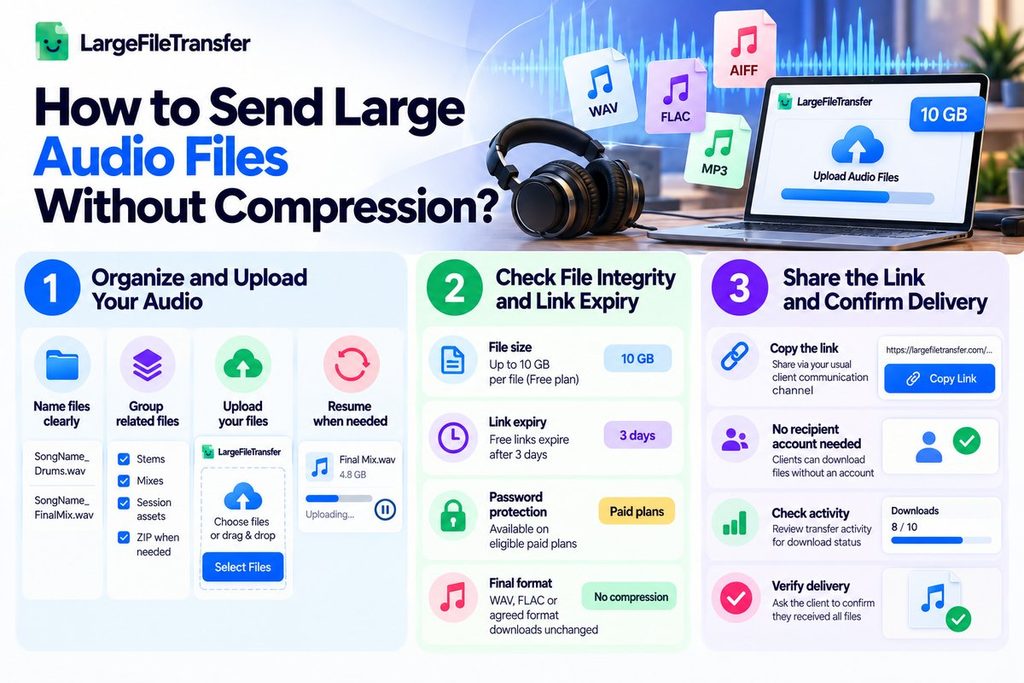
The key to sending large audio files without losing quality is to preserve the original WAV or FLAC file throughout upload and delivery.
Large audio files need a delivery method that preserves the original file. LargeFileTransfer supports files up to 10 GB per file on its Free plan, making it suitable for many client deliveries.
Step 1: Organize and Upload Your Audio
Prepare your files before uploading to keep delivery organized and reduce confusion.
- Name files clearly: Use names such as SongName_Drums.wav or SongName_FinalMix.wav.
- Group related files: Keep stems, alternate mixes, and session assets together. ZIP related files when convenient.
- Upload your files: Visit LargeFileTransfer’s audio transfer page and select your files.
- Resume when needed: Resumable uploads help continue interrupted transfers without restarting from the beginning.
Step 2: Check File Integrity and Link Expiry
There is no compression setting to enable. LargeFileTransfer transfers audio without transcoding or re-encoding, so the uploaded file remains unchanged.
Before sharing, check your transfer settings:
- File size: Free plan supports up to 10 GB per file.
- Link expiry: Free transfer links expire after three days.
- Password protection: Available on eligible paid plans, not the Free plan.
- Final format: WAV, FLAC, or another agreed delivery format can be downloaded as uploaded.
Step 3: Share the Link and Confirm Delivery
Once the upload finishes, send the download link to your client.
- Copy the link: Share it through your usual client communication channel.
- No recipient account needed: Clients can download files without creating a LargeFileTransfer account.
- Check activity: Review available transfer activity for download status.
- Verify delivery: Ask the client to confirm they received all required files and versions.
For unreleased masters or stems, share links only with the intended recipients and use password protection when your plan supports it.
Keep Audio Delivery Simple and Professional
A reliable audio file transfer workflow should protect the original export without making delivery complicated. Organize your files, upload them, check the expiry, and share the download link. Clear filenames help clients identify the correct versions, while download checks help catch incomplete handoffs. Resumable uploads can also save time when a connection drops. The goal is studio-grade simplicity: deliver the right files, in the right format, with minimal friction.
For a full breakdown of how services compare on speed and reliability for large audio bundles, see our guide on transfer methods ranked by file size.
Cloud Storage for Lossless Audio Delivery
Cloud storage works well for ongoing projects, shared stem libraries, and revised mixes. It keeps files organized in folders and makes sharing easier, but free storage may not cover large sessions.
- Google Drive
Offers 15 GB free storage and shareable folder links. Organize stems and mixes into named folders, and ask clients to download files rather than rely on previews.
- Dropbox
Provides folder syncing and team collaboration features. The free tier includes 2 GB, which may be insufficient for large audio projects.
- OneDrive
Includes 5 GB free storage and integrates with Windows and Microsoft Office. It’s useful for studios already working within Microsoft’s tools.
When Should You Use Cloud Storage?
Cloud storage suits ongoing collaboration and regularly updated project folders. For sending a single large master, a dedicated transfer service is often simpler.
Cloud storage is best when you’re updating files over time, not one-time delivery.
If you’re deciding between a one-time audio delivery and ongoing file access, see our guide to large file transfer vs. cloud storage.
How Audio Compression Damages Quality?
When sending audio to clients, file size matters, but preserving the original recording matters more. Understanding the difference between lossy and lossless compression helps you choose the right format for masters, stems, and final deliverables.
- Lossy Compression: When Audio Data Is Removed
MP3, AAC, and Opus use lossy compression to reduce file size by permanently removing some audio information. Depending on the encoding settings, this can affect high-frequency detail, subtle reverberation, and other elements of a recording.
Lossy compression throws away data permanently. Lossless compression throws away nothing.
Converting an MP3 to WAV doesn’t restore the audio information already removed. Re-encoding the file can introduce further quality loss.
- Lossless Compression: Smaller Files, Original Audio Preserved
FLAC reduces file size without discarding the original audio samples. Think of it like a ZIP archive: the file takes up less space, but decompressing it restores the original data.
You can also place an uncompressed WAV file inside a ZIP archive. Extracting it restores the original file, although the size reduction may be limited.
What Does Compression Mean for Your Audio Files?
For one minute of stereo audio, approximate file sizes are:
| Format | Approximate size per minute | Original audio data preserved? |
| WAV, 24-bit/48 kHz | 17.3 MB | Yes |
| FLAC | Varies by recording | Yes |
| MP3, 128 kbps | 0.96 MB | No |
The smaller MP3 file isn’t equivalent to the original master. Converting it to WAV changes the container or format, not the audio information that was lost.
Why File Delivery Matters
Streaming platforms use lossy formats because smaller files are faster to transmit and play. Professional delivery has a different goal: giving the recipient the original audio file for mixing, mastering, archiving, or further production.
Keep your original WAV or FLAC master for delivery, and verify that the recipient downloads the correct file.
For sending to clients, FLAC or WAV ensures no quality loss.
Sending Multitrack Stems and Session Files
Stems are individual audio tracks; a session file is the complete DAW project. Stems preserve remix flexibility and make collaboration easier across studios.
- Name and Organize Your Files
Use clear, numbered filenames instead of confusing versions like drums FINAL 2.
ProjectName/
├── Stems/
│ ├── 01_Vocals.wav
│ ├── 02_Bass.wav
│ └── 03_Drums.wav
├── References/
│ └── Reference_Master.wav
└── Session/
└── Project_File
Export stems as WAV, preferably 24-bit at 44.1 or 48 kHz, and include a notes file with version details.
- Check Session Compatibility
Logic Pro, Pro Tools, and FL Studio use different project formats and may rely on specific plugins. Session files are optional and best shared when collaborators use compatible software.
- Follow the Professional Standard
A mixing engineer sends 12 stems and a reference master; the mastering engineer imports the stems.
Professional standard = stems in organized folders, always WAV or FLAC.
Bit Depth and Sample Rate: What Matters for Delivery
Bit depth matters more than sample rate for many production handoffs, but both should match your project’s requirements.
What You Need to Know
- Bit depth: 16-bit provides 65,536 values per sample and about 96 dB of theoretical dynamic range. 24-bit provides over 16.7 million values and about 144 dB, giving more flexibility during recording and mixing.
- Sample rate: 44.1 kHz is standard for CD audio; 48 kHz is common for video and production. 96 kHz is rarely necessary for routine delivery.
- Recommended specs: Send 24-bit/48 kHz WAV for production handoffs when appropriate. Use 16-bit/44.1 kHz for CD-ready delivery.
- File size: One minute of stereo 24-bit/48 kHz WAV is about 17.3 MB. FLAC can reduce size without losing audio data.
Services like LargeFileTransfer preserve these specs without transcoding, so send what your DAW produces.
How to Share Audio With Clients Without Losing Quality?
Feedback cycles demand speed and quality. Use lightweight references for quick reactions, then share original files for critical approval.
- Early: Check the Direction
Share an MP3 or streaming reference to ask, “Does this direction work?” Keep the original WAV untouched for later review.
- Pre-release: Review Audio Quality
Share a downloadable WAV or FLAC for detailed mixing feedback. Organize versions in clearly named folders and collect comments through email or your preferred team chat.
- Final: Approve the Deliverables
Send the approved master, required stems, and reference mix together. Use clear names such as Mix_V1.wav and Mix_V2.wav. LargeFileTransfer supports files up to 10 GB each on its Free plan, with 5 GB account storage.
Example: Day 1, direction feedback. Day 5, WAV review. Day 10, final approval.
End Notes
Sending large audio files is not just about finding upload space. It means getting the right version to your client without changing what you exported. For masters and stems, keep WAV or FLAC originals, organize files, and use a transfer method that preserves the uploaded data. MP3s work for quick feedback, not production deliverables. Before sharing, check file names, folder structure, link expiry, and whether the recipient can download everything.
When your project is ready to leave the studio, use LargeFileTransfer to send the original files directly to your client with a single transfer link.
Frequently Asked Questions
1. Can I send WAV files if my internet is slow?
Yes, but large WAV files take longer to upload on slower connections. Use resumable uploads when available, and avoid restarting an upload unless necessary.
2. Will FLAC sound different from WAV when decompressed?
No, lossless FLAC reproduces the original audio samples exactly when decoded. This assumes the FLAC was created from that WAV without altering its audio data.
3. Can I send stems and the master in one folder?
Yes, package your stems, final master, and reference mix together in a clearly named project folder. If needed, compress the folder into a ZIP archive to keep everything organized.
4. What if my client doesn’t have a DAW to open my session file?
A session file usually requires compatible digital audio workstation (DAW) software. Send WAV or FLAC stems alongside the master so your client can access the audio without opening your project.
5. Does bit depth matter if I’m sending MP3?
MP3 uses lossy compression, so the final file does not preserve the original PCM bit depth in the same way as WAV. Keep a 24-bit WAV master for production and create an MP3 only when a compressed listening copy is needed.
6. How do I preserve metadata with audio files?
Include important timestamps, version details, sample rate, and delivery notes in a separate TXT or CSV file. File metadata can vary across formats and applications, so verify any essential information after transfer.
7. Can I send multitrack stems via email?
You can, but multiple stems can quickly exceed email attachment limits. A file transfer link is usually more practical for delivering complete sessions.
8. Is there a maximum file size for audio delivery?
Yes, the limit depends on the transfer service and plan you use. LargeFileTransfer’s Free plan supports files up to 10 GB each, with 5 GB of account storage.