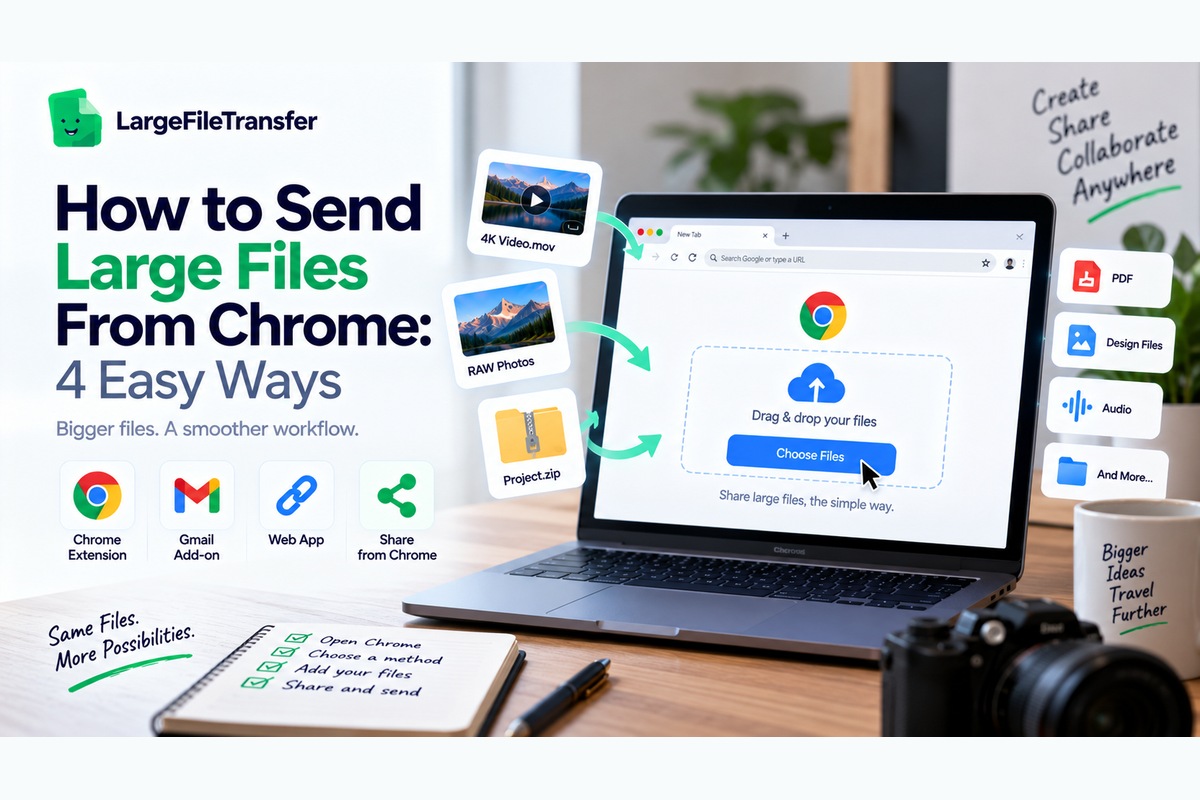
How to Send Large Files From Chrome: 4 Easy Ways
Gmail rejects the attachment, and now you are stuck googling how to send large files from Chrome mid-task. You expected to send the file, not stop working and troubleshoot another sharing method today.
Without the right method, this quickly means compressing the file, losing quality, or switching apps entirely. The fastest fix depends on where your file lives, how large it is, and how much setup you tolerate.
Some options work directly in Chrome, while others move the transfer through storage before delivery. You can also avoid unnecessary downloads, app switching, and workflows that slow down urgent file delivery right now.
This guide compares the fastest ways to send large files directly from Chrome, including the option needing zero setup.
Why Chrome Can’t Send Large Files on Its Own?
Chrome is a browser, not a file transfer service, so size limits come from websites or email providers, not Chrome.
That distinction makes it easier to choose the right Chrome file sharing method for your workflow.
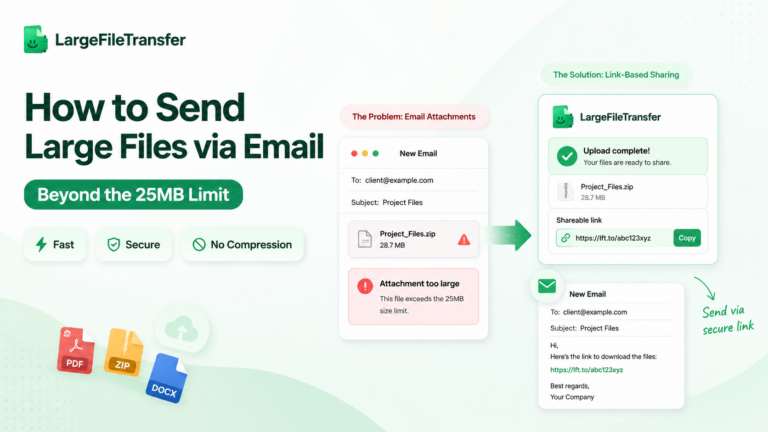
- Gmail attachments: Gmail generally caps individual attachments at around 25MB, regardless of which browser you use.
- Google Drive: Upload performance depends mainly on your internet connection and available account storage, rather than Chrome itself.
- File-sharing services: Most platforms define their own free-tier limits, commonly ranging from 2GB to 5GB per transfer.
- Chrome extensions: Extensions can add a persistent toolbar shortcut, letting you send files without opening another tab or leaving your workflow.
The browser provides the interface, while the service or extension handles the actual transfer process.
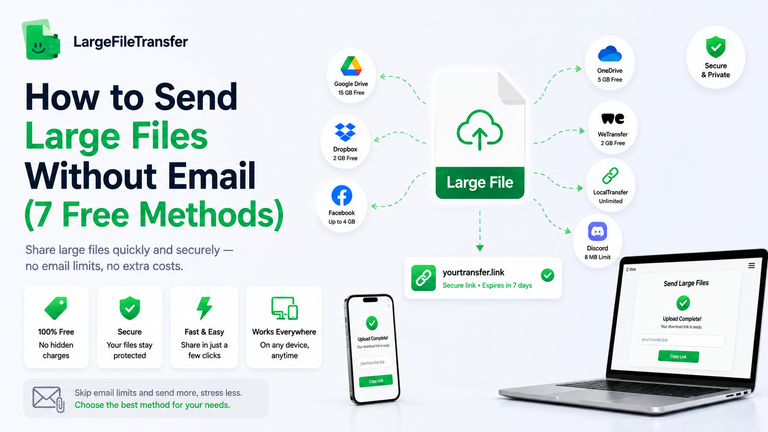
For more options, see our guide to How to Send Large Files Without Email (7 Free Methods), covering practical alternatives when email attachment limits get in the way.
Next, here are four practical ways to send large files from Chrome, depending on your file size and workflow.
4 Ways to Send Large Files From Chrome
There are four realistic ways to send large files directly from Chrome, and each fits a different situation. Your best option depends on whether you need repeat access, zero installation, collaboration, or nearby device sharing.
Here’s what each method offers, including its setup requirements and practical tradeoffs.
1. Browser Extension
A Chrome extension adds file transfer controls to the browser, letting you upload without opening another tab.
It works best for repeat transfers when avoiding context switching matters throughout your regular workflow.
- Setup: Install the extension once, then use its toolbar shortcut whenever you need to transfer another file.
- LargeFileTransfer: Its Chrome extension provides browser-based file sending and supports transfers up to 5GB per file free.
- Best fit: Choose this approach when you regularly need to send large files from Chrome without interrupting your workflow.
See LargeFileTransfer’s Chrome extension for the browser-based workflow and installation details.
2. Direct Web Upload, No Extension
A direct web upload means opening a file-transfer service in Chrome and uploading your file from that page.
It works best for one-time transfers, especially when installing extensions on a shared or unfamiliar computer is impractical.
- Setup: Open the transfer service, select your file, upload it, then copy the generated sharing link.
- Advantage: Nothing needs installing, making this approach convenient when you only need the service occasionally.
- Tradeoff: You must open the service separately each time, adding one extra context switch to your workflow.
This method remains useful when browser cleanliness matters more than having a persistent transfer shortcut.
3. Google Drive Link in Gmail
Google Drive lets Gmail users send larger files by replacing oversized attachments with Drive-based sharing links.
It works best when recipients already use Google Workspace and need familiar Google collaboration and access controls.
- How it works: Personal Gmail accounts have a 25MB attachment limit, with larger files handled through Google Drive links.
- Advantage: The file stays connected to your Gmail workflow, without requiring another file-sharing service.
- Tradeoff: Uploading still depends on available Drive storage, account permissions, and your internet connection during transfer.
This option suits document-heavy collaboration, but dedicated transfer services can feel simpler for large media.
4. Nearby Share / Quick Share
Quick Share sends files between nearby compatible devices instead of creating an internet-based sharing link.
It works best when both devices are physically close and you need direct device-to-device transfer.
- Availability: Quick Share supports Android devices and Chromebooks, with nearby sharing designed for close-range transfers.
- Advantage: You can transfer files directly between compatible nearby devices without uploading them to a remote service.
- Limitation: It is unsuitable when the recipient is working remotely or needs a shareable link instead.
For remote delivery, browser-based transfer methods provide a more practical path from Chrome to another person.
Sending media files from Chrome? Choose the right workflow for your file type: send large video files, send large photos, or send audio files.
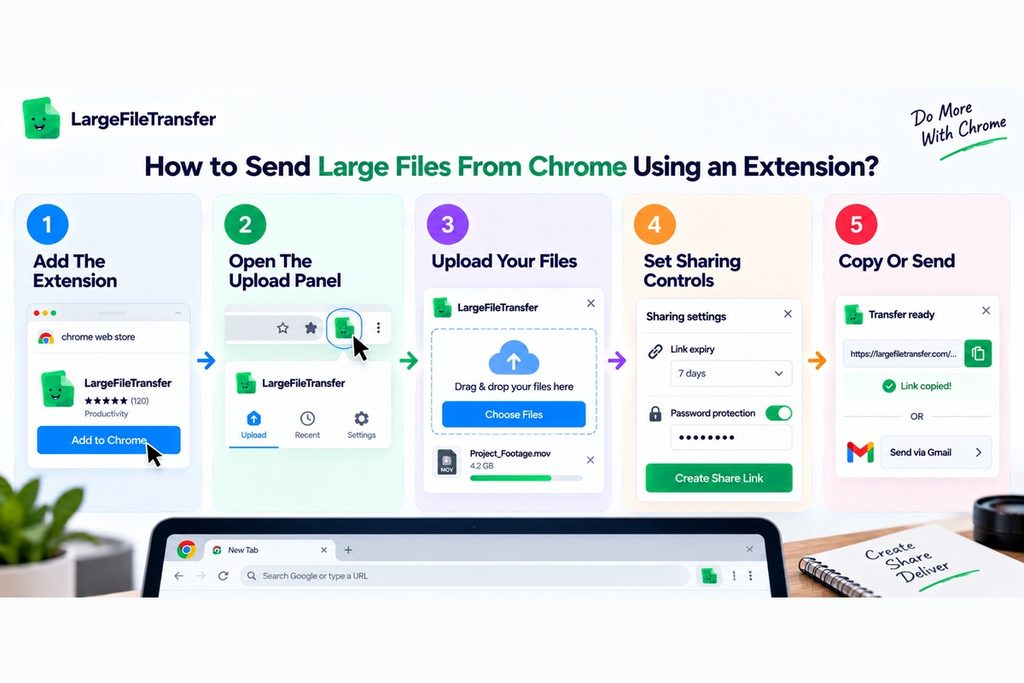
Sending a large file from Chrome with an extension takes under a minute once installed, with account setup required before sending.
How to Send Large Files From Chrome Using an Extension?
The workflow keeps uploading and sharing inside Chrome, so you avoid switching between separate browser tabs during delivery.
- Add The Extension
Open the Chrome Web Store and add the free Chrome extension to your browser for quick access. - Open The Upload Panel
Click the LargeFileTransfer toolbar icon from any open tab to launch the upload panel directly inside Chrome. - Upload Your Files
Drag in your file or folder, with free transfers supporting files up to 5GB each without compression. - Set Sharing Controls
Choose a link expiry period, and add password protection when available on your plan for private client-facing files. - Copy Or Send
Copy the generated share link, or send it directly from the Gmail compose window when writing your email.
The same extension also works with Chromium browsers including Edge, Brave, and Arc, not only Chrome itself.
How to Attach Large Files Inside Gmail From Chrome?
Gmail automatically offers a Google Drive link for attachments over 25MB, but the file must already be in Drive or upload first.
That works for occasional attachments, but frequent large transfers need a faster way to send files from browser workflows.
- Let Gmail create the Drive link: Attach the oversized file normally, then let Gmail replace it with a Google Drive link automatically.
- Use a transfer extension: A Chrome extension for Gmail can detect oversized attachments and replace them with a direct download link instead.
- Compare the workflow: Drive can add an upload step first, while a transfer link avoids routing the file through Google Drive.
- Check recipient access: Drive sharing permissions can require Google account access in some situations, while direct transfer links generally do not.
When a video is too large to email, learn Video Too Large to Email? Here’s What to Do for practical ways to share oversized videos without losing quality.
The next section explains the Chrome and Gmail file-size limits that determine when these alternatives become necessary.
Chrome File Size Limits You Should Know
The size limit you encounter when sending files from Chrome comes from the specific email provider or website, not Chrome itself.
Here’s how the limits compare across common services, which clarifies your Chrome large file transfer options.
| Service | Free Limit |
| Gmail | 25MB attachment limit, with larger attachments automatically converted into Google Drive links. |
| Outlook.com | 20MB email size limit for internet accounts, including the attachment and message content. |
| iCloud Mail | 25MB standard attachment limit, with Mail Drop supporting attachments up to 5GB. |
| Google Drive | Up to 5TB per file for most file types, subject to available account storage and upload restrictions. |
| Typical free file-transfer tool | Commonly 2GB to 3GB on free tiers, depending on the provider and plan. |
| LargeFileTransfer Free | 5GB per file, with no signup required according to the product information provided for this guide. |
Paid transfer plans: Many file-transfer services offer substantially higher limits or remove file-size restrictions, depending on their specific subscription terms.
Need higher transfer limits? See LargeFileTransfer’s pricing to compare available plans and file-size allowances.
Is It Safe to Send Large Files From a Chrome Extension?
Yes, a legitimate file-transfer extension should only need access necessary for its upload interface, not your browsing history.
Before using any extension to send large files from Chrome, check these four trust signals carefully.
- Verify the publisher: Check the Chrome Web Store publisher, install count, reviews, and update history before granting permissions.
- Check encryption practices: Look for a clear policy describing encryption for files both during transfer and while stored.
- Confirm file handling: Verify whether uploads remain unchanged, rather than being compressed or re-encoded without your knowledge.
- Look for password protection: A password option provides another access control layer for private or client-facing file transfers.
LargeFileTransfer encrypts files in transit and at rest, while uploaded files remain uncompressed and un-re-encoded.
Once the extension passes these checks, avoid the common transfer mistakes that can still cause delays or exposure.
Chrome Large File Transfer Mistakes to Avoid
These four mistakes are common reasons large file transfers from Chrome fail, stall, or get shared less securely.
- Attaching Instead Of Linking: Forcing a huge file through Gmail’s attachment workflow wastes time and frequently fails before delivery.
- Granting Excessive Extension Permissions: An extension requesting full browsing history for simple Chrome file sharing should immediately raise a permission concern.
- Skipping The Expiry Setting: Leaving a share link active indefinitely keeps the file accessible long after the recipient needs it.
- Closing The Tab Mid-Upload: Some browser uploads without resumable support restart from zero when the upload tab closes unexpectedly.
Final Notes
Sending large files from Chrome does not require fighting Gmail’s limits, but choosing the right browser-based workflow. For regular transfers, the right shortcut can keep file sharing inside Chrome instead of adding unnecessary steps. An extension removes the tab-switching step entirely, making repeated transfers quicker and easier during active workflows.
Ready to skip email limits? Add the free extension to Chrome and send large files without leaving your browser.
Frequently Asked Questions
1. How do I send large files from Chrome for free?
You can send large files from Chrome for free using LargeFileTransfer’s extension, supporting files up to 5GB per file. Install the extension, select your file, then generate a share link for the recipient.
2. What is the file size limit in Gmail through Chrome?
Gmail limits standard attachments to 25MB, regardless of whether you access Gmail through Chrome or another browser. Files exceeding that limit are handled through Google Drive instead of remaining standard email attachments.
3. Can I send large files from Chrome without an extension?
Yes, you can upload files directly through a file-transfer website using any Chrome browser tab without installing extensions. This approach works particularly well for occasional transfers from shared or unfamiliar computers.
4. Is a Chrome extension for file transfer safe to use?
A reputable file-transfer extension can be safe when its permissions, security practices, and publisher information are clearly documented. Check requested permissions, publisher details, encryption practices, and file-handling policies before installing any browser extension.
5. Does Chrome have a built-in way to send large files?
No, Chrome does not provide a native service specifically designed for sending large files to remote recipients. Chrome provides browser access, while email services, storage platforms, or transfer tools handle the actual file delivery.
6. How do I attach a file over 25MB in Gmail?
Gmail automatically converts attachments exceeding 25MB into Google Drive links during the email composition process. You may need to upload the file to Drive first, depending on your current workflow and storage availability.
7. Do Chrome extensions for file transfer work in Edge or Brave?
Many Chrome extensions also work in Chromium-based browsers such as Edge and Brave with compatible extension support. LargeFileTransfer’s extension works across Chromium browsers, including Chrome, Edge, Brave, and Arc.
8. What’s the fastest way to send a large file from Chrome?
For repeat transfers, LargeFileTransfer’s Chrome extension provides a fast workflow and supports files up to 5GB free per file. The extension keeps file selection and